Veränderungen des Inhalts
Klicken Sie für eine detaillierte Beschreibung auf die geänderten Stellen:
Benutzen sie die linke oder die rechte Maustaste, um zur jeweils vorherigen bzw. nachfolgenden Änderung zu gelangen.
Contents
General
The dashboard is your personal control panel for your information and to-dos in Personalwolke.
It provides a visualization of the most important data from the Master data / accounts function, from your workflow, and about your attendance and absences in the current and the following month.
Access to the dashboard
Every user in Personalwolke has access to the dashboard going forward.
By default, you will find the dashboard in the menu bar directly under "Home". Simply click it to open it. It can also be displayed automatically after login.
Which areas or topics the dashboard displays depends on the user's roles, and therefore on their permissions and the Personalwolke modules used by your organization.
View of the dashboard
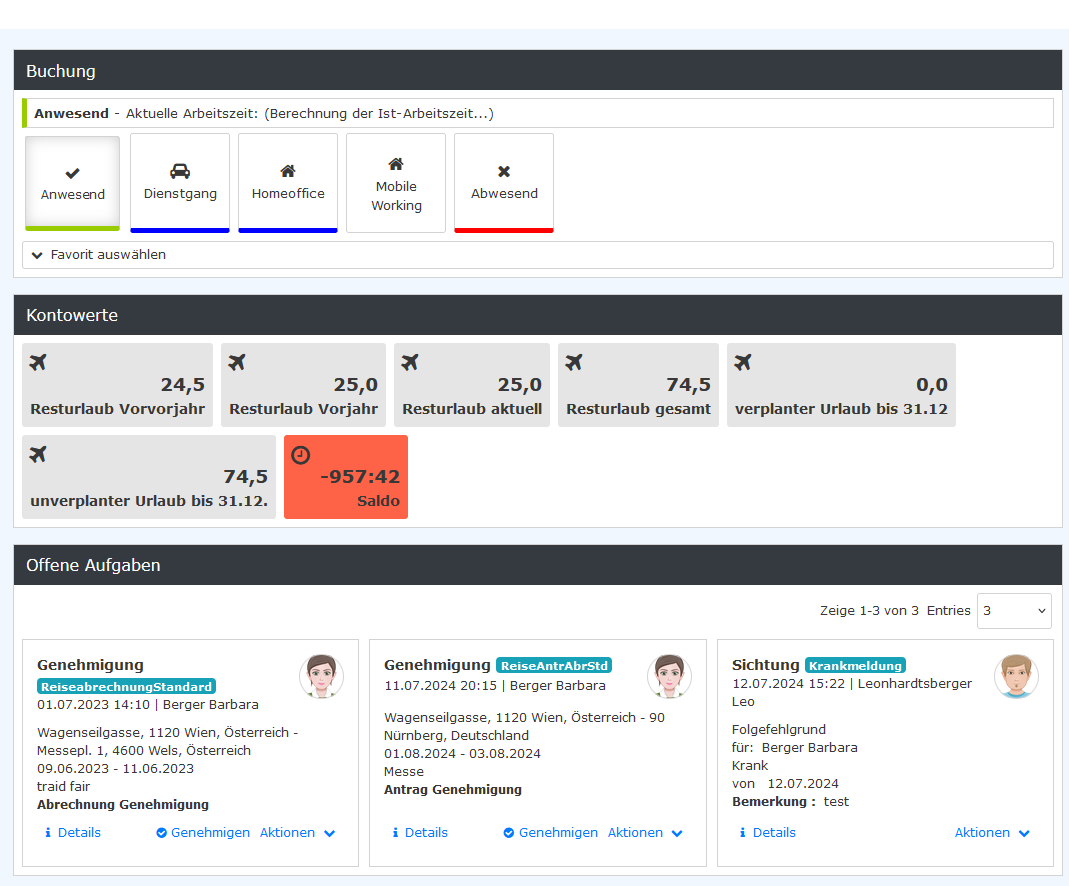
Booking
You can change your attendance status by clicking the corresponding button.
The currently active attendance status can be recognized by the graphic of the active button, which appears "pressed".
Favorites
Have you defined favorites in Personalwolke, i.e., pages you want quick access to because you use them more often than others? These are shown in the selection list under Favorites and can be clicked directly.
The screenshot below shows that Write invoice (from the Project Time module) is listed as a favorite. Clicking it lets you book into a project immediately. (This corresponds to the project time booking from the menu bar.)
If there are several favorites, all of them are listed for selection.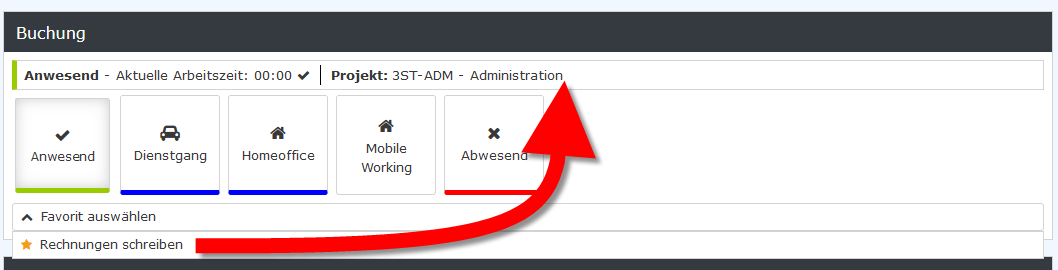
Account values
- Remaining vacation from two years ago
- Remaining vacation from the previous year
- Current remaining vacation
- Total remaining vacation
- Scheduled vacation until 12/31 [of the current year]
- Unscheduled vacation until 12/31 [of the current year]
- Balance
This information is also available under Info → Master data / accounts.
Open tasks
In this area you will find a graphical representation of your currently open tasks.
The most important information about each task is displayed. You can also approve a task directly from the display, initiate further actions, or switch to the process details for the task by clicking "Details".
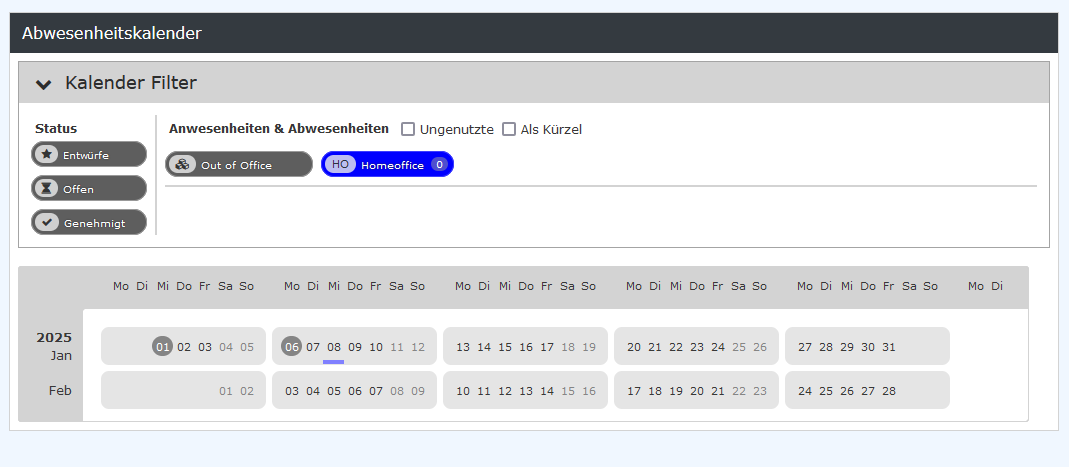
Absence calendar
The current month and the following month are displayed.
Various filters are offered at the top of the block to shorten or simplify the display.
If all fields for the status of a request ("Status") are active, all absences are displayed regardless of the status of the request. You can hide individual statuses by clicking "Drafts", "Open" and "Approved".
Please note that absence requests that have not yet been approved are marked with an hourglass symbol under the date in the calendar display.
You can also switch the day display for the absences marked in the calendar by clicking the checkbox next to "As abbreviation": instead of the date, the type of absence is displayed according to the absence abbreviations, e.g., U for a full day of vacation.

 erste
erste


 Vergleiche Versionen 8 und 9