Veränderungen des Inhalts
Klicken Sie für eine detaillierte Beschreibung auf die geänderten Stellen:
Benutzen sie die linke oder die rechte Maustaste, um zur jeweils vorherigen bzw. nachfolgenden Änderung zu gelangen.
Here you will find information about the attendance list
The attendance list shows the selected groups, the names of the persons assigned to the group, the status (green tick for attendance, red cross for absence, absence reason), information about the last booking, in the case of absences also the duration of the absence (e.g. business trip, holiday, ...). Via the search mask, the user can query the attendance/absence of employees based on various criteria.
The search mask
The user can use this input mask to query the attendance/absence of employees according to various criteria.
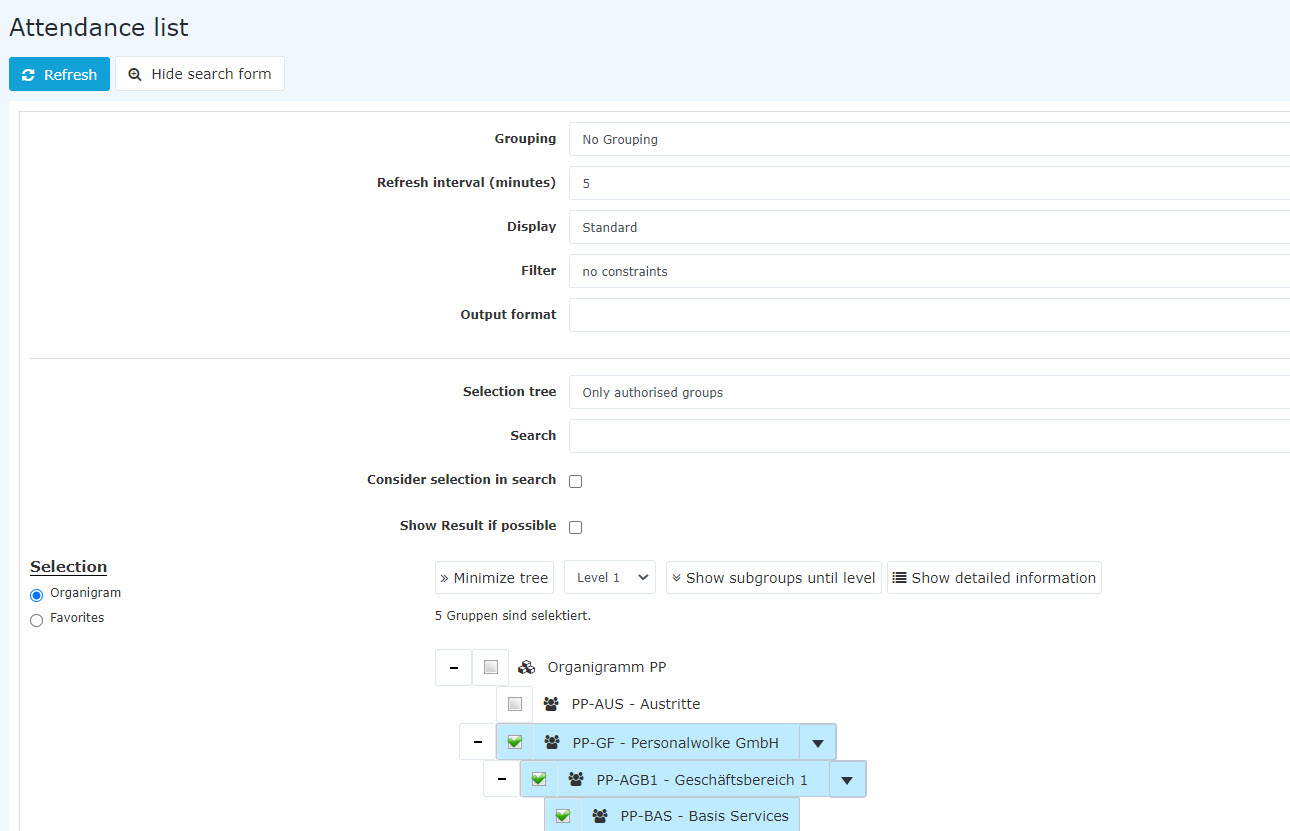
Grouping
This parameter allows you to
General
The attendance list lets you get information about the current availability of your colleagues.

Search mask
We recommend defining the criteria for displaying the attendance list so that it shows the result that is most useful to you as quickly and easily as possible!
The following search filters are available:
Grouping
This parameter lets you choose between: No grouping, 1st level, 2nd level, 3rd level .and 4th level
-
No grouping: all users are displayed in alphabetical order.
-
1st level: all selected groups and users are grouped below the 1st node are grouped and then displayed. displayed
- Example:
-
Selection of Selecting group PB --> Employees employees are displayed under PB, since PB is the highest top node in the organizational chart.
-
2nd level: analogous to the 1st level, all users below the 2nd node are displayed here.
-
3rd and 4th level: analogous to the 1st and 2nd level
Refresh interval
(in minutes) This can be used to specify after how many minutes : specifies how often the attendance list is to be updated automatically.
By entering
refreshed.
It can be changed. Setting it to 0 or a negative number
, the automatic update is deactivated.
View
This parameter can be used to select between standard and compact view.
Standard
 Compact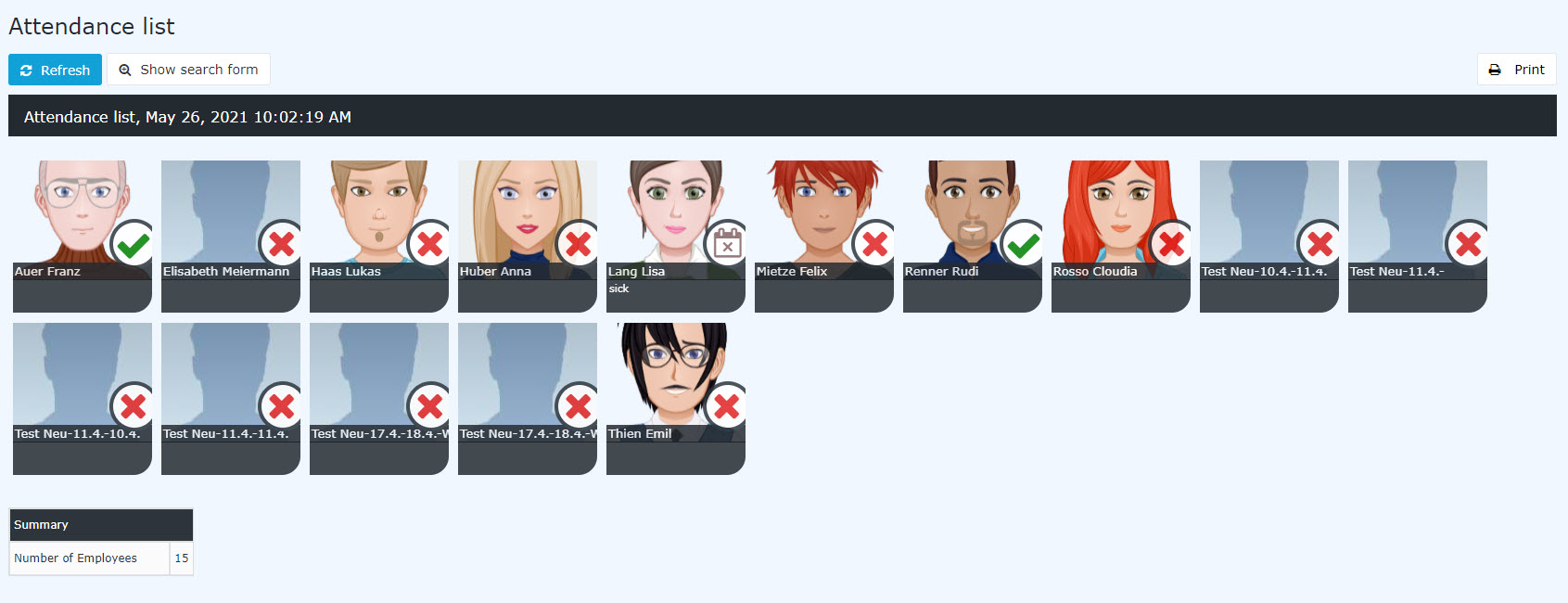
Filter
You can use this parameter to search according to freezes the refresh.
View
For an explanation, see the example views further below
Filter
This parameter lets you search specifically by the following criteria: only present, only absent, only missing absence reason, no restriction.
-
only current present persons > only present colleagues are displayed in the attendance list
-
only absent persons > only absent colleagues are displayed
-
only persons with absence reasonsreason > only colleagues who have posted booked an error absence reason (e.g. off-site work, errand, sick leave, vacation, etc.) are displayed here .
-
no constraintsrestriction > all colleagues are displayed for whom you have access authorizationviewing permission are displayed.
Output format
If this parameter is set to print Print version, you get a print-friendly output of the list.
Selection tree
This parameter offers the following selection options: Groups with access authorizationviewing permission, All groups.
-
Only authorised groups: Displays Groups with viewing permission: displays all groups that the user has access is permitted to view.
-
All groups: displays all groups of the company, even if the user is not authorized permitted to view query all of them all.
Search
If a search term is entered, the system searches in search covers all groups for which access authorization exists. It is possible to you have viewing permission. You can search for a complete name (surnamelast name, first name) or for a part of the a name. The result then contains all possible surnames as well as includes all matching last and first names and is highlighted in color.
Consider
Apply selection
in
to search
In principle, all groups for which access authorization exists are searched when By default, an entry is made in the Search field searches all groups for which you have viewing permission.
If you check this option is checked, only the groups selected chosen under Selectionwill be are searched.
Show result
if possible
immediately
If this option is activated, the selected chosen search settings are saved, and the result is displayed immediately when the next time you open the attendance list is called up again.
Selection
With this parameter, the user has the choice between organigrams can choose between the organizational chart and favorites, which can be created by the user himself.
Organigram
the user can create themselves.
-
Organizational chart
Using the selection criteria (depth, show subgroups to depth, show details) and by choosing specific loose groups, organizational chart groups, locations and cost centers, you can refine the display.
The selection you made is displayed in the lower left area of the search mask.

- All folders marked with a plus (+) symbol can be expanded further to show the subunits.
-
By clicking on Clicking a unit , checks it will be checked. By double-clicking, all subunits are automatically checked.
-
by clicking on the green arrow > Show subgroups to depth (depth 1-3) > all existing subgroups are displayed
-
using the blue arrow > Minimize tree > this view is minimized again, only the parent groups seem to be on
-
Show details > By clicking on the symbol
 , the selected groups are clearly displayed in a list to the right of the symbol. Click again to hide the detailed information.
-
Clicking the query button starts the search.
FavoritesUsing
-
A double click automatically checks all subunits as well
-
Clicking the arrow next to the organizational unit lets you select or deselect the subgroups
-
The selected organizational units or groups are highlighted in blue
-
Next to the organizational chart, a list of the selected groups is displayed
-
The "Minimize tree", "All", "Show subgroups to depth" and "Show details" buttons also offer display options for the organizational chart or the selection from it
-
Clicking the minus (-) symbol will minimize the tree > only the parent groups are displayed
-
The search is started by clicking the Query button.
-

-
Favorites
Here you can specify, independently of the organizational structure, which specific groups or persons are used for the display. This can be relevant, for example, for a cross-group project or for frequent contact with certain other employees.
With this parameter, each user can create their own favorites list, which can contain both persons and groups that are queried frequently queried. The Favorites favorites list can be customized adjusted at any time.
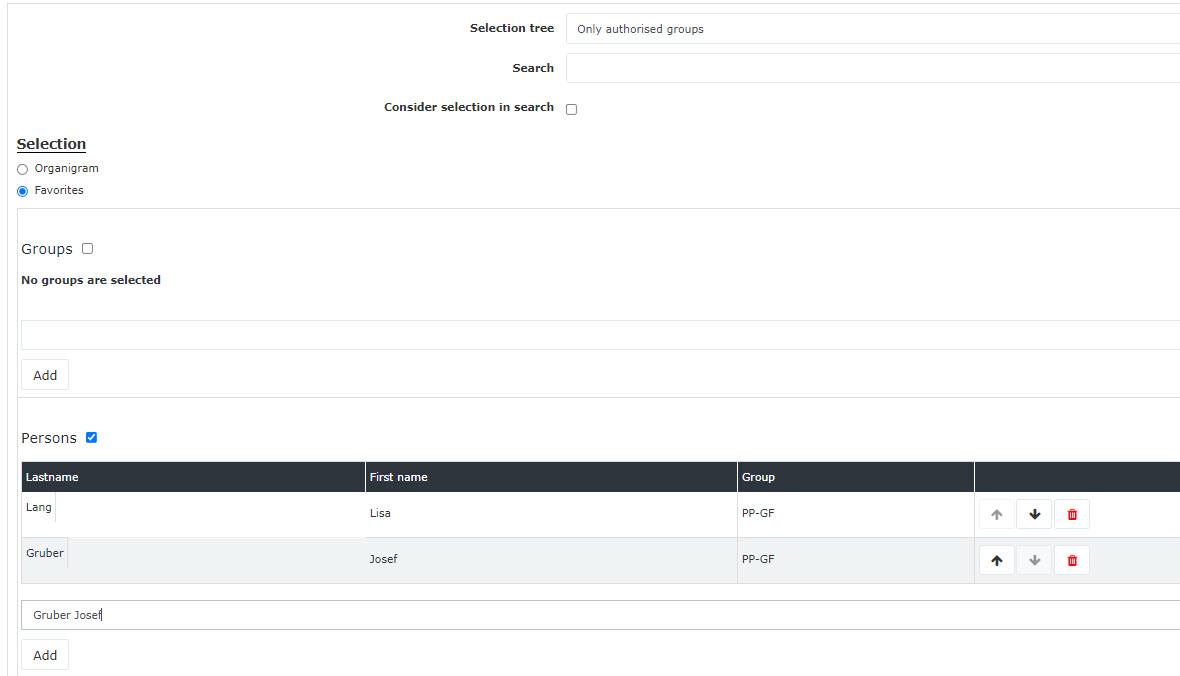
-
To add a person to the favorites list > click the blue arrow > select a person
> click
-
> click the "Add" button
-
The order of the persons
on
favourites
-
favorites list can be changed at any time using the arrow keys
. If you want to
-
To remove a person from the favorites list, click
on
-
the red delete icon to the right of the name.
The same applies to
-
Proceed in the same way with groups.
Query
View variants
The
result The
attendance list shows the selected group, the names of the persons assigned to the group, the status (green
tick
check mark for
attendance
present, red cross for absent, absence
,
reason
for absence
), information about the last booking, and for absences also
a
an absence reason
for absence
(
leave
vacation, sick
leave
, etc.)
and
as well as the duration of the absence (e.g.
off-site work
,
leave
errand, vacation, ...).
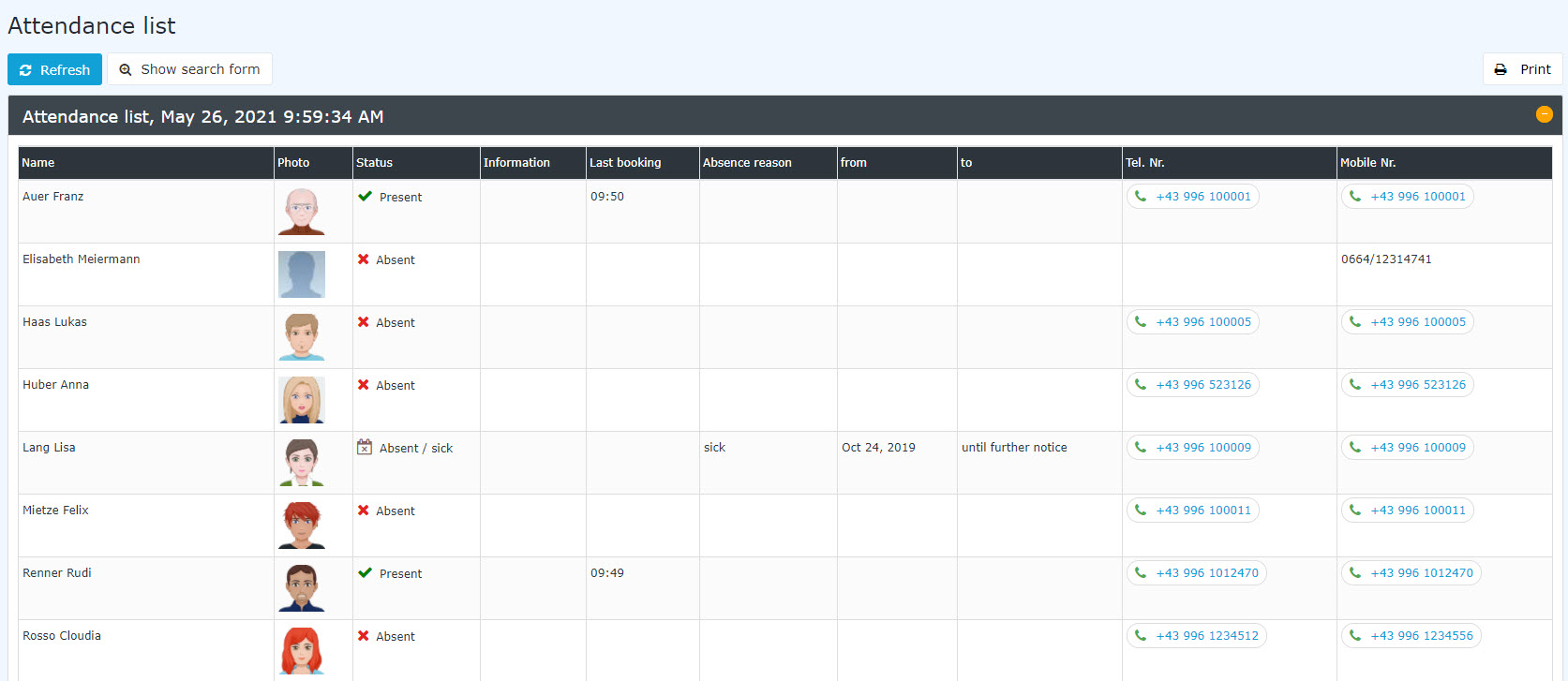
1. Without grouping
(In this screenshot, the value "No grouping" was selected for the grouping, which displays an alphabetical list of employees.)
Search mask for this view:

Compact view of this query
Print view of this query

2. With grouping
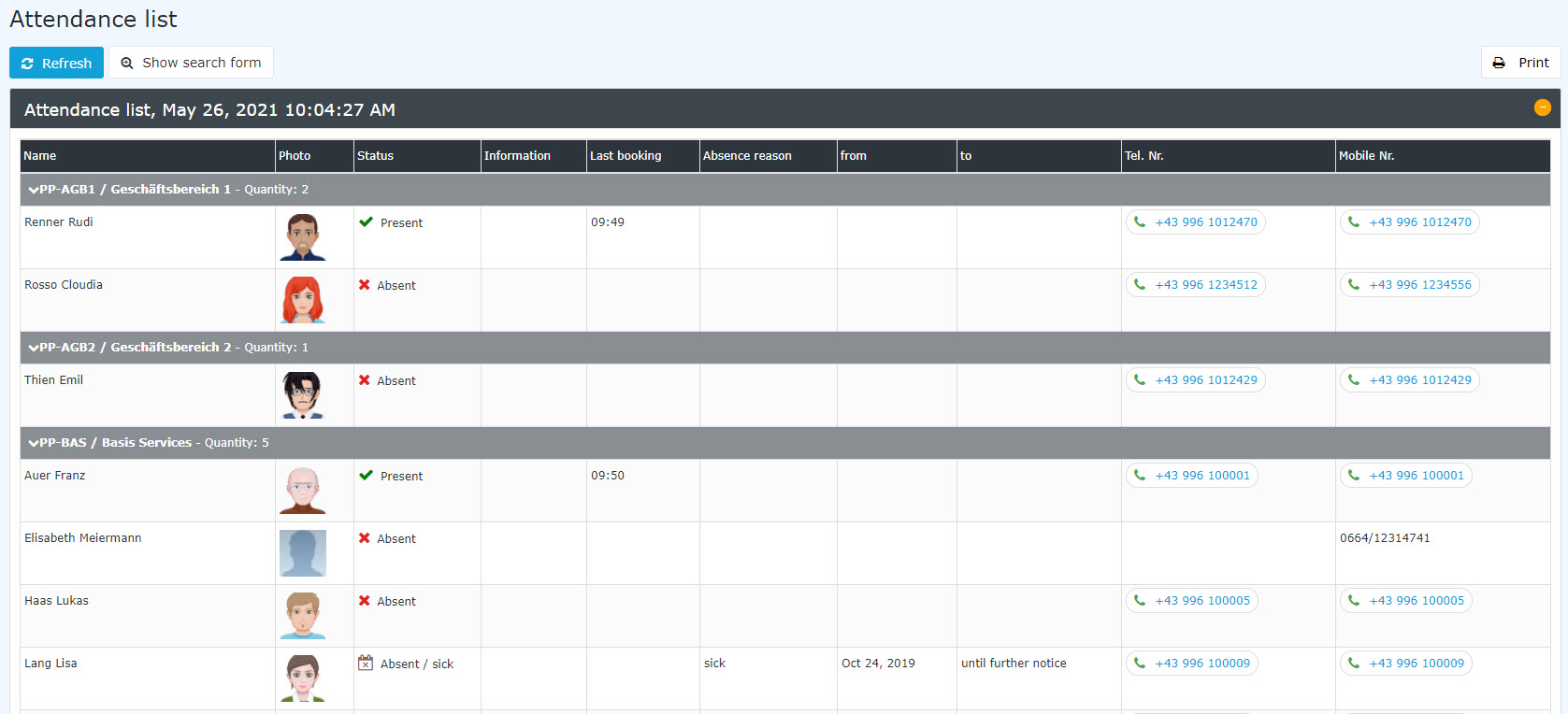
(In this screenshot, the value "Level 3" was selected for the grouping, whereby so the employees are also displayed in their respective groups, in addition to the alphabetical sorting - , up to level 3.)
Search mask for this query

Additional feature
If you hover the mouse over the photo of an employee, an info window with that person's contact details opens.

Field descriptions
The following information is listed in the attendance list:
-
Name: The names of the persons belonging who belong to the selected groups appear here.
-
Status
-
 Red Cross Symbol cross - Absent absent without false absence reason
-
 Green Check Mark Symbol - Present Calender (with X) Symbol - Absent with a reason for absence (for example: leave, off-site work, sick leavecheck mark - present
-
 Calendar - absent with an absence reason (e.g., vacation, errand, seminar, sick, ...)
Information
-
 Airplane - working remotely (home office, business trip, etc.)
-
Message
This is the message that the employee can optionally enter when booking(optional) (for example (e.g., when an off-site work is posted): off-site work errand is booked: Errand company XYZ - reachable on by mobile phone).
-
Last booking
Shows when the last booking was made.
-
Absence reasonAbsence reason
Example: Vacation, sick leave, off-site workfrom - toAbsence period for leave, sick leave, off-site workerrand
-
From - to
Period of absence for vacation, sick, errand, ... - A a special feature case is the specification entry "b.a.w.", which appears only appears in connection with the error absence reason "Sick". "b.a.w." stands for "until further notice" and is entered if when it is not clear when the employee will be able to work again. This error reason is automatically posted by the system The system books this absence reason automatically every day until the employee posts books again for the first time.
-
Phone number, mobile number
The summary contains information about the number of employees displayed.


 erste
erste


 Vergleiche Versionen 12 und 13
