Veränderungen des Inhalts
Klicken Sie für eine detaillierte Beschreibung auf die geänderten Stellen:
Benutzen sie die linke oder die rechte Maustaste, um zur jeweils vorherigen bzw. nachfolgenden Änderung zu gelangen.
Note: This chapter describes the standard form of this function. The function you use may differ from what is described here due to a client-specific design of the process.
General
Please observe the notes under Behavior of absence reasons regarding full-day absence reasons and bookings on the same day!
The absence request is used to enter planned half-day and full-day absence reasons into the time management system, following a defined approval path.
-
From - To date
Duration of the planned absence
-
Absence reason
Selection of the absence reason (vacation, time off in lieu, business trip, seminar, sick)
-
Absence mode
Here you can select full day or half day.
-
Comment
Entry of possible comments (possibly useful information for subsequent processors)
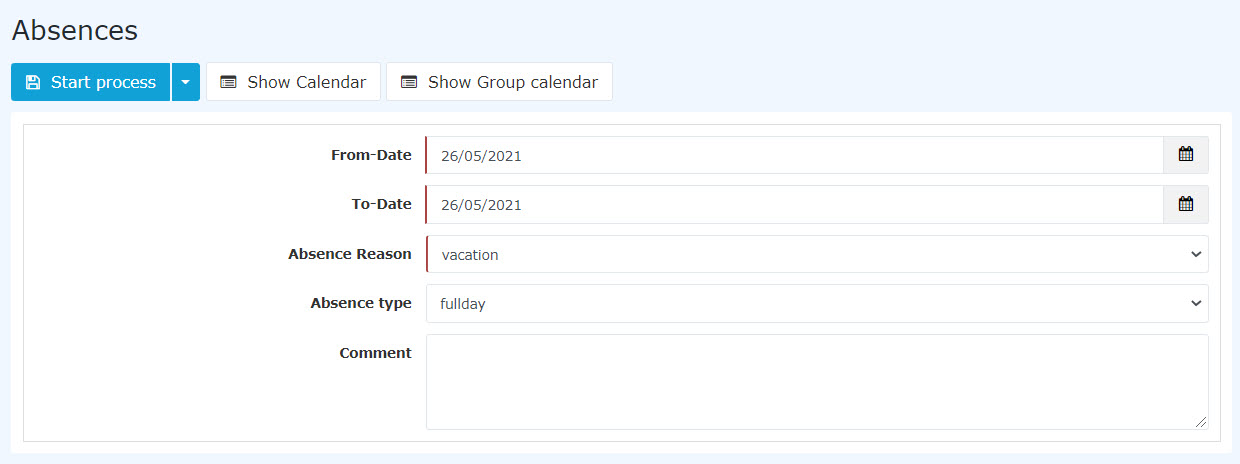

For support, the user can show their calendar to get an overview of their own annual planning.
The group calendar can also be shown, which provides an overview of the planned absences within the department.
The calendar / group calendar can be hidden again by clicking the "Hide calendar" / "Hide group calendar" button.
After starting the process, you are forwarded to the Open requests overview, where you see all your own open requests sorted chronologically by the time they were created (for more information see Open requests).


Behavior of absence reasons
If a booking is made on a day on which a full-day absence reason is entered, the following absence reasons are not deleted:
- Vacation
- Time off in lieu
- Seminar
The following absence reasons are deleted, and only the booking appears in the journal:
Examples:
- Vacation on 04/15/2021 2019 and a booking from 08:00-10:00 - both the absence reason and the booking are displayed in the journal: 

The vacation day on 04/15/2021 2019 remains despite the booking from 08:00 - 10:00 (2 hours). The actual time is increased by 2 hours.
- Sick on 04/2001/2021  2019
2019

Followed by a booking from 08:00 - 10:00 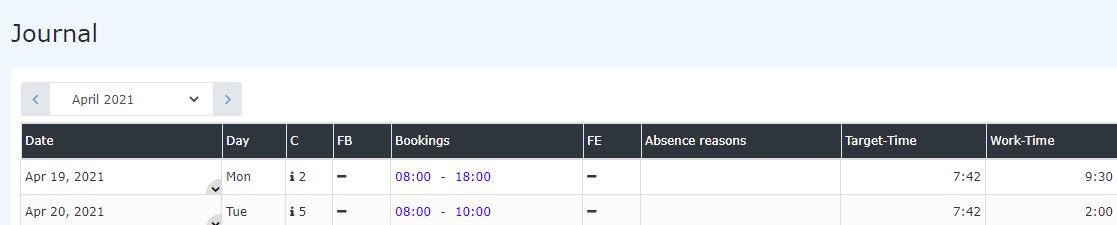

The booking from 08:00 - 10:00 deletes the absence reason Sick. This also affects the total (since the actual time of 07:42 was not reached, the total is reduced accordingly).
Approval process
By default, the request is forwarded from the requester to the supervisor for approval. However, depending on your organization's specifications, a different approval path may be provided, i.e., a different person is addressed in the workflow.
Good to know
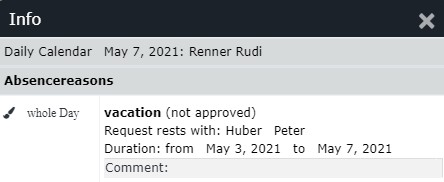
As long as the absence request is in progress (= unapproved), the absence reason is already entered in red in the calendar.


Clicking the "U" in the calendar shows detailed information about the unapproved request:

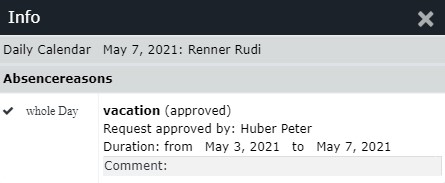
Once a request has been approved, the absence reason appears in black on the relevant days, and all work-relevant data is updated (e.g., remaining vacation or scheduled vacation).


Clicking the "U" in the calendar shows detailed information about the approved request:

Absence reasons
HERE you will find a list of all abbreviations available by default.

 erste
erste


 Vergleiche Versionen 13 und 14