Veränderungen des Inhalts
Klicken Sie für eine detaillierte Beschreibung auf die geänderten Stellen:
Benutzen sie die linke oder die rechte Maustaste, um zur jeweils vorherigen bzw. nachfolgenden Änderung zu gelangen.
Contents of this chapter
General
Overview
The "UsersettingsUser settings" page offers each gives every employee the possibility option to determine define basic settings for various areas in the Personalwolke Personalwolke or in connection with their workflow agendastasks.
How Path to find the "User settings" page:
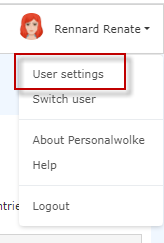
You can find the user settings by clicking on your profile picture/avatar or your name in the top right corner of the view.
In the selection window that pops up, please click on "User settingsSettings".
The profile view "User settings" will then openopens.
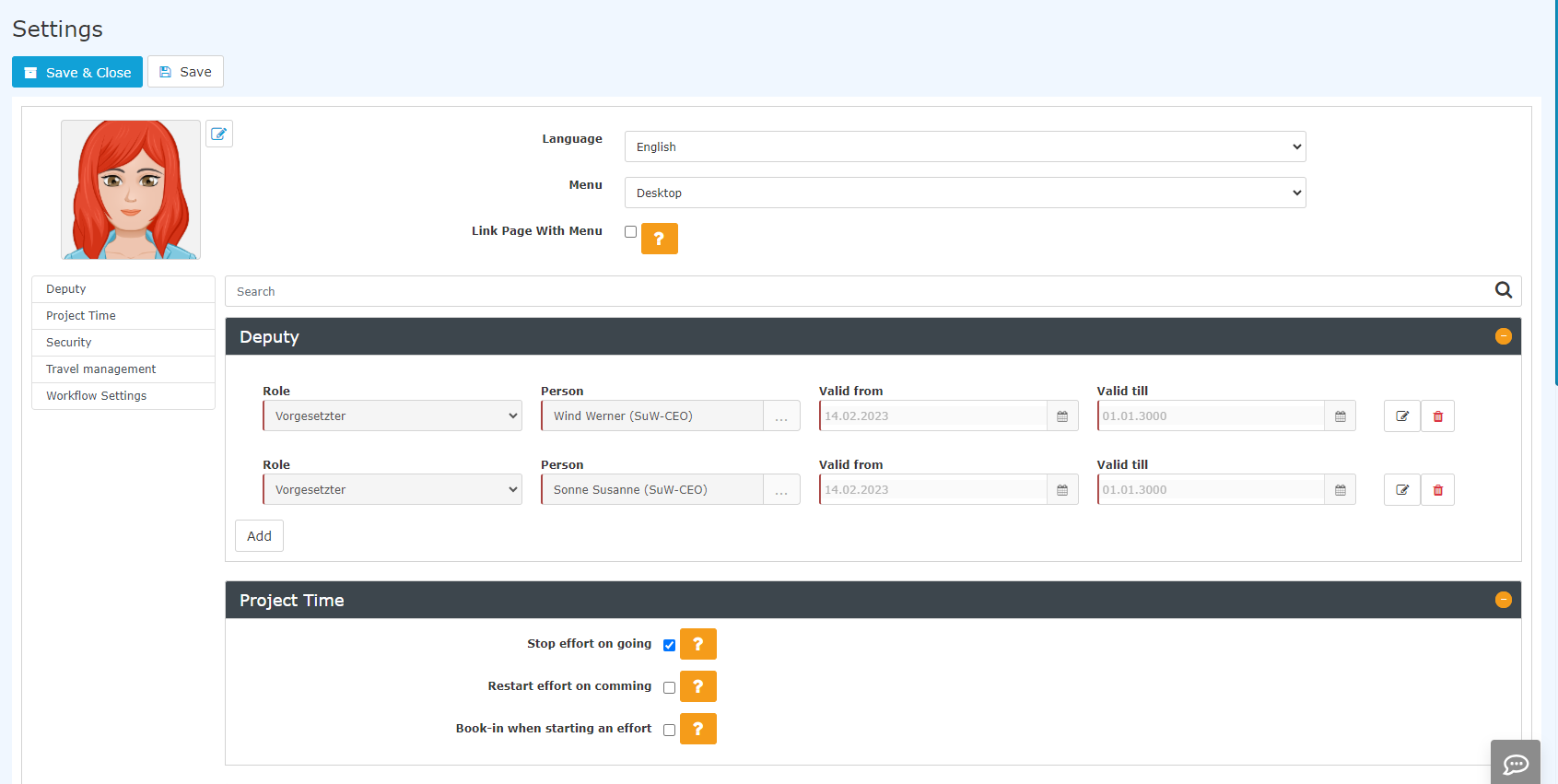
Avatar
Menu settings
User picture/avatar:
By clicking on the edit icon next to the default avatar image, you can upload an individual user image picture in the common image formats.
Language
Selection option You can choose between German and English. A change is implemented takes effect as soon as you click on "Save and Closeclose" or "Save".
(Please note that, due to the program, German terms are sometimes used in the English version , terms in German are sometimes used for program-related reasons)as well.)
If you do not select a language, Personalwolke is displayed in the language you have selected for the device you are working on.
Menu
The following selection options are available:
Link Page With Menupage with menu
By clicking
on
this checkbox,
you have
the
option of having the
menu tree on the left side of the page automatically
display
shows where
you are with
the currently open page is located.
In practice, if you are redirected by a task to a page other than the start page
by a task
, for example, you
will
can see exactly where you are.
For
If, for example,
if
the approval of a
leave
vacation is displayed to you as a task,
the
Workflow/Open
Requests
requests is highlighted in bold in the menu tree.
This
linkage
link is recommended if you frequently have to
complete
handle various administrative tasks in the system
in
as part of your
job.
Page menu
You can jump directly to an editing area of your choice by clicking on this area in the page menu
work.
Deputy
The term "deputy" here is meant refers to refer to a
- temporary substitute,
- substitution not defined as a role,
- for absences (holidayvacation, sick leave, etc.) in relation to the completion of with regard to handling requests and workflows.
A deputy can only be added for a role that
one holds
you hold yourself.
It is possible to
use
appoint one deputy for several roles
,
or several deputies for the different roles.
A deputy entered here can perform your tasks in
the Personalwolke
Personalwolke for a precisely defined period of time.
This
For the specified period, this person has the
competence selected by you for the specific period and can release applications for you
authority you selected and, depending on the assigned role, can approve requests on your behalf.
If you
wish to have
want a permanent substitute in your role, this must be done via Administration/Create and edit role assignments.
|
Vergrößern
|
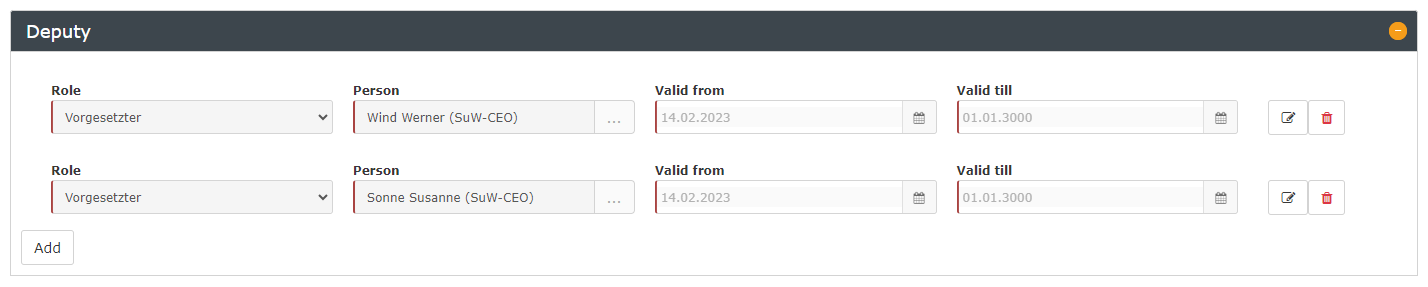
The following steps are
necessary
required to enter a deputy:
-
Please click on Click "Add"
-
Under "Role", one of the roles you hold is entered by default, i.e. which means at least the role as of Time Professional Useruser.
However, you can also select another a different role from the drop-down dropdown list.
-
Under "Person", a staff member an employee can be selected as a the deputy:
-
Valid from/Valid until: enter the time frame in which the substitution is to take place is to be entered here.
Editing or deleting is possible using the Edit and Delete icons.
Project Time
|
Vergrößern
|
This section might only be displayed if your company works with projects or
-
.
You can edit or delete an entry using the icons  and
and  .
.
Project time
This section appears if your company uses Personalwolke Project-Time or projects as such.

Three checkboxes are available for selection here.
-
Stop effort on goingbooking when leaving (activated by default): a possible running project time booking is also automatically ended by the "Leave" booking. The prerequisite is that This requires a system administrator has to have configured and activated a corresponding job in the webdeskWebdesk.
-
Restart effort on coming: When an arrival booking is made, the booking when arriving: With an "Arrive" booking, a project time booking is also automatically started as well. This newly created project time booking automatically takes over all data from the last most recently ended project time booking of the same day or, or - if there was none was made on this that day - , from the previous working day. The prerequisite is that This requires a system administrator has to have configured and activated a corresponding job in the Webdesk.
-
Book-Clock in when starting an effort: automatic booking automatically clocks you in as "present" in the time recording tracking as soon as the entry of a project a project effort is started , and you were absent beforebeforehand. Only efforts that start with begin at the current time lead to such a booking clock-in the time recording, but those that have in time tracking; efforts with a start time from in the past or future do not.
Security
|
Vergrößern
|

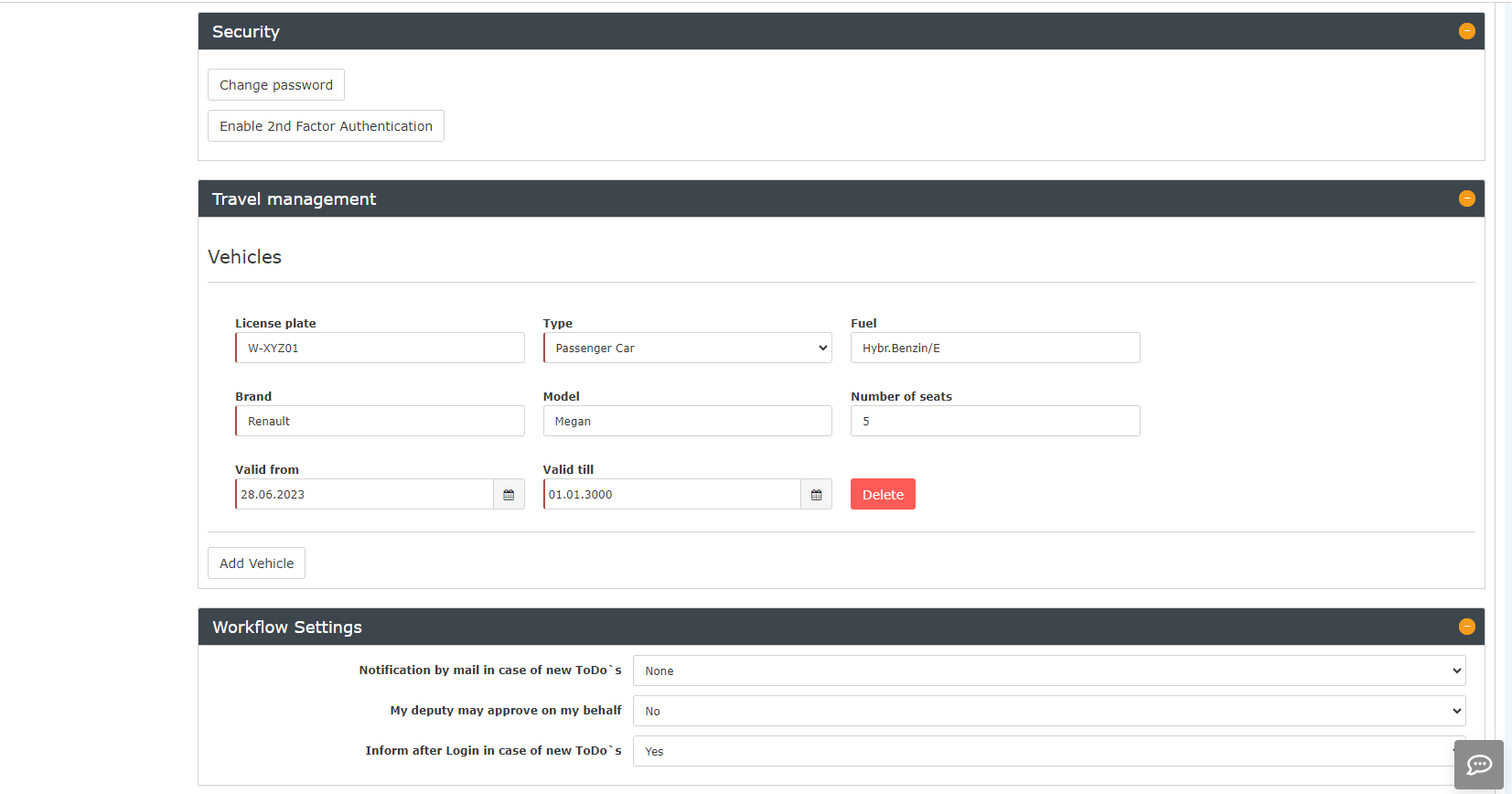
In the Security section, you have the option of initiating can initiate a password change and activating 2activate two-factor authentication.
You will can find all further information on this under Password.
You can find information Information on the subject topic of passwords from the admin view perspective can be found under Assign and change password (admin side).
[The links will be added soon]
Travel
Management
|
Vergrößern
|
This section might only be displayed appears if your company works with projects or uses Personalwolke Travel.
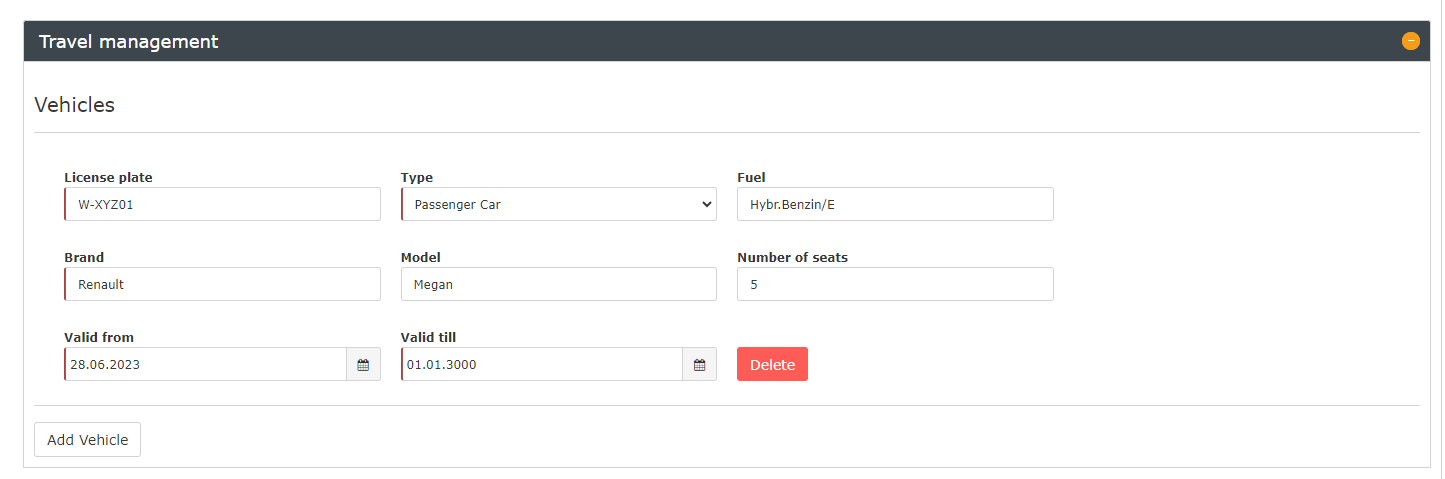
This section is used to enter and edit motor vehicles (official company cars) assigned to you. It is possible to You can create several vehicles per person.
Click on "Add Vehicle" to open the input fields.
The following data can be entered:
-
Licence License plate
- Type (standardised is the standard choice is between car and motorbikemotorcycle)
- Fuel
-
Brand
-
Make
- Model
- Number of seats
- Valid from/Valid until
Workflow
Settings
|
Vergrößern
|

Notification per mail in case of new ToDo's:
Selection options
settings
The following fields can be used here:
In case of new tasks, I want to receive an email notification
Options
-
None: The employee does not receive any notifications by e-mail
-
On For every new ToDotask: The employee receives an email e-mail from Personalwolke for each every new task.
-
Summery with open ToDo's one a Summary of open tasks once per day: The employee receives a list of all open tasks every day.
My deputy may approve on my behalf:
Attention: here the term "deputy" refers to the role setting, not to an absence substitution!
- Yes: My deputy may approve for meon my behalf
- No: My deputy is may not allowed to approve and also does not get receive a workflow either
This parameter influences affects all applications made requests submitted from the time of activation. In addition to the role ownerholder, all downstream role owners holders (insofar as provided they are deputies according to the deputy regulationrules) are written into the applications entered as deputies in the requests. In this context, the inheritance direction of inheritance within the role must currently also be taken into account. If the inheritance direction is set to "up", the organisation org chart is searched upwards upward for deputies, ; if it is set to "down", it is searched downwards downward; and if it is set to "none", it is not searched at all.
Inform after Login in case of new ToDo's
Yes: When entering the Personalwolke
In case of open tasks, I want to be notified when I log in
-
Yes: When you log in to Personalwolke, a pop-up with showing the number of open tasks is displayed.
- No: No pop-up appears
Bank
Accounts The Bank Accounts section is not used by all companies
accounts
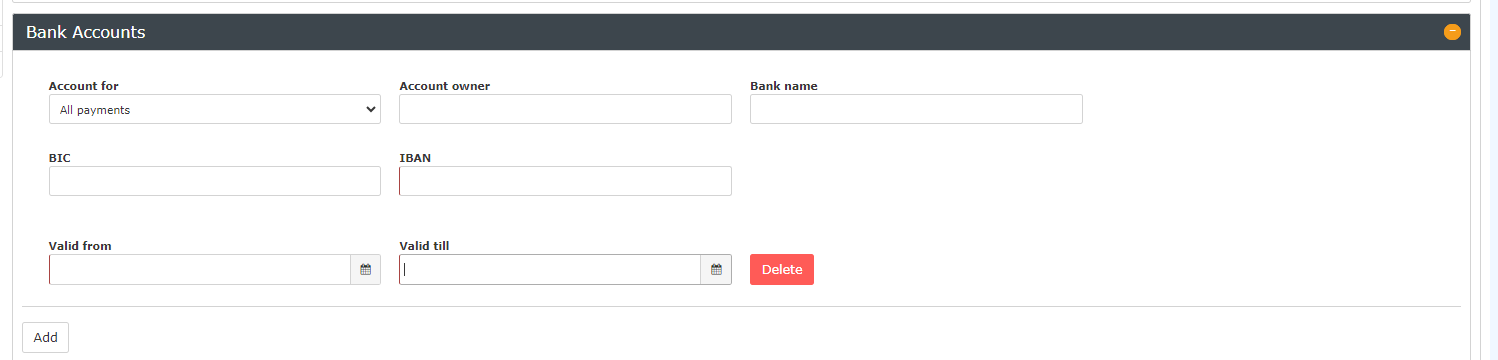
Here you can manage your own bank account.

 erste
erste


 Vergleiche Versionen 9 und 10
