Veränderungen des Inhalts
Klicken Sie für eine detaillierte Beschreibung auf die geänderten Stellen:
Benutzen sie die linke oder die rechte Maustaste, um zur jeweils vorherigen bzw. nachfolgenden Änderung zu gelangen.
General information
The project time booking offers the user the possibility to allocate his working time to certain projects like with
Information
The Project Time Booking lets the user assign worked time to specific projects as if using a stopwatch. It differs from the menu item Record project time Enter Project Time, among other things, in that the booking does bookings do not have to be recorded retrospectively, but entered separately after the fact; instead, project times can be booked live to projects live using the Start / Stop function.
Using the project time booking mask
In the following you will
Project Time Booking Form
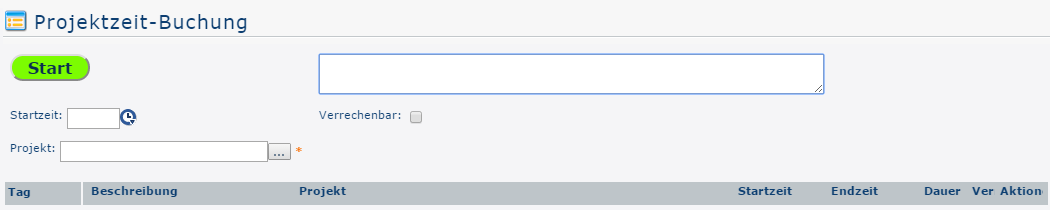
Below you can see the project time booking screen directly after calling up form immediately after opening the menu item.
Project Selection - AutoComplete
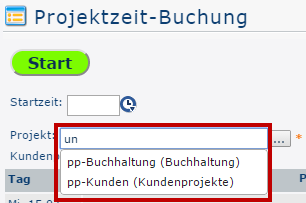
As an alternative to the project selection methods shown in the following, it is also possible to directly described below, you can also select projects directly by entering (parts of) the name / short name or codescode.
If the text entered text cannot be matched clearly assigned to a one project, a list of all projects corresponding to matching the input entry is displayed.
Project Selection - List viewView
First, a project must be selected. By clicking on Clicking the button with 3 points dots displays the following list view of the projects that have been created projects appears:
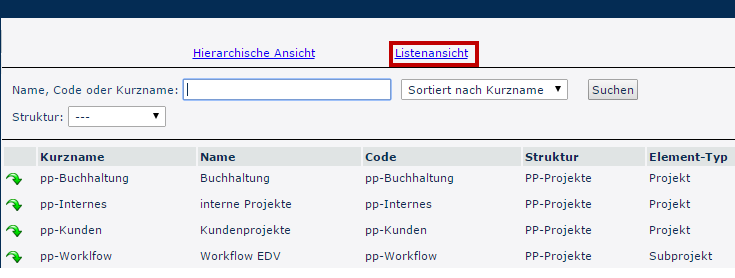
In the list view shown here, you can search the projects can be searched according to by the respective criteria in the Name, Code , or Short Namename field. In the dropdown field Sorted by... you can decide whether the projects should be are sorted alphabetically by name, short name or code. The dropdown field below it is used to select the structure - however, since there is usually only one structure anyway, no changes usually have change normally needs to be made here.
-
Short name
This refers to is the abbreviation of the project, including the fixed prefix that stands for the client (e.g., pp for PersonalwolkeProfessional).
-
Name Name
The freely chosen, meaningful descriptive name under which the project runs.
-
Code
In this case, the code is the same as the short name - after the prefix, however, any letter/number combination combination of letters and numbers could be selected after the prefix. Structure This is to be understood as chosen.
-
Structure
This means the path under which the respective project can be found. Also starting It also begins with the prefix.
-
Element type
The element type specifies indicates the rankingrank. A distinction is made between (main) projects and their subprojects.
Project Selection - Hierarchical View
If you switch to the Hierarchical View, hierarchical view, the menu tree initially shows only the main projects without their subprojects are visible in the menu tree for the time being.
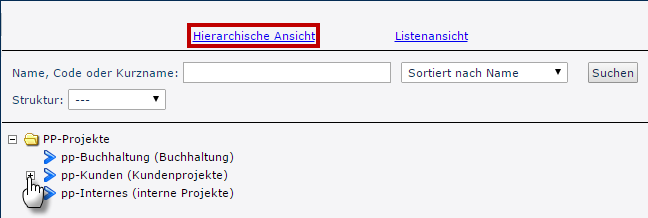
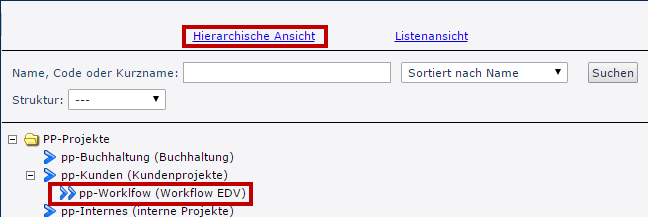
If the menu tree is fully expanded - as shown on in the screenshot - the menu tree is opened completely, the subprojects also appear under the beneath their parent projects.
Billability
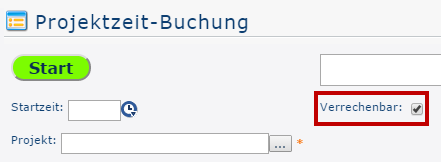
A tick check mark in this checkbox means that the project is declared as billable, which can also be displayed / evaluated later appears in the project overview later / can be evaluated. Whether the check mark can be set for the respective projects, or whether it is set by default, is determined when the project is newly created.
BasicallyIn general, projects can be distinguished by their chargeability: Projects billability: Billable projects are those that can be passed billed on to third parties, i.e. have a profitable effect, can be offsetthat is, that generate a profit. Internal projects (e.g.: , training of new employees, maintenance of IT equipment,...systems, and much more) only concern affect your own company and are therefore not chargeablebillable.
Description
Description
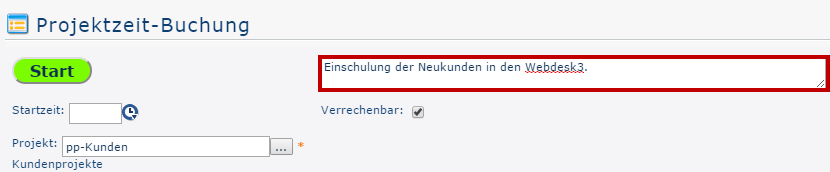
The In the field framed in red, you can be used to describe in more detail how the time to be recorded is being used, in order to obtain get an even better overview of the work performed during done over the course of the project.
Starting Time RecordingTracking
Once a project has been is selected, you can start the stopwatch can be started by clicking on the green Start button highlighted in green, which measures the time and assigns it to the project.
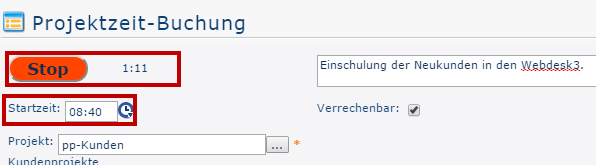
The project Project time recording tracking is now running. This can be seen by the fact that the You can tell because the Start button is now highlighted in red and displays shows the text Stop. Directly to the right of it, the time that has elapsed since the start time is displayed like a stopwatch.
The current time is automatically assumed used as the start time. However, it can also be set manually at any time, e.g., if you forgot to click on Start when starting you began work.
Stopping the project time recording
If the
Stopping Project Time Tracking
When work on the corresponding project is interrupted, press the Start / Stop button must be pressed again. The project time booking mask form is then reset automatically reset and the following project overview is updated:
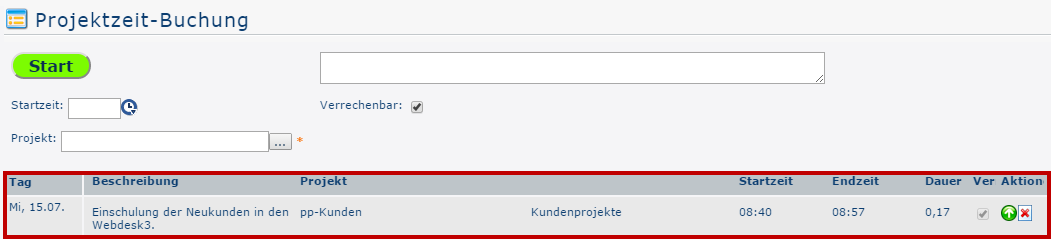
-
Day
-
Day
This is the date on which the project time booking was madebooked.
-
Description Description
The text that was previously entered in the field provided for this purpose appears here (see subitem the subsection Description!).
-
Project
To identify the project, the short name with the fixed prefix is displayed shown here.
-
Name
The full project name
-
Starting Start time Time
The time at which work on the project startedbegan
-
End timeTime
The time at which work on the project was interrupted / terminatedended
-
Duration
This is the difference between the start time and the end time - it indicates shows in hours how long the project was worked on
-
Bill.Ver
Short for "billable" - indicates whether the booked time is billable or not.
-
ActionClick on
Clicking  (Delete) to delete deletes the project time entry from the table. This entry must be confirmed for security reasons. Click on
  For safety, you must confirm this action.
Clicking (Resume) to reactivate reactivates the stopwatch. The fields Project, and Description fields and the value in the Billablebox checkbox are acceptedcarried over, but can be changed at willas you like.
The current time is taken used as the start time, ; this can also be changed. To accept save the changes with termination / interruption of work, click on the  Save iconwhen work ends or is interrupted, click the save icon .

 erste
erste


 Vergleiche Versionen 1 und 2
