Veränderungen des Inhalts
Klicken Sie für eine detaillierte Beschreibung auf die geänderten Stellen:
Benutzen sie die linke oder die rechte Maustaste, um zur jeweils vorherigen bzw. nachfolgenden Änderung zu gelangen.
General Information
The Enter Project Time form lets the user enter project times after the fact that were not booked directly with the stopwatch (Project Time Booking). In addition, project times that have already been entered can be edited or deleted.
Enter Project Time Form
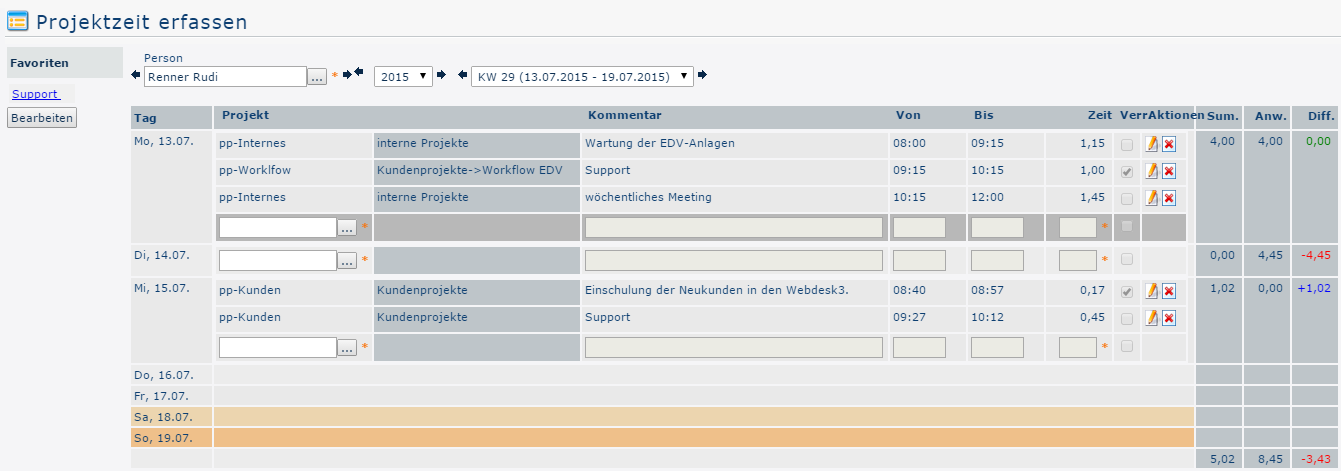
Below you can see the Enter Project Time form of an employee (Rudi Renner) immediately after opening the menu item.

Explanation of the Table Columns
-
Day
This is the date for which the project time is to be entered
-
Project
To identify the project, the short name with the fixed prefix is shown here
-
Name
The full project name
-
Comment
Here you can describe in more detail how the time being entered was used, in order to get an even better overview of the work done over the course of the project
-
From
The time at which work on the project began
-
To
The time at which work on the project was interrupted / ended
-
Time
This is the difference between the From and To times - it shows in hours how long the project was worked on. As an alternative to entering the from and to times, you can also enter just the amount of time in the "Time" field - e.g., 1.30 for 1 hour and 30 minutes
-
Bill.
Short for "billable" - indicates whether the booked time is billable or not
-
Actions
Clicking 
 (Edit) lets you make changes to the entries afterward. You must then save them by clicking
 or discard them by clicking
 .
.
Clicking 
 (Delete) deletes the project time entry from the table. For safety, you must confirm this action.
-
Sum
Short for total. The individually entered project times are added up here and the total is displayed.
-
Pres.
Short for presence. If the user has the Personalwolke Time module, booked presence times are displayed here. Otherwise, the default value 0 is always displayed.
-
Diff.
The presence time is subtracted from the sum of the entered project times. Depending on whether the presence time exceeds the project times, falls short of them, or the values match, the result is a negative (red), positive (blue) or 0 (green) value
Explanation Using the Example "Rudi Renner"


Person
The logged-in user is automatically set as the person (here Rudi Renner). The ability to search for other people, or to switch between people using the arrow buttons and edit the project times entered by those people, is available only to users with administrator permissions (members of the group XX-PTM-Admin - see Permission Concept).
Selecting the Calendar Week
The display of the Enter Project Time form is limited to one week. By default, the current calendar week is always shown - with the last two fields, you can navigate to any calendar week.
Please note that project time cannot be entered for days in the future.
Favorites
Clicking the Edit button lets you use the following form to set desired projects as favorites.



After you click the Add new favorite button, you must enter a freely chosen name for the favorite in the first field. Then select the desired project. The Bookable and Bill. columns are filled in automatically. The text written in the Comment field is then also visible in the field of the same name in the Enter Project Time form. As soon as all required fields are filled in, the save icon  appears, which you can use to finally add the favorite.
  deletes the row. Existing favorites can be edited with
  .
.
A second method for adding favorites is explained under Row options / Add to favorites.
Project Time Overview - Table


As you can see in the screenshot, on Monday, 04/08, Mr. Renner entered four different project times. In the last three columns, you can see that his booked presence of 4 hours exactly matches the sum of his entered project times. This results in a difference of 0.00 (green).
On Tuesday, 04/09, no project times have been entered yet. Because of his presence time, there is therefore a deficit of 3.23 hours (red). Mr. Renner can add the project times at any time and thus restore the balance.
On Wednesday, 04/10 (the current day), the value 0.00 is displayed in the Pres. column, because presence for the current day is always visible only on the following day. This results in a surplus of 1.02 hours (blue). The employee can view the bookings for the current day by choosing right-click -> Show daily journal (provided the user has also activated the Personalwolke Time module).
Row Options
Right-clicking the desired row gives Mr. Renner the following options:
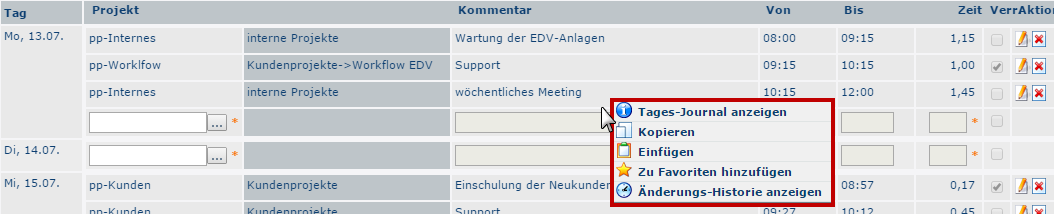

Show daily journal
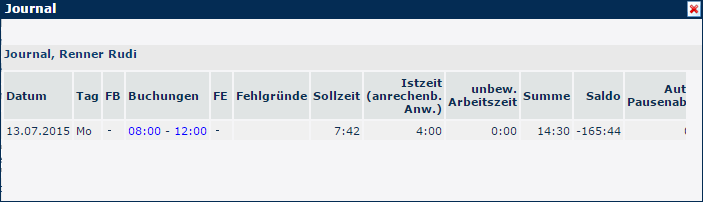
A window opens with the user's daily journal (for a detailed explanation of the columns, see Info/Journal)
Attention: The daily journal can only be displayed if the user has also subscribed to the Personalwolke Time module!

Copy and Paste
The contents of the selected row are copied and can be pasted into another row (on a different day or on the same day) by right-clicking and choosing Paste. If the project time entry is copied and pasted on the same day, the From and To columns of the copy must be adjusted, because overlapping intervals are not permitted.
The duplicate can still be adjusted as needed before saving  . If the row was pasted incorrectly by mistake, cancel the operation with
  .
.
Add to favorites
After you select this option, a window opens for naming the favorite. After you confirm with the OK button, the project is added to the favorites list as follows. 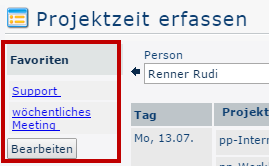

If you now select a day, you can fill in the row automatically by clicking the corresponding favorite. The From and To columns must be filled in manually before the project time can be entered with  .
.
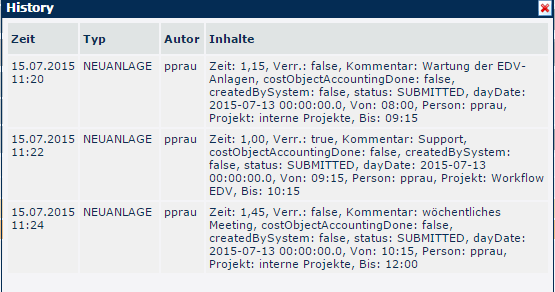
Show change history
A window opens that shows all bookings made on the selected day in chronological order.



 erste
erste


 Vergleiche Versionen 2 und 3