Veränderungen des Inhalts
Klicken Sie für eine detaillierte Beschreibung auf die geänderten Stellen:
Benutzen sie die linke oder die rechte Maustaste, um zur jeweils vorherigen bzw. nachfolgenden Änderung zu gelangen.
General Information
If an employee is to perform work outside his or her normal working environment on behalf of the employer (= business trip), this menu item allows the employee to submit a business trip request in advance. It contains all relevant data on the planned business trip, such as the duration, purpose, start and destination locations, and a cost estimate.
The following descriptions refer to the standard version of the business trip request. Because it can be customized, the fields and input options displayed may occasionally differ from those shown here for a particular user.
Business Trip Request
1. Trip Data
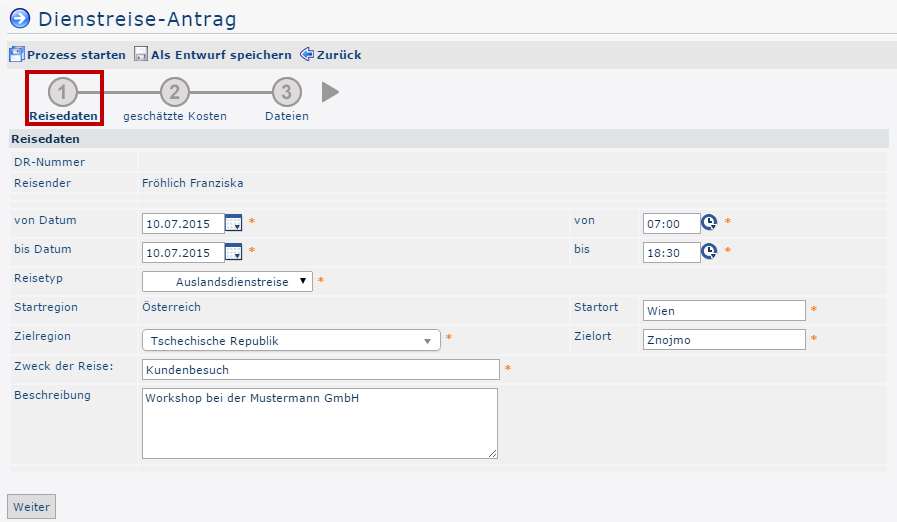
As the first step, the employee fills out the following form to enter the most important information about the trip:

-
BT Number
The business trip number is assigned automatically by the system
-
Traveler
The name of the employee submitting the business trip request is also entered automatically by the system
-
From and to date
The period the trip is to cover
-
From and to time
These parameters let you narrow down the travel period more precisely. This is also decisive for calculating the daily and overnight allowances - see point 2 Estimated Costs for more details.
-
Start region
The country in which the business trip begins.
-
Destination region
If the trip type is an international business trip, select the country the trip goes to here. You can do this by choosing from the dropdown list or by entering it directly (with AutoComplete). If several destination regions are visited, select the region in which most of the time is spent. The correct selection is decisive for the correct calculation of the estimated daily / overnight allowances.
-
Start location
The place within the start region from which the trip begins - e.g., Vienna
-
Destination
The destination within the destination region - e.g., Znojmo
-
Trip type
Possible examples of trip types: standard business trip, domestic business trip, international business trip, training, business trip without per diems, ...
-
Purpose of trip
The reason for the business trip must be entered in this field. This could be, for example, customer visits, trade fairs, training courses, etc.
-
Description
For better traceability, the purpose of the trip can be described in more detail here (max. 250 characters)
Once all the necessary trip data has been entered, click the Next button to go to the next step. You can also navigate by clicking directly on 2 Estimated Costs or 3 Files.
2. Estimated Costs
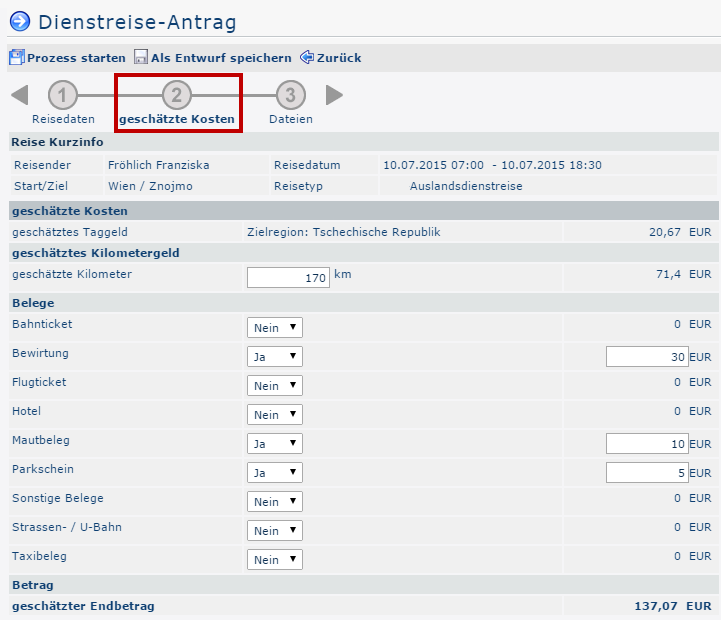
In the second step, you can enter the expected costs for each individual receipt type. In addition, the daily / overnight allowance calculated automatically from your entries and the estimated mileage allowance are shown. The sum of all these values is the estimated total. This rough cost calculation is for information purposes only and gives the supervisor / HR department an approximate overview of the costs that will be incurred.

-
Trip summary
A compact view of the key data.
-
Estimated costs
- Estimated per diem:
This amount depends on the selected destination region and the duration of the business trip.
- Estimated overnight allowance:
Without proof of accommodation costs (e.g., a hotel receipt), a flat-rate amount is reimbursed, depending on the destination region. If the accommodation costs are documented, the employer must cover them in full.
-
Estimated mileage allowance
The official mileage allowance is a flat-rate reimbursement for all costs incurred by using a private motor vehicle for travel during a business trip.
Car: 0.42 euros / kilometer
Motorcycles: 0.24 euros / kilometer
A further 0.05 euros / kilometer per passenger must be paid to the employee
-
Receipts
Here you can optionally enter the estimated costs for the receipts displayed (if already known).
-
Amount - estimated total
All of the above amounts added together (in euros).
Once all estimated costs have been entered, click the Next button to go to the last step.
3. Files
In the last step, the requester can add files (such as scans of train / flight tickets already booked, seminar programs received, orders, etc.) using the Add attachment -> Select file buttons. These later serve as a decision aid for the approver in the workflow.
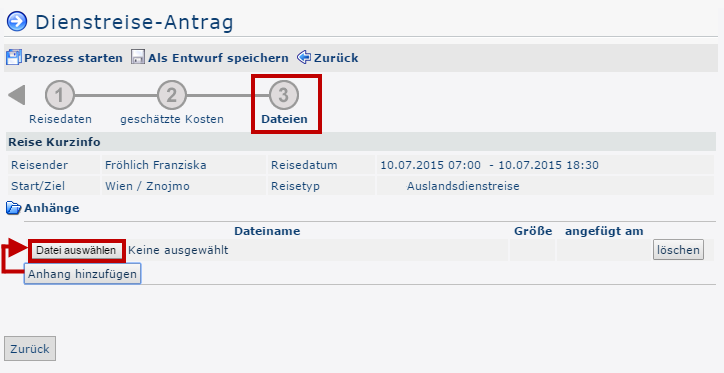

The request is now complete. Using the Back button, you can review the previous steps again and revise them if necessary. Otherwise, you can click Start process to submit the request to the workflow, or use Save as draft to store it under Open tasks for further editing later.
From Request to Expense Report
Once the business trip request has been submitted by clicking Start process, the user is taken to the overview of his or her open requests. The business trip request is now placed at the top:
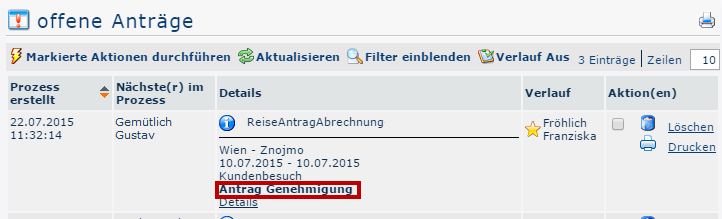

The status of this business trip is initially Request approval. This means that the request (submitted by Mr. Renner) is now waiting for processing by his supervisor (Mr. Huber) under Open tasks.
As soon as the supervisor takes up the request and approves it, the status changes as follows:
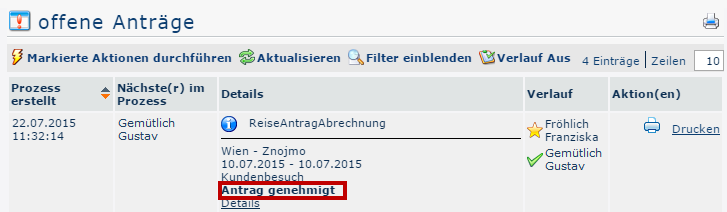

Approved! Mr. Renner can now officially begin his business trip. And this is also exactly the date on which the status changes again:
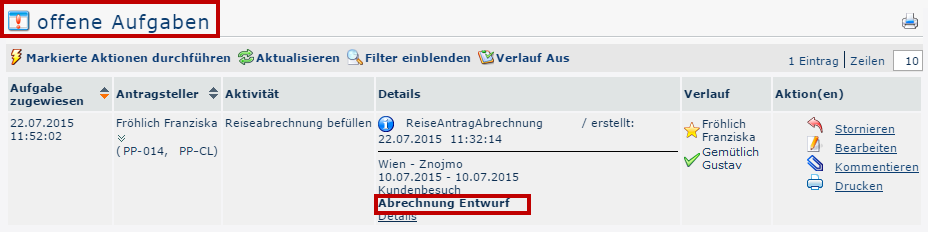

The screenshot above shows that Mr. Renner has already completed the business trip, and the former business trip request (which was closed by the approval before the trip began) has now - after the planned end of the business trip - become an expense report draft. It is now once again waiting for him under Open tasks. If the business trip did not take place for any reason (e.g., illness of the requester, cancellation of the customer appointment, etc.), the trip can be canceled by clicking Cancel.
Business trips can only be settled after they have ended - that is, when the planned end date and the planned end time are in the past!
Clicking Details takes you to the overview of the trip, with all the information estimated in the business trip request.
Clicking Edit takes the employee to the input form for the business trip expense report. The estimated values from the business trip request are carried over and can be edited further.

 erste
erste

 Vergleiche Versionen 2 und 3