Veränderungen des Inhalts
Klicken Sie für eine detaillierte Beschreibung auf die geänderten Stellen:
Benutzen sie die linke oder die rechte Maustaste, um zur jeweils vorherigen bzw. nachfolgenden Änderung zu gelangen.
General Information
This menu item gives the user an overview of his or her planned trips and trips awaiting settlement, along with their position in the workflow, within a period the user defines. The trips are listed here chronologically with their most important data. Using the search form, these trips can be sorted and searched by various criteria.
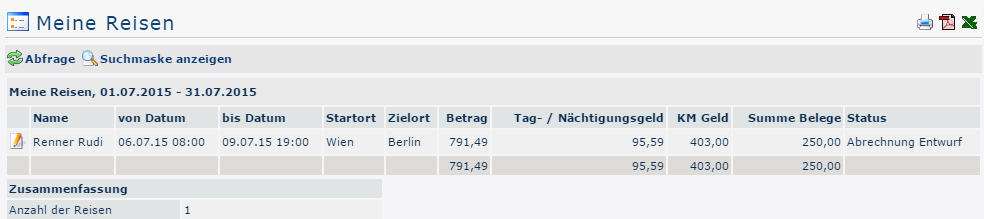

The Search Form
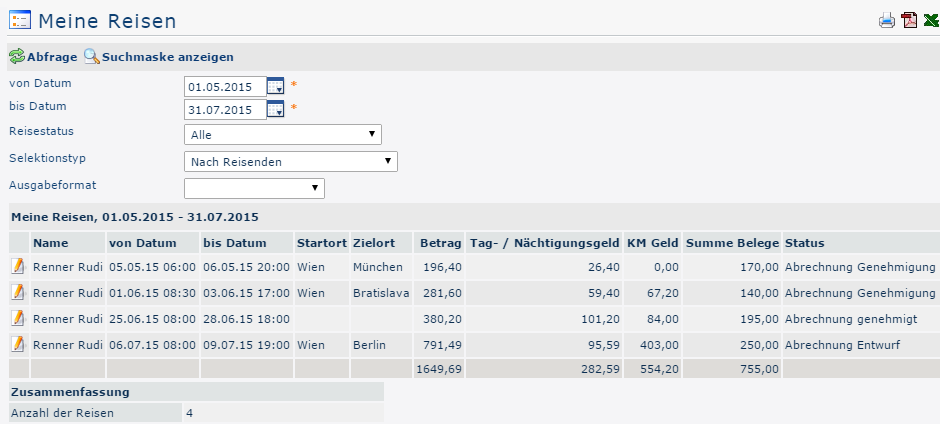

From and to date
With these parameters, the user sets the period to be queried. You can do this either by entering the dates directly (in the format dd.mm.yyyy) or by clicking the corresponding day in the calendar 
 .
.
Trip status
Clicking this dropdown element opens a list from which you can select the status of the travel requests / travel expense reports you are looking for:
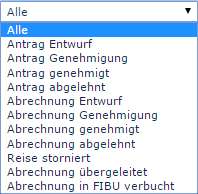
All: All travel requests and all travel expense reports are returned regardless of their status.
Request draft: Only travel requests that have been saved temporarily as a draft (that is, not yet in the workflow) are displayed.
Request approval: All travel requests that are currently in the workflow, that is, still need to be approved, are displayed.
Request approved: If this option is selected, only requests that have already been approved are returned.
Request rejected: The query result returns all rejected travel requests.
The same applies to the expense reports.
Trip canceled: Canceled or discarded travel requests / travel expense reports can be displayed.
Expense report transferred: This status is set as soon as the travel costs have been exported from Personalwolke for import into a third-party program (e.g., payroll).
Expense report posted in accounting: This is another status that can be set after the export to a third-party system.
Selection type
By traveler: Sorting is based on the traveler's name.
By assigned cost center: Sorting is based on the cost center that can optionally be stored in the business trip.
Output format
If this field is left empty, the output appears on the screen. Alternatively, the result can also be displayed as a print-friendly version or saved as a PDF or Excel file.
The Result
The following screenshot shows the result of a query from 05/01/2015 to 07/31/2015, taking all trip statuses into account, selected by traveler and in the standard output format. Clicking 
 lets you print it or export it as a PDF or Excel document.
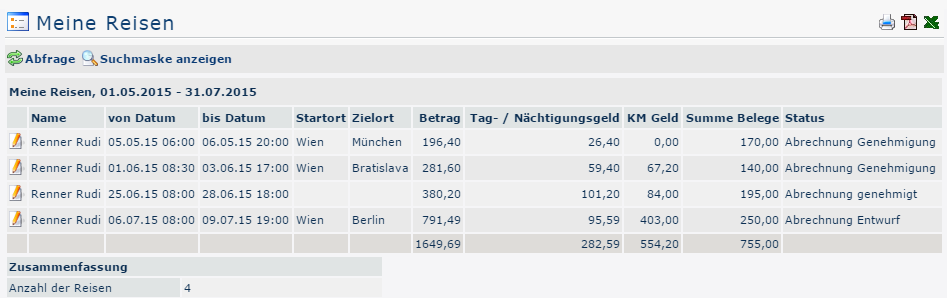

Explanation of the table columns:
-
Name
The name of the employee who prepared the travel expense report or the name of the requester
-
From and to date
The period the trip covers.
-
Start location
The point from which the trip begins.
-
Destination
The destination of the business trip.
-
Amount
Sum of the calculated costs (per diems, mileage allowances, receipts).
-
Daily / overnight allowance
This column shows the total of the daily / overnight allowance for the specified travel period. The amount varies depending on the duration and the destination region.
-
Mileage
The official mileage allowance is a flat-rate reimbursement for all costs incurred by using a private motor vehicle for travel during a business trip.
Car: 0.42 euros / kilometer
Motorcycles: 0.24 euros / kilometer
A further 0.05 euros / kilometer per passenger must be paid to the employee
-
Status
A list of all possible trip statuses and their meanings can be found above under Search Form -> Trip Status.
-
Total receipts
This column shows the sum of the receipts contained in the trip.
-
Summary
This shows the number of trips that fall within the queried period.
Clicking the edit icon 
 opens a comprehensive view of all information about the trip. In addition to the query data just described, it shows, among other things, how the individual travel costs are composed - in some places, comments written by the employee are also visible. The trip information can also be opened in a print-friendly version using the print icon
 (all details are expanded in the following screenshot):
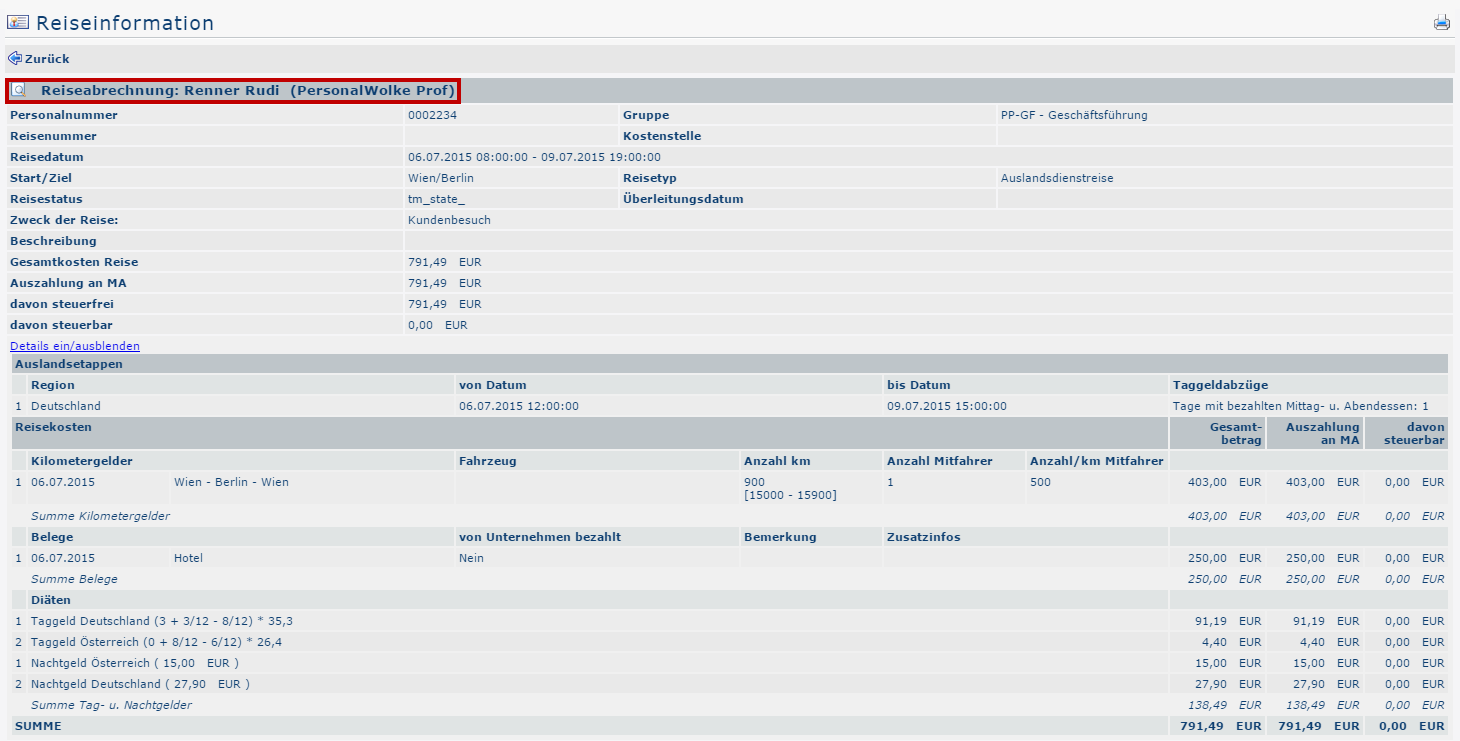


Clicking the area framed in red takes the user back to the view of the menu item Business Trip Expense Report. Here you can review all items of the request / expense report again, but changes can no longer be made afterward.

 erste
erste


 Vergleiche Versionen 2 und 3