General Information
The structure of this menu item is similar to the one described in the chapter My Project Times. The menu item Project Times of My Employees is visible only to people who are in the loose group PTM-Mgm. With this menu item, your own project times and those of the employees in your area of responsibility can be evaluated by various criteria.

The result of the project time query can also be saved as an Excel file or prepared for printing. The corresponding icons 
 are located in the upper right corner.
Show individual bookings and expand the report
The result of the query can be expanded by clicking 
 - that is, every individual booking in the corresponding period is displayed.
To illustrate the effect of the individual parameters more clearly, this action was performed in all screenshots. Here is the only exception:
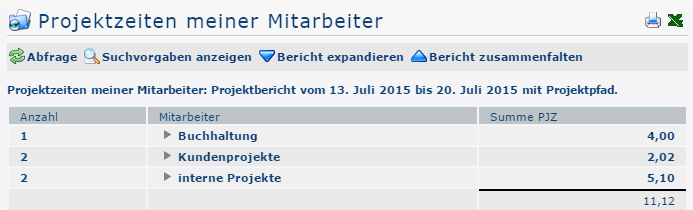

(In this screenshot, the report was collapsed by clicking 
 . Only a rough overview of the year 2015 2019 is now shown.)
Search Form
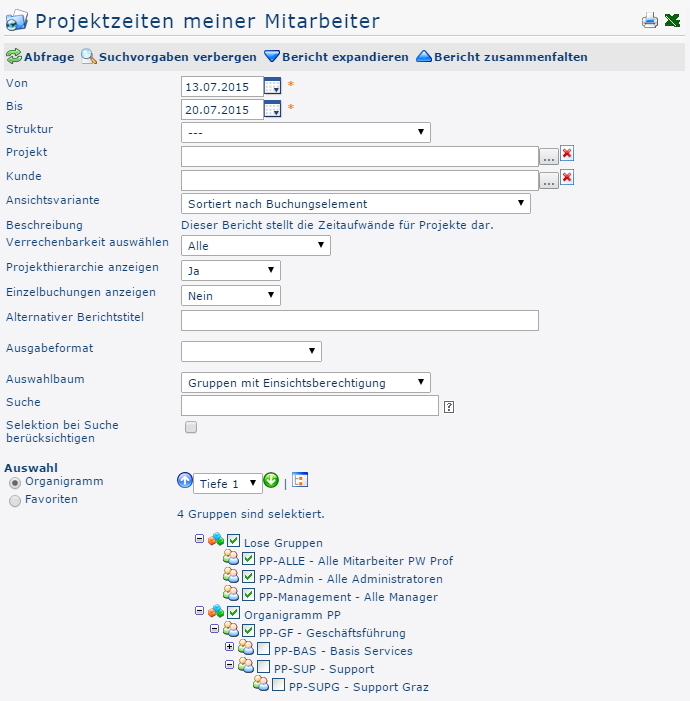

From and To
With these parameters, the user sets the period to be queried. You can do this either by entering the dates directly (in the format dd.mm.yyyy) or by clicking the corresponding day in the calendar 
 .
.
Structure
This means the path under which the respective project can be found. It also begins with the prefix. However, since there is usually only one structure anyway, no change normally needs to be made here.
Project
You can select projects directly by entering (parts of) the name / short name or code. If the text entered cannot be matched clearly to one project, a list of all projects matching the entry is displayed.
Alternatively, clicking  opens the list view of projects, which is explained in detail in the menu item Project Time Booking.
View Variant
In this dropdown element, you can decide whether the query result should be sorted by booking element (project time booking), chronologically by date, by project, or by employee, or whether it should be displayed as a comparison of presence time with recorded project time. The effect of this choice is shown under Evaluation Examples.
Select Billability
This parameter determines whether to filter by billability. All: all projects are displayed regardless of their billability. If you select Billable, the query evaluates only those projects that were defined as billable beforehand.
Show Project Hierarchy
This parameter is not available if the option Sorted by date is selected under View Variant. If Show project hierarchy is then set to Yes, the query result clearly shows the difference between projects and subprojects (hierarchy).
Show Individual Bookings
If this parameter is set to Yes, the evaluation result lets you see all of your own bookings made for the respective projects / the selected project.
Alternative Report Title
The text entered here appears as the heading of the time report in the query instead of the default report title "My Project Times".
Output Format
If this field is left empty, the output appears on the screen. Alternatively, the result can also be displayed as a print-friendly version or saved as a PDF or Excel file.
Selection Tree
This parameter offers the following options: Groups with view permission, All groups.
-
Groups with view permission: shows all groups that the user is permitted to view.
-
All groups: shows all groups in the company, even if the user is not permitted to query all of them.
Search
If a search term is entered, the search covers all groups for which the user has view permission. You can search for a complete name (last name, first name) or for part of a name. The result then includes all matching last and first names and is highlighted in color.
Apply Selection to Search
By default, an entry in the Search field searches all groups for which the user has view permission.
If you check this option, only the groups selected under Selection are searched.
Selection
With this parameter, the user can choose between the org chart and favorites, which users can create themselves.
-
Org chart
- All folders marked with a plus (+) symbol can be expanded further to show the subunits.
- Clicking a unit checks it. Double-clicking automatically checks all subunits as well
- Clicking the green arrow > Show subgroups to depth (depth 1-3) > displays all existing subgroups
- Using the blue arrow > Collapse tree > collapses this view again so that only the parent groups are shown
-
Show details > clicking the icon
 displays the selected groups clearly in a list to the right of the icon. Clicking again hides the detailed information.
- Clicking the Query button starts the search.
-
Favorites
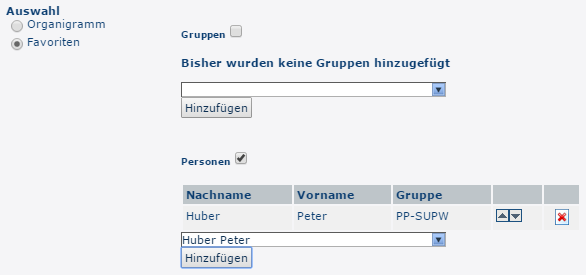
With this parameter, every user can create his or her own favorites list, which can contain both people and groups that are queried frequently. The favorites list can be adjusted at any time.
-
-

- To add a person to the favorites list > click the blue arrow > select a person > click the "Add" button
- The order of the people on the favorites list can be changed at any time using the arrow buttons
- To remove a person from the favorites list, click the red delete icon to the right of the name.
- Proceed the same way with groups.
Evaluation Examples
The following screenshots show the effects of some of the parameters described above.
View Variant
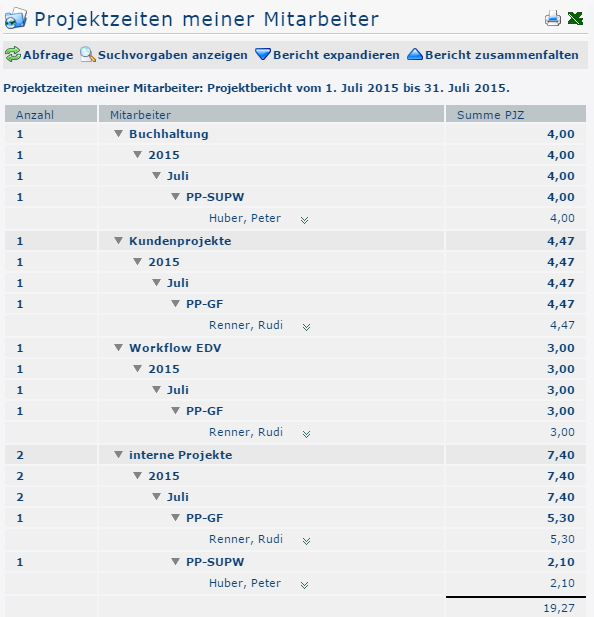

In the screenshot above, the View variant parameter was set to Sorted by booking element. This produces a breakdown by individual project. Each project time entry is displayed under the corresponding project - the entries are therefore displayed chronologically only within a project. The year and month of the booking are followed by the department and the name of the employee who entered the project time. This makes it possible to see exactly how the total project effort is made up.
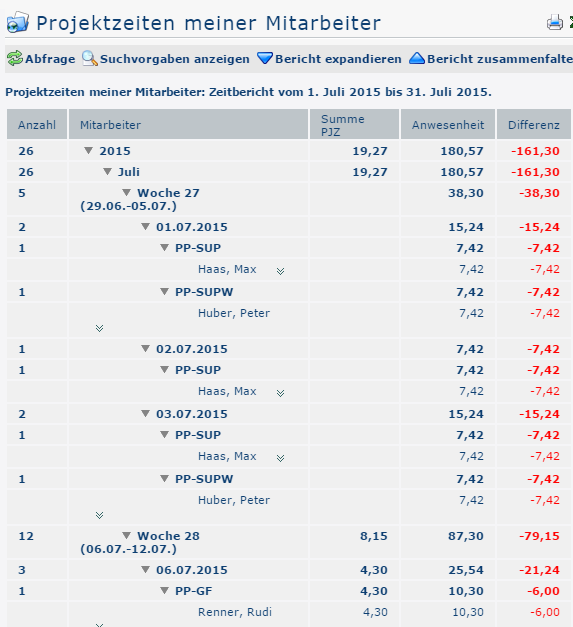

In the screenshot above, the View variant parameter was set to Sorted by date - this outputs all project time entries in chronological order, regardless of which project they concern. As described for the previous screenshot (Sorted by booking element), all employees appear under the respective group names that were previously selected in the search form under the Selection parameter.
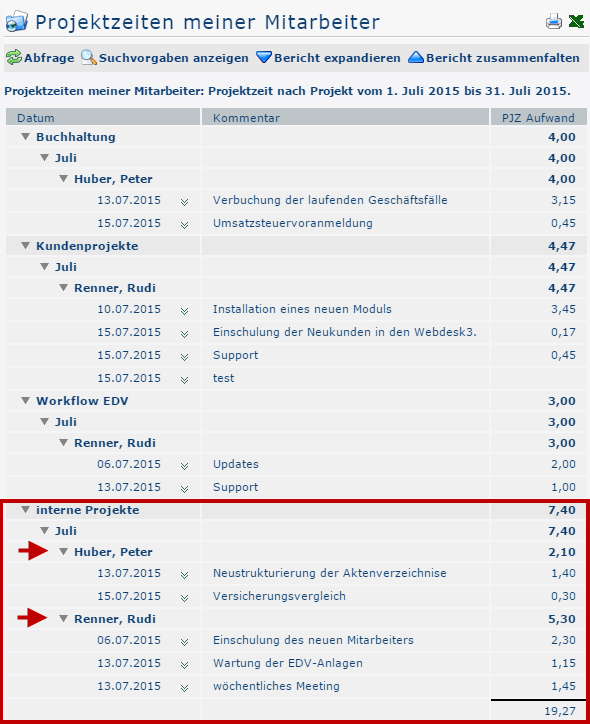

In the screenshot above, the View variant parameter was set to Project time by project. The example of the internal projects clearly shows that in this view variant, not only the project times entered by the logged-in user but also those of all other employees appear under the corresponding project.
Which employees are displayed here depends on which groups or people were selected in the Project Efforts search form under the Selection parameter.
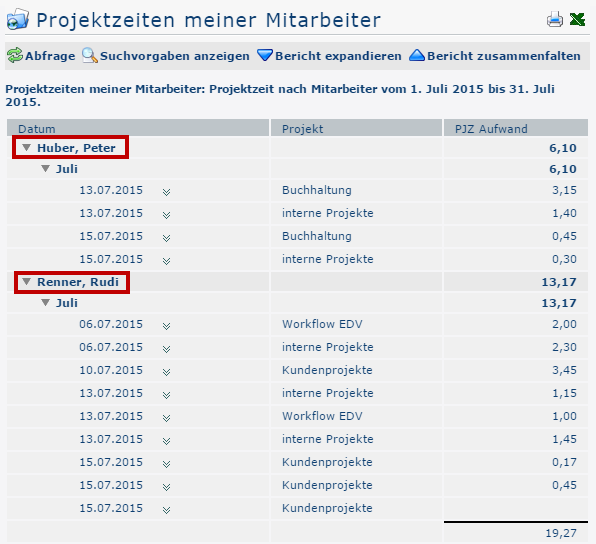

In the screenshot above, the View variant parameter was set to Project time by employee. This produces a breakdown by individual employee. Each project time entry is displayed under the corresponding employee - the entries are therefore displayed chronologically only within one employee.
Which employees are displayed here depends on which groups or people were selected in the Project Efforts search form under the Selection parameter.
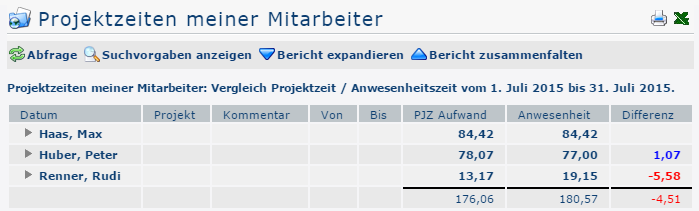

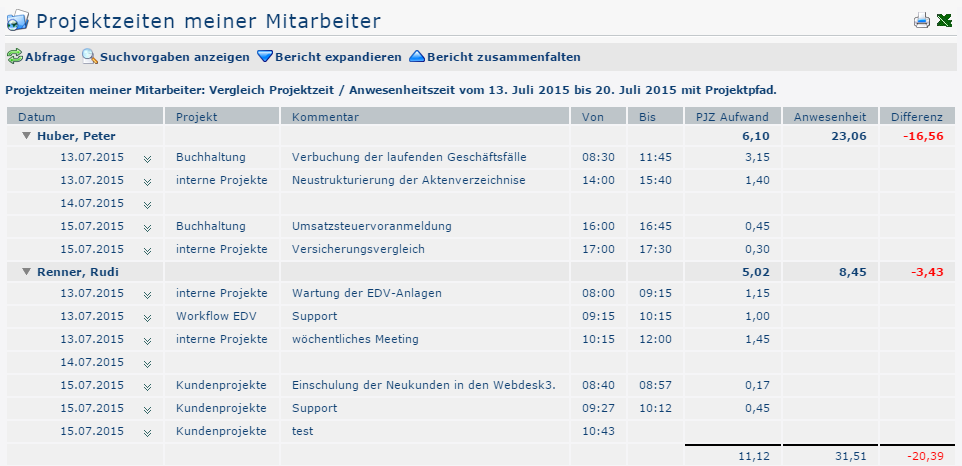
In the screenshot above, the View variant parameter was set to Comparison of project time / presence time. The purpose of this variant is to see at a glance whether the sum of the booked presence times matches the sum of the entered project times. The screenshot shows that this is the case only for employee Max Haas. In contrast, Mr. Peter Huber booked 1.07 hours (blue) more project time than presence time - the reason could be that he forgot once to clock in on time. Mr. Rudi Renner, on the other hand, has a deficit (red) of 5.58 hours, because his presence time exceeds his project time. The latter difference is so large that the entire group shown has a deficit (red) of 4.51 hours.
Show Project Hierarchy
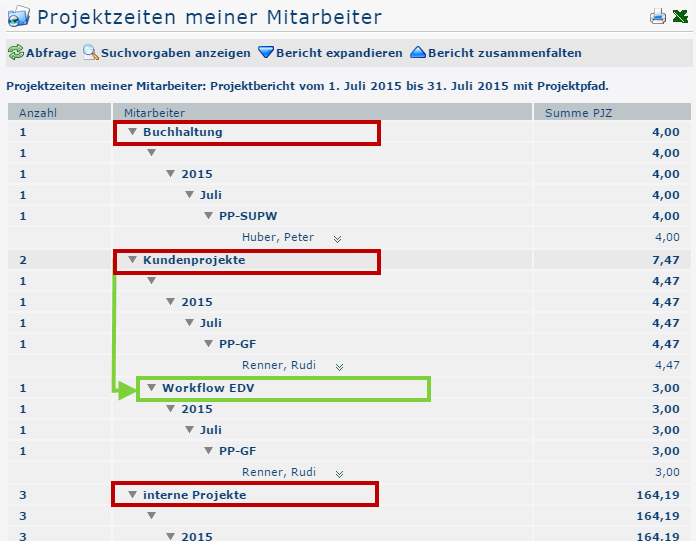

In the screenshot above, the parameter Show project hierarchy was set to Yes. As a result, subprojects (here: Workflow EDV) are shown indented in the expanded view. In the collapsed view, subprojects do not appear.
Show Individual Bookings: Yes
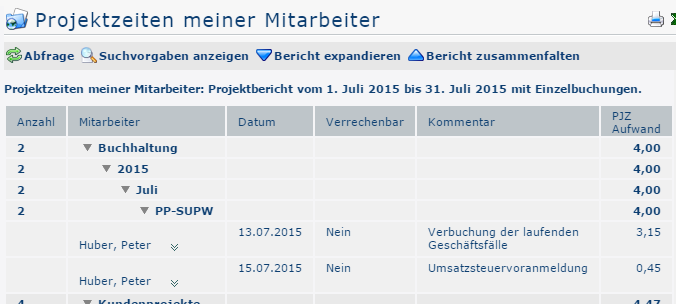
This parameter is available only if either the option Sorted by booking element or Sorted by date is selected in the View variant field. The following screenshot shows an output with the variant Sorted by booking element with individual bookings:

Show Individual Bookings: No
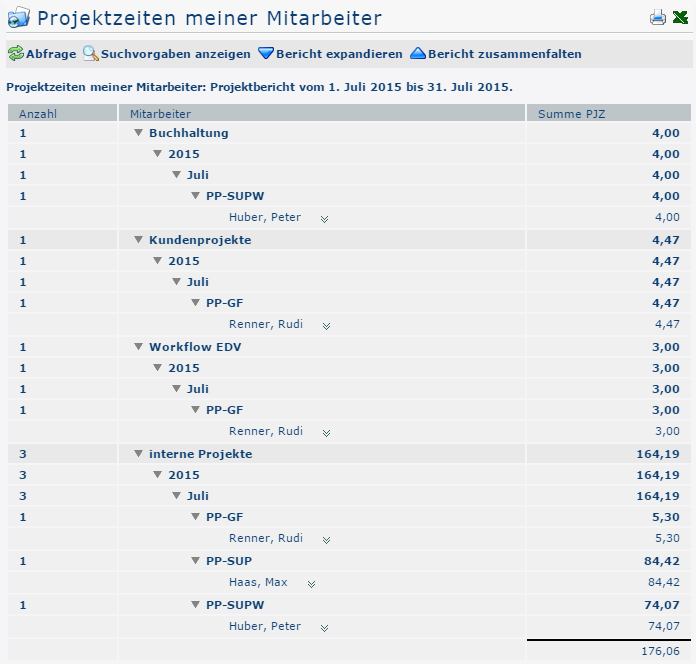
In the following screenshot, the parameter Show individual bookings was set to No. Therefore, only the totals of the project times entered are shown for the respective employees, not the individual project time bookings.

Alternative Report Title


In the screenshot above, the text framed in red in the screenshot was entered using the Alternative report title field. The text can be chosen freely and replaces the default title "Project Times of My Employees:", which appears at this spot in all other screenshots.

 erste
erste


 Vergleiche Versionen 2 und 3