Veränderungen des Inhalts
Klicken Sie für eine detaillierte Beschreibung auf die geänderten Stellen:
Benutzen sie die linke oder die rechte Maustaste, um zur jeweils vorherigen bzw. nachfolgenden Änderung zu gelangen.
Below you will find step-by-step instructions for creating a new daily schedule:
Step 1: Daily schedule overview
Step 2: Select the template
Step 3: Target time, short name and long name
Step 4: Break rule
Step 5: Overtime rule
Step 6: Save
Step 1: Daily schedule overview
Here you will find the "+ New daily schedule" button. Please click "+ New daily schedule" to start creating a new daily schedule.

Step 2: Select the template
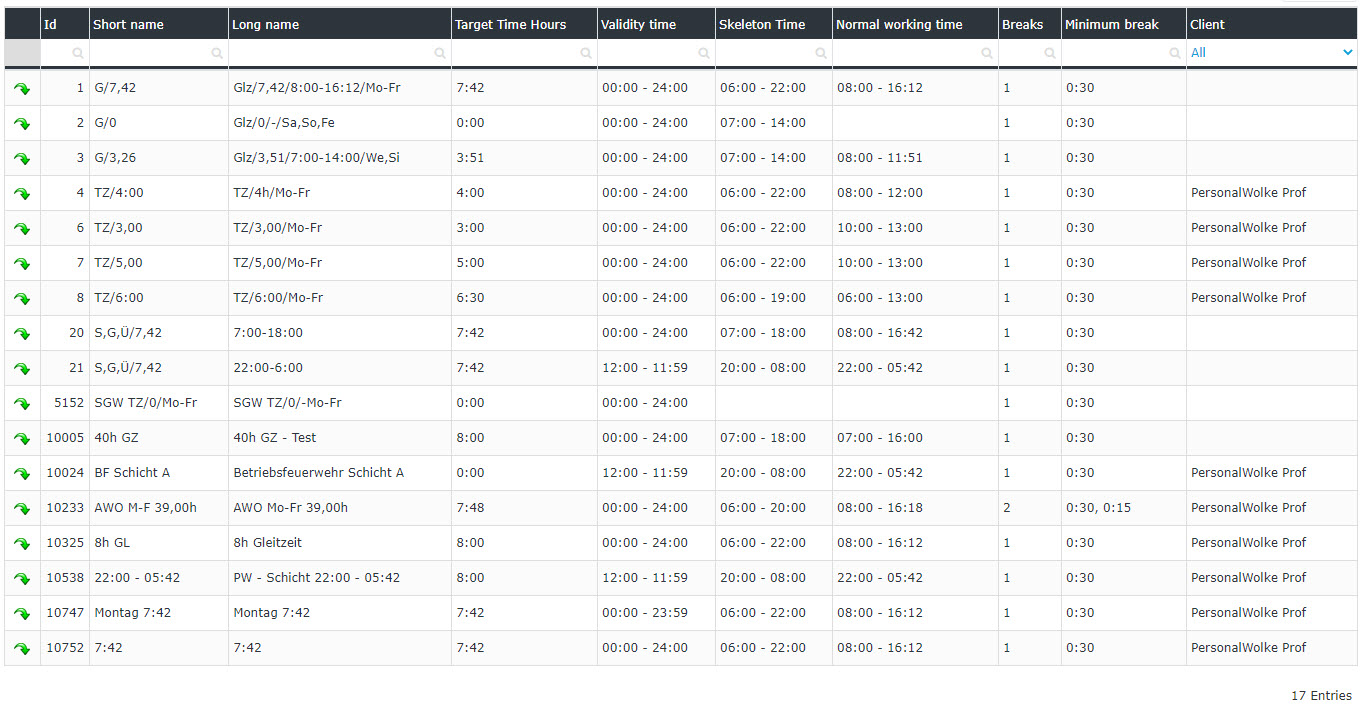
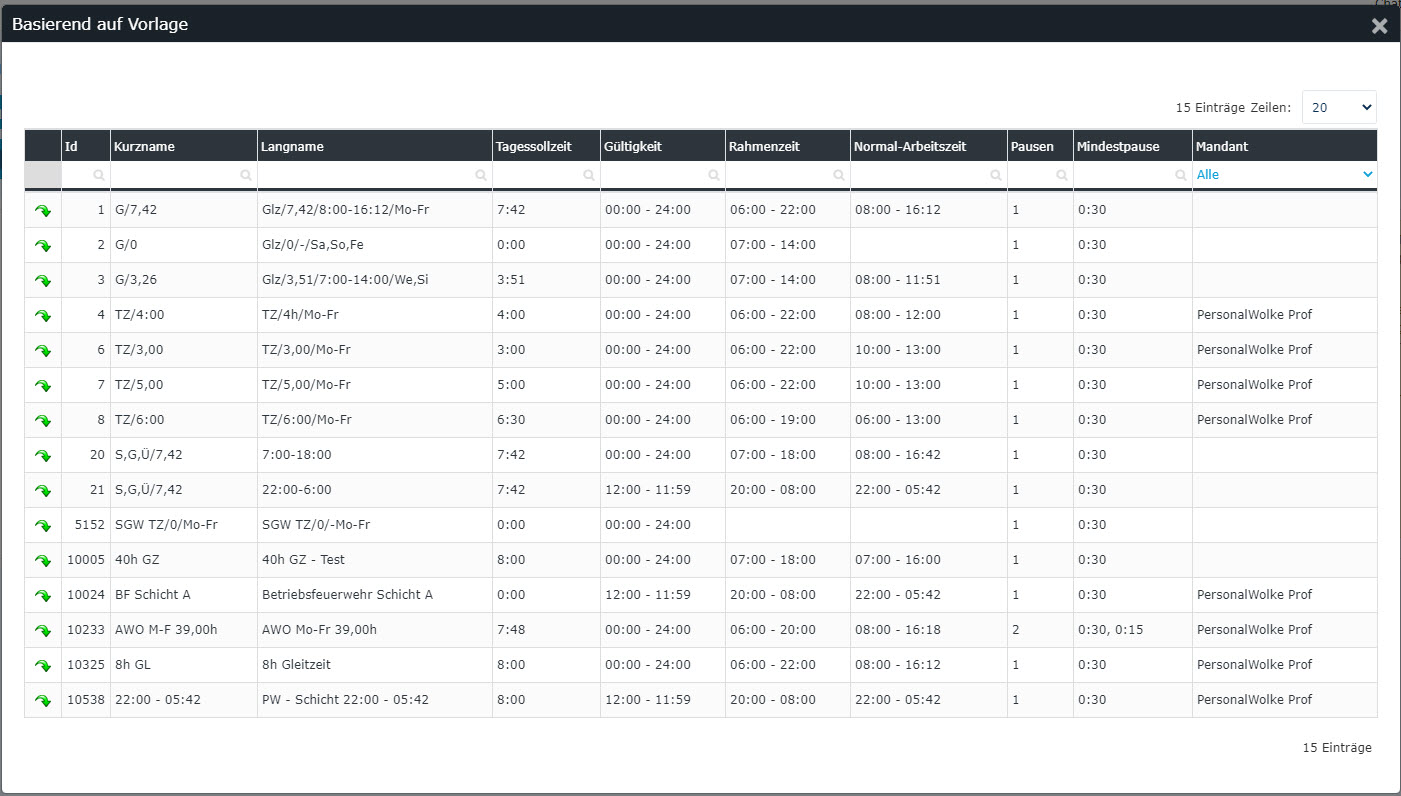
To begin with, note that the templates you select in the next steps can be edited afterwards. For simplicity, it is advisable to choose templates that are similar to your desired daily schedule.
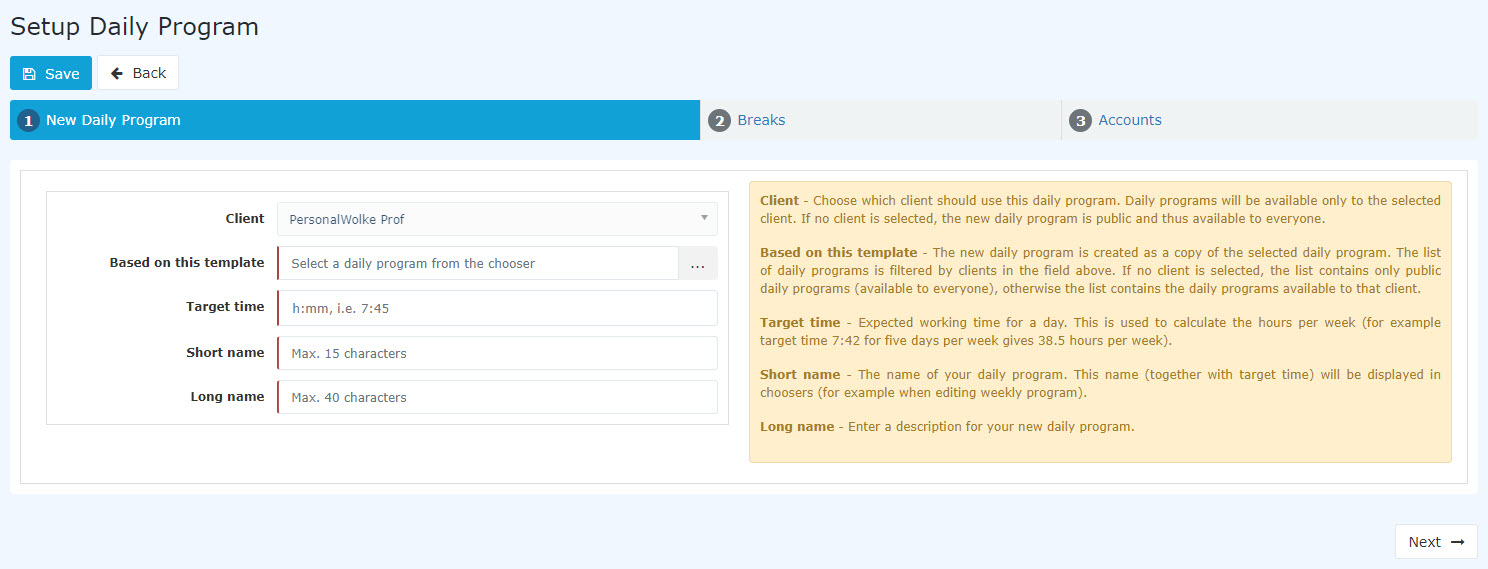
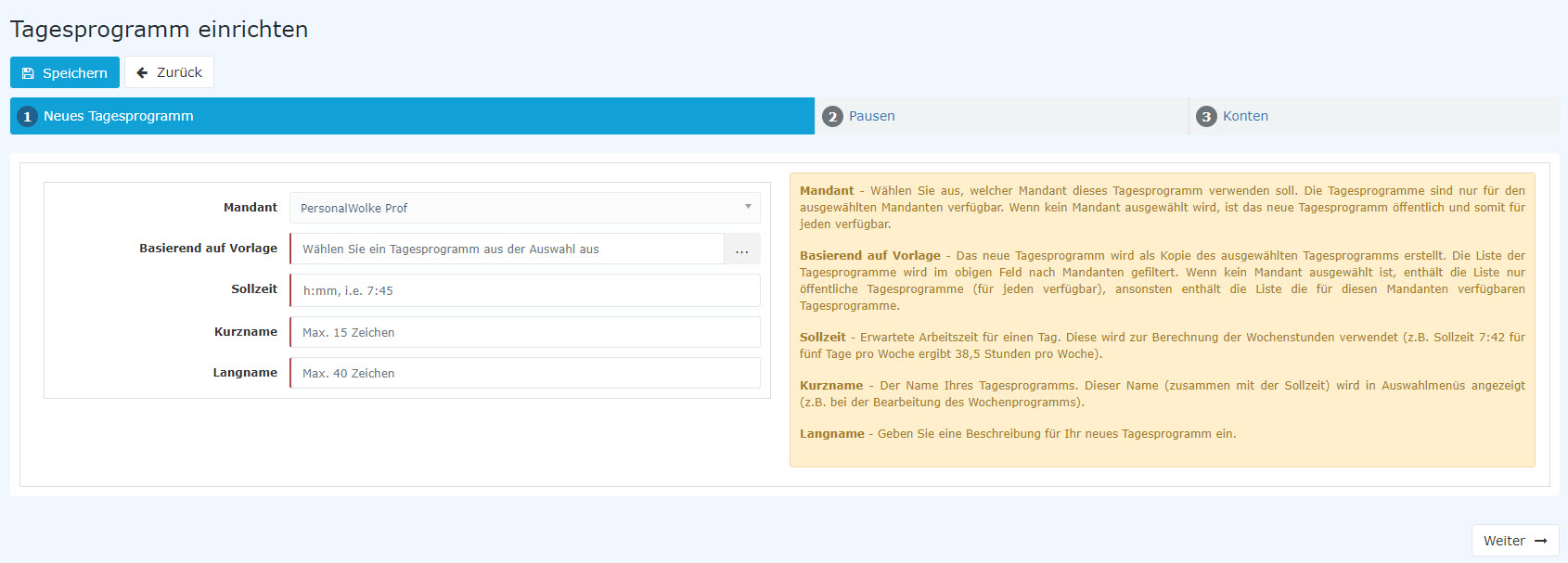
In the first step, you select a template. This copies the basic settings of an existing daily schedule to the new daily schedule. This makes the work easier.
Step 3: Target time, short name and long name
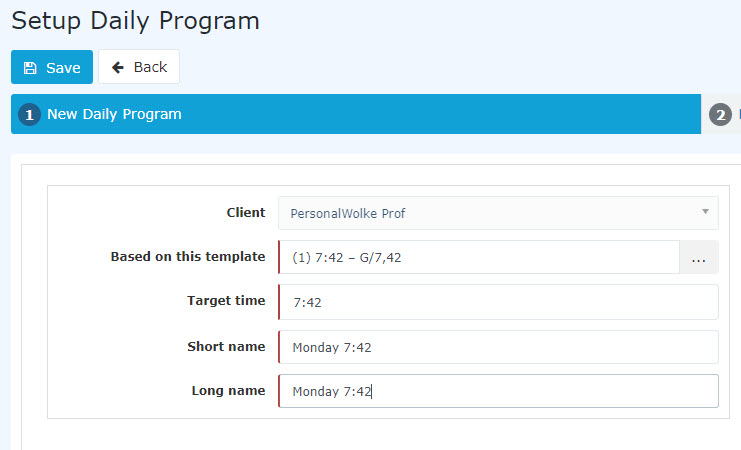
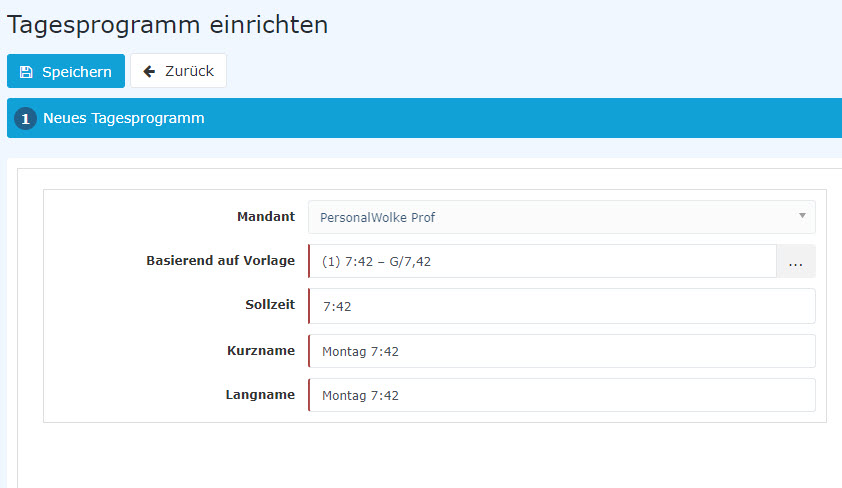
Then enter the desired target time, as well as the short name and long name:
Step 4: Break rule
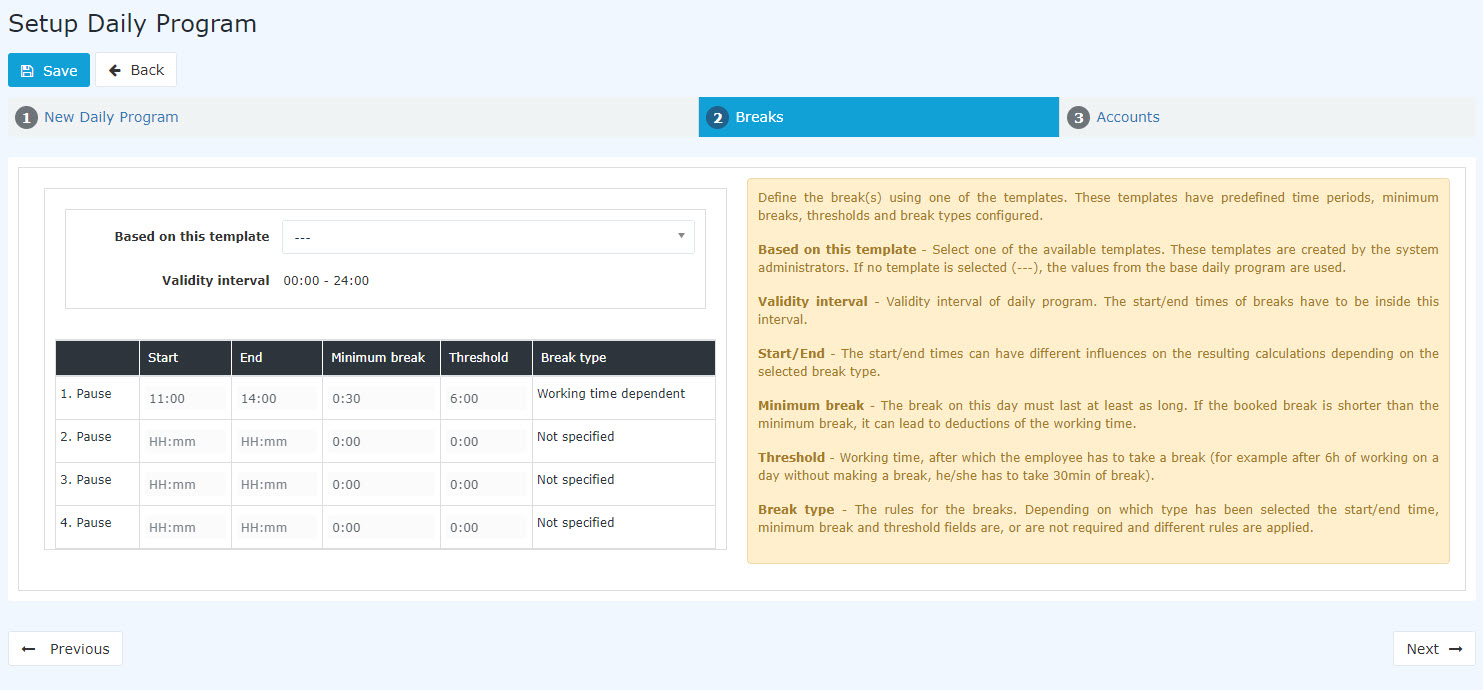
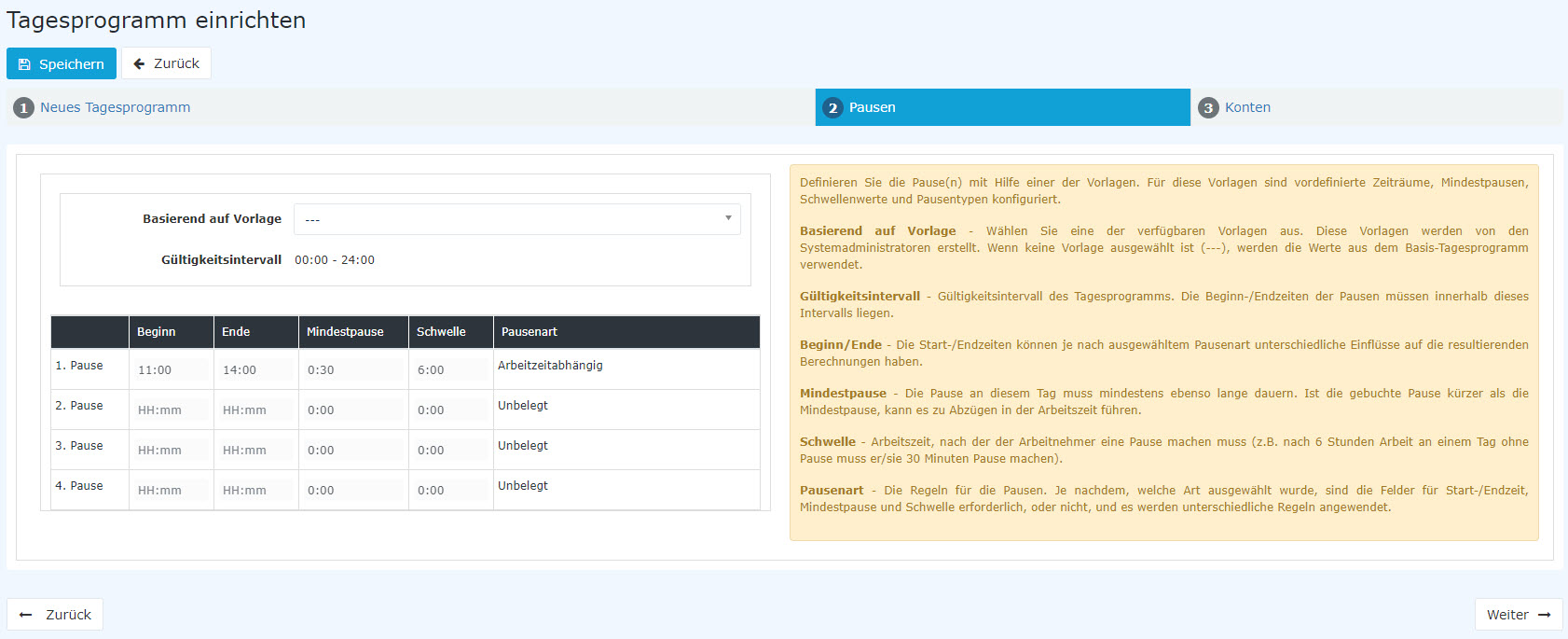
Go to the next page with "Next". There you can set the break rule. Select a template for this, or keep the setting copied from the daily schedule you selected in the first step.
Step 5: Overtime rule
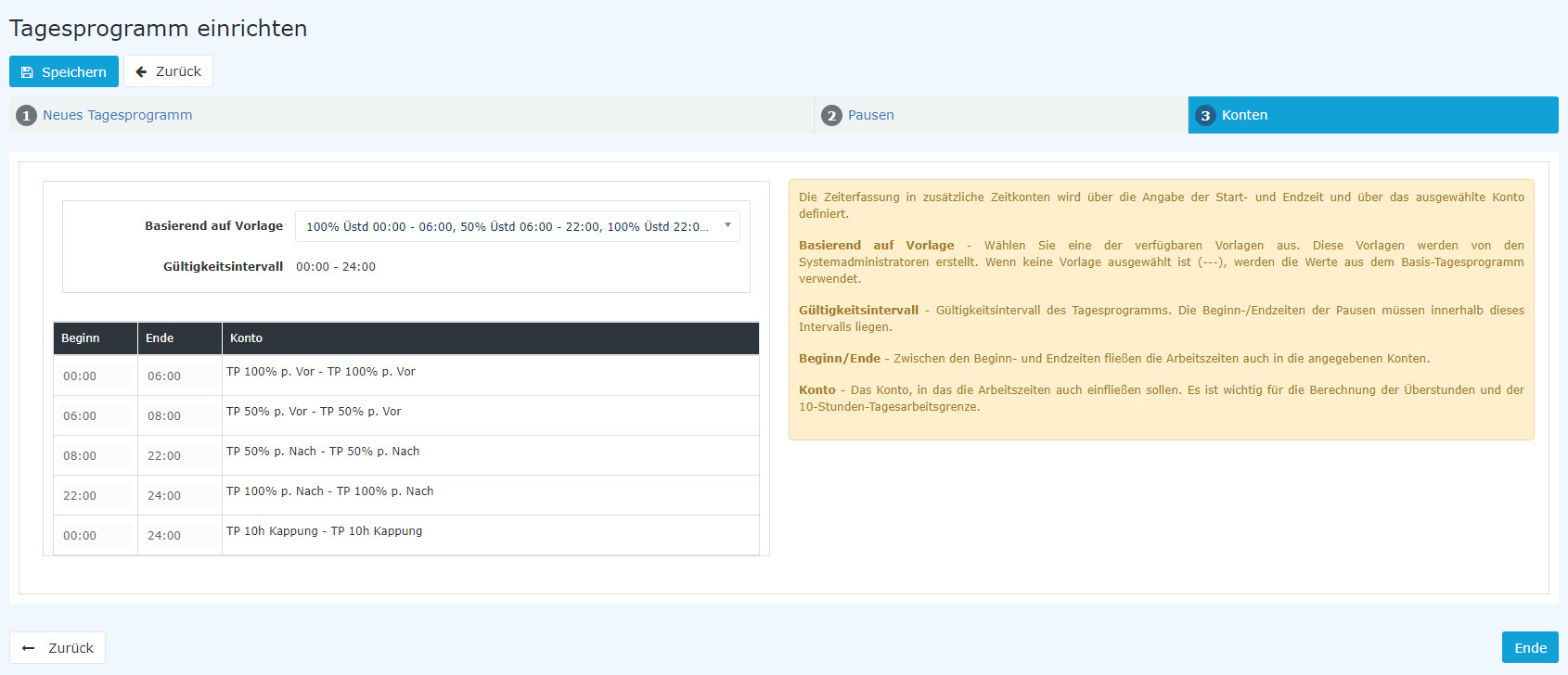
Clicking "Next" takes you to the last step. Here you can select and set an overtime rule.
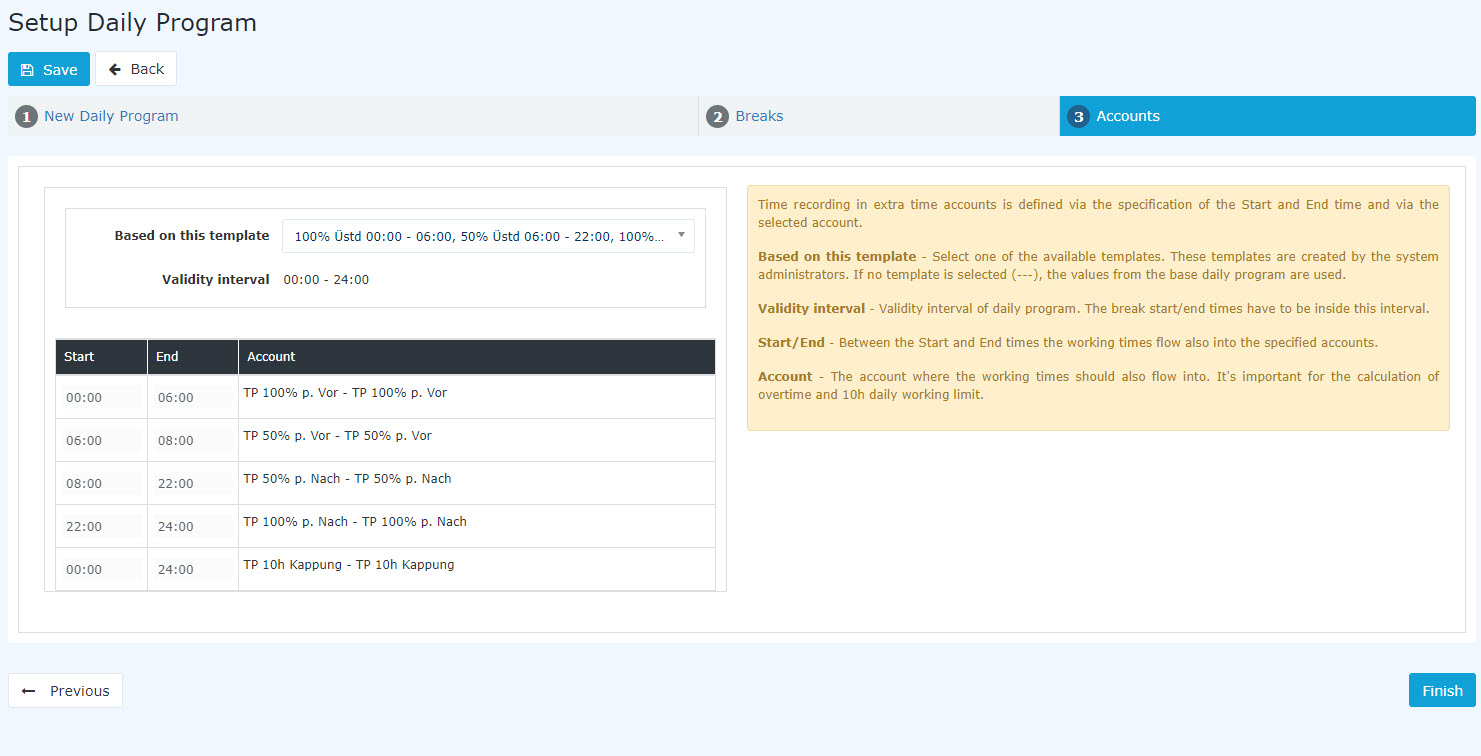
Step 6: Save
Clicking "Save" creates the daily schedule and the edit mode opens - see the next chapter: Edit a daily schedule

 erste
erste


 Vergleiche Versionen 9 und 10