Please notice: this manual refers only to The following instructions apply to recording in HR-Expert!
Having to register the termination of an Do you want to record an employee's end of employment in Personalwolke?
Below you will find a step-by-step -tutorial in the following, including
Before starting, there is one important decision to make concerning the termination:
Is the termination definitely to happen? (e.g. instant dismissal,
instructions on how to
.
To proceed, you need to make a decision:
-
Is the end of employment certain (for example, in the case of summary dismissal, retirement, or the death of the employee)?
If yes, please go to so, you will find all the necessary information under "Implement termination" for further information,
Is there a certain chance for any changing concerning the termination, e.g. data of
.
-
Can there still be changes to the end of employment (for example, to the last working day or turning an employer notice into a mutual termination.
If yes, you can find the instructions in the chapter "schedule termination"
Anyway, the first step is to open the profile/employee form of the employee concerned.
Step 1 - Opening the termination mask
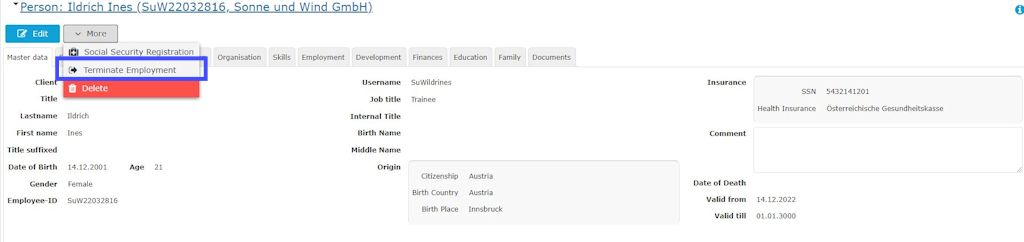
Click on the button "More" and choose "Terminate Employment" in the dropdown list to open the form. (see screenshot #01a and #01b)
|
screenshot #01a
|
 |
|
screenshot #01b
|
 |
Step 2 - Registration of the termination data
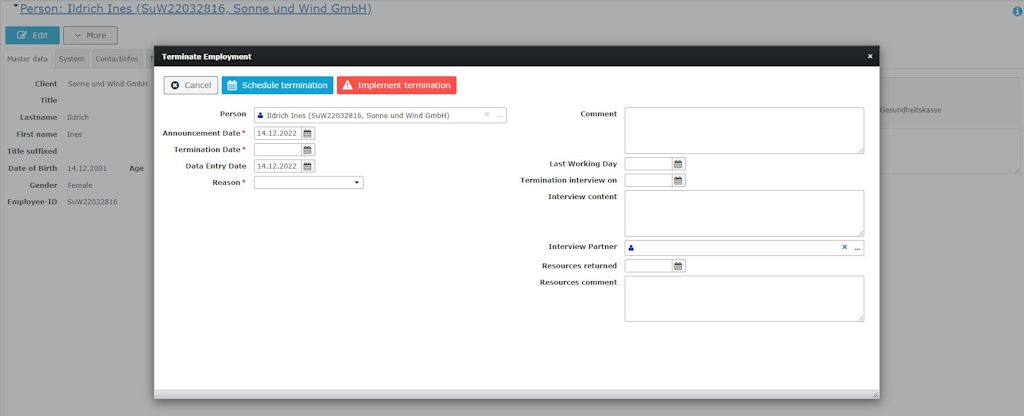
Now you can use the mask to insert data, see screenshot #02
The filling in of the mask is completed whether with "Schedule termination" or with "Implement termination" depending on your decision.
|
Screenshot #02
|
 |
Step 3a - Schedule termination
Scheduling a termination is recommanded if there is a certain possibility of an alternation of the data of termination (e.g. last working day, reason for termination, certain agreements). A changeset of the data of a scheduled termination is possible until the last working day/exit day of the employee.
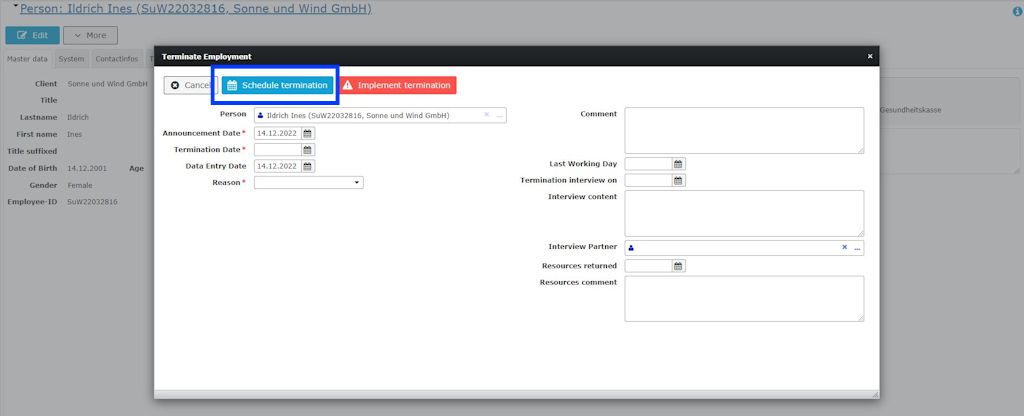
With clicking on the button "Schedule termination" the termination of the employee is announced, see screenshot #03.
|
Screenshot #03
|
 |
Scheduling the termination causes entries in the employee form/tab employment:
-
sub-tab resignation: term "announced" and data of the last working day (see screenshot #04)
-
sub-tab employment: the employment status is still "active"
|
screenshot #04
|
 |
Changing a scheduled termination
Any changes of the data of a resignation, e.g. last working day, can be saved as following:
-
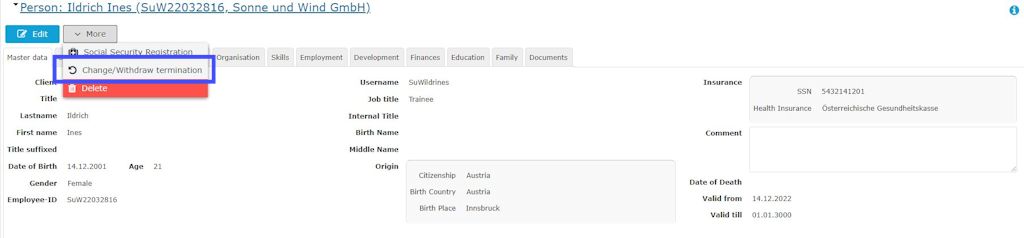
click on the button "More" and choose "Change/withdraw termination" in the dropdown list to open the form (screenshot #05)
-
change the data as requested
-
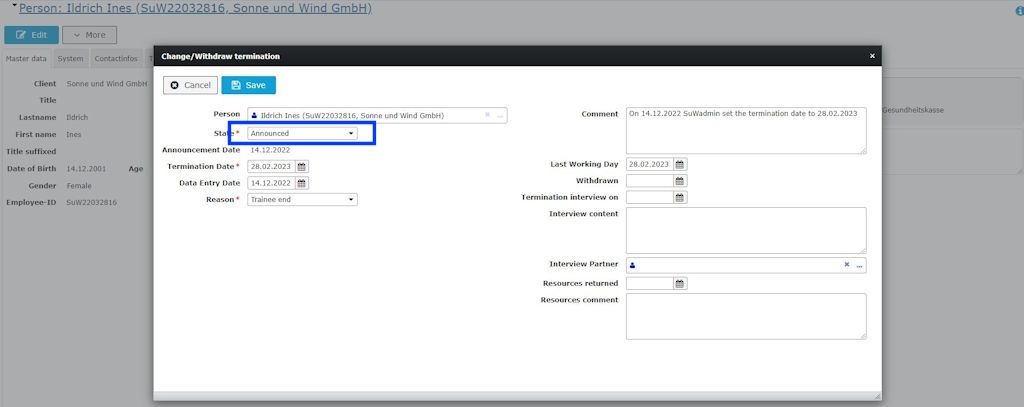
leave the status of the termination on "announced" (screenshot #06)
-
save date with clicking on "Save"
|
screenshot #05
|
 |
|
screenshot #06
|
 |
Withdrawing a scheduled termination
Use this feature for the case of a cancelled termination or to replace a scheduled termination with an implemented termination.
The path is the same as to changing a termination:
-
Click on the button "More" and choose "Change/withdraw termination" in the dropdown list to open the form (see screenshot #05)
-
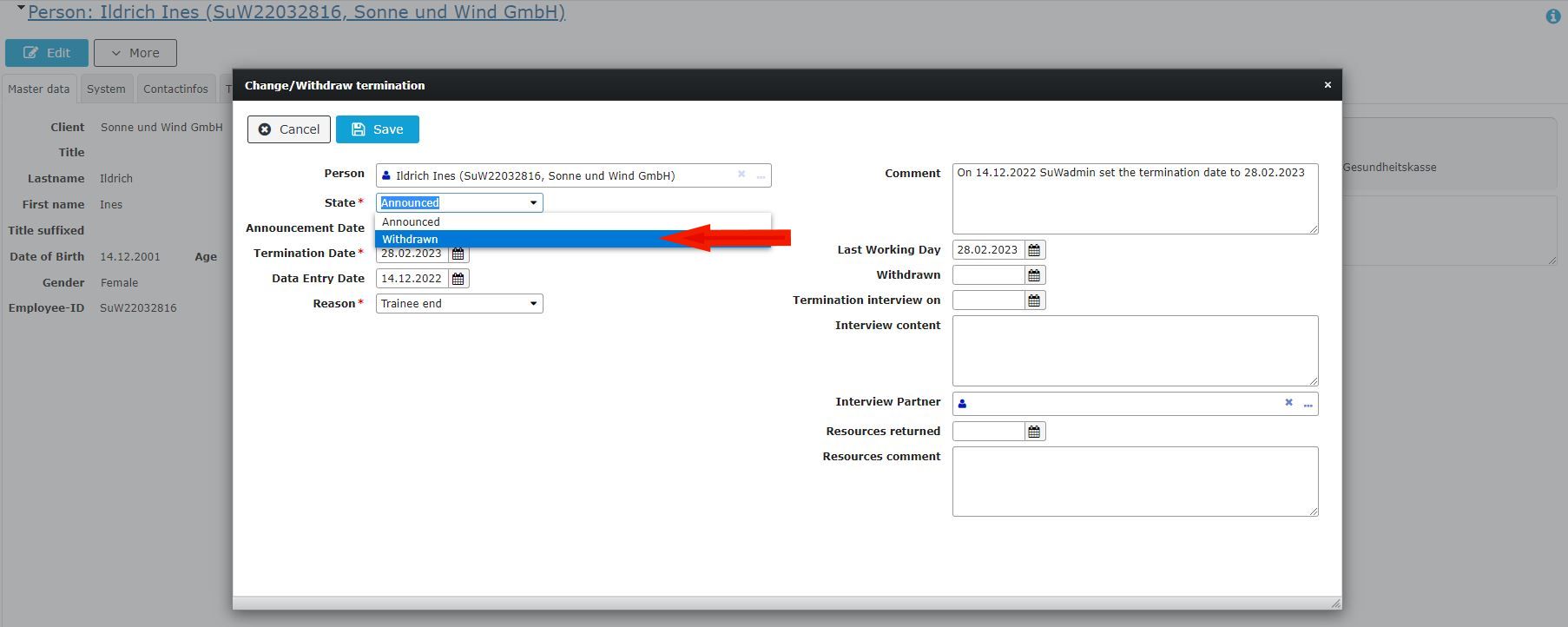
Change the status from "announced" to "withdrawn" (see screenshot #07)
-
Fill in the data of the withdrawing (see screenshot #07)
-
Save the data via clicking on the button "Save"
|
screenshot #07
|
 |
-
Employee form/employment/resignation: term "announced" is replaced by the term "withdrawn" (see screenshot #08).
-
Employee form/employment/resignation: the resignation data is cancelled
|
screenshot #08
|
 |
Step 3b - Implement termination
If there is no reason that the termination would be altered or cancelled, using "implement termination" is recommanded.
Advice: a scheduled termination must be withdrawn before recording an implemented termination, see chapter "Withdrawing a scheduled termination"!
-
First go to the employee form and click on "More". Choose "Implement termination" from the dropdown list (see screenshot #01a and #01b)
-
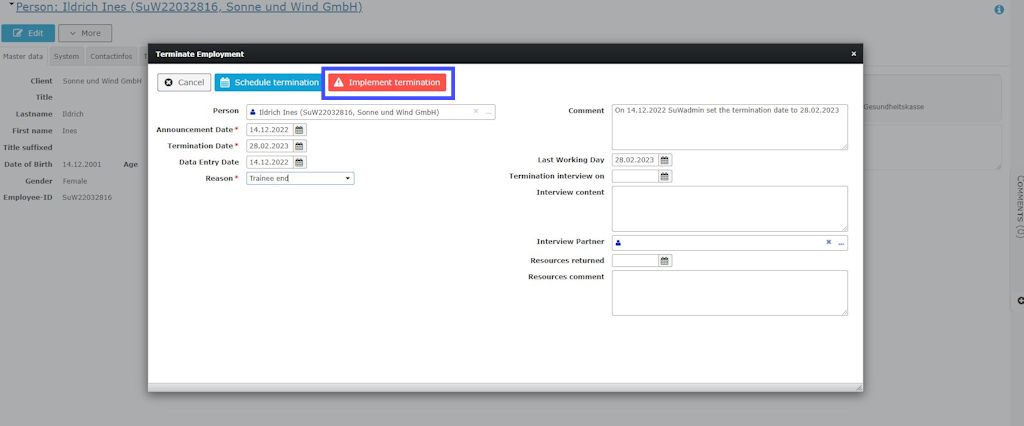
Fill in the form and save the data with clicking on "Implement termination" (see screenshot #09)
Further information concerning this mask you can find under the topic Termination field index.
|
Screenshot #09
|
 |
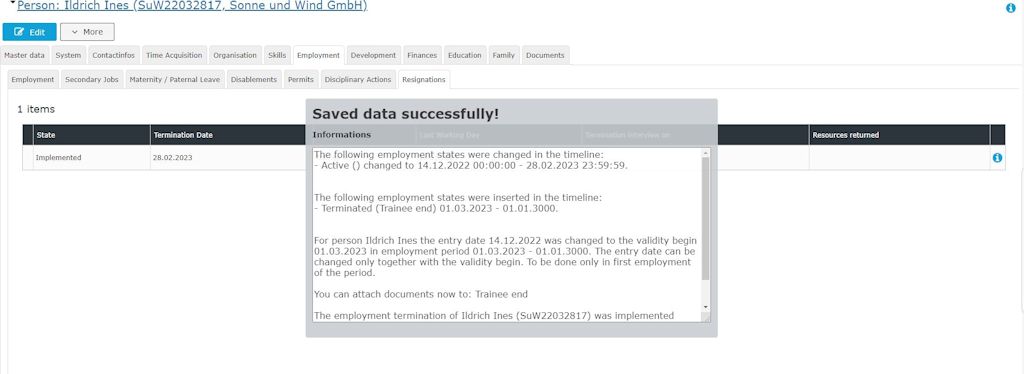
. After saving, a pop-up text shows the consequences on the employee's profile the implemented termination causes (see screenshot #10)
|
screenshot #10
|
 |
-
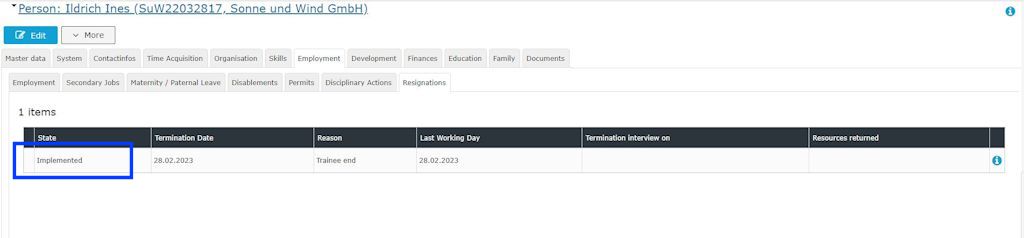
Employee form/employment/resignation: the termination status says "implemented", a resignation data is added (see screenshot #11)
-
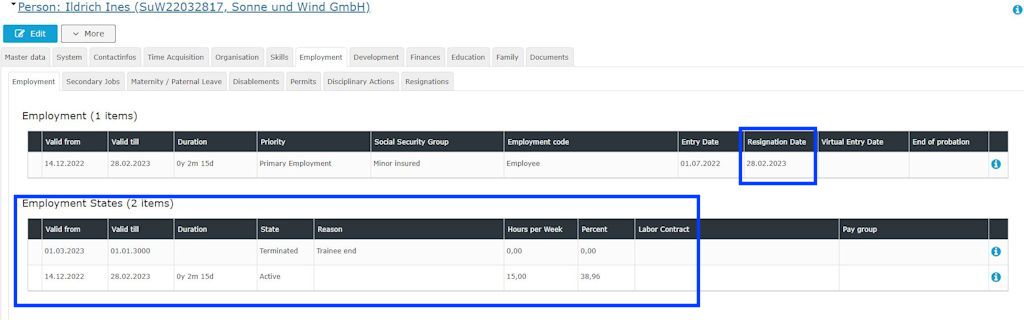
Employee form/employment/employment: the resignation data is shown. The status of the primary employment is active, but the status will end on the resignation day. A second status is added, starting with the day after resignation, showing the state "Terminated" and the reason for termination (see screenshot #12)
|
screenshot #11
|
 |
|
screenshot #12
|
 |
Further information concerning the tab "Employment/Employment" and "Employment/Resignation" are offered in the chapter "Employment field index".
-
, or could a unilateral notice become a mutual agreement)?
In that case, please go to the menu item "Schedule termination"
In both cases, the entry starts by opening the employee form:
Step 1 - Open the employee and the entry page
An employee termination is recorded via the "More" button in the profile view and by selecting the function "End employment relationship" (see picture 1a and picture 1b)
|
Picture 1a
|
 |
|
Picture 1b
|
 |
Alternatively, there is the option ("quick menu") of opening this form for a termination via Personnel/Administration/End Employment Relationship and carrying out the following actions there.
Step 2 - Enter the known data on the end of employment
see picture 2
|
Picture 2
|
 |
To complete the entry, you can choose either to schedule the termination or to implement it, depending on what makes more sense in the specific case.
You can find more information on the input fields under Termination Field Index
Step 3a - Schedule the termination
Scheduling a termination makes sense when the termination as such (date, reason, related agreements, etc.) is not yet final. Until the termination date is reached, the data can still be changed at any time.
Scheduling the termination is activated by clicking the "Schedule termination" button, see picture 3
|
Picture 3
|
 |
If a termination has been scheduled, this has the following effects:
-
the termination is displayed as scheduled in the employee form/Employment in the "Terminations" tab (see picture 4)
-
in the Employment/Employment States tab, the termination date is displayed under "Employment", but the employment state is still set to "active" (see picture 5)
-
A scheduled termination is automatically implemented on the last working day, with the same consequences as a termination that is implemented immediately.
|
Picture 4
|
 |
|
Picture 5
|
 |
Change a scheduled termination
If data on the termination has changed, e.g. the date of the last working day, take the following steps:
-
Via the "More" button in the profile view, select "Change/withdraw termination". (Picture 6)
-
Enter the changed data in the form; the status remains "scheduled" (Picture 7)
-
Click "Save" to save the change to the scheduled termination.
|
Picture 6
|
 |
|
Picture 7
|
 |
Withdraw a scheduled termination
If the employment relationship is not ended, the scheduled termination can be withdrawn.
To do so, in step 1, as when changing the scheduled termination, select the option "Change/withdraw termination" via the profile view and "More" (see picture 6)
In the form, click "Withdrawn" under "Status" and enter the date of withdrawal in the "Withdrawn" field (see picture 8)
|
Picture 8
|
 |
After saving, the status of the termination is likewise noted as "Withdrawn" in the Employment/Termination tab (see picture 9).
|
Picture 9
|
 |
Withdrawing the notice means that the employment relationship remains valid and unchanged.
Step 3b - Implement the termination
If no further changes to the termination are expected, or if it has already happened or, for example in the case of summary dismissal, must be carried out immediately, this is done via "Implement termination" without prior scheduling.
If you click "Implement termination" when entering the termination data (see picture 10), no subsequent changes are possible. The termination must be completely withdrawn before it can be recorded again.
Note: if a scheduled termination is to be implemented, it must first be withdrawn, see "Withdraw a scheduled termination"
To do so, select "End employment relationship" under "More" in the profile view (see Step 1).
After entering the data on the end of the employment relationship, click the "Implement termination" button (picture 10).
|
Picture 10
|
 |
A notification box then appears describing the change to the employment state resulting from implementing the termination (picture 11)
.
|
Picture 11
|
 |
This is what the entry in the "Employment/Terminations" tab now looks like (picture 12) and the change to the employment state (picture 13)
|
Picture 12
|
 |
|
Picture 13
|
 |
Rehire of a terminated employee
In principle, it is also possible to reactivate an employee who has left the company (= after the end of the employment relationship).
You can find information on how to carry out a rehire under Personnel/Administration/Rehire or Rehiring Employees (via HR-Expert)
Change an implemented termination
If data on the termination has changed, e.g. the date of the last working day, take the following steps:
-
Via the "More" button in the profile view, select "Change/withdraw termination". (see picture 6)
-
Enter the changed data in the form; the status remains "implemented" - it also cannot be changed
-
Click "Save" to save the change to the termination.
Withdraw an implemented termination
If the termination as a whole is canceled, this is likewise possible via the function "Change/withdraw termination" under "More":
-
Via the "More" button in the profile view, select "Change/withdraw termination". (see picture 6)
-
Enter the corresponding date under "Withdrawn" in the form. If it is missing, the current date is entered automatically.
-
By clicking "Withdraw", the termination as such is declared null and void, and all permissions etc. are reset to the status before the termination was recorded. (Picture 14)
|
Picture 14
|
 |
You can find more information on the tabs "Employment/Employment States" and "Employment/Terminations" under Employment Field Index.

 erste
erste


 Vergleiche Versionen 10 und 11