Veränderungen des Inhalts
Klicken Sie für eine detaillierte Beschreibung auf die geänderten Stellen:
Benutzen sie die linke oder die rechte Maustaste, um zur jeweils vorherigen bzw. nachfolgenden Änderung zu gelangen.
To set up two-factor authentication, the employee must go to the profile settings on the home page (click the avatar or name in the upper right corner of the home page, see image).
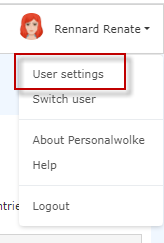
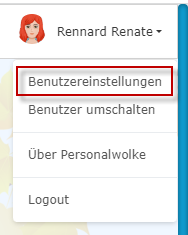
Clicking "Settings" opens the settings page.
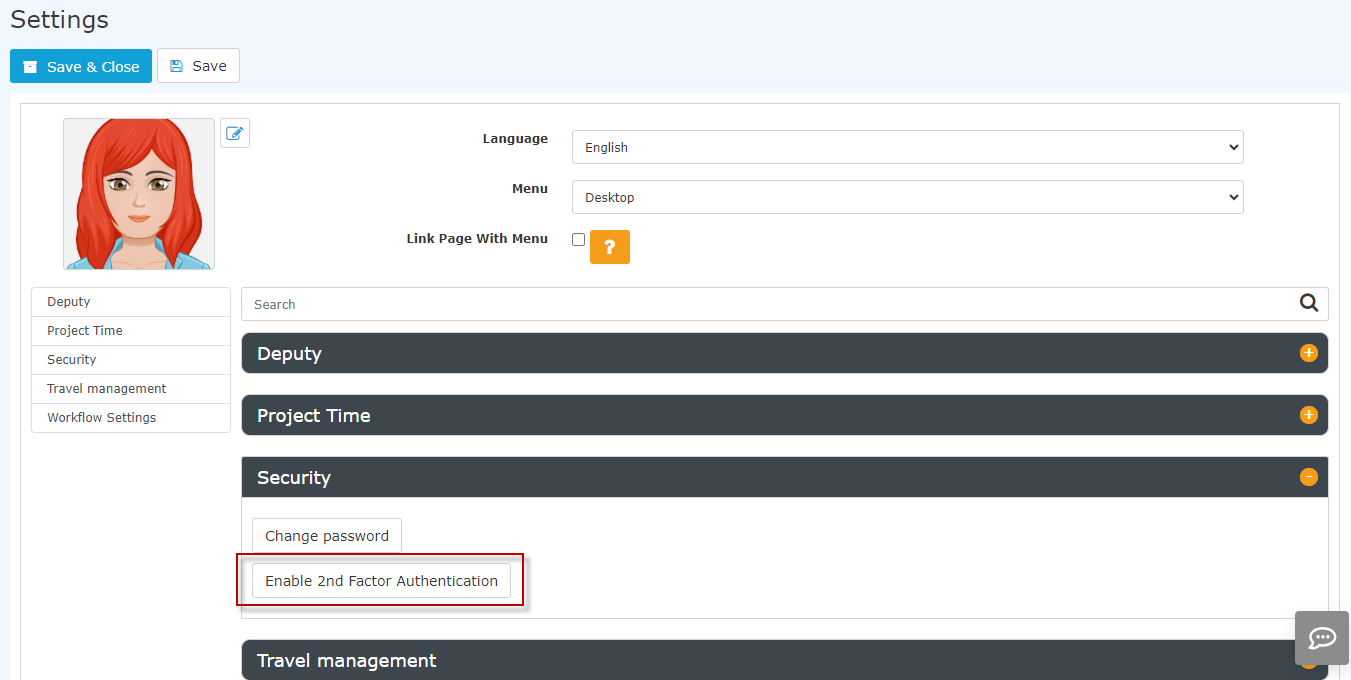

Activation is done by clicking the button "Enable two-factor authentication" and following the instructions in the window that then opens. The process itself is supported by the use of apps such as Google Authenticator.
Note! Each employee can decide for themselves whether two-factor authentication takes place at login, since this is an individual entry in the profile settings.
However, it is also possible to make it mandatory for the entire organization. This is done through a setting directly on the client. If you would like mandatory two-factor authentication, please contact the Workflow consultants and experts.

 erste
erste


 Vergleiche Versionen 5 und 6