Content Contents of this chapter:
General Information
1. TraveldataTrip Data
2. Daily DiscountsDeductions
3. Kilometer allowancesMileage Allowance
4. RecordsReceipts
5. Calculated Costs
6. AttachmentsFiles
7. Time correction Further Correction
You can find more information on the subject of business trip expenses can be found here (links will be available soon)
General
expense reports here
General Information
Once the business trip has been completed is complete, the user has the option of filling can fill in the travel expense report with the actual costs and travel times actually incurred.
Travel expense reporting can be started in There are two ways to start the travel expense report:
1. you have You submitted a request for business trip request that has "rested" until the end of the business trip is completed and was then transferred moved to your list of open tasks as a template for the travel expense report. This is You then adjusted adjust it accordingly.
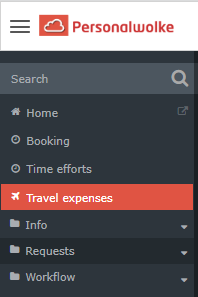
2. furthermoreFor employees who do not need approval for a travel request, it is also possible to request settlement directly via start the expense report directly using the menu item "Travel expenses" for employees who do not require approval for a travel requestSettle trip".
The business trip accounting comprises expense report consists of 7 steps, whereby the . The steps relating to traveldata trip data, costs and attachments files are already known familiar from the requests for business tripstrip request.
Navigation in the accounting expense report menu:
You can jump in move through the program
-
by clicking on the fields "Back" and "Next" buttons or
-
by clicking on the heading fields 1-7
The following descriptions refer to the standard version of the business trip accounting. Due to the possibility of individualising this, there may be deviations in some places for the respective user with regard to the displayed fields / input options.
1. Traveldata
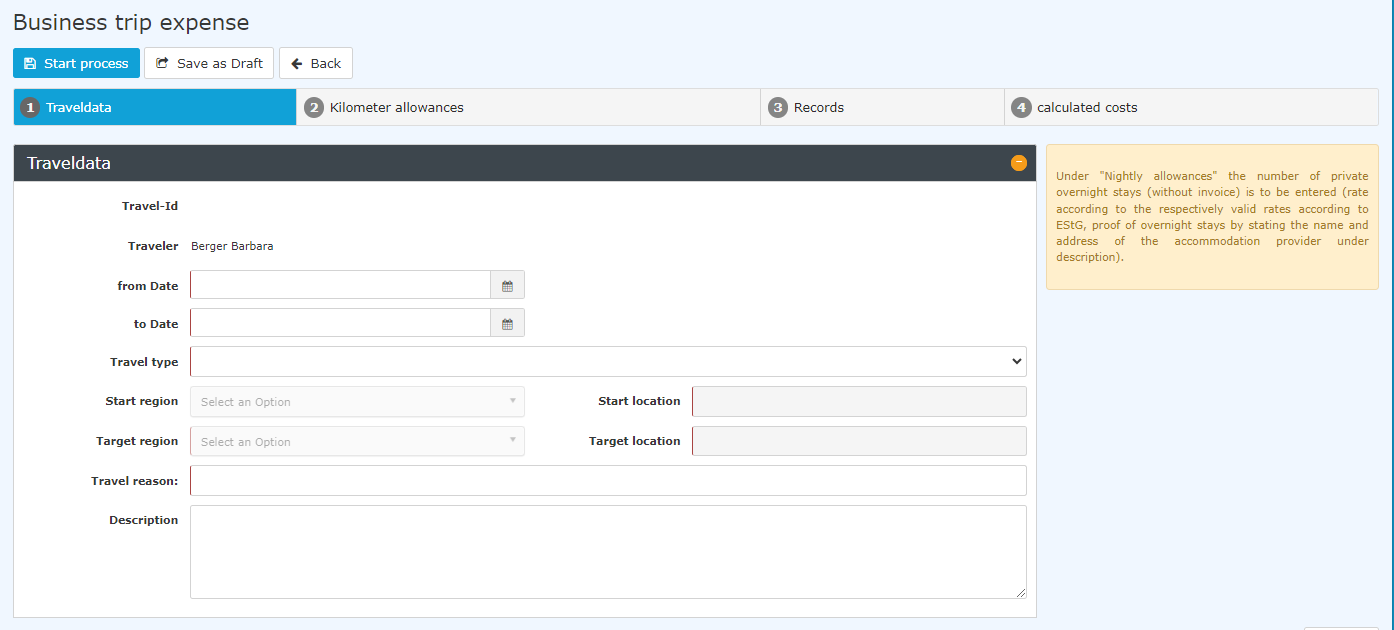
The fields marked with red dashes are mandatory
expense report. Because it can be customized, the fields and input options displayed may occasionally differ from those shown here for a particular user.
1. Trip Data
Fields marked with red lines are required.
The following must therefore be completed:
from Date
to Date
Travel type: In-county travel
Start region: This is set to the country in which the applicant's place of employment is located when selecting "in-country travel", i.e. Austria if the applicant's place of employment is Austria.
Target region: This is
filled in:
-
From date
-
To date
-
Trip type → Domestic trip
-
Start region: when "Domestic trip" is selected, this is set to the country in which the applicantrequester's place of employment work location is located when selecting "in-country travel", i.e. Austria if the applicant's place of employment is Austrian; for a work location in Austria, this is Austria
-
Start location: Active manual entry of the start address of where the journeytrip begins, i. e. e.g., the business work address or the private residential address. Target location: home address
-
Destination region: when "Domestic trip" is selected, this is set to the country in which the requester's work location is located; for a work location in Austria, this is Austria
-
Destination: manual entry of the address, e.g., of the hotel at the destination, a conference centrecenter, a customer locationsite, etc.
-
Travel reason: mandatory Purpose of trip: required entry
-
Description: for further informationNightly not a required field; used to enter additional information
-
Overnight allowances: If applicable, enter here the number of private overnight stays (i.e. in the home country (that is, not in a hotel; without an invoice; e.g.: , with relatives / friends) in Austria must be recorded here. These overnight stays are usually compensated reimbursed with a lump sum, which flat-rate amount that depends on the respective applicable collective agreement.
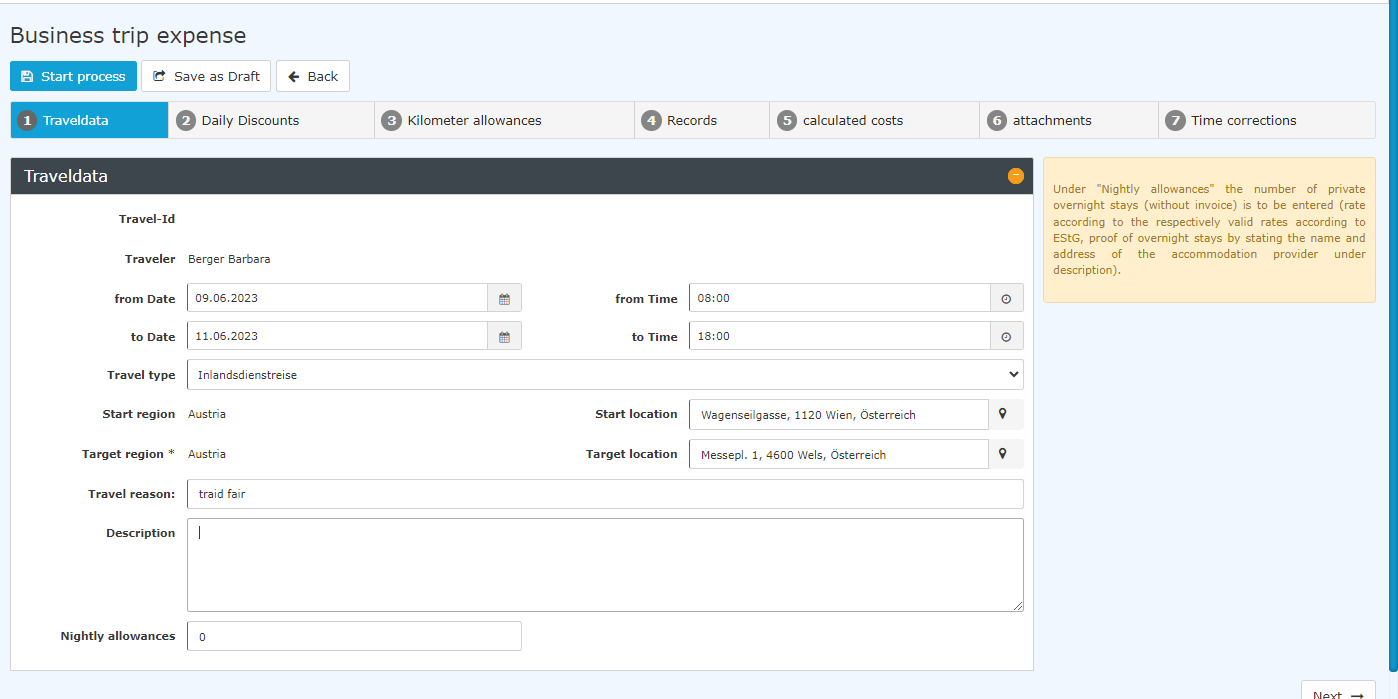
After entering you enter the dates of the start and end dates of the trip, another field opens for entering the times of departure and return (from time/to time).
The actual total duration of the trip must now be entered in this input maskform.
Based on the entries in from From date, to To date, from From time and to To time, the daily allowance due per diem you are entitled to is calculated.
The following example shows a completed first page:
2. Daily DiscountsDeductions
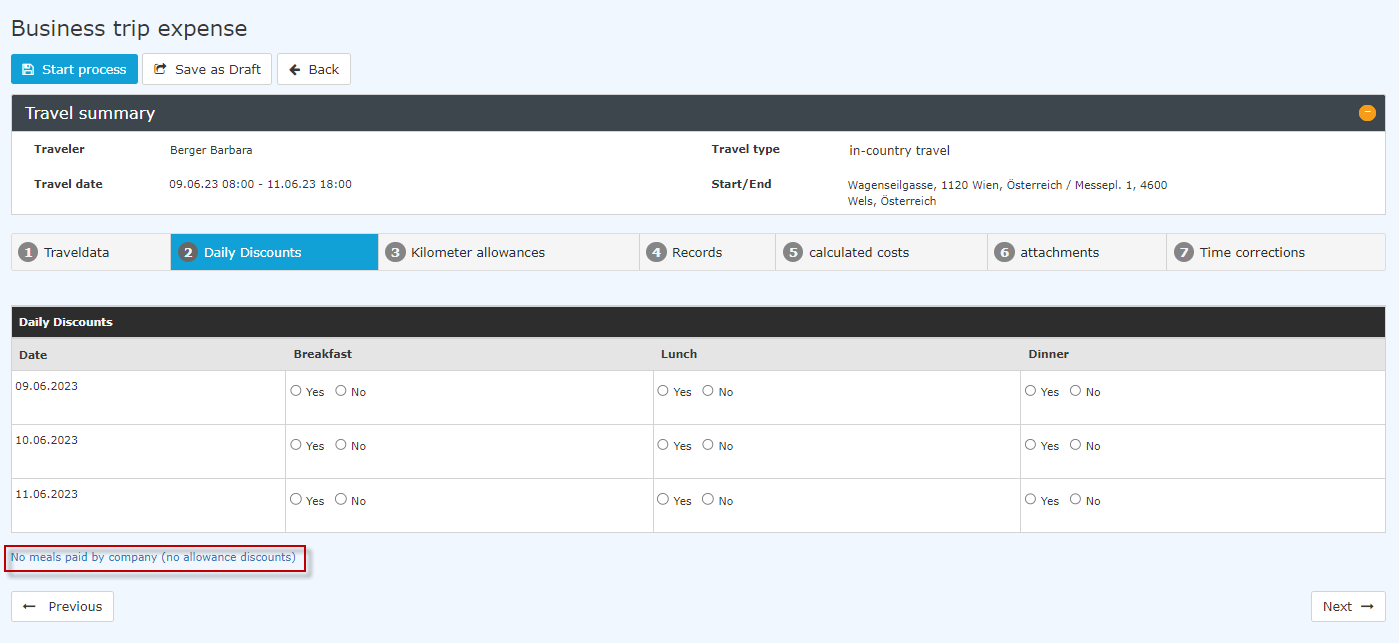
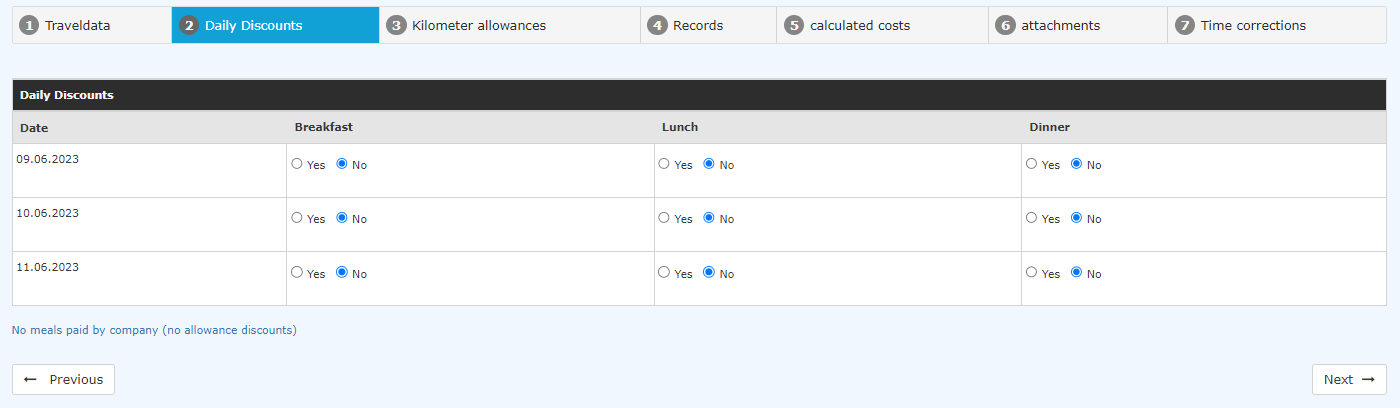
On this This page , is where meals paid for directly by the company are recorded, e.g., if you receive a meal allowance or similar , which that is offset in this way against restaurant costs or similar in this way.
If this is not the case for does not apply to you, please click on the line "No meals paid by the company (no allowance discountsdeductions)". This will cause sets all checkpoints to be set to "No".
3. Kilometer allowancesMileage Allowance
If the journey trip or part of it was made by means of using a private motor vehicle, you have the possibility to can enter the data here.
Click on "Add kmbill-recordmileage receipt" to open the input maskform.
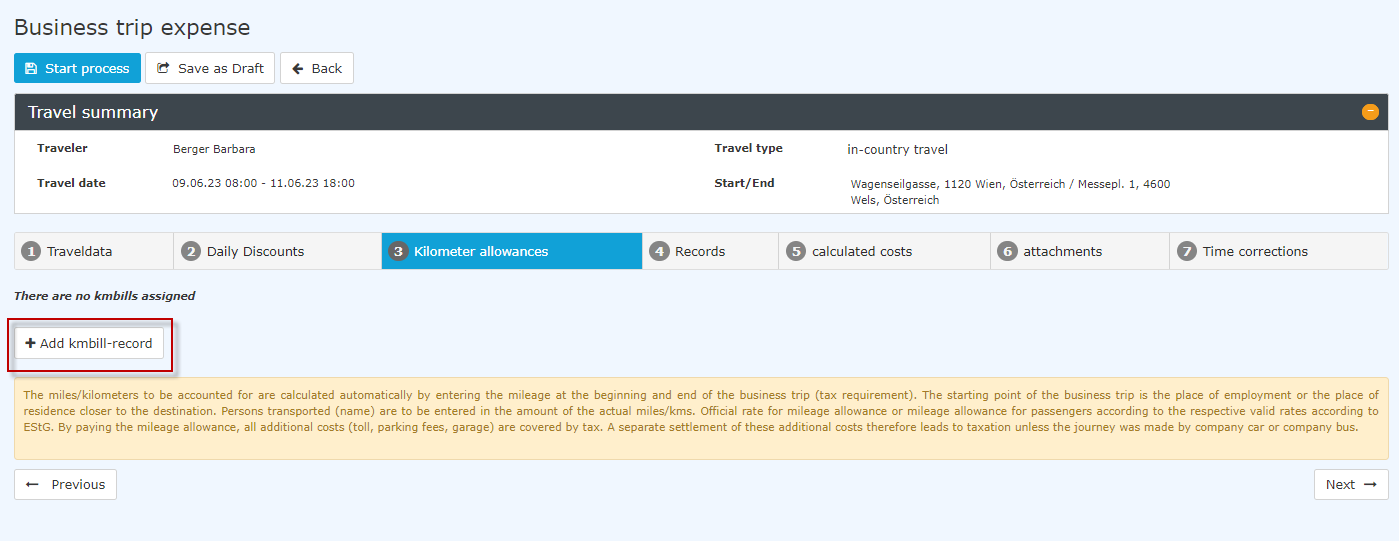
This is where the The data is recordedentered here:
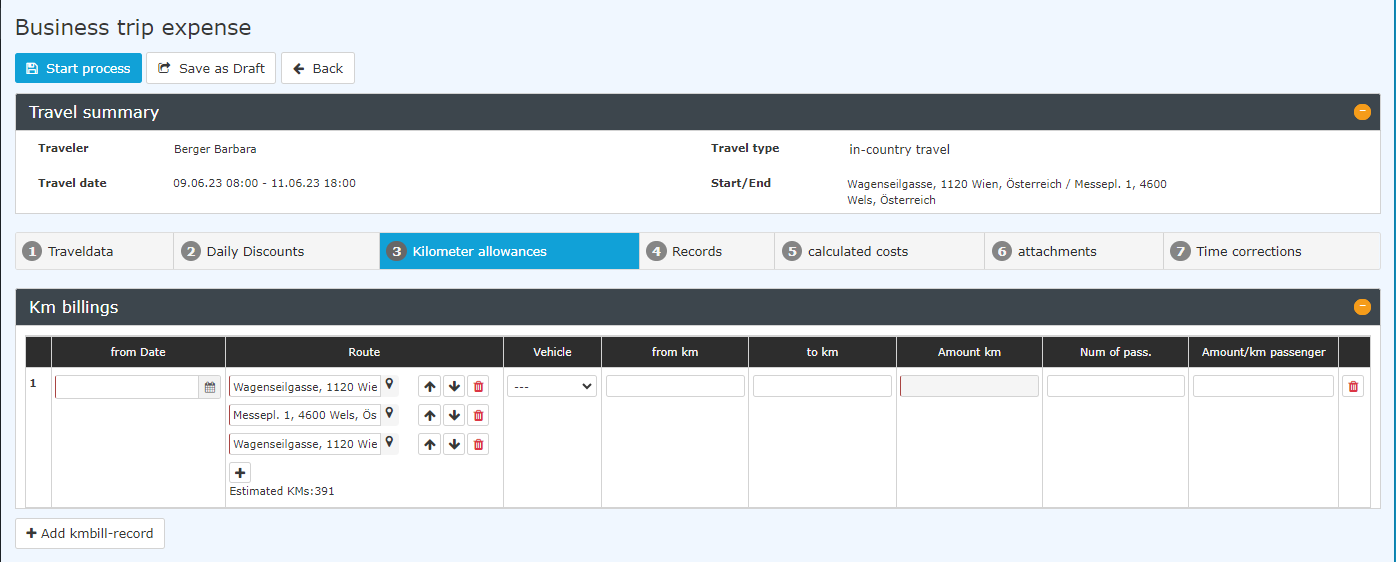
The following required fields must be entered filled in the mandatory fields:
from Date
from
:
-
From date
-
From km: Mileage odometer reading of the vehicle at departure (or at the beginning start of a daily stageleg)
-
to To km: Mileage odometer reading of the vehicle after the return returning (or at the end of a daily stageleg)
-
Amount Number of km: is calculated on the basis of the mileage from the odometer readings entered and cannot be overwritten
Additional inputs entries are required needed for
-
Num. of pass(engeres)
-
AmountNumber of passengers
-
Number/km of passengers
as because these are may also be included in the calculation of the kilometre mileage allowance at best.
Route: The data for the starting point start and destination are already enteredfilled in, but can be edited and supplemented by using the buttons:  button and supplemented using
 . Clicking on
 opens a link to Google Maps, which can be used to mark the stages of the journeywhere the legs of the trip can be marked. The total number of kilometres kilometers between the starting point start and destination (or backround trip) is are also entered.
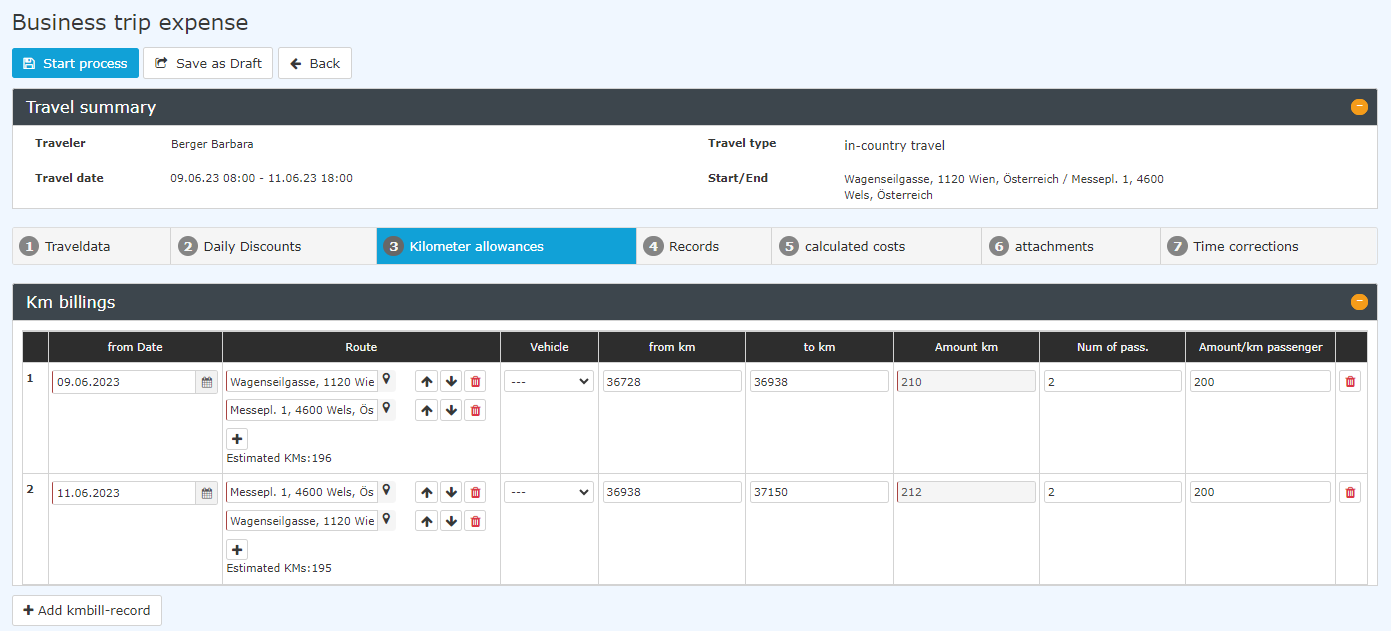
If the journey to or from the conference takes place over several stagesoutbound or return trip involves several legs, e.g., if several conference venues are visited on different days, each stage leg must be recorded separately by adding another kilometre allowance mileage receipt.
In the example below, the journey to and from the conference is outbound and return trips are made by car, and two other additional passengers were taken along , who travelled rode for almost the entire distance.
4. RecordsReceipts
The next step is to enter entering receipts. However, there is also the possibility to enter receipts subsequently, see Travel Expenses Receipt Entry
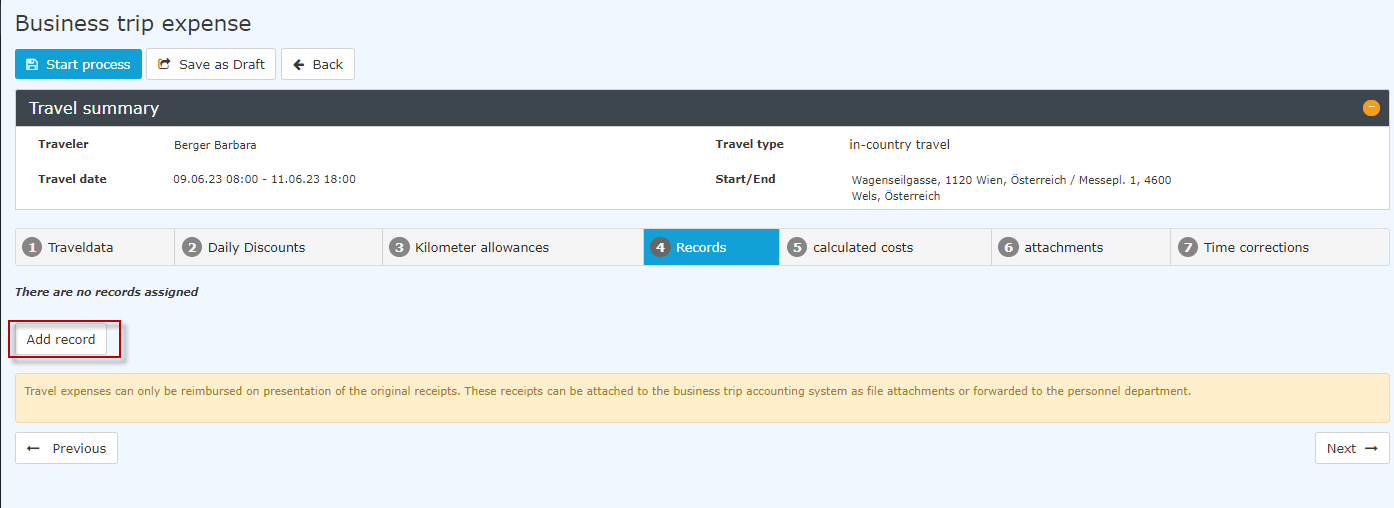
The input mask is opened by clicking on the button "Add record".
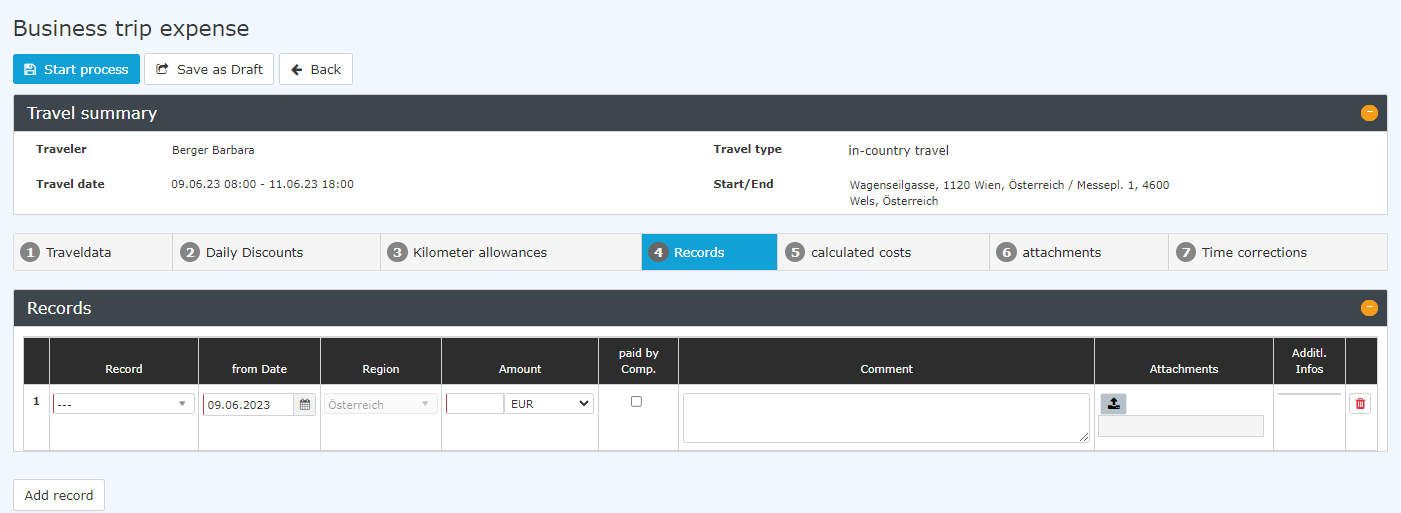
To be recorded are the mandatory data
kind of record: Clicking
You can also enter receipts after the fact; see Travel Expense Report - Receipt Entry
The input form opens when you click the "Add receipts" button.
The following must be entered:
-
Receipt type: clicking the arrow opens a selection list ([en] Hotel mit MwSt., flight list (hotel with VAT, train ticket, hospitality, flight ticket, hotel, other documentstoll receipt, parking ticket, other documents, toll receipt, train ticket, tram/subway ticket) from Date: record creation datereceipts, streetcar and subway tickets, taxi receipt).
-
From date: date the receipt was issued, with a calendar selection picker
-
Region: For for domestic trips, prefilled with the duty station work location country, Austria in the example Austria, preset and not changeablecannot be changed
-
Amount and currency (of the recordreceipt)
-
Paid by co.: paid by the company : company paid - if your company accounts for books the costs directly, e.g., by means of a bank transfer to the recipient or payments have been made using with a company credit card. Amounts marked in this way are not included in the calculated costs.
Example
Here, train tickets for a feeder service, accommodation costs and expenses for meals were entered. 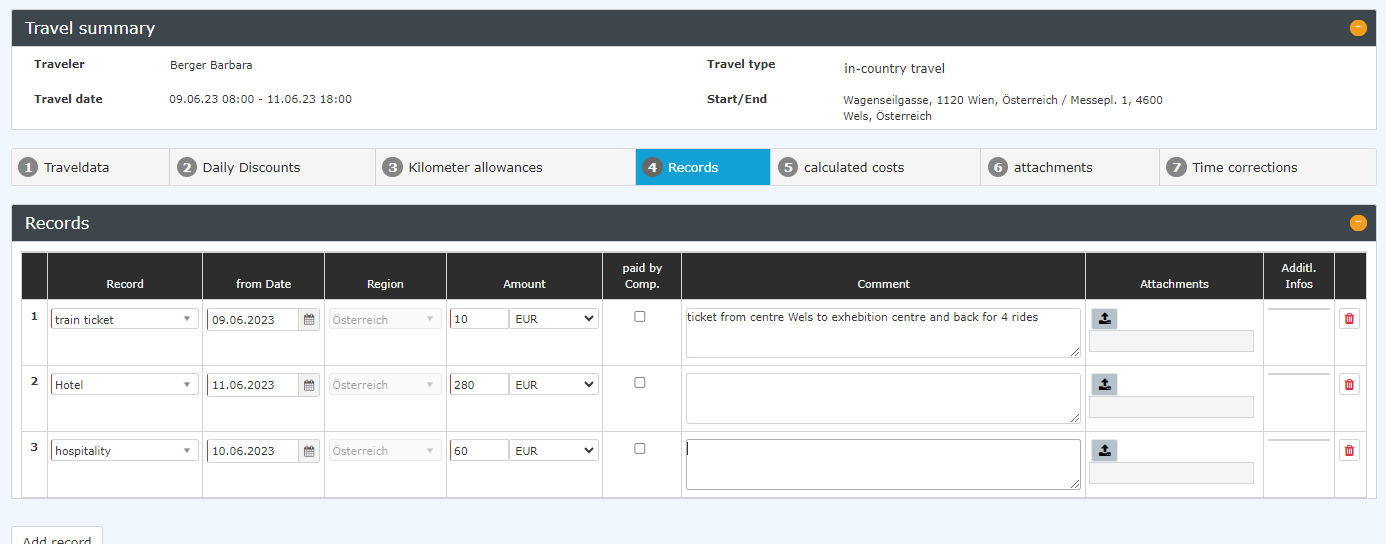
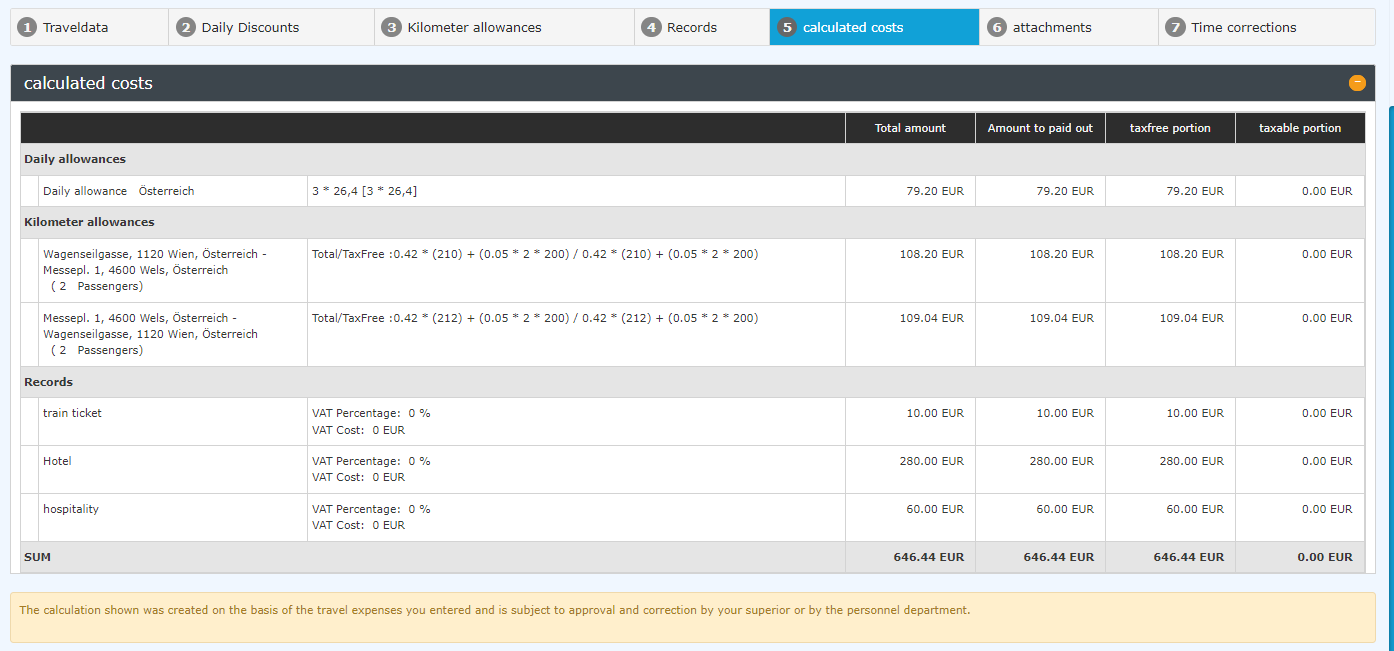
5. Calculated costsCosts
After entering the previous data , the cost calculation is now carried out according to above has been entered, the costs are calculated in accordance with the applicable laws or and tax rates.
6. Attachments
Here, it is possible to upload further
Files
Here you can upload additional documents that cannot be assigned to any vouchersreceipt.
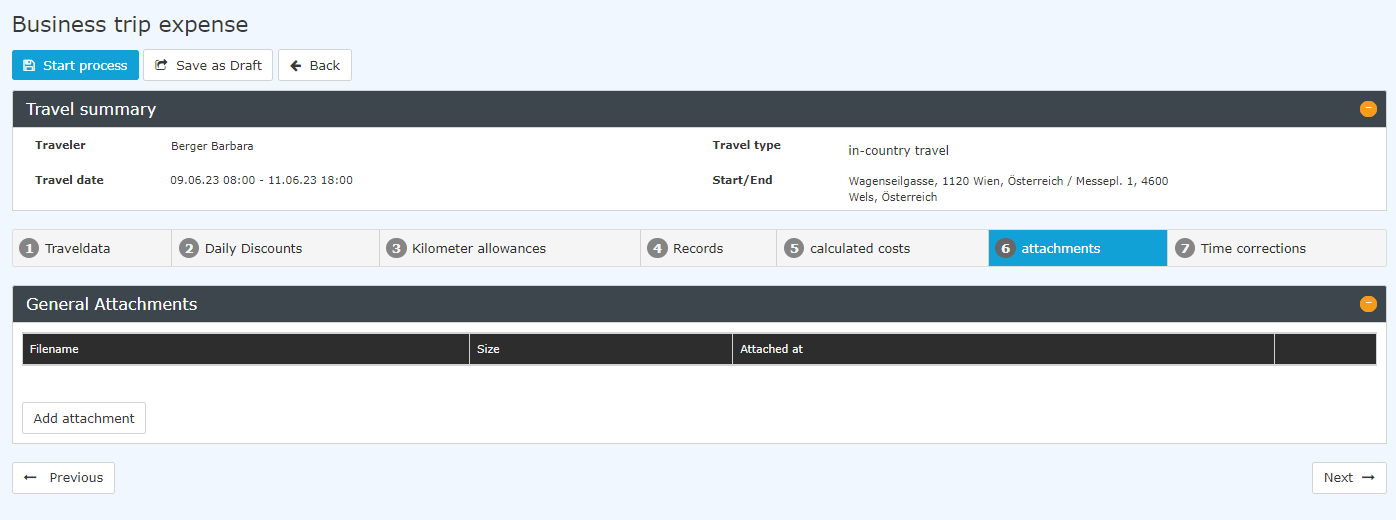
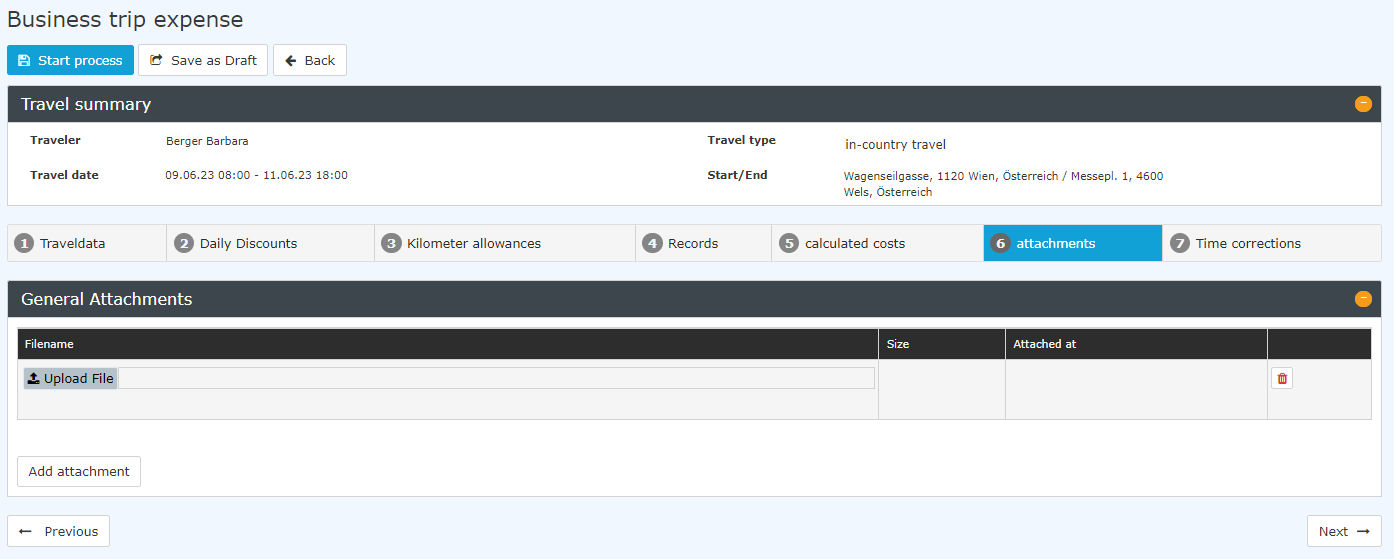
Clicking on "Add attachment" opens the input mask:form
7. Time corrections
As
Correction
Because business trips represent are absences, a corresponding time correction must be made to the working time.
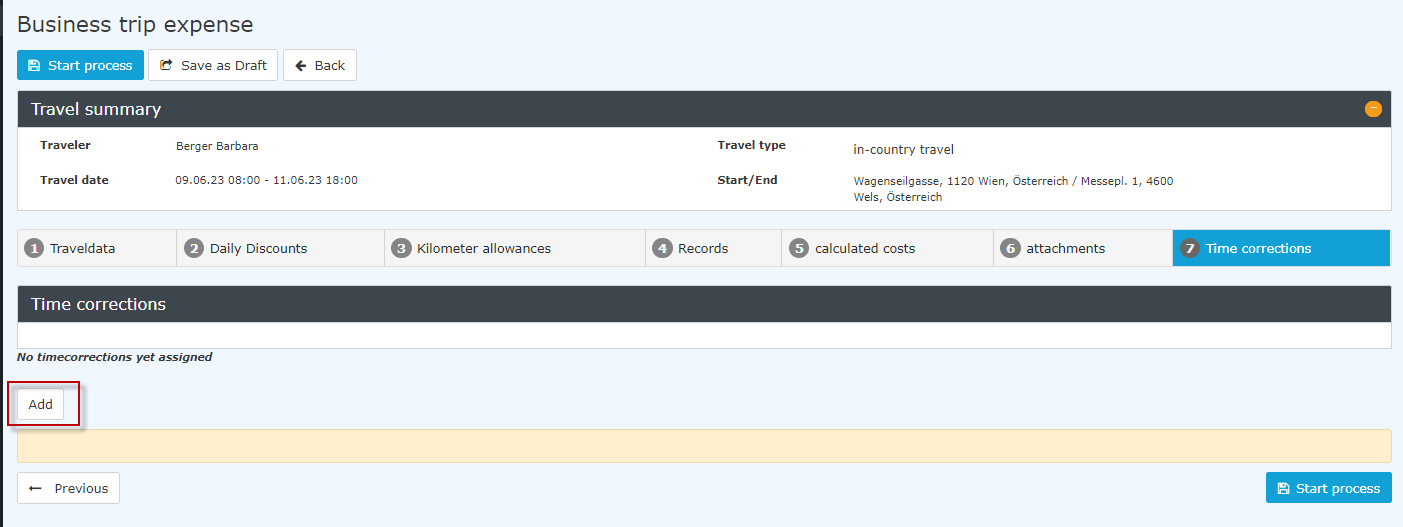
Clicking on "Add" opens the input maskform:
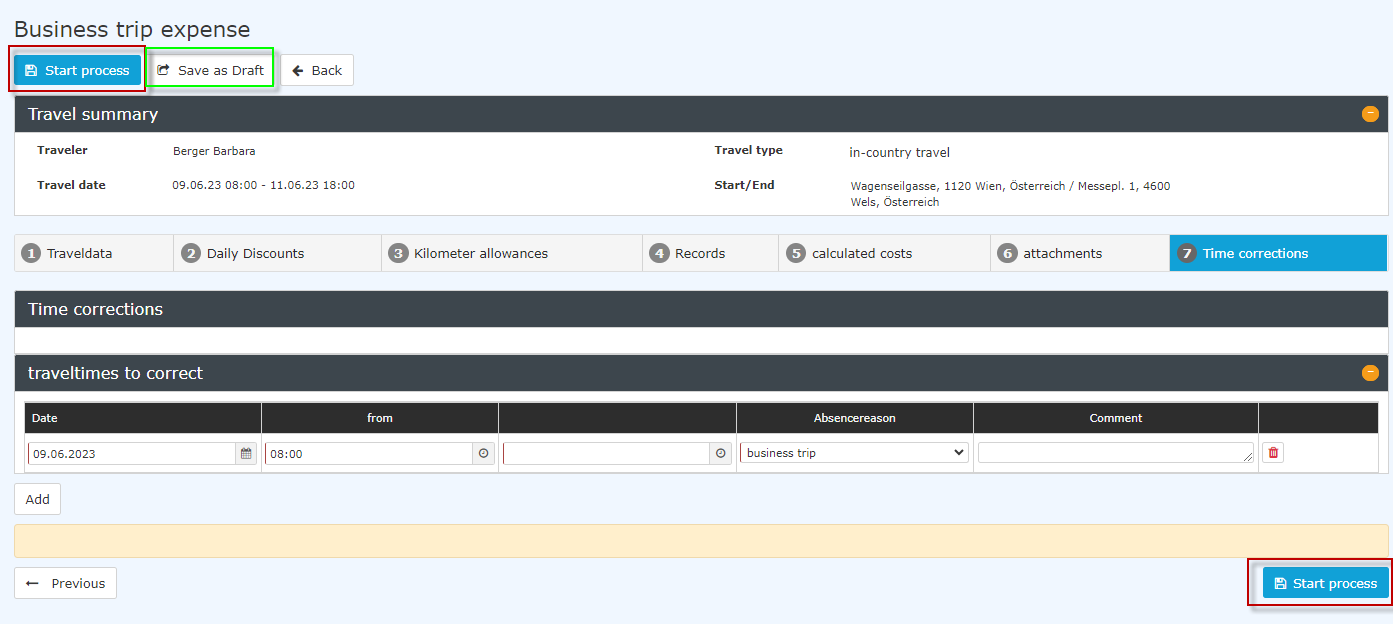
After the entry has been made, the settlement process can be started (red marked After you have made your entries, you can start the expense report process (red "Start process" buttons) or saved save it as a draft, ; see the green marking "Save as draft".
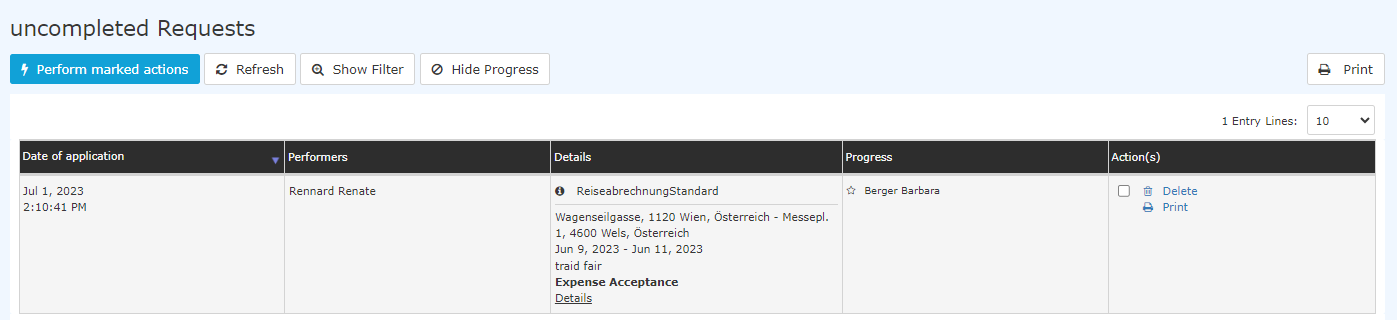
If the settlement expense report is saved as a draft, it immediately appears in the uncompleted requests appears immediately under open tasks and can be processed edited like other open tasks:

 erste


 Vergleiche Versionen 18 und 19

