Veränderungen des Inhalts
Klicken Sie für eine detaillierte Beschreibung auf die geänderten Stellen:
Benutzen sie die linke oder die rechte Maustaste, um zur jeweils vorherigen bzw. nachfolgenden Änderung zu gelangen.
General
The journalincludes contains all important personal time information for a month, showing ; the current month is displayed up to the present daytoday. One line includes row contains the entries bookings and certain account values per day. The journal is kept in normal minutesdecimal hours, i.e., a break deduction of 0.30 corresponds to 30 minutes.
With Using the help of the arrow keys, one you can easily conveniently switch between months and thus display data from previous past months. A specific month can also be selected directly from the drop-down dropdown menu.
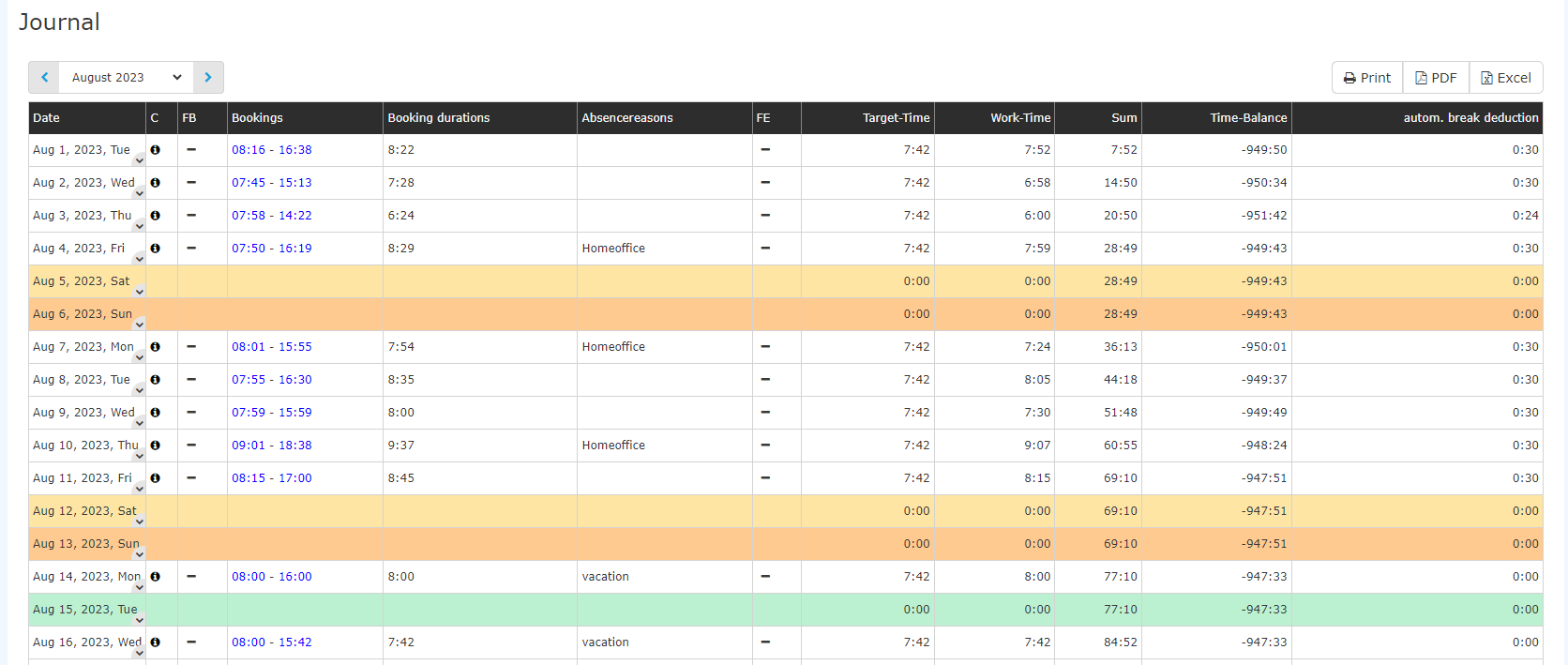
In addition to the date and the day of the week ("Date"Day), the following information is also displayed:
-
C (Correction)
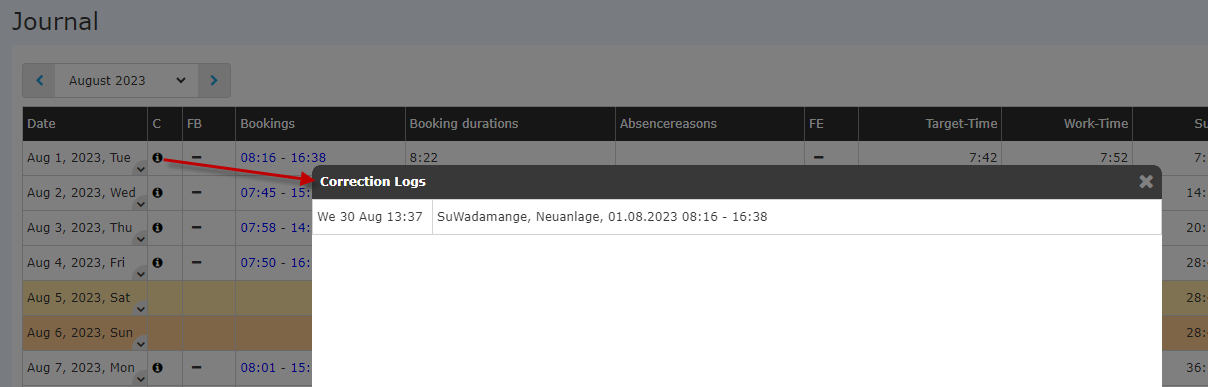
This column indicates shows whether the entry is a correction has been made. If it is a correction exists, you can click on the black info icon, and the correction info is displayed: info icon to open a window with information about it.
-
FB
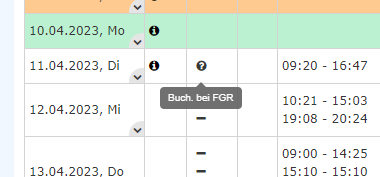
Booking indicator - additional information at the beginning start of the booking (e.g.: , core time violation, booking out of frameoutside the allowed range, ...). If you move the mouse is moved over the question mark icon, a small message note appears with the reason for the markingindicator.
-
BookingsUsed to display the booking intervals.: this column contains the from-to times
Booking colors:
-
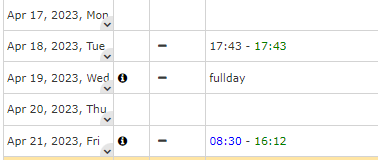
Black times (e.g. 17, 08:4356) indicate show a regular booking (via the item Book). Blue times made via Booking
-
Times with a blue background (e.g. 08, 11:3032) indicate a "manual" correction of the time, for example via a time correction request (in the example: sick leavenote).
-
Green times (e.g. 16:12) are bookings that were made automatically by the system - this happens, for example, if when the employee forgets to clock book out. The system then creates an automatic booking that sets the start time of the unfinished booking as the its end time in order to make invalidate it invalid (In in the example: due to the sick leavenote, the end of working time is determined by the employee's daily target time and is set automatically.).
-
Booking durations showing
the time differences between booking in and booking out in the system. If several bookings are made Absence reasons If the employee books an absence reason (e.g. doctor, business trip, holiday, sick, ...), this information is displayed in this column.in/out took place on one day, these booking durations are also listed individually
-
FE
Booking indicator - additional information at the end of the booking (e.g.: , core time violation, system goclock-out, ...). If you move the mouse is moved over the black question mark icon, a small note appears with the reason for the flagindicator.

-
Target time Display of
Displays the daily target time Work time Display of time
-
Actual time (creditable attendance)
Displays the actual daily working time
-
SumTotal
The sum of the total hours worked in this monthTime .
-
Balance
The sum reduced by the sum of the total minus the total target time - the time balance it can also be negative Automatic negative.
-
Auto. break deduction
If no break, or a break of less than 30 minutes, is consumed taken on a day, the break time is deducted automatically deducted by the system (the system adds tops it up to 30 minutes).
If there is no booking on a day and no absence is plannedscheduled, the messagenote "Absent without excuse" appears in the journal. For negative time recorderstrackers, the administrator can specify under which conditions this entry is to appear or not, under Persons --> Select corresponding select the person --> Tab tab "Modules" --> "Negative time recorderstracker: Auto-generation of actual time" under which conditions this entry should appear or not.
Practical functions
Continuing actions
By clicking on
Absence reasons
A list of absence reasons including ID and short name can be found HERE.
Further actions
Clicking the arrow in the date field , opens a menu can be opened to directly submit for submitting a time correction / absence request for the day in question directly.
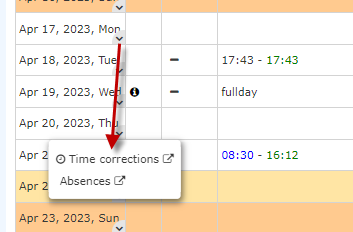
In addition, it is also possible to You can also submit a time correction / absence request for the selected day by right-clicking on the corresponding line row in the journal. By clicking on the double arrow below
/ next to the date entry, a menu can be opened to directly start a (In this example, a time correction / absence request for the day.
In addition, it is also possible to submit a time correction / absence request for the selected day by right-clicking on the corresponding line in the journal.
would be submitted for 01/17/2023.)
Print
The journal can also be exported as a PDF or Excel file or prepared for printing. The corresponding symbols icons are located in the upper right corner.
Example for of a daily entry

and Day
11.
.2023
-
/2023
-
Day: Mo (Monday)
-
C:
The
symbol
-
icon indicates that a correction
have taken
You can find out which corrections these are by clicking on the info symbol.
FB: no sign here means "no additional information" at the beginning of the booking
Bookings
-
Times highlighted in blue mean a "manual" correction of the time, for example via a time correction request. The starting entrance of the homeoffice, the end entrance of the business visit and the beginning and end entrances of the time being present are manual corrections
-
Black times indicate a regular booking (via the Book item). The end entrance of the homeoffice and the beginning of the business visit are regular bookings.
Booking duration: shows the person has worked 2:37 in homeoffice, 3:06 on a business visit and 2:37 in present in the office
Absence reasons: the person has been absent due to homeoffice and a business visit
FE: no sign here means "no additional information" at the beginning of the booking
Target time: Indicates that 7:42h work should be performed on this day.
Worktime: 7:50h work is the performance of that day
Sum: Results from the actual time hours worked on the considered and the previous days of the current month
Time-Balance: Total
-
Clicking the info icon shows which correction it is.
-
Bookings: following the color logic, it is clear here that the bookings were entered manually.
-
FE: in the example, there are no absences with an additional reason
-
Absence reasons: Shows that an errand took place from 11:00 - 12:05.
-
Target time: Shows that 7:42 h should be worked on this day.
-
Actual time: Shows that 6:19 h were actually worked on this day.
-
Total: Results from the actual hours worked on the day in question and the preceding days of the current month, here 29:05 h
-
--> i.e., from 01/02/2023 (01/01 is a holiday) through 01/09/2023 inclusive, 29:05 hours of actual time were worked.
-
Balance: Sum of the difference between actual time and target time in hours from the employee's creation up to the day in question (= flextime balance)
. Automatic
-
, in this case 62:29 hours
-
Auto. break deduction: Shows that
30 minutes (0:30) of
have been
-
was deducted for this day
.

 erste


 Vergleiche Versionen 15 und 16

