Veränderungen des Inhalts
Klicken Sie für eine detaillierte Beschreibung auf die geänderten Stellen:
Benutzen sie die linke oder die rechte Maustaste, um zur jeweils vorherigen bzw. nachfolgenden Änderung zu gelangen.
General
This menu item provides gives the user with an overview of the employees' attendances attendance and absences. In contrast to Unlike the group calendar, this calendar view can be designed configured or filtered according to certain criteria using the search maskform.
The explanation of the display of the calendar overview can be found after the explanation of the search maskform.
Search form
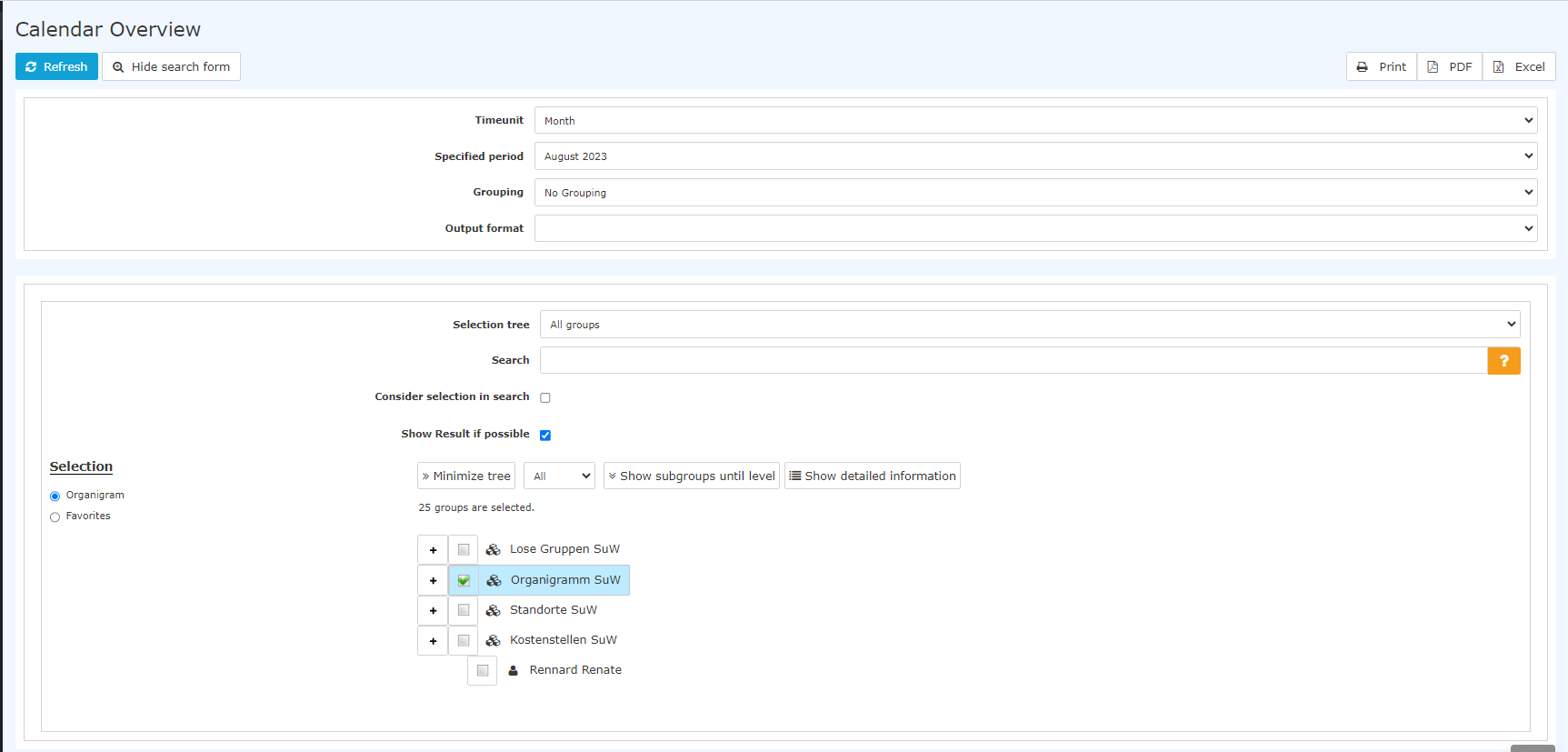
The following search filters are available:
-
Timeunit
Time unit
Month, Week, Specified periodTime interval
If "Specified periodTime interval" is selected, an input option for the from/to date opens below it
-
Specified period
Time interval
Selection of the month or calendar week from the drop-down dropdown list
-
Grouping
This parameter allows choosing you to choose between: No grouping, level 1, level 2, level 3 , and level 4
-
No grouping: all users are displayed in alphabetical order.
-
Level 1: all selected groups and users are grouped and users below the 1st node node are grouped and then displayeddisplayed Paragraphs and lists
-
Level 2: analogous to level 1, all users below the 2nd node are displayed here
-
Level 3 and 4: analogue analogous to level 1 and 2
displays
-
shows all groups of the company, even if the user is not authorized to
view
.
-
Groups with viewing permission:
displays
-
shows all groups that the user is authorized to view.
-
Search
If a search term is entered, a the search is made in all groups for which there is an authorization to view. It is possible to covers all groups for which a viewing permission exists. You can search for a complete name (family last name and or , first name) or for a part of the a name. The result then contains all possible family matching last names as well as first names and is highlighted in color.
-
Consider selection in search
Basically, In general, when you enter something in the Search field, all groups for which an access authorization a viewing permission exists are searched when an entry is made in the Search field.
If you check this option, only the groups selected under "Selection" will be are searched.
-
Show result if possibleimmediately
Clicking
on
it
will
switches immediately
switch
to the results page and
display
displays the calendar of the selected person or group.
-
OrganigramBy
Using the selection criteria (Leveldepth, Show show subgroups until level, Show detailed informationto depth, show details) and by selecting certain specific loose groups, organigram groups, locations and cost centres centers, you have the possibility to make the display more precisecan refine the display
The selection made is displayed in the lower left area of the search maskform.

- All folders marked with a plus a plus (+) symbol symbol can be expanded even further to and show the subunits… By clicking, subunits.
-
Clicking checks the respective unit is checked. By doubleDouble-clicking, automatically checks all subunits are automatically checked as well.
-
By clicking Clicking the arrow next to the organizational unit , it is possible to lets you select/deselect the subgroups
- The selected organizational units or groups are highlighted in blue
-
Next to the organigram, a list of the selected groups appears
- The buttons "Minimize tree", "All", "Show subgroups to depth" and "Show details" also offer display options of for the organizational chart organigram or the selection from the organizational chartorganigram
- Clicking the minus (-) symbol minimizes the tree > > only the parent groups are displayedshown
-
The search is started by clicking the Query button.
-
Favorites
Here , you can define, independently of the organizational structure, which specific groups or persons are used for the display, regardless of the organizational structure. This can be relevant, for example, for a cross-group project or for frequent contact with certain other employees. With the help of
Using this parameter, each user can create his or her their own favorites list, which can contain both persons and groups that are are frequently queried. The favorites list can be customized adjusted at any time.

- To add a person or group to the favorites list, please click on the selection boxfield, select groups or persons from the window that opens, and click click "Add".
- The order of the people persons on the favorites list can be changed at any time using the arrow keys
- If you want to remove a person from the favorites list, click on the red delete icon to the right of the name.
-
The same is to be done with groups
The search is started by clicking the "Refresh"- button
-
Proceed in the same way with groups.
Display of the calendar overview
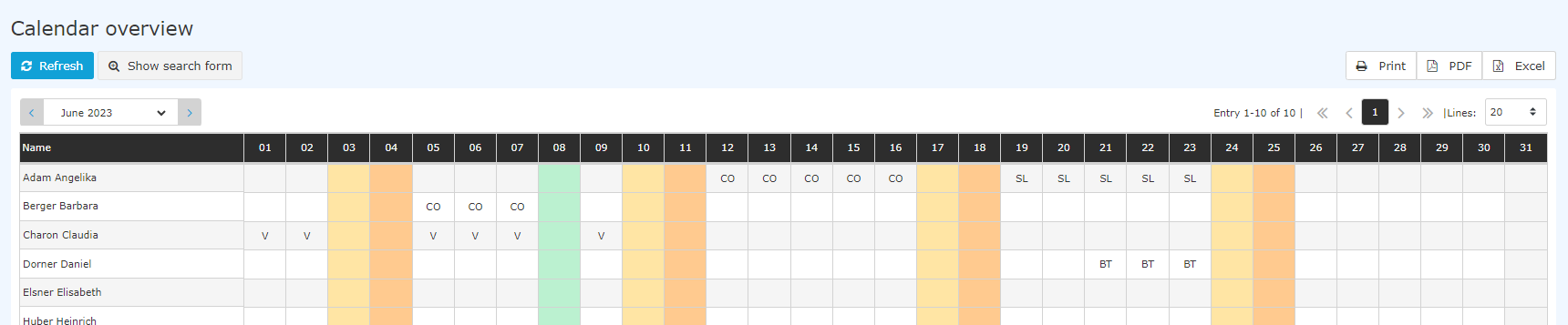
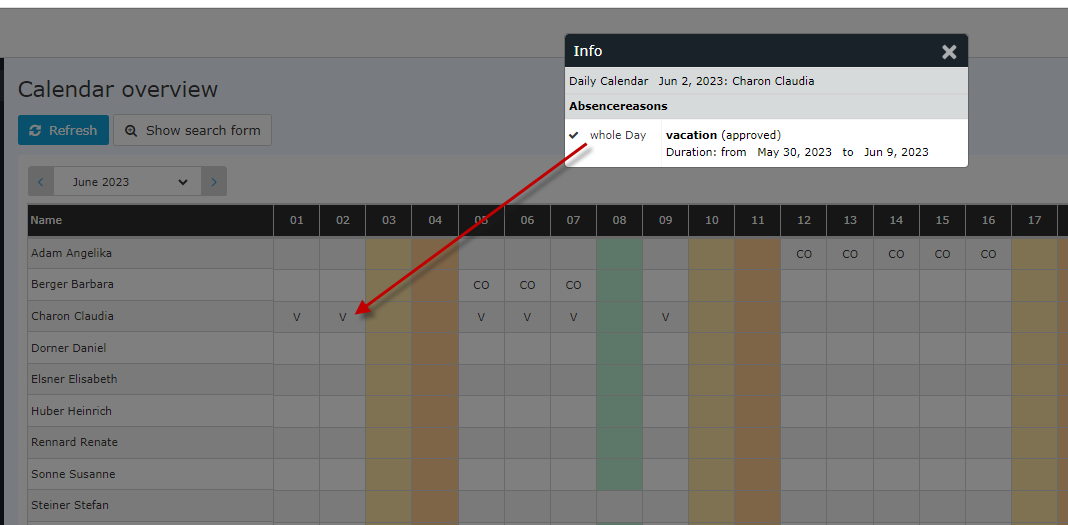
Clicking days on days when which an entry is present exists opens a window with detailed information about that entry.

 erste


 Vergleiche Versionen 11 und 12

