Veränderungen des Inhalts
Klicken Sie für eine detaillierte Beschreibung auf die geänderten Stellen:
Benutzen sie die linke oder die rechte Maustaste, um zur jeweils vorherigen bzw. nachfolgenden Änderung zu gelangen.
General

This menu item gives the user access to a list showing that shows an overview of the selected employees, in which the most important information is available at a glance (attendance, absence reason for absence, daily target, daily actual, balance, monthly total).
The search mask
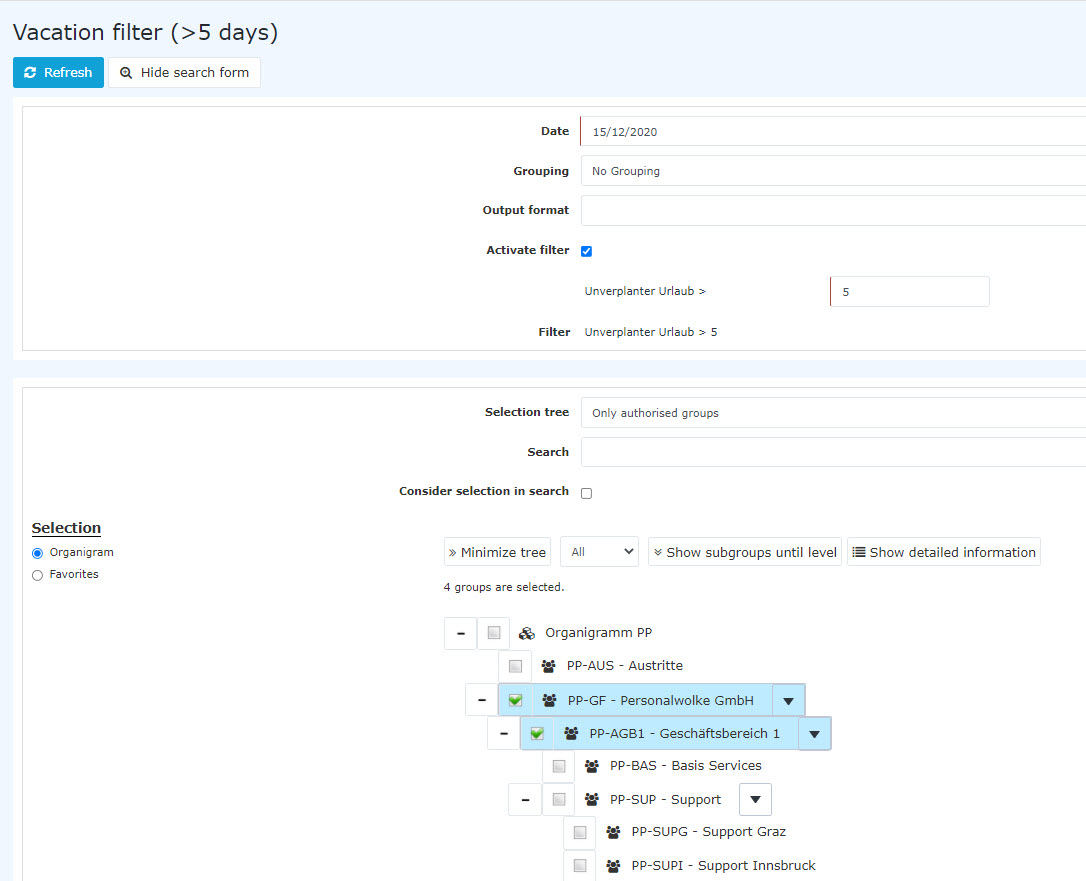
Date
This parameter defines the key date up to which the evaluation is to take place.
Grouping
This parameter can only be changed if the Account parameter is set to Sick Days, Vacation Consumed or Attendance.
It The explanation of the display of the booking list can be found after the explanation of the search form.
Search form

The following search filters are available:
Any date in the past is possible
A past date is also possible here
This parameter allows you to choose between: No grouping, 1st level 1, 2nd level 2, 3rd level. level 3 and level 4
all
-
all users are displayed in alphabetical order.
1st level
all
and users are grouped
node
-
node are grouped and then
displayed.
-
Example:
-
Selection of group PB --> Employees are displayed under PB, since PB is the highest node in the organizational chart.
2nd level: analogous to the 1st level
-
displayed Paragraphs and lists
-
Level 2: analogous to level 1, all users below the 2nd node are displayed here
. 3rd level:
-
Level 3 and 4: analogous to
the 1st and 2nd level
If this parameter is set to Print , PDF, Excelversion, you get a print-friendly output of the list.
This parameter offers the following selection options: Groups with access authorization, viewing permission and All groups.
-
Groups with access rights: Displays all groups that the user has access to.
displays
-
shows all groups of the company, even if the user is not authorized to
view them all
-
query all of them
-
Groups with viewing permission: shows all groups that the user is authorized to view.
If a search term is entered, the system searches in search covers all groups for which access authorization exists. It is possible to for which a viewing permission exists. You can search for a complete name (surnamelast name, first name) or for a part of the a name. The result then contains all possible surnames matching last names as well as first names and is highlighted in color.
Include
-
Consider selection in search
In principle, general, when you enter something in the Search field, all groups for which access authorization a viewing permission exists are searched when an entry is made in the Search field.
If you check this option is checked, only the groups selected under Selection will be under Selection are searched.
Selection
With this parameter, the user has the choice between organigrams and favorites, which can be created by the user himself.
Organigram
-
All folders marked with a plus (+) symbol can be expanded further to show the subunits.
-
By clicking on a unit, it will be checked. By double-clicking, all subunits are automatically checked.
-
by clicking on the green arrow > Show subgroups to depth (depth 1-3) > all existing subgroups are displayed
-
using the blue arrow > Minimize tree > this view is minimized again, only the parent groups seem to be on
-
Show details > By clicking on the symbol
 , the selected groups are clearly displayed in a list to the right of the symbol. Click again to hide the detailed information.
-
Clicking the query button starts the search.
Favorites
can choose between Organigram and Favorites, which the user can create himself or herself.
-
Organigram
Using the selection criteria (depth, show subgroups to depth, show details) and by selecting specific loose groups, organigram groups, locations and cost centers, you can refine the display
The selection made is displayed in the lower left area of the search form.

-
All folders marked with a plus (+) symbol can be expanded further and show the subunits.
-
Clicking checks the respective unit. Double-clicking automatically checks all subunits as well
-
Clicking the arrow next to the organizational unit lets you select/deselect the subgroups
-
The selected organizational units or groups are highlighted in blue
-
Next to the organigram, a list of the selected groups appears
-
The buttons "Minimize tree", "All", "Show subgroups to depth" and "Show details" also offer display options for the organigram or the selection from the organigram
-
Clicking the minus (-) symbol minimizes the tree > only the parent groups are shown
-
The search is started by clicking the Query button.
-
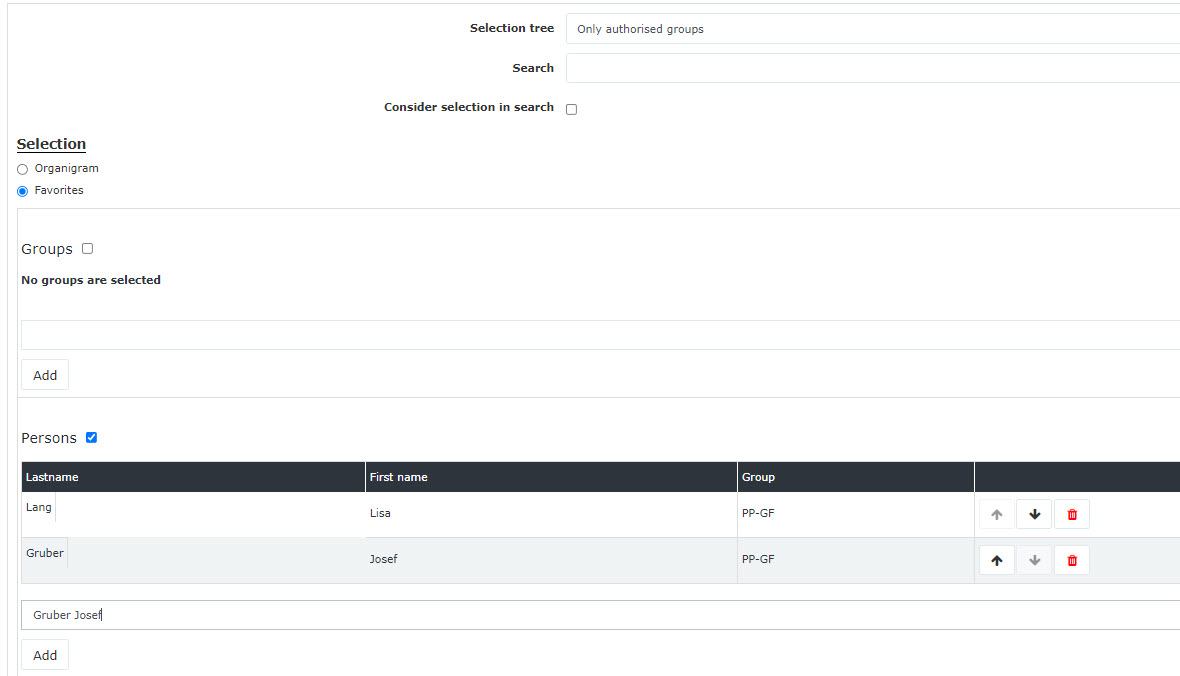
Favorites
Here you can define, independently of the organizational structure, which specific groups or persons are used for the display. This can be relevant, for example, for a cross-group project or for frequent contact with certain other employees.
Using this parameter, each user can create their own favorites list, which can contain both persons and groups that
are
-
are frequently queried. The
Favorites
customized
-
To 
Name
-
To add a person or group to the favorites list
>
blue arrow > select person > click the
-
selection field, select groups or persons from the window that opens, and click "Add"
button
-
.
-
The order of the persons on the
favourites
-
favorites list can be changed at any time using the arrow keys
.
-
If you want to remove a person from the favorites list, click
on
-
the red delete icon to the right of the name.
-
The same applies to groups.
The Result
The booking list displays an overview of the selected employees on the selected key date with the following information:
-
Proceed in the same way with groups.
Display of the booking list
 .(In this screenshot, the value "No grouping" was selected for grouping, which displays an alphabetical list of the employees.)
The account evaluation shows the sum of the following accounts in the table overview or in the table, in relation to the query units (groups, persons ...)
-
Name
The names of the persons belonging to the selected group appear here.
FB
-
FB
Booking indicator - additional information at the
beginning
-
start of the booking (e.g., core time violation, booking
out of
-
outside the time frame, ...). If an entry is present here, you can move the mouse
is moved
orange question mark icon,
-
info icon to open a small
hint appears
-
tooltip with the reason for the
marking
Bookings
-
Bookings
Used to display the
posting
.FE
-
FE
Booking indicator - additional information at the end of the booking (e.g.
:
-
, core time violation, system
walk
-
clock-out, ...). If the mouse is moved over the
orange question mark icon, a small hint
-
information icon
 a small tooltip appears with the reason for the
marking. Reason for absence
-
indicator.
-
Absence reason
If the employee
posts
-
books an absence reason (
for example
off-site work, leave
-
official errand, vacation, sick
leave
etc
-
...), this information is displayed in this column.
Day TARGETDay set time displayDay
-
Daily TARGET
Display of the daily target time
-
Daily ACTUAL
Display of the actual daily working time
-
Balance
The monthly total reduced by the sum of the target time - can also be negative.
Month
-
Monthly total
The sum of the
days ACTUAL Time
A click on  takes
-
daily ACTUAL time
-
Automatic break deduction
How long the break is that was deducted based on the recorded working time.
Further features of the list:
-
Switching to an employee's journal

Clicking the calendar symbol takes you directly to the Journal (monthly journal) of the selected employee. With a click on  the list can also be printed out or exported as a PDF or Excel document.
It is located below the heading of each column.

Clicking the corresponding button opens a selection list. You can also hide columns by clicking the eye symbol.


Sorting the display using the arrow keys in the column headings


 erste


 Vergleiche Versionen 6 und 7

