Veränderungen des Inhalts
Klicken Sie für eine detaillierte Beschreibung auf die geänderten Stellen:
Benutzen sie die linke oder die rechte Maustaste, um zur jeweils vorherigen bzw. nachfolgenden Änderung zu gelangen.
General
Overview
This chapter deals with the password change options by available to the HR officer or the local administrator in your company.
1. Assigning a password for the first time
2.
Reset
Resetting a password
3.
Delete
Deleting a password
4.
Reset 2nd-Factor-Authentication
Information on user Resetting two-factor authentication
5. Changing a password without an e-mail address
You can find information on user-side activities related to the password can be found here:
daisy:6432
Assign Assigning / reset resetting / delete deleting a password
The password manager is located in the person mask screen (employee profile), under the "Master data" tab.
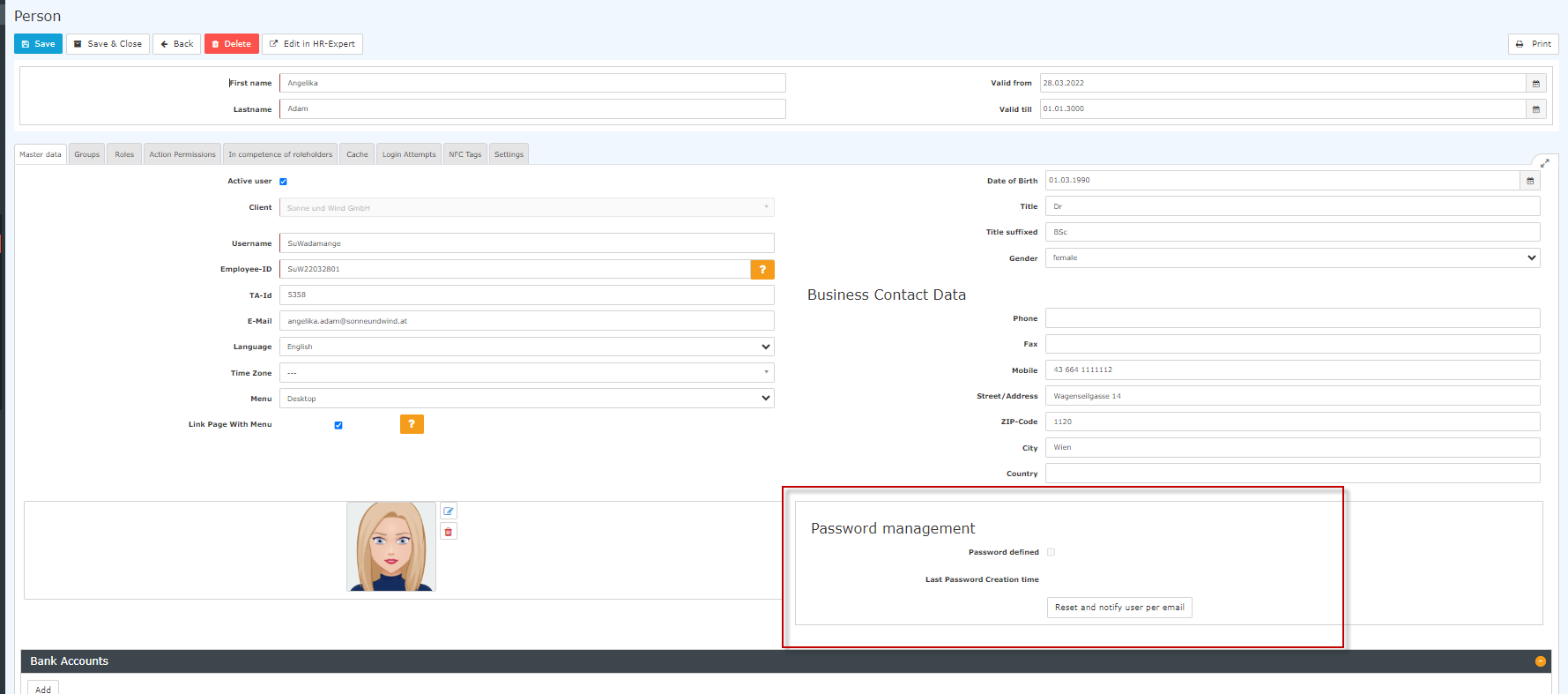
The following changes can be made here:
1. Assigning a password for the first time
daisy:9837
2.
Reset
Resetting a password
When resetting you reset the password, the default password is set, which must be changed by the staff member the employee must change at the first login after the reset.
So the The user must therefore use the following data:
Username = Username user name (case sensitive!) .
Password = Default default password = also username the user name (case sensitive!)
Note: It is NOT possible to display the current password. The password chosen by the user is not visible to anyone!
3.
Delete
Deleting a password
The deletion of the login option via password is done by "clicking away" the tick deleted by clearing the checkmark in the checkbox "Assign password" checkbox.
4.
Reset 2nd-Factor-Authentication How to activate 2-factor authentication can be found
Resetting two-factor authentication
You can find out how two-factor authentication is activated here.
The button with the name labeled "Reset 2two-factor authentication" enables a allows you to reset of the login data for those of employees who have chosen multifactor multi-factor authentication for themselves or for whom this it has been prescribedmandated.
Of course, this reset is only possible if multifactor multi-factor authentication has been activated in the settings for this staff member.
Further information
Details this employee's settings.
5. Changing a password without an e-mail address
Since November 2023, admins can also change a person's password if the person does not have a (company) e-mail address on file.
To do so, click "Change password", and a window for entering a new password opens.
The employee must be informed of this password.
The next time the person tries to log in, the system will then ask them to enter a new password known only to them.
Additional information
You can find details on the other tabs in this mask can be found under "Employee administration"screen under Persons.

 erste


 Vergleiche Versionen 2 und 3

