Veränderungen des Inhalts
Klicken Sie für eine detaillierte Beschreibung auf die geänderten Stellen:
Benutzen sie die linke oder die rechte Maustaste, um zur jeweils vorherigen bzw. nachfolgenden Änderung zu gelangen.
The correction of Correcting an account (in this example the , correcting a balance account) can be done by using the Correctionis possible in Personalwolke using the Correction-Client.
Approach
Procedure
You will can find the correction client Correction-Client in your menu tree under under "Administration" --> "Time management" --> "Correction-Client". In the next step it is necessary to select the appropriate employee (here: Rudi Renner, marked in red) , see also Correction-Client in the manual
After selecting the menu item, you must select the employee for whom a corresponding correction has is to be made . The under Person (marked in red). The employee can be selected either by clicking on the 3 dots or by entering the name directly.
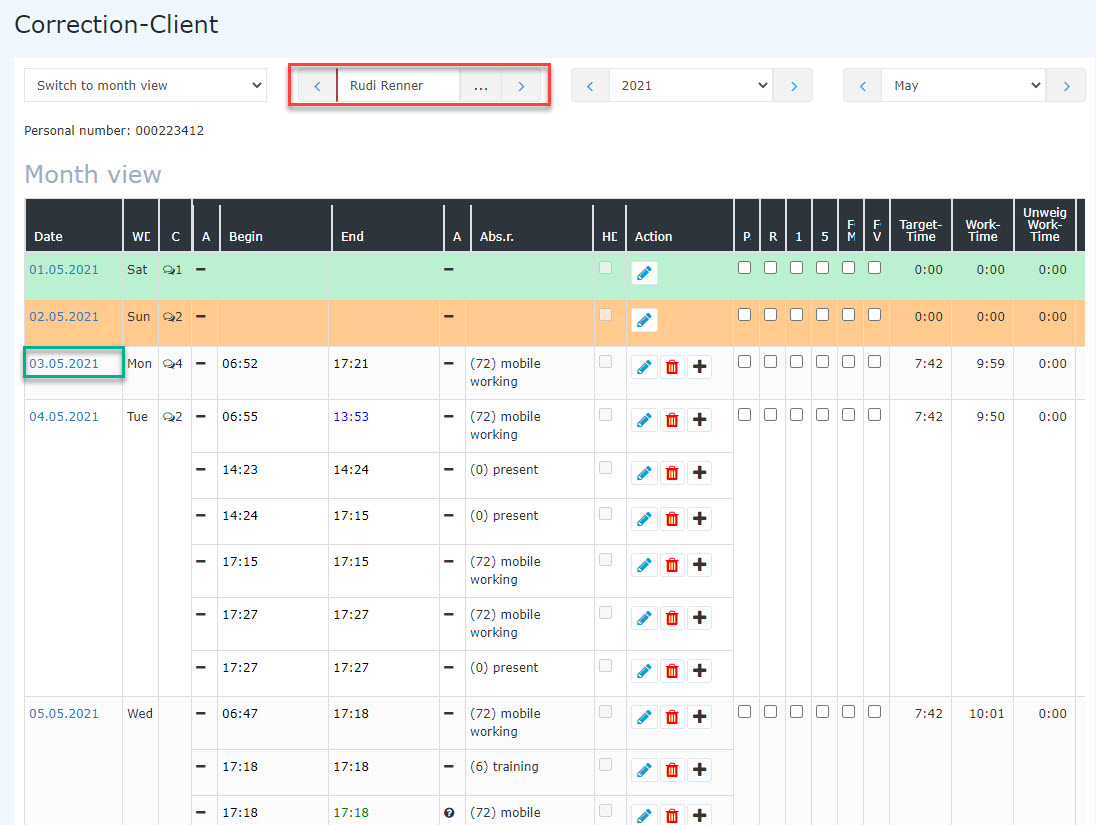
Then it is necessary to select the day for which the correction should be valid (marked in green, in this case we want a correction for the 03/05/2021). Now click on the selected date. This will take from the list in the month view. In this example, we want the correction to be entered in the system on 01/03/2023.
Alternatively, immediately after opening the employee's month view, you can switch to the day view and enter the desired date in the date field, or select it by paging or via the calendar view.
Selecting the day takes you to the day view of the corresponding employee for the selected day:

In this view the red marked field is interesting for the correction. Here you can find general information about , see Day view.
The right-hand table is relevant for the account correction:
Here you will find general information on the employee's accounts, which cannot be edited. These are recognized You can recognize these by the fact that there is no edit icon  . Editable accounts are marked with a an edit icon icon.
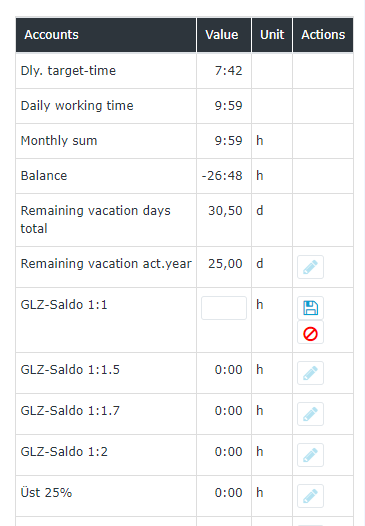 The correction client mask
 By entering +10 and saving by a click on
 the balance (-26:48) decreases to -16:48
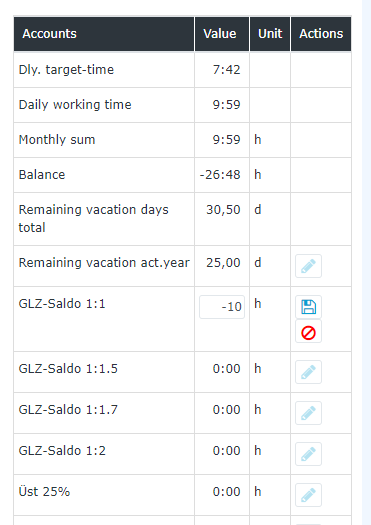 By entering -10 and saving by a click on the balance (-26:48) increases to -36:48
In summary, all accounts with this icon can be modified by entering +/- (relative corrections).
The result of the correction is shown in the picture below. The green marked field shows the result of the corrections. It should also be mentioned that a comment is created for each correction made (absolute or relative) in order to ensure the traceability of the changes (marked in red).

In this example 4 corrections were made. With a click on the black information symbol,  the list of comments will open in which all changes can be traced:

More Information
Further information about the correction client are available .
Clicking the edit icon next to the account you want to change opens the input field.
Correction types
For our example, the account "Flextime balance 1:1" (marked in red) is relevant, because we want to correct the balance, which is currently "0" hours. Clicking the edit icon starts edit mode:
Absolute correction
This is done by entering the total number of hours that should be saved as "Flextime balance 1:1" for this employee after the correction.
In the example, the value "20" is entered as the number of hours.
Relative correction
A number of hours is added to or subtracted from the existing flextime balance by addition (sign "+") or subtraction (sign "-"). In the example, the balance is corrected up or down by 10 hours:
Correction comment
In the day view
After the correction is saved, a comment can automatically be opened in the day view by clicking the black info icon. This documents changes to the account balances.
(Note: it is also possible, in principle, to save notes without a prior account correction by clicking the "+Add new comment" button.)
In the month view
A comment is also visible in the month view; it is located next to the date in the column C(orrections).
Clicking the speech bubble opens the comment window.
(Note: it is also possible, in principle, to save notes without a prior account correction by clicking the "+Add new comment" button.)
Further information
You can find more information on the Correction-Client in the manual under the following links:
Keywords: account correction, time correction, correction, vacation aliquoting, vacation recording, change of time data, balance carryover, carryover, balance carry-over

 erste


 Vergleiche Versionen 15 und 16

