Veränderungen des Inhalts
Klicken Sie für eine detaillierte Beschreibung auf die geänderten Stellen:
Benutzen sie die linke oder die rechte Maustaste, um zur jeweils vorherigen bzw. nachfolgenden Änderung zu gelangen.
daisy:6447-dsy (Include - Gruppe auswählen)
Add a personemployees
After selecting a group, you can add staff members employees to the selected group by clicking on the Persons tab.
ATTENTION: Please note that
an
ONE employee can
only
be a member of only ONE hierarchical group (
group from the organigram
organizational unit) at
any one
a time, but can be a member of any number of
Loose
permission groups at the same time. The following screenshot (marked in red) shows whether you are currently editing an
organigram
organizational chart group or a
Loose
permission group
(marked in red). By clicking on New Person Assignment, members can be added
.
Clicking New person assignment lets you add members to this group.
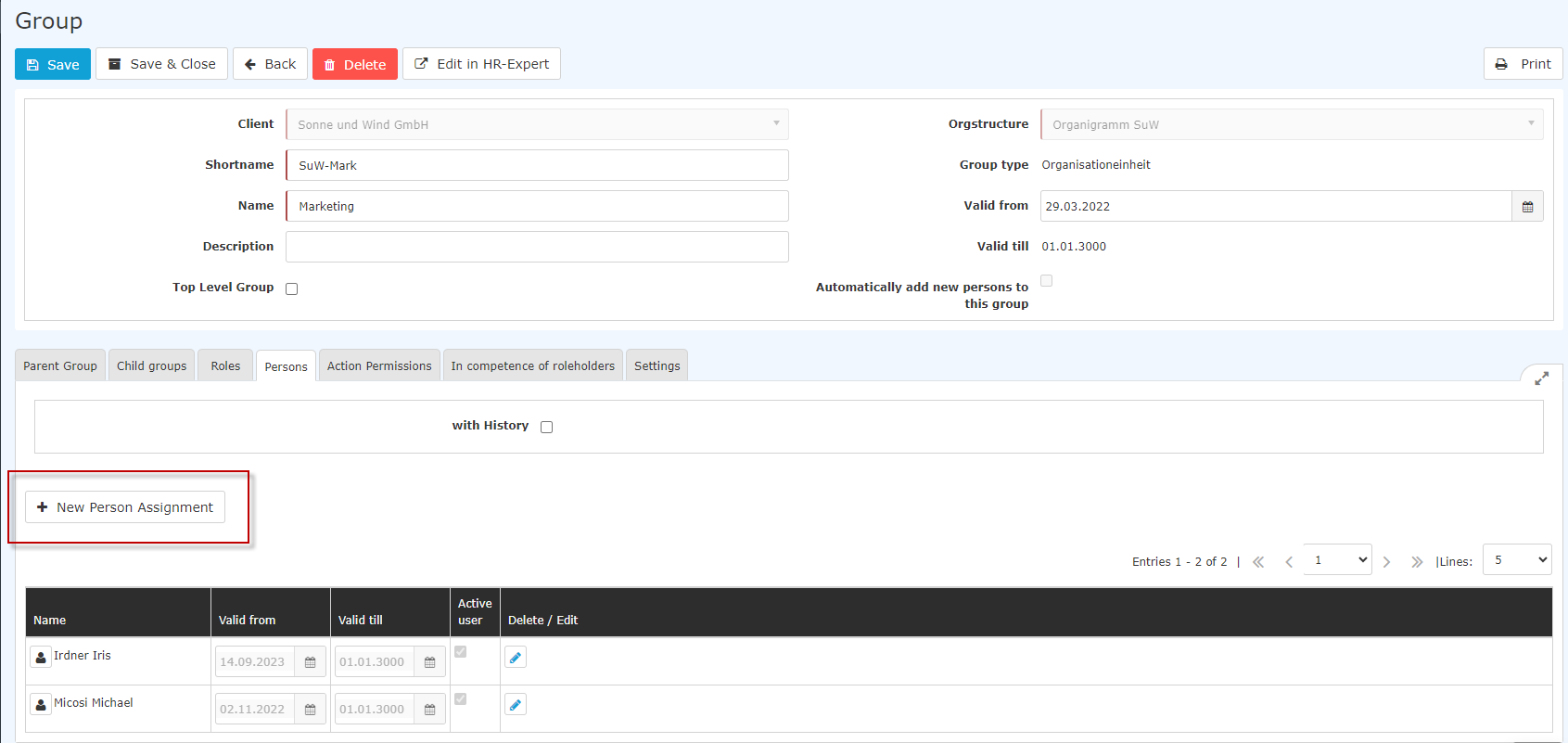
After clicking, the following table appears:
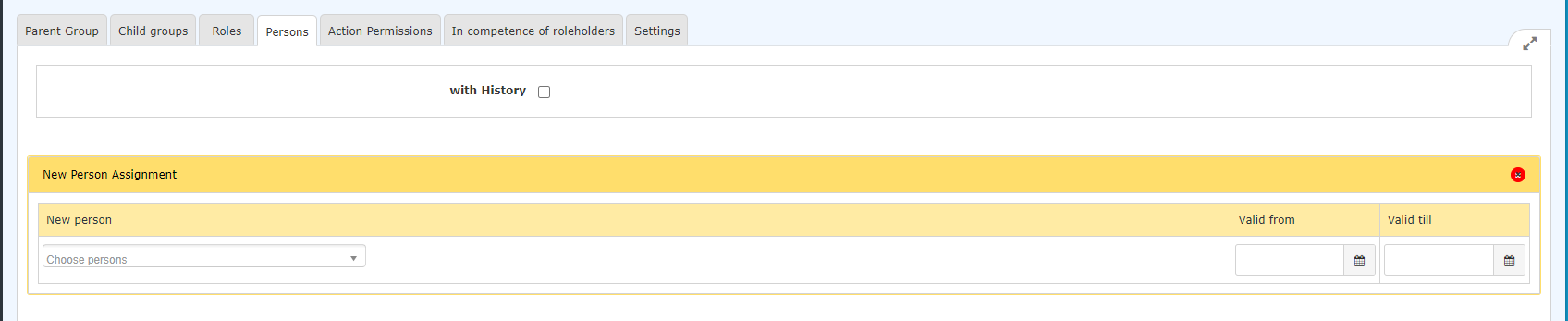
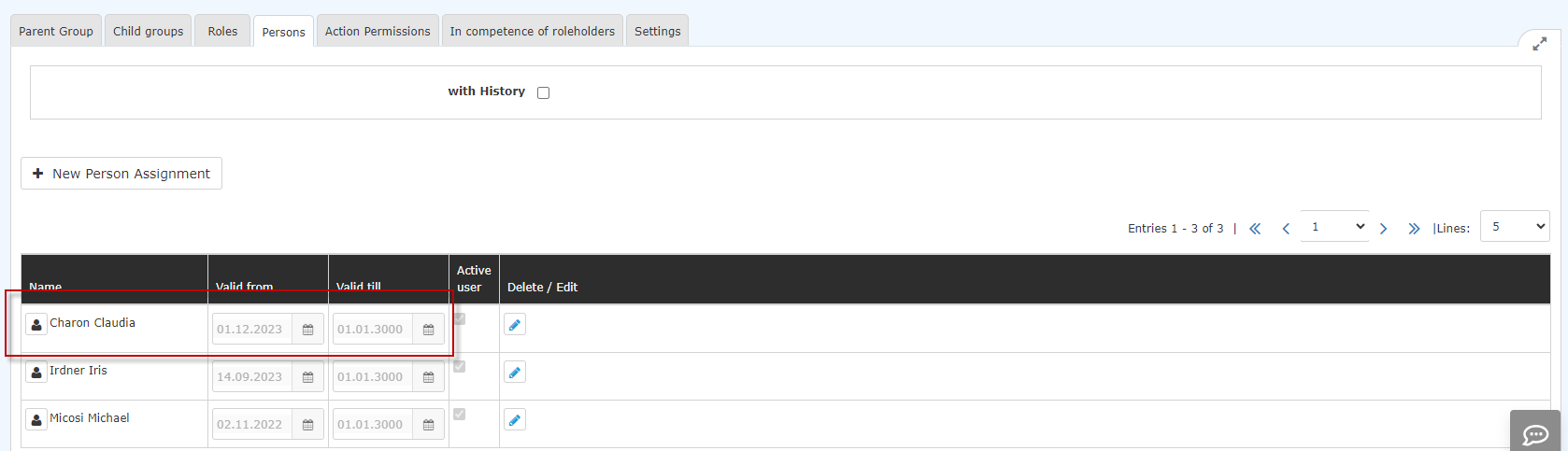
After selecting the person (Charon Claudia in this case; the selection can be made either by simply typing in the field or by clicking on via the button with the 3 dots), you can click on Save. The fields Valid from and Valid to are either filled with the default values (Valid from: Todaytoday; Valid to: 1./1./3000), or - as in this case - there is you have the option to enter of entering a concrete specific date to specify that Mrs Ms. Charon should is to be a member of this group from 12/01.12./2023 onwards.
Note: The An employee's previous assignment of an employee to a group in the organisation organizational chart is automatically deleted when the new assignment becomes valid.

After saving, the staff member employee appears in the list of group members.
Remove a person from a Ending membership in a group
Membership of in an organisational organizational chart group can only be changed ended by moving to another organisational organizational chart group, as since each employee can be a member of one, and only one, organisational organizational chart group at any one a time.
Therefore, if If you want to end membership of in an organigram group, this is done by adding it to another organigram organizational chart group (organizational unit), you do so by adding the employee to another organizational chart group.
Membership of in a loose permission group can be terminated ended by entering the "Valid to" date. The membership expiry date can be edited , by clicking on the edit icon  and correcting the "Valid to" date accordingly.
Additional information
You can find more information on the topic of groups under at the following link: Groups

 erste


 Vergleiche Versionen 5 und 6

