Veränderungen des Inhalts
Klicken Sie für eine detaillierte Beschreibung auf die geänderten Stellen:
Benutzen sie die linke oder die rechte Maustaste, um zur jeweils vorherigen bzw. nachfolgenden Änderung zu gelangen.
General informationInformation
This chapter describes how to add settlements expense reports to a travel folder that has already been created.
This can be done in two ways.
1) Directly after creating a travel folder
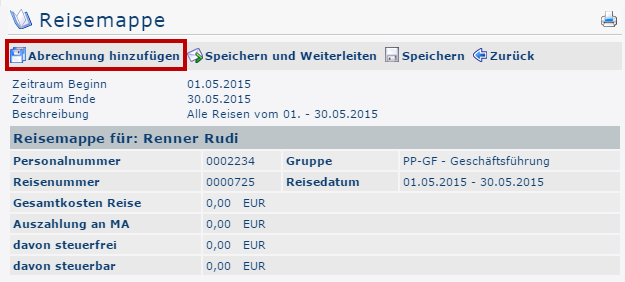
As already shown at the end of the chapter New travel folder chapter New Travel Folder, after saving the travel folder the user gets to arrives at the view shown in the screenshot. If the user now clicks on Add accountingexpense report, he will be forwarded or she is taken to the business travel accounting assistant. trip expense report wizard.
Add Business Trip ExpensesExpense Report
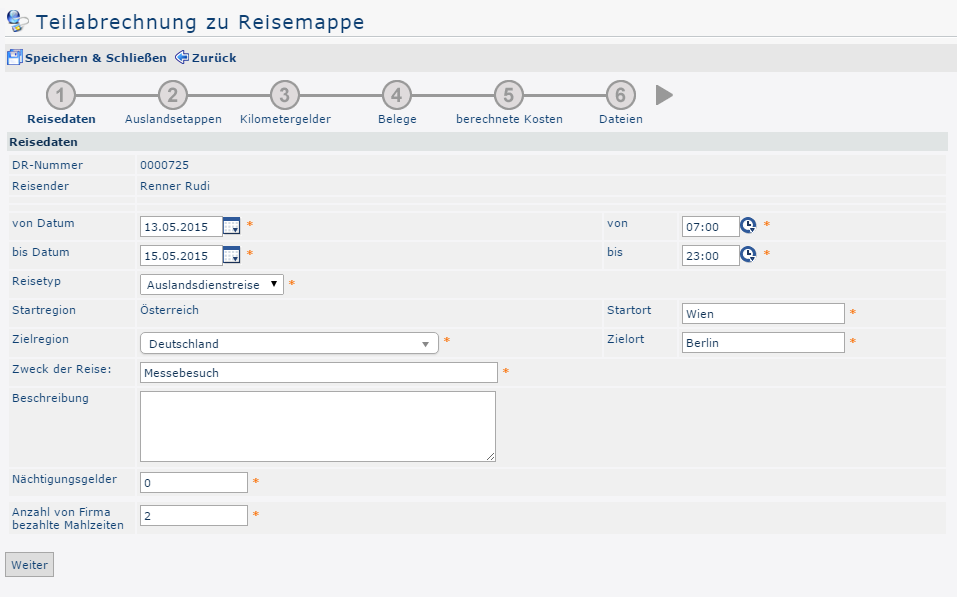
A detailed description of the accounting assistant expense report wizard can be found in the chapter Business trip expense accounting. After completion of the accounting, by clicking on chapter Business Trip Expense Report.
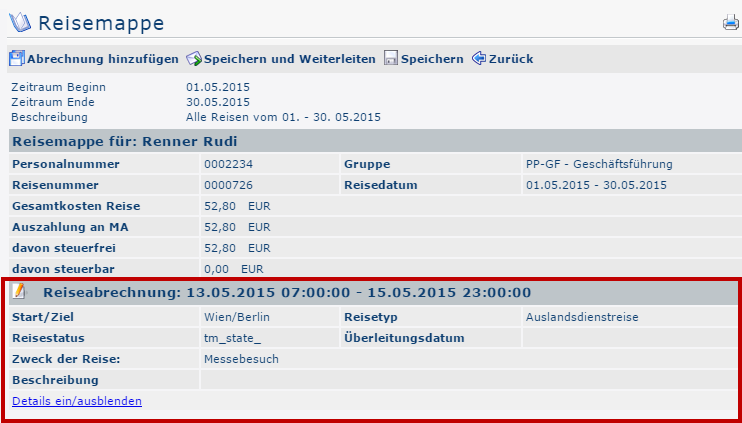
After the expense report is complete, clicking Save & Close, automatically adds it is automatically added to the travel folder:
2) Subsequently Afterward via the menu item Workflow - open tasks Open Tasks
Saved travel folders can be accessed later via Workflow - Open Tasks.
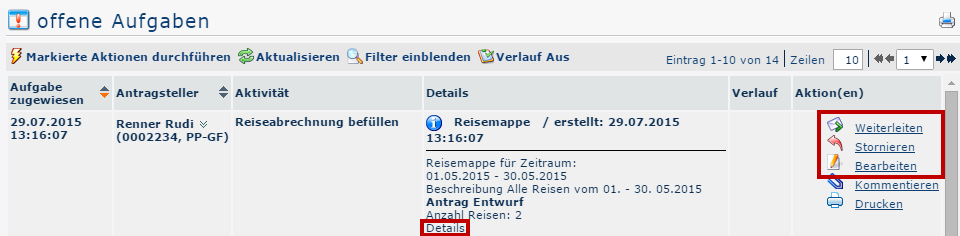
From here, the user can return returns to the Business Trip Accounting Assistant business trip expense report wizard by selecting Edit Edit  in the Action(s) column. From there it continues , continue as described under point 1).
Further he The user also has the following possibilities options here:
- Open the details for of the request, where the travel folder also appears again.
-
Forward the request to the supervisor for approval.
-
Cancel the request and delete the trip folder. Call the Travel Accounting Assistant again to further edit , thereby deleting the travel folder
-
Open the business trip expense report wizard again to continue editing the travel folder.
- Add comments / descriptions to the folder, or print the folder.
In the Activity column, the user can always follow the status of his or her travel folder at any time.
As long as the travel folder has not yet been forwarded for approval, the Fill Travel Expenses column contains the activity. If Activity column shows Fill in expense report.
Once the travel folder was has been forwarded by clicking on Forward, approval is displayed until it has been the column shows Approval until the supervisor has approved or rejected by the superior.
Notice this
it.
Please note: If onetravel expense report does not find approval in the travel folder is not approved, the superior supervisor must reject the entire travel folder. In this case, the entire folder is returned goes back to the employee, where appropriate corrections are made, or where who can make the necessary corrections or cancel the entire folder can be canceled.

 erste


 Vergleiche Versionen 1 und 2

