The action "weekly programs" is used to create weekly programs.
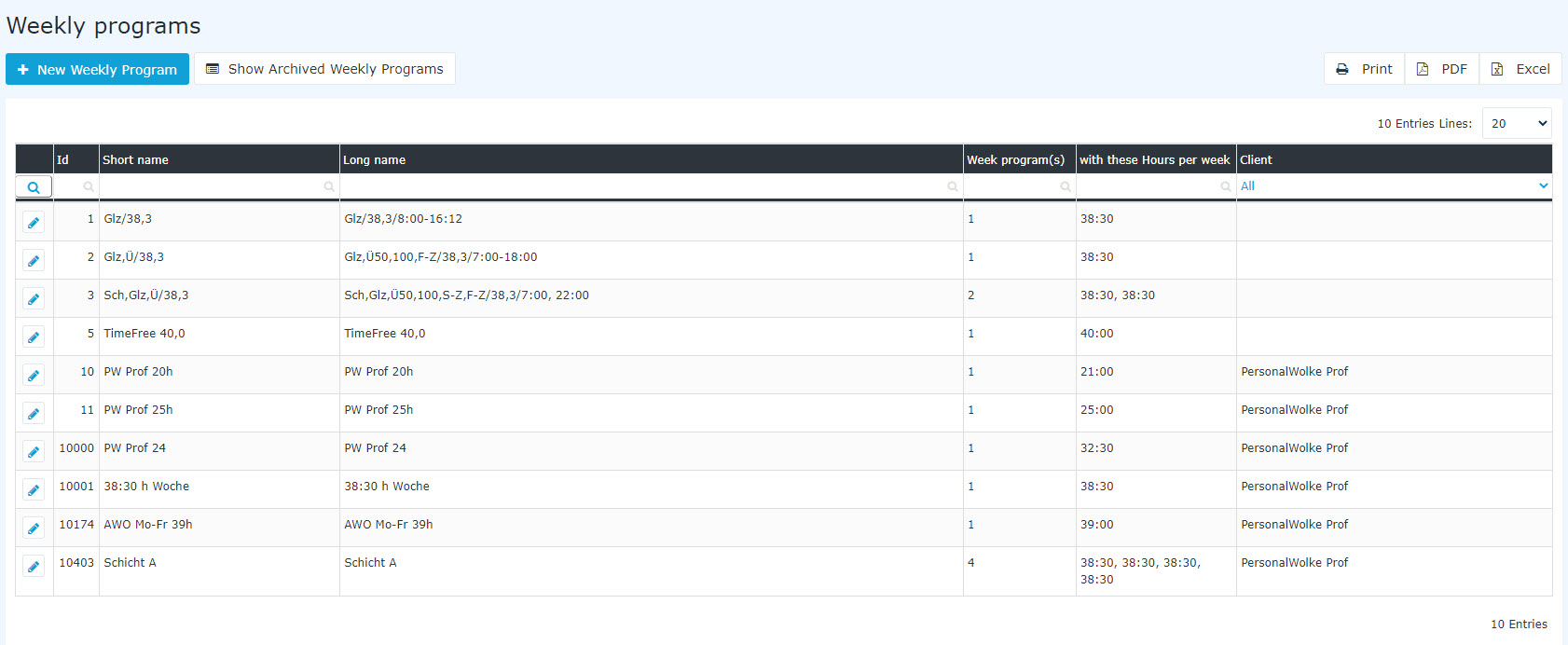
In the column "Client" you can see to which client this week program is assigned. If the column is empty, then it's a standard weekly program from Personalwolke, which is available to all but can't be edited. Every weekly program is assigned an ID by the system. This ID cannot be changed.
With "weekly program(s)" you can see how many week cycles this weekly program contains. For example, if there is a 2, this means that this weekly program has 2 week cycles. The week hours of the respective weekly program are shown in the column "with these hours per week". If a weekly program has multiple week cycles, then you will see the respective week hours of the week separated by a comma.
Basic info: A weekly program consists of several daily programs. There must be one day program for each day of the week, i.e. Monday, Tuesday, Wednesday, Thursday, Friday, Saturday and Sunday. In addition, holidays such as Christmas, New Year's Eve and public holidays must also be taken into consideration.
Create a new weekly program
If you click on the button "new weekly program", an editor will open where you can create a new weekly program. 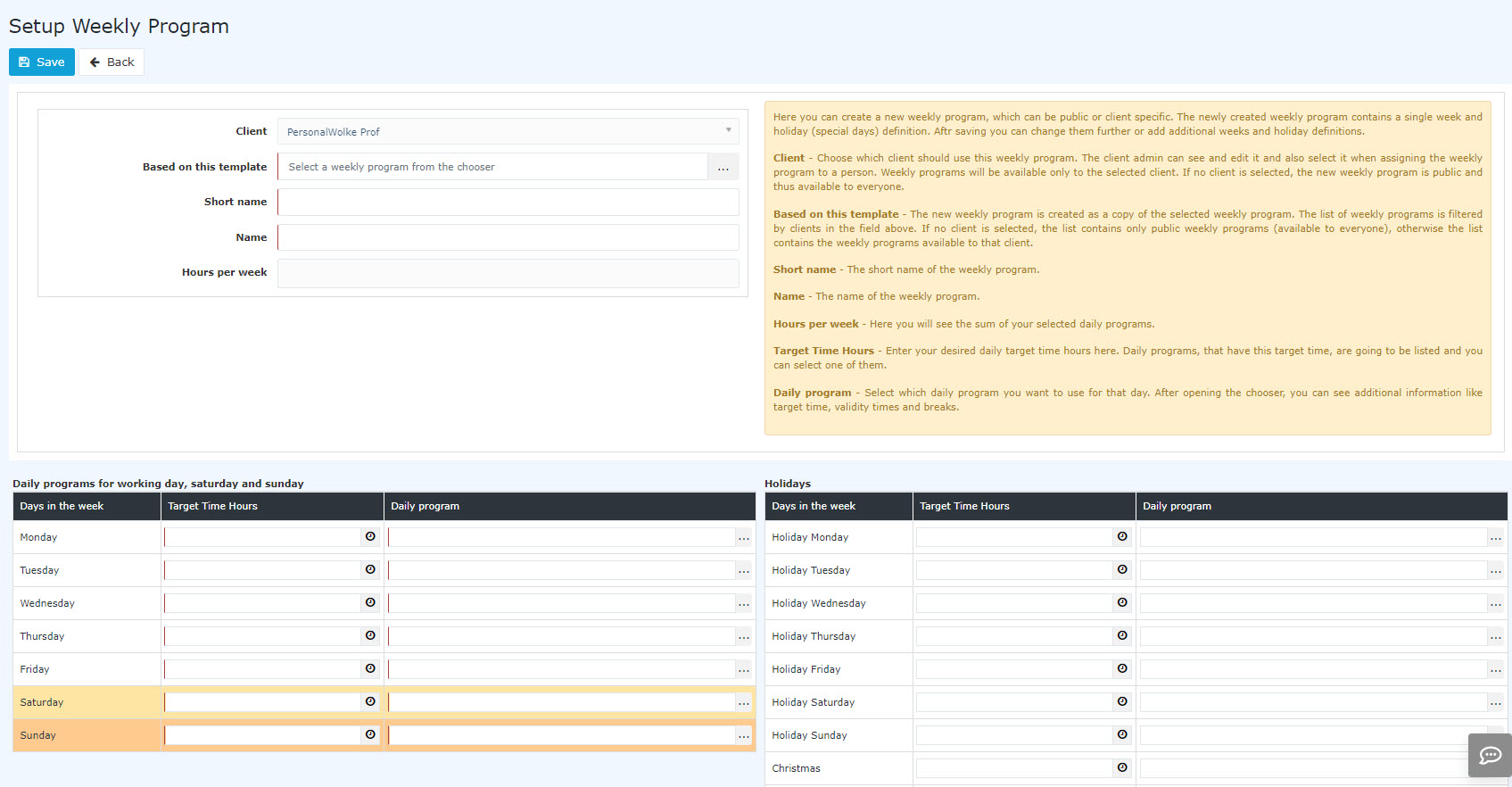 Select a template The daily programs are also deposited in the template. Change these as desired. In fact, that the holidays are already shown in the template, you save a lot of time. Enter a "short name" and a "long name" for your weekly program
In principle, there are two types of weekly schedules:
-
Weekly schedules used by several clients: no changes to the data are possible here, only viewing
-
Weekly schedules that are client-specific, i.e., used only by your client. These can usually be edited
The individual tabs of the weekly schedule view and editing screen are described below
Step 1: Open the input screen
Step 2: Header
Step 3: Daily schedules for weekdays, Saturday and Sunday
Step 4: Holidays
Step 5: Save and edit the weekly schedule
Step 1: Open the input screen
You get to the input screen by clicking the "+ New weekly schedule" button in the overview list of weekly schedules.

The input screen then opens
Step 2: Header

-
Client: this field is usually prefilled with your client and can only be changed if you look after several clients.
-
Select a template. The daily schedules of the template are also stored in this weekly schedule. Then swap them as you like. Since the holidays are already stored in the template, you save time here.
Enter a short name and long name for the weekly schedule.
- The hours per week are calculated automatically by the system based on the day programs that are deposited daily schedules stored in the weekly program.schedule. No entry is therefore necessary here.
Step 3: Daily schedules for weekdays, Saturday and Sunday

First select a day daily target time. The system will show then shows you, in the colum "daily programDaily schedule" column, all daily programs which contains this day target time. Now it is necessary to fill schedules that offer this target time, for every day of the week, including the weekend.
If you do not find a suitable daily schedule in your selection list, please create one first. You can find information on this under Create a new daily schedule
At first this looks like this:

Note: If the number of hours entered results in only a short selection list, it is displayed directly in the daily schedule field. Simply click the selection button next to the appropriate daily schedule.

Now select, one after the other from Monday to Sunday, the daily schedule that fits that day from the suggestions.
If Saturday and Sunday are non-working days in your company, change the value to 0, whereupon you immediately get suitable daily schedules suggested for these days.
Now you have to fill in all the other days in the weekly programschedule. Here is an example of how to create a 38:30 weekly programschedule:
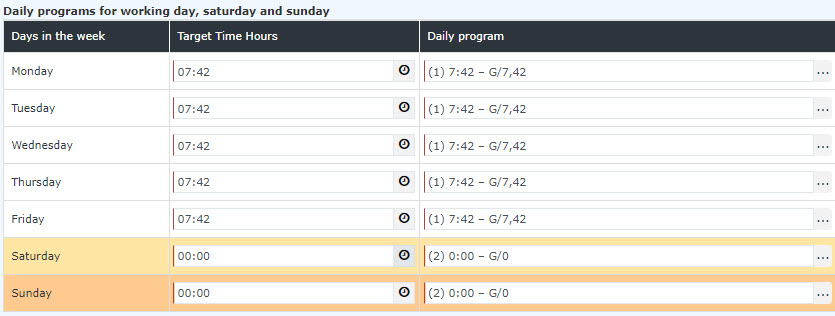
In this the example you can see that the working time from Monday to Friday is 07:42. On Saturday and Sunday the working time is 00:00.
Step 4: Holidays
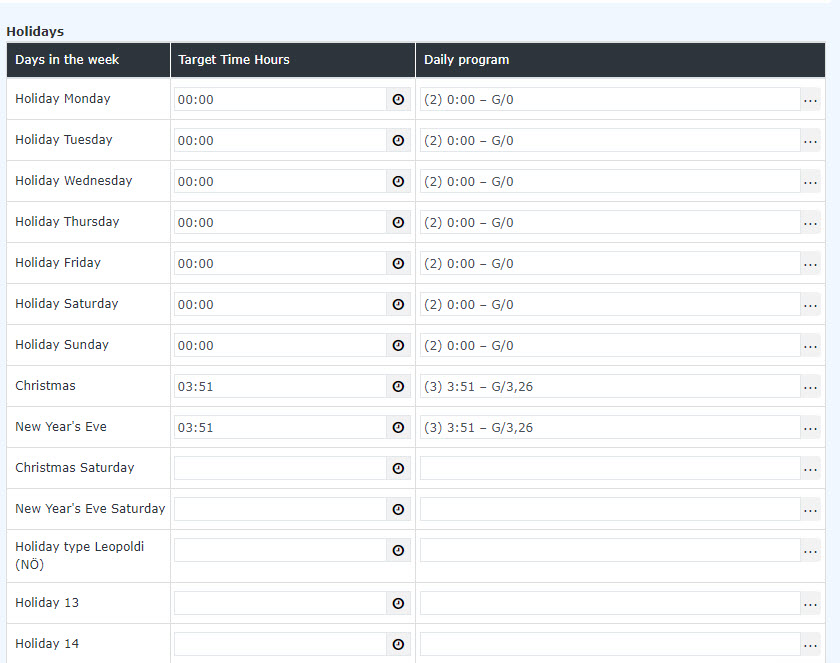
You can also enter store the holidays of the weekly programschedule. If you have selected a template and in which the holidays are already enteredstored, then these they are automatically imported.
After you have saved the weekly program, you will be automatically forwarded to the edit mode so that you can still fine-tune the weekly program.
Edit weekly program
If you click on the button "new weekly program", an editor will open where you can create a new weekly program.
You can edit existing weekly programs. Even, when you create a new week program, you will be forwarded directly to the edit mode of the weekly program.
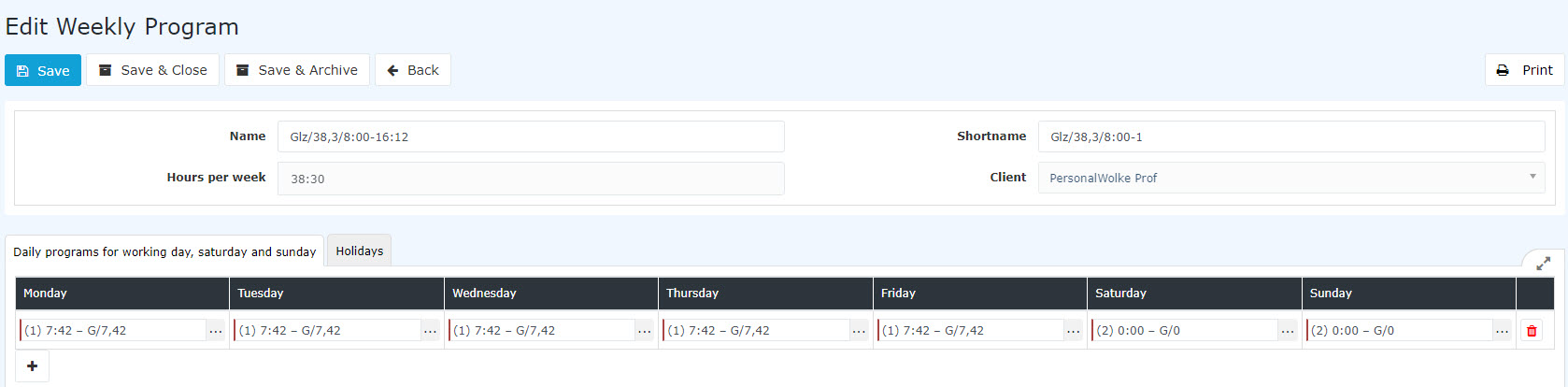
Tab "Daily programs for working day, saturday and sunday"
In the first tab you can parameterize which daily programs should be used from Monday to Sunday. With the Plus Symbol you can add another weekly cycle. You can save up to 4 cycles in a weekly program.

Note: Week cycles can be used for example for fixed time models for part-time employees.
Tab "holidays"
In the tab "holidays" you have to save the daily programs for holidays.
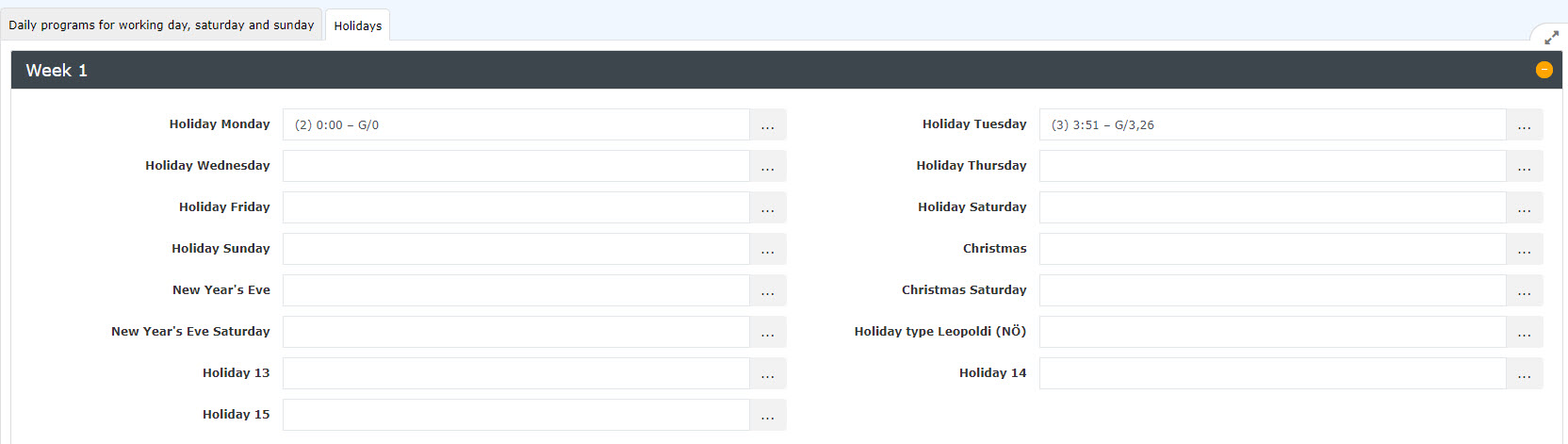
Here you can choose from the following days:
working day = holidayHere you define which daily program has to be used if a holiday is on a Monday, Tuesday, etc. If you do not deposit any holidays in the weekly program, the program will take the working day as a holiday, which is deposited in the tab "Daily programs for working day, saturday and sunday".
Example: Monday is a holiday and there is no "holiday Monday" deposited in the weekly program. In this case, the system uses the normal daily program for Monday on the holiday. If the daily program has a target time of 08:00, then the employee in this case would have a target time of 08:00 on the holiday. Therefore, a corresponding daily program should also be deposited for each holiday.
ChristmasHere you set the daily program for Christmas. New YearHere you set the daily program for New Year.
Saving a weekly program
The following options are available regarding the weekly program:
Once the weekly program has been assigned to a staff member, you have two options:
-
Copy: Copies the weekly program 1:1 and creates a new one. The reason why you should copy the weekly programm is, that there is a clear distinction from the old one.
-
Save and rerun daily account: saves the changes and calculates all employees who have this weekly program back to the day on which this weekly program was run for the first time. ATTENTION: Because of the retrograde calculation, the values in the past can change!
If the weekly program is not yet assigned to an employee, then it's simply saved.
By the way, you can use "Save & Archive" to remove weekly programs that are no longer needed.
adopted.
The program lets you enter your company's individual holiday working time rule. For example, treating December 24 and December 31 as half working days. If November 15 is a non-working day for you, it can also be recorded here.
The working times for other possible regionally limited non-working days can be entered under Holiday 13, 14 and 15.
Step 5: Save and edit the weekly schedule
After you have saved the weekly schedule, the view is automatically switched to edit mode so that you can fine-tune the weekly schedule. You can find out which steps to take next under "Edit a weekly schedule"

 erste


 Vergleiche Versionen 12 und 13

