In this chapter , you will find the following pointstopics:
Requirements
[Note: the screenshots still contain the names "Organigram group" and "Loose groups" that were in use for organizational units and permission groups before July 2024.]
Prerequisites
Before you create a new department / group / organisational organizational unit, you should answer the following questions for yourself:
- Into which organisational organizational structure should the group be incorporated?
-
OrganigramOrganizational unit: hierarchical group (relationship of the groups to each other (superior / subordinate groups); an employee can only be a member of one hierarchical group at a time) .
-
Loose GroupPermission group: no hierarchies between the groups. Employees An employee can be members a member of any number of loose permission groups at the same time
-
OrganigramOrganizational unit: Which group should be superordinate superior to the newly created group? Which should be subordinate?
-
Loose GroupPermission groups: Does the group (and thus all its members) have a specific special function (role) in in the company (staffpersonnel, supervisor)?
-
Yes: Which one? Staff Personnel or supervisor or both?
After answering these questions, you will have gathered the minimum information needed required to create a new group.
Examples of hierarchical groups: a new Purchasing department (PD) is to be subordinate report to the Management department (CEO) department; the new Purchasing department (PD) is to be the superior department of the groups Purchasing East (PDE) and Purchasing West (PDW) groups, etc. -->Creating > set up a hierarchical group
Examples of Loose permission groups: all female employees; all male employees; all apprentices; all departmental confidants, one human resources department representatives, an HR department; etc. --> Creating set up a Loose permission group
If Note: If your organisational organizational structure includes locations or cost centres cost centers, they are created in the same way as loose permission groups!.
Creating a new hierarchical group
(organigram group, organisational unit)
Click on In the menu tree under Administration, click the menu item "Groups" in the menu tree under "Administration".
In the following list you will see an overview of all Loose / hierarchical (organigram) organizational units and permission groups in the company. Click on "New Group"group.
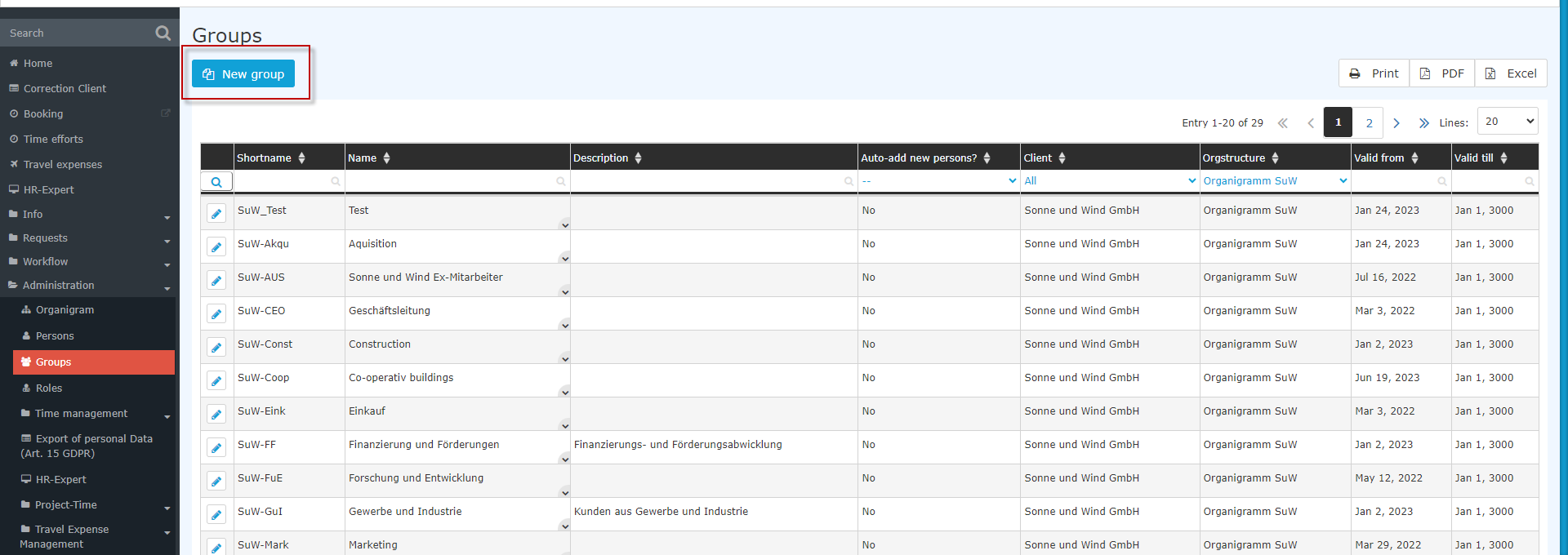
In the now shown input maskscreen that follows, the fields must be filled in as follows:
-
Client: <your company>
-
Organisational Organizational structure (only available after selecting the client): Organisational chart Organizational unit
-
Short name (preset with the prefix = client abbreviation): e.g.: , SuW-PBWien
-
Name (long name of the group): e.g.: , Planning Office Vienna
-
Description (optional): e.g.:, Plant Planning Location planning, Vienna location
-
Valid from/until: Limitation possible, automatically preset with the current date or with 01.01.3000.Valid to: can be limited, preset automatically with today's date and 01/01/3000
-
Add new person automatically: Checkbox checkbox for automationsautomation
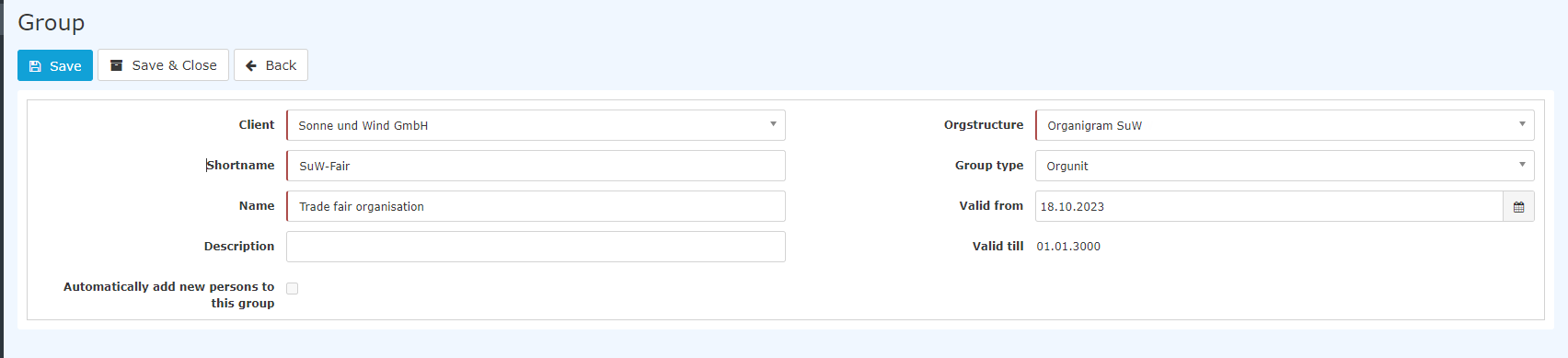
Clicking on Save creates the group, and additional tabs appear:
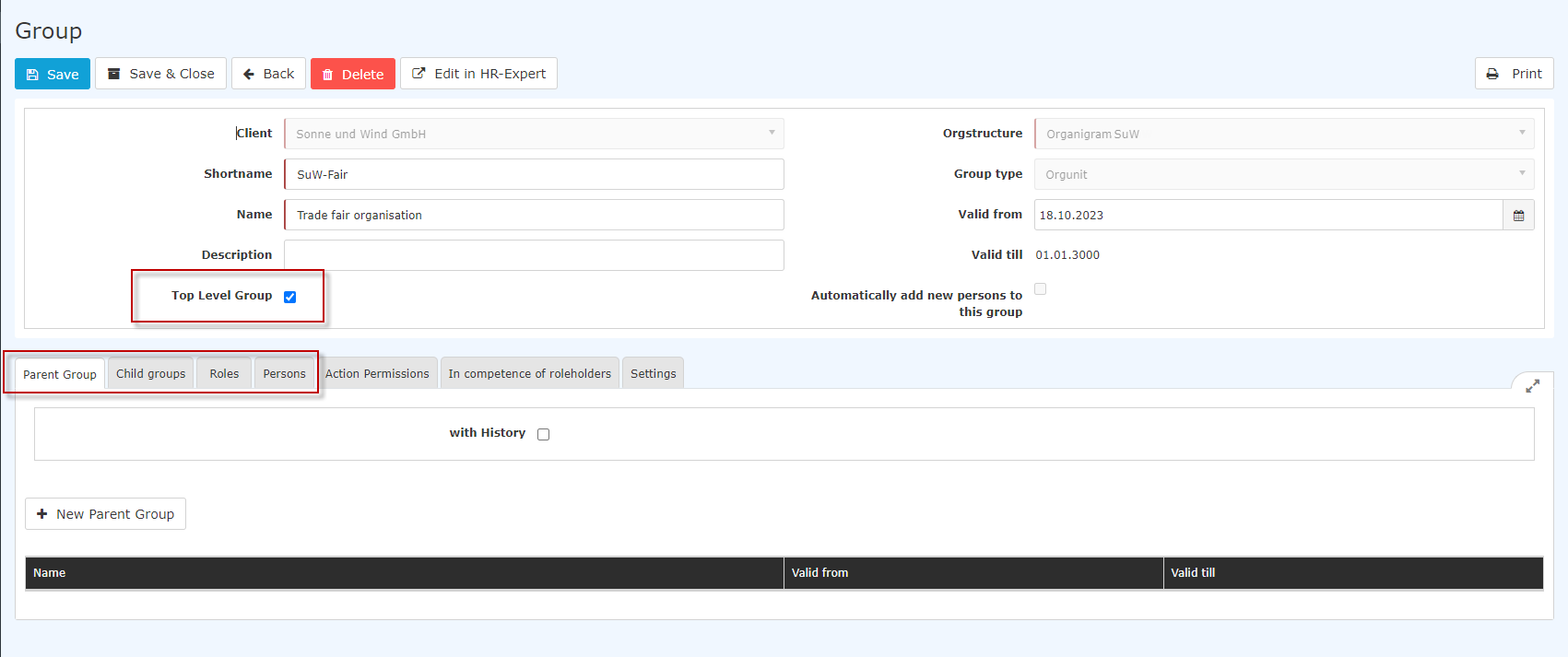
Relevant for daily use are the The 3(4) tabs marked in red are relevant for daily use: Parent Groupgroup, (Child groupSubgroups), Roles, Persons.
Attention: The checkmark for Highest level ([ONLY for hierarchical groups!) ] must be set for exactly one single created group. This group then represents the top group (root) in the organisation organizational chart. All other groups are subordinate to it
Parent Groupgroup
Since a new group has been was created in the organigramorganizational chart, it must of course be inserted into the existing hierarchy. To do this, please click on the "New Parent Group"parent group button in the Parent Group group tab.

The drop-down list can be used to dropdown list lets you select the group that is to be sit above the group you just created in the organisation organizational chart. With " Valid from" and "Valid to", you can optionally define the validity period of this assignment can optionally be defined. If nothing is filled in, the assignment is valid immediately and until further notice (01./01./3000). This feature is useful if, for example, a change in the organisation organizational chart is imminent coming up - this it can be planned here at an early stage (e.g.: Valid , valid from 09/01.09.) and is then activated automatically activated on the specified date.
Click on "Save" to apply Clicking Save applies the assignment.
Child Group
Subgroups
Here , you can define the groups that are to be placed below the current group in the company hierarchy of the company. Please note Note that the groups that are added in this tab are automatically assigned to the current group as a their parent group. Normally , this tab is empty, and only a parent group is only created under Parent Groupgroup, which automatically determines which groups are further down in the hierarchy.
Roles
By clicking on Role Assignment, Clicking Role assignment lets you assign a role can be assigned to the group (Supervisorsupervisor, Personnelpersonnel). If, for example, the role Personnel is assigned, all members of this group are automatically assigned the role Personnel and are thus responsible for personnel HR matters for the company.
Click on Clicking the 3 horizontal dots to lets you select the desired role (e.g., Personnel). Under competence Competence target, you have the possibility to can select a person or a group for which the current group is to perform exercise the selected role.
ExampleAn example: If one selects you select Personnel as the role and Person as the competence target, then the current group is responsible in personnel for HR matters for the selected person XYZ. This That means that all members of this group are responsible for personnel HR matters concerning person XYZ.
With Valid from and Valid to, a validity period can be set for the role assignment can be defined. Clicking on Save saves the settings.
Roles can be edited or deleted by clicking on the corresponding icons.
Persons
You can find out how to assign people persons to a group by clicking on at the following link: Add employees to a group [Link will be added soon]
Creating
Setting up a new
Loose
permission group
Note: the creation of new cost centrescenters or locations is done are created in the same way as the creation of loose permission groups.
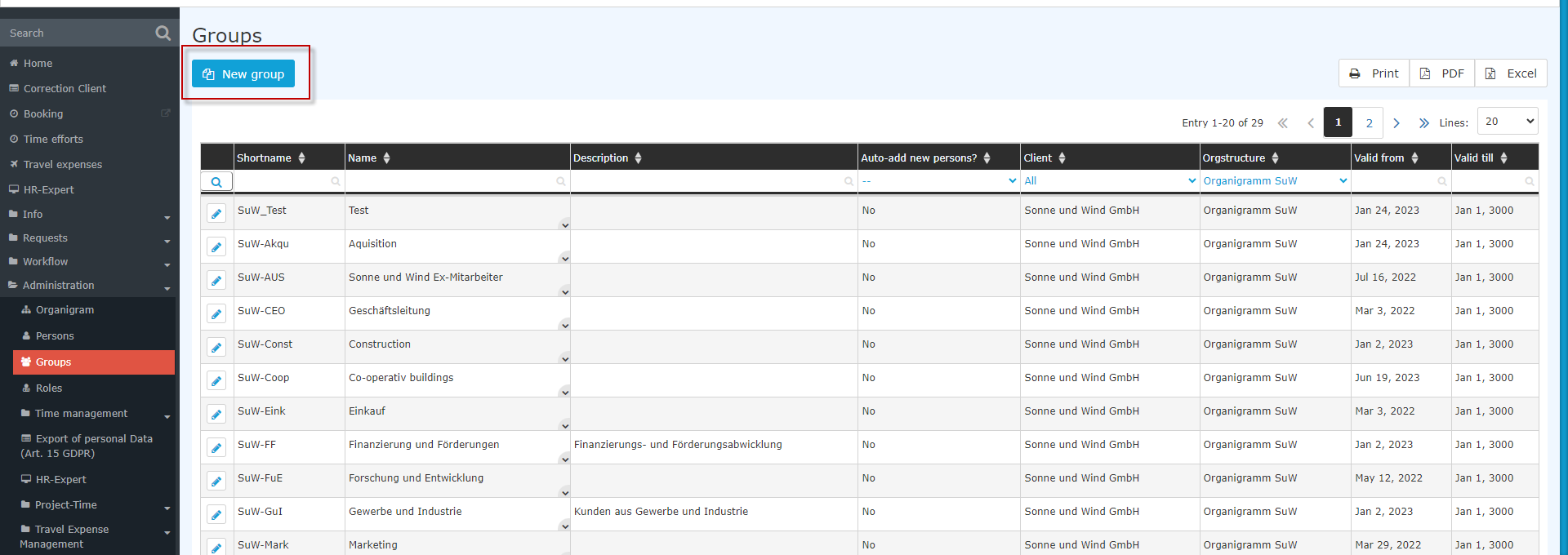
Click on In the menu item "Groups" in the menu tree under "Administration"tree under Administration, click the menu item Groups.
In the following list you will see an an overview of all loose / hierarchical (organigram) groups in organizational units and permission groups in the company. Click on "New Group"Click New group.
In the following input maskscreen, the fields must be filled in as follows:
-
Client: <your company>
-
Organisational Organizational structure (only available after selecting the client): loose groupes Permission groups
-
Short name (preset with the prefix = client abbreviation): e.g.: , SuW-PBWien
-
Name (long name of the group): e.g.: , Planning Office Vienna
-
Description (optional): e.g.:, Plant Planning Location planning, Vienna location
-
Valid from/until: Limitation possible, automatically preset with the current date or with 01.01.3000.Valid to: can be limited, preset automatically with today's date and 01/01/3000
-
Add new person automatically: Checkbox checkbox for automationsautomation
It makes sense to activate the checkbox "Automatically add Add new person automatically" checkbox for the group XXX-ALL group ALLE (for all employees), because every new employee MUST be a member of the group XXX-ALL group ALLE in order to be able to use the system at all. Of course, this also applies to other groups specific to your company, for which all employees should automatically be members.
If you also use other Personalwolke modules , such as Project Time or Travel, it also makes sense here to activate the automatic addition to the respective basic base user group.
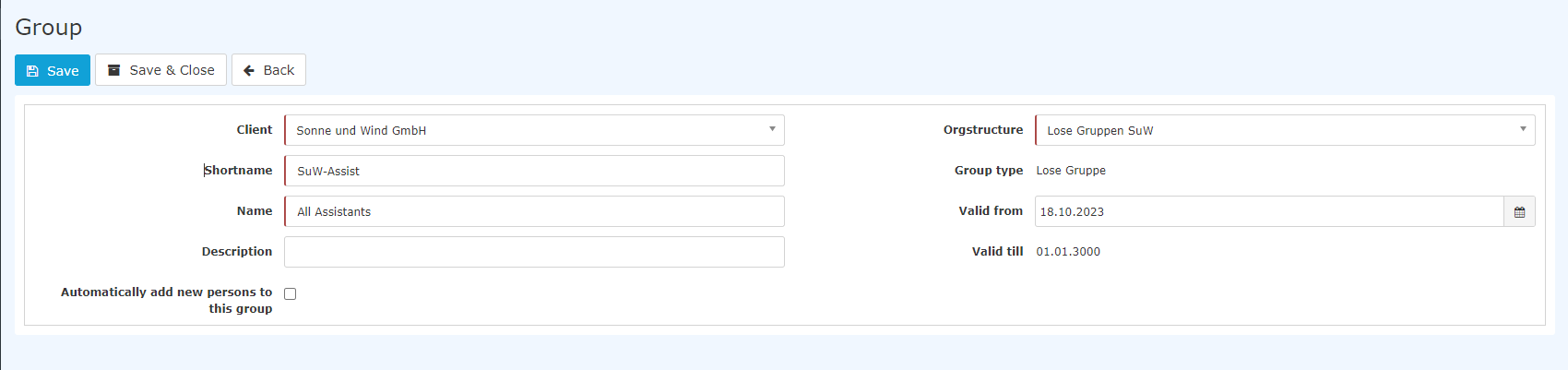
Clicking on Clicking Save creates creates the group, and additional tabs appear:
Parent and child subordinate groups do not exist in loose for permission groups, as since they are not embedded in an organisational organizational chart.
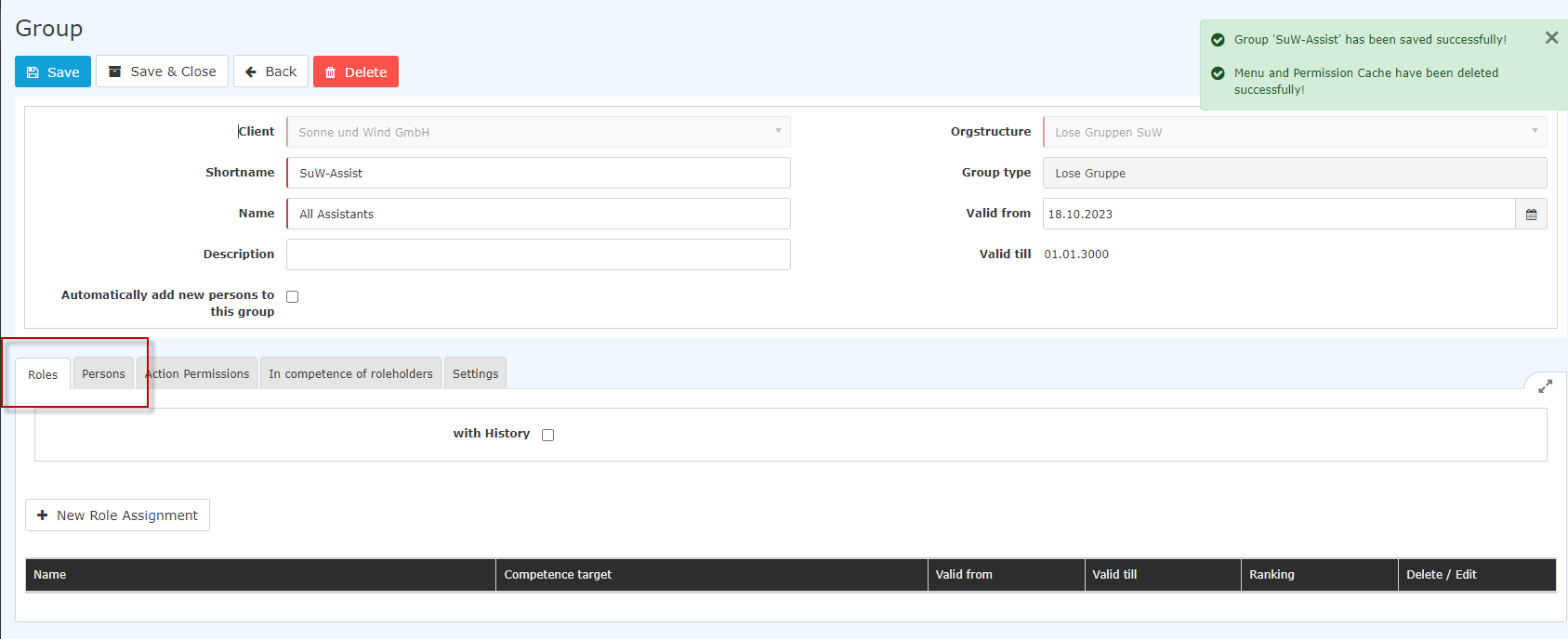
For daily use, the two tabs Roles and People are particularly tabs Roles and Persons are the most relevant here.
Roles
By clicking on "New Role Holder", a role can be assigned Clicking New role holder lets you assign a role to the group as a whole (Supervisorsupervisor, Personnelpersonnel). For If, for example, if the role Personnel is assigned, all members of this group are automatically assigned the role Personnel and are thus responsible for personnel HR matters for the company. This also applies automatically to each new every employee newly assigned to this group.
Persons
You can find out how to assign people persons to a group by clicking on at the following link: Add employees to a group [Link will be added soon]
Note: If the structure of your organisation your organization's structure also includes cost centrescenters and locations, they can be created in the same way by selecting them accordingly from the drop-down dropdown list in the "Organisation Organizational structure" field.

 erste


 Vergleiche Versionen 9 und 10

