Veränderungen des Inhalts
Klicken Sie für eine detaillierte Beschreibung auf die geänderten Stellen:
Benutzen sie die linke oder die rechte Maustaste, um zur jeweils vorherigen bzw. nachfolgenden Änderung zu gelangen.
General
In the following, the mask
Overview
The following describes the screen for a group (organisational organizational unit=hierarchical group, loose permission group, location, cost centrecenter) is described.
You Here you will find information on the following parts of the maskscreen:
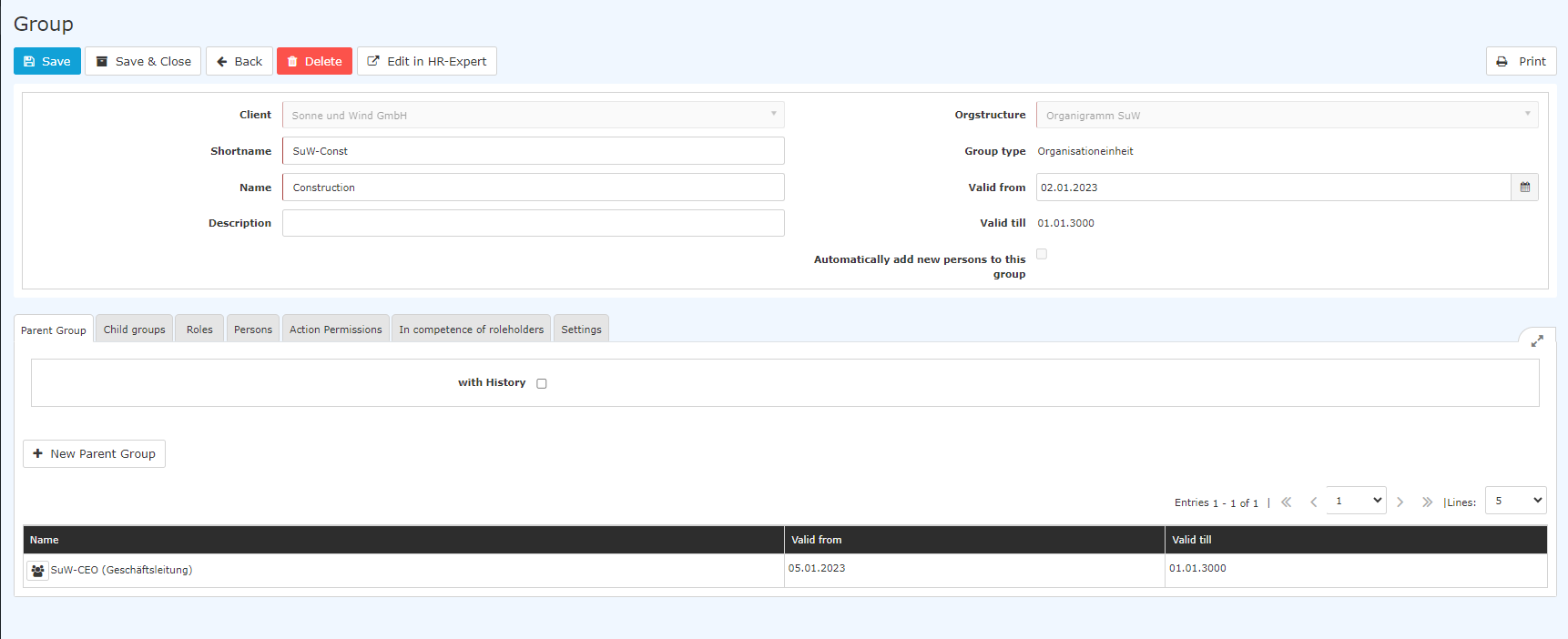
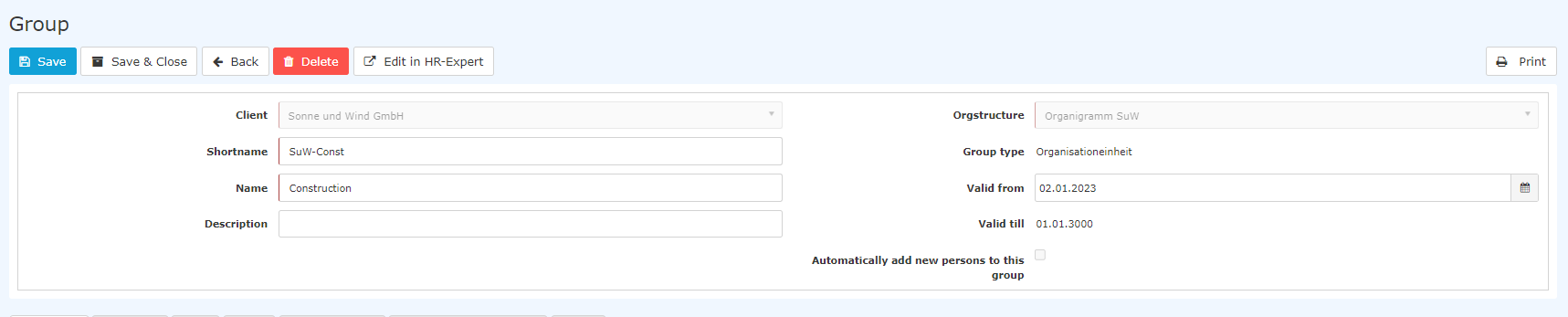
-
ClientClient: organisation organization name
-
ShortnameShort name: prefix + name abbreviation
-
Name: written out full group name
-
Description: for a more detailed explanation of the group Orgstructure:
-
Add new person automatically: only useful for permission groups!
-
Organizational structure: refers to the type of group (organisational chart=hierarchical group, loose organizational unit, permission group, location, cost centrecenter) - cannot be changed!
-
Group type: automatically filled in after selecting "Orgstructure"
-
Valid from/tillto: from the date the group was created or its validity start date to the expiry date.
-
Add new person automatically: only useful for loose groups!
-
expiration date
Changing the group name is also described under "Change short name/group name" [Link will follow soon].
Parent Groupgroup

This tab is only visible for hierarchical groups (organigram groups, organisational organizational units). The organisational unit to which
It shows which organizational unit the group is subordinate is indicated here. Each organisational unit, except for of the highest ("managementto.
Every organizational unit, with the exception of the top one ("Management") and the group of ex-former employees, must have a superordinate parent group.
A change in Changing the assignment to a superordinate parent group is described under "How to create a group" group or under "Change department/group hierarchy". [Links will follow soon]
Child Groups
.
Subgroups
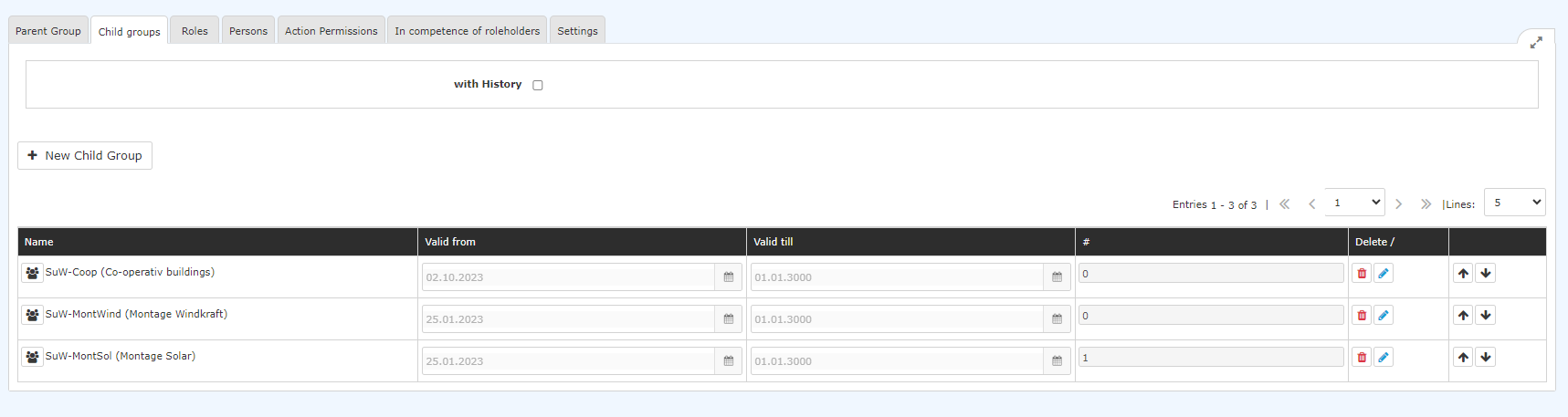
This tab is only visible for hierarchical groups (organigram groups, organisational organizational units).
Whether an organisational organizational unit has (a) subgroup(s) can be seen from the organigramorganizational chart.
It is also possible to enter several subordinate groups for one group.
A change in Changing the assignment to a subordinate group is described in the chapters "under How to create a group" or "under Change department/group hierarchy". [links will be added soon]
Roles

A group can, but does not have to, have hold roles.
But as soon as a role has been assigned to a group, every member of this group also automatically has this role as well (= "inherits" it from the group)!
The assignment of roles to a group is described under "Creating Create and editing edit role assignments" in the subchapter "About Via the group that is to receive the role". [Links will be added soon]
Persons
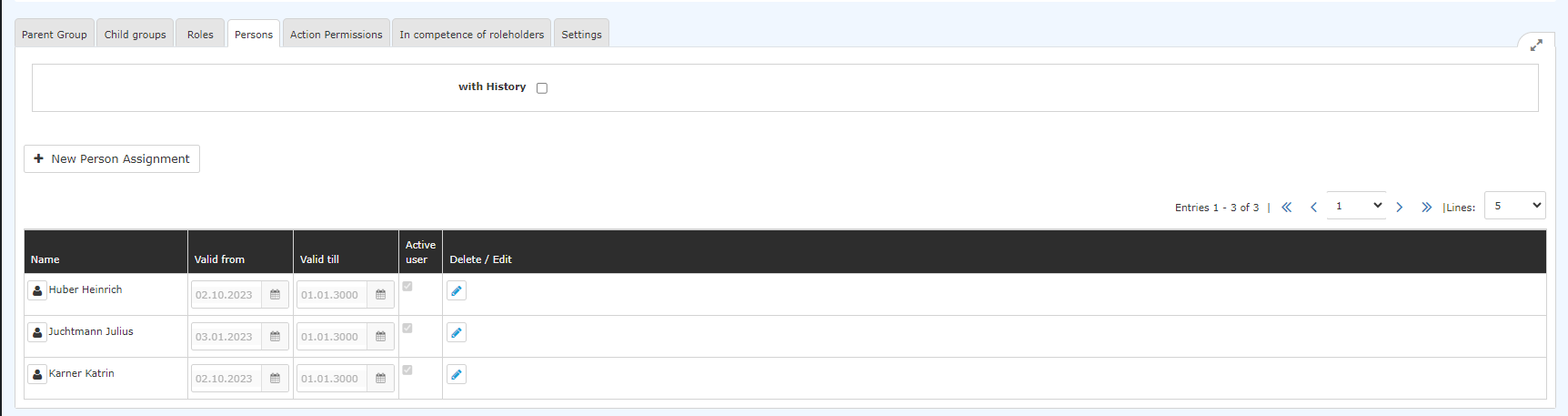
In Persons in this case , persons are all employees who have been assigned to this group.
The assignment of staff members Employees are assigned to a group is done via by following the instructions according to in "Add staff member employees to a group" or via the organisation organizational chart via using "Move employees to another department/group" (only possible for hierarchical groupsorganizational units, not for loose permission groups!).
Assignment to a group directly via the employee's profile is also possible, see "New person"/"Groups" tab. [Link will be added soon]
Action permissions
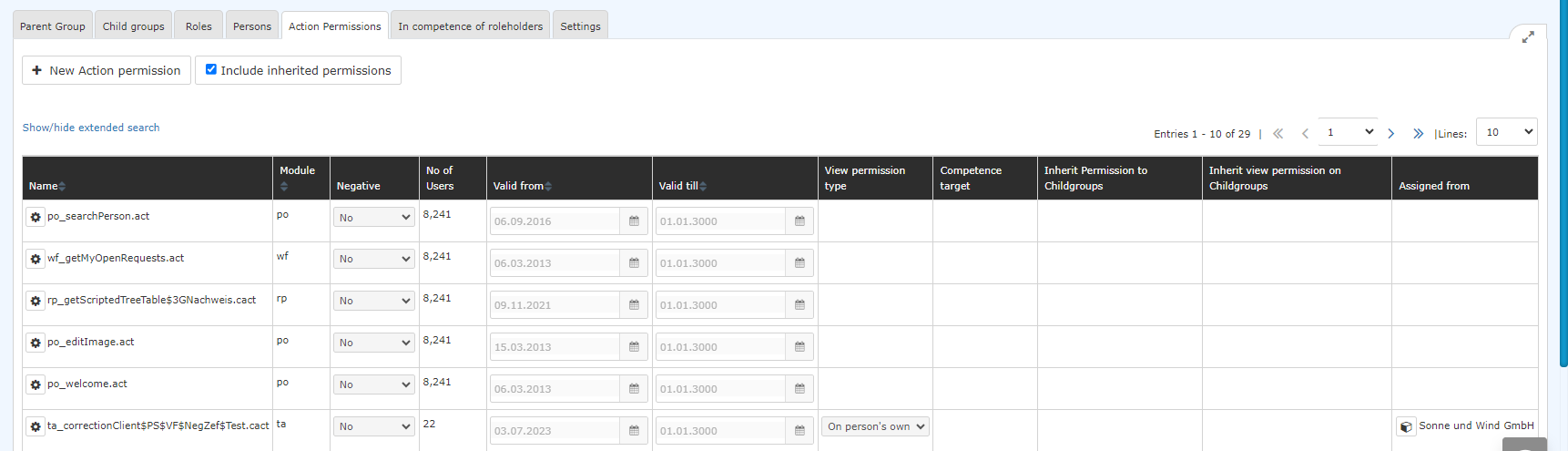
This tab informs about provides information on the permissions for actions that the members of this group or the employees of this organisational organizational unit have. Basically, this
This tab is basically for information only, ; changes are not possible.
The action permissions shown here are relevant above all in communication with the system administrators.
The data listed in the table refers to the action permissions themselves, such as the number of users and the validity. This data is not related to your company.
"Include Show inherited action authorisationspermissions": here it is possible to you can select those authorisations permissions that the group has received only received through belonging to membership in a superordinate parent group or through the client (= inherited action authorisationspermissions).
In competence of roleholdersthe area of responsibility of these role holders
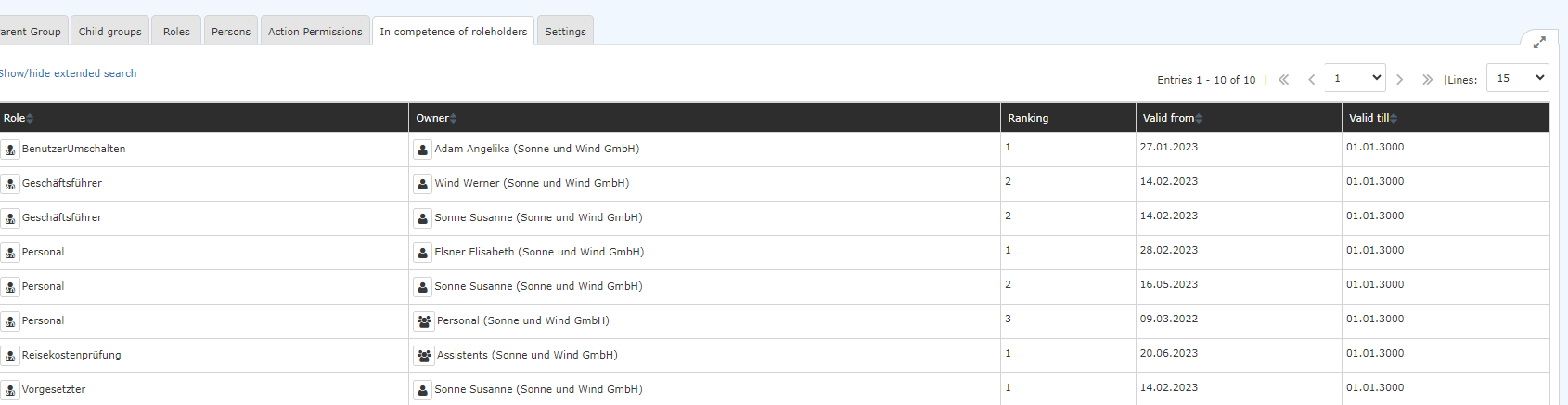
This tab shows which role holders have responsibility are responsible for this group or its members/employees, i.e. in , within the area of competence responsibility of which role holders this group liesfalls.
For example, it lists who is responsible for the personnel HR administration of this group or who is responsible as a supervisor.
Settings

In the group's master data, Groups area there is a standardised one standard setting: "Workflow Assignmentstasks".
This It contains the following functions, which are activated triggered by clicking on the respective buttons.
-
"Reevaluate assignments on Reassign all open activities assigned as Performer to members of the Group"
Due to role changes, transfers of employees, etc., it may become
-
to persons in this group"
Role changes, employee transfers and the like can make it necessary to update assigned activities. Click
Clicking this button to start starts the reassignment. This will be implemented It is applied immediately.
-
"Reevaluate assignments on all Reassign all open activities of running processes started as Author by members of the Groupby persons in this group"
This concerns the reverse direction: if the starters of such activities have changed due to changes in roles role and groupsgroup membership, an update can be carried out performed by clicking on this button.

 erste


 Vergleiche Versionen 2 und 3

