Veränderungen des Inhalts
Klicken Sie für eine detaillierte Beschreibung auf die geänderten Stellen:
Benutzen sie die linke oder die rechte Maustaste, um zur jeweils vorherigen bzw. nachfolgenden Änderung zu gelangen.
Webdesk provides various lists and filters, useful for the management, the HR-department etc. This This are only a few possible examplespossible examples:
- Account list
- Booking list list
- Filter lists
- Statistics
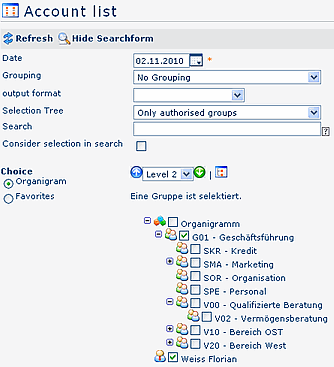
The selection of the requested units/departments is operated either via the organigram the organigram or the favourite-list.

-
Date
Query with a respective date
-
Grouping
This parameter provides following selectionfollowing selection:
-
No grouping: display of all user in alphabetical order
-
1st. Level: display of all selected groups and user underneath the 1stthe 1st. knot knot
- Example:
- Selection of group SA01 >> all user/groups located under G01 will be displayed, since G01 represents G01 represents the highest knot in the organigramthe organigram
-
2nd. Level: analogue to analogue to the 1st. level, all user/groups located under the 2nd knot will be displayed
-
3rd. Level: analogue to the 1st. and 2nd. LevelLevel
-
Selection tree
This parameter allows following selection:
-
Groups according to authorisation level: The organigram displays all groups, in accordance with the authorisation level of the user.
-
All Groups: the organigram displays all groups, even if the user is not authorised to select and query all of them
-
Search
According to the entered criteria, such as name (first name, family name, academic title) or initial letter, all groups all searched. The result includes all family and first names, according to the search-entry, or starting with the initial letter (*e.g. we*), or including an academic title.
-
Output format
The output of your management-list can be formatted as PDF, Excel or print version, without a previous display of the HTML-list (time saving). If there is no selection (blank), you will receive the HTML-list.
-
Consider Search parameter
This parameter has only an effect, when a when a name has been entered in the "Search" field. If activated, only the selected organigram-groups will be searched. If it is not activated, the query searches the entire organigram (acc. to the authorisation level).
-
Options
This parameter provides the choice between the organigram or a list of favourites, created by the user:
-
Organigram
- All folders marked with a "+" symbol can be further expanded, so the subunits will appear.
- A click on the respective unit sets a mark, a double-click marks also all subunits
- A click on the green arrow > > Show subunits until node 1-3 > 3 > displays all existing subunits
- A click on the blue arrow > arrow > Minimize tree > minimizes the organigram, only the superior groups appear
- Show details > a click on this symbol displays the names (short names) of of all selected units, even if the organigram is collapsed. Click here again, and and the names (details) disappear
- A click on the "Query" button starts the query.
-
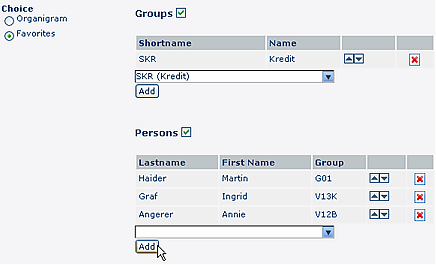
Favourites
Every user can create his own list of favourites, containing the colleagues/user, who are queried most frequently.
You can either create a favourite group, or a favourite person, or a mix of both.
If you like to create a favourite group, then mark the group-parameter. Same procedure for creating a favourite person-list.

-
Add a person to the list > click on the blue arrow > select the person > click on the "Add" button
- The sequence of persons in the list can be changed with the arrow-keys
-
Remove a person from the list > click on the red "delete" symbol next to the name.
The selection criteria you have entered in the Selection tree will be saved for the next query.
 erste
erste


 Vergleiche Versionen 3 und 4
