Veränderungen des Inhalts
Klicken Sie für eine detaillierte Beschreibung auf die geänderten Stellen:
Benutzen sie die linke oder die rechte Maustaste, um zur jeweils vorherigen bzw. nachfolgenden Änderung zu gelangen.
General Information
The "Edit Record project timestime" mask allows gives the user the option to enter record project times that were not booked directly by a via the stopwatch (project time booking) after the eventfact. In addition, project times that have already been recorded project times can be edited or deleted.
The user currently logged in In principle, the logged-in user is always defined automatically set as the booking person making the booking. The possibility option to search for other persons or to switch between persons and to edit the project times entered by others other persons is available only available for to users with administration rightspermissions (members of a PTM admin group, more on this under Authorization ; for more, see Permission Management).
Edit project times
If you are in the input mask, you must
Recording Project Time
In the recording mask, first select the relevant year or calendar week. By default, the current calendar week is preset and proposed. Using the View by selection always displayed. Via the Display as selection, you can switch between the weekly week view (Display by Show as week) and the monthly month view (Display by Show as month). With the arrow keys you can navigate between the calendar weeks or months, or select any calendar week or month from in the dropdown list. If Once you are in the desired period, you can start begin recording the project time.
Project time recording can only be done afterwardsrecorded after the fact, not on days that lie in the future!
Depending on the configuration, additional restrictions apply: the The project times recorded for a day must not exceed the attendance time or a defined specified maximum number of hours per day, from and to times must lie within the attendance time, bookings for the current day may can be blockedlocked, and entries of the previous month can only be recorded or changed up to a defined specified day of the current month. If a monthly project time entry tracking exists for a month, daily recording is blocked locked for that period.
The
In the recording table, the following data is
to be
entered and displayed
in the data entry table
:
per Per project booking:
|
Day (fixed)
|
The date for which the project time is to be registered.recorded
|
|
Project
|
To identify the project, the short name with the fixed prefix is displayed here, ; the full project name is added automatically added in the field to the right of it.
|
|
Activity
|
Selection of one of the predefined activities in the project
|
|
Customer
|
Selection of a customer, if added to the project
|
|
Description
|
Here you can describe in more detail how the time to be recorded was used, in order to get an even better overview of the work done during performed over the course of the project.
|
|
From
|
Time at which work on the project started
|
Till
|
began
|
|
To
|
Time at which work on the project ended/ was interrupted/ended
|
|
Time
|
This is the difference that results resulting from start and end time the From and To times - it indicates in hours how long the project was worked on (in hours)the project. As an alternative to entering the from and to times, you can also only enter just the amount of time quantity in the "Time" field (- e.g.: , 1.30 for 1 hour and 30 minutes)
|
|
Bill.
|
Billable
|
Possibility to mark Short for "Billable" - selection of whether the project time as billableto be booked is billable or not
|
|
Actions
|
- By clicking on Clicking  (Edit) lets you can edit already completed project bookings in retrospectthat have already been made after the fact. Edited start and end times must not overlap with other project times! If you are When in edit mode, you can return to the overview by clicking on the "Save" button takes you back to the overview. (Edit) lets you can edit already completed project bookings in retrospectthat have already been made after the fact. Edited start and end times must not overlap with other project times! If you are When in edit mode, you can return to the overview by clicking on the "Save" button takes you back to the overview.
- Click on Clicking  (Delete) to delete deletes the project time entry from the table. This action For safety, this input must be confirmed for certainty. (Delete) to delete deletes the project time entry from the table. This action For safety, this input must be confirmed for certainty.
|
per Per day:
|
Sum.
|
Short for sum. Here , the individually recorded project times per day are added together up and displayed as a total sum.
|
|
Att.
|
Short for Attendanceattendance. The Here the total attendance time of the respective day in question is displayed here.
|
|
Diff.
|
The Here the difference between the presence attendance time and the recorded project times is shown heredisplayed. Depending on whether the attendance time exceeds or the project times, falls short of the project times them, or the values are the same, match, the result is a negative (red), positive (blue), or 0 (green) value is displayed.
|
Favorites
On At the upper top right side of the screen , is the expandable button "Favorites" is located button.
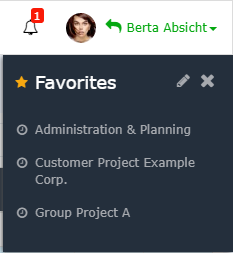
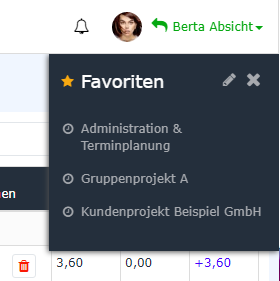
In this area , you can create your own templates for frequently booked project activities and quickly insert them into the entry screenrecording mask, so that you only have to enter the start and end timestime need to be entered manually. Clicking on a favorite copies transfers its values into to the currently selected linerow. To add a new favorite, click on the "Edit" icon. in the expanded Favorites field. In the table now displayed table you can edit already added favorites and add new ones, favorites that have already been added can be edited and new ones can be added.
If a new favourite favorite is created via the "Add new favouritefavorite" button, a freely selectable name (e.g., "daily Daily progress meeting") must be entered set in the first field. Then select the desired projectshould be selected. The colums "columns Bookable" and "Billable" are automatically filled Bill. are filled in automatically based on the predefined saved project characteristicsproperties. The text that is written in the Comment field is visible later visible when booking in the "Description" field in the entry recording mask. Optionally, customers and activities can also be saved in the Favorites favorite template.
As soon as all mandatory required fields are filled in, the "Save"symbol icon appears - thus, the new favorite is thereby saved in the system. By clicking on Clicking the "Delete" symbol you can delete the entry icon deletes the row. Existing favorites can be edited by clicking on the "Edit" button.
Additional Row Options
Clicking the right mouse button opens further options for the user within the project overview table for the user. The respective actions refer apply to the line row in which the mouse pointer is located when clicking.
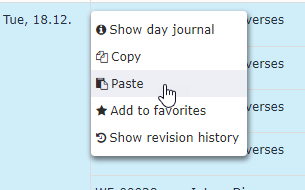
Show day journalBy clicking here, a window daily journal
A window opens with the user's daily journal for the corresponding day opensin question.
Copy and Pastepaste
The line content of the selected line row is copied and can be pasted into another line row (on another day or on the same day) by right-clicking with and choosing Paste. If the project time entry is copied and pasted on the same day, the columns From and To columns of the copy must be adjusted in the copy, since no overlapping intervals are not permitted.
The duplicate can still be edited and adapted adjusted as desired before saving. If the line was accidentally inserted wronglyrow was pasted incorrectly by mistake, the process operation can be aborted using canceled via the "Cancel" button.
Add to favorites
Here , you can add a specific project booking can be added directly to your the favorites. After clicking, a dialog window opens in which to name the new favorite. After confirmation confirming via the "OK" button, the project is added to the favorites list.
Show revision change history
A window opens which that displays, in chronological order, all project bookings made and edited for on the selected day in chronological order.
 erste
erste


 Vergleiche Versionen 8 und 9