In Webdesk EWP, all project time evaluations are based on the configurable action "ptm_getOrgProjectEfforts".
The following instructions describe how to configure this action can be configured and customized adapt it to your personal requirements needs for project time evaluation. Examples of customizability are, for example, include the number and properties of the available view variants , theand filter options for of the evaluation, or the individual layout of the generated report.
1) Create new configuration of the evaluation actiona New Configuration of an Action
As an administrator, you call up open the action overview via the menu tree:
Menu and Actions
--> Actions
An overview of all actions, configurations, and process references stored in the system appears. Select In the first column, select "Action" as the action type in the first column and enter the name of the desired action in the search field in the second column, in this case "ptm_getOrgProjectEfforts". Click Press Enter to filter the list, and the basic base action "ptm_getOrgProjectEfforts" will be displayed. By clicking on (Report on project efforts) appears.
Clicking "New configuration" in the relevant corresponding column , creates a new configuration of the action is created, which can then be personalized. Alternatively, a new configuration can also be created in the action overview via the button "New configuration" and the specification of the basic button by specifying the base action (here "ptm_getOrgProjectEfforts"). In both cases, two nameshave to be entered as a first step must be specified first:
-
Name: unique name of the new configuration, at best ideally with a module description (e.g., "ptm_MyProjecttimeReport")
-
TitleHeading: descriptive name of the new configuration, this which also appears in the menu tree (e.g., "My project time evaluation")
After clicking on the"Save" button, the new configuration will be is saved and numerous further optionswill appear on the screen:
Tab "Settings"
|
Description
|
Possibility to enter a more More detailed description of the action configuration and its functions.
|
|
Action folder
|
Assignment of the action folder in which the new configuration can be found in the overview. Normally , this is the same action folder as that of the root parent action (default value).
|
|
Menu Icon
| Choose
icon
|
Selection of the icon used to display with which the configured action is displayed in the menu tree.
|
|
Menu Icon for Classic-Skin
| Choose
icon for classic view
|
Selection of the icon with which the configured action is displayed in the menu tree of the classic Classic skin.
|
|
Update Overwrite action 's metadata on software update
|
If "Yes" is selected here, the personal settings for the configuration are overwritten during a software update and the default values are restored.
|
|
Inherit Pass permission on to the following action
|
here you can define an additional action Here another action can be specified for which the same user permissions apply as for the action currently being edited one.
|
|
Default Roles
| Here, you can find
roles
|
Here there is an overview of the roles which that automatically receive authorization a permission to execute the new newly configured action.
|
|
Unsupported View Ports
| by
viewports
|
By checking the corresponding box, access to the new newly configured action can be blocked for certain platforms (mobile, tablet, or desktop)
|
|
EDIT CONFIGURATION DETAILS
|
Click on Clicking this button takes you to access the actual settings for personalizing and configuring the new action. These configuration options are described and explained in detail firbelow further down on this page.
--> immediately jump Jump straight to the configuration details
|
|
Always open in the new window
|
if If this tickbox checkbox is checked, the new action is always opened in a new browser window when it is launched
|
Is Experimental
|
here called
|
|
Is experimental
|
Here the new configuration can be marked with the attribute "experimental"
|
Prohibit Usage for Switsched Users
|
attribute
|
|
Prevent execution for switched users
|
If this tickbox checkbox is activated, the action can only be executed by the permitted user himself themselves and not by administrators who have switched to this user.
|
|
Number of users (maximum max. licensed)
|
here you can see This shows how many users are currently authorized permitted to use this action. Below thisit, a limit is displayed for how many users the corresponding Webdesk license is valid.
|
The options "Layout Use the following template to use", "Controller", and "Controller Patternpattern" are extended advanced developer options, which that should only be used in agreement consultation with Workflow Systems GmbH. For further information, please contact us directly.
2) Edit configuration detailsConfiguration Details
As already mentioned at the beginning, every project time evaluation is based on the action "ptm_getOrgProjectEfforts". After a new configuration of this action was created in the first chapter on this page, this chapter is dedicated devoted to the actual configuration, i.e., adapting the adaptation of the new function to your needs. By clicking on
Clicking the button "Edit configuration details" button in the tab "Settings" tab takes you get to a new page where you can show and hide filter options, create , among other things, filter options can be shown and hidden, new report templates and layouts can be created, or change the general appearance when opening calling the action can be changed.
The configuration options are divided into the following categories:
General Settings
These are settings that affect the newly configured action and its possibilities capabilities as a whole:
|
Permissions to use
| This is where the choice is made as to which user authorizations
Applied permissions
|
Here you decide which user permissions are to be used for applied to the projects/persons that can be displayed for in the evaluation:
View permissions - restriction Restriction by person only
If "View Permissionspermissions" is selected, all project times of persons who are available that fall into under the column "View Permissionpermission" column in the action permission are available. If, for example, "own organizational org unit" is selected as view permissions for the role "superiorSupervisor", this a user in the role of supervisor can display and evaluate all project times of his their own organizational unit in the role of superior. There are no restrictions for on the evaluable projects that can be evaluated, only for on the persons.
Project permissions - Restriction by project and person
If "Project permissions" is selected, only those project times are available for evaluation that the user is authorized to view, edit, or book according to the tab "Permissions" tab in the project list. Only projects for which an authorization a permission has been explicitly granted can be evaluated. The evaluable persons that can be evaluated within these projects depend on are determined by the view authorization permission for the action, specified in the column "View permissions" of the action settings.
If, for example, the project manager Rudi Renner is given direct permission to book/report during the creation of the new "advertising campaign" projectdirectly granted a booking/reporting permission when the new project "Advertising campaign" is created, he can evaluate the project times of this project for persons according to his view permission in the action.
|
|
Hide Do not show standard reports
|
If this tickbox checkbox is activated, the two standard reports "project sorted by booking element" and "sorted by date sorted" are not displayed in the list of possible view variants.
|
|
Default Standard report
|
Select which report is to display first be displayed by default in the drop-down dropdown list (sorted by date sorted, project sorted by booking element, custom user reports).
|
|
Label for not categorized columns
| If there are
uncategorized column
|
If empty columns result in the category grouping columns of the report due to inequalities inconsistencies in the hierarchy, you can specify an alternative label for these empty columns can be specified here
|
|
Omit 0.
|
Suppress zeros in TA
| Select
00 in time and attendance
|
Yes/No , whether to display a presence selection of whether, in reports that make a comparison with attendance times, an attendance time of 0 hours (from TA) is to be displayed as 0.00 or to completely hide ithidden.
|
|
Show chargeability selector
| Select
billability selection
|
Yes/No selection of whether to display filter option for the query according to chargeable evaluation query should allow filtering by billable and non-chargeable billable projects. If "No" is selected here, all projects are displayed by default.
|
|
Show historization selector
| Select
selection
|
Yes/No , selection of whether the possibility of activating/deactivating the evaluation query should show the option to activate/deactivate historization in the evaluation should be shown in the query for the evaluation. If "No" is selected here, the history historization is not set applied by default.
|
|
Show time in
| Select
Display time as
|
Selection of whether time expenditure efforts in the project time evaluation is are to be displayed by default in normal standard minutes (45 minutes corresponds to 0.45) or in industrial minutes (45 minutes corresponds to 0.75).
|
Settings for standard reportsStandard Reports
These are settings that affect the standard reports that are preconfigured in the system and, if approved permitted under "General Settingssettings", are available in each every evaluation. For some of the selection lists, the option "System value" can be selected in addition to "besides "Yes" and "No" you can also select the option "System value". In this case, the default settings stored saved in the system parameters are used:
|
Show comparison with to time acquisitiontracking
|
If "Yes" is selected here (or if the system value says "Yes"), the standard reports show a comparison to the attendance time for the day in question is displayed in the standard reports in separate columns, and the difference is calculated. More information on the comparison of project time/attendance time here (Link!!)
|
|
Show customer
|
If "Yes" is selected here (or if the system value says "Yes"), the standard reports show the customer of a project is displayed , if available, in a separate column in the standard reports, if available.
|
|
Show activity
|
If "Yes" is selected here (or if the system value says "Yes"), the standard reports show the activity within the project is displayed in a separate column in the standard reports. for each row
|
|
Show from/to times
|
If "Yes" is selected here (or if the system value says "Yes"), the standard reports show the start and end times per booking are displayed in the standard reports in time for each row in addition to the project time expenditure effort in hours.
|
|
Show "Billable" option
|
If "Yes" is selected here (or if the system value says "Yes"), the standard reports show in an additional column is displayed in the standard reports during evaluation to show whether the booked project effort can be billedis billable.
|
|
Show week column
|
Select Yes/No selection of whether, when expanding the standard report "sorted by date sorted", the expansion should be unfolded proceed by year > month > week > day or, without week, only by year > month > day when unfolding the standard report
|
|
Add industry industrial minutes in to xls
|
Select Yes/No selection of whether, for output in Microsoft Excel format, a separate column with project and attendance times in industrial minutes is to should be displayed when exporting in Microsoft Excel format.
|
Design customized project reports
Designing Custom Project Reports
In addition to the two available standard reports available, the administrator can create multiple several custom reports for each configuration of the project time evaluation action. Any Every person in Webdesk who has access to the configured action can then use these reports and evaluate project data in their format. Reports can be created easily and quickly and easily using the modular system.:
In the "Report Definitionsdefinitions" section, first click the "Add" button to create a new custom report. An editor input row opens with various options:
1) General
data
Data and
description
Description
-
Report name: insert enter the name of the new report here (e.g., "Projects by EmployeeCustomer report" or "Productivity EvaluationTime series with project status")
-
Report IdID: define Enter a short name or a code for the new report here (e.g., "CustomRep2CustomReport2")
-
Report title (optional): here , you can insert a title which will be specify the title that is displayed at the top of the page when exporting into output in PDF or Microsoft - Excel -Formatformat
-
Description: possibility to insert a more detailed description about of the layout, structure, and displayed information of the custom report information displayed that this report offers
-
Row count: If this tickbox checkbox is activated, the first column in the report always contains information about the number of rows that will be are displayed when the group (collapse element) is fully expanded.
-
Management report: If " project permissions " is are selected under "Applied permissions to use" and this tickbox checkbox is activated, then all those projects are evaluated for which the user has a view permission ("can reportReporting") in the project overview are evaluated. If, however, access However, if view permissions are selected under "Used Applied permissions", this tickbox checkbox has no effect.
2) Category Grouping Columns
The information selected here is used to determine the expandable and collapsible hierarchy of the report. Click on Clicking "Add" to lets you select the data from the list the data with which the Collapse collapse element is to be constructedbuilt.
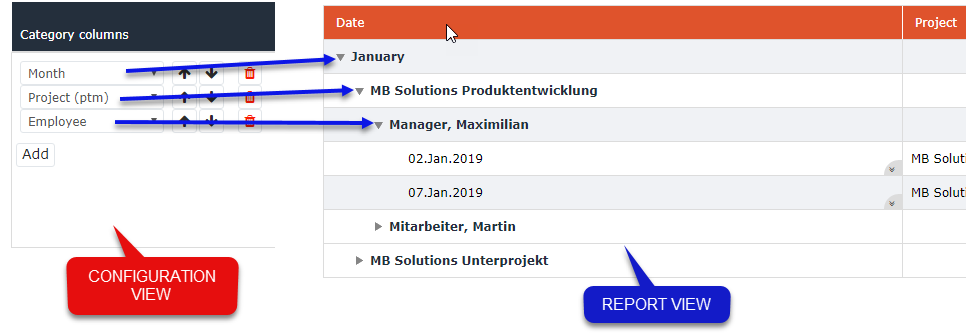
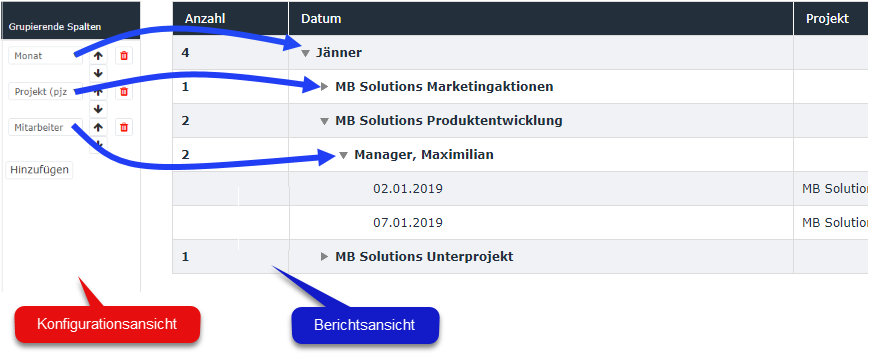
If, for example, "Month" is the first grouping column, all project times are first displayed and sorted by month. If you open expand the month column, the project times within the month are sorted according to by the second grouping column (in this case "Project"). If you also open expand this column as well, it will be displayed after the the display is by the third grouping column (in this case "EmployeesEmployee"), and so on...
If Once you have arrived at reach the lowest deepest level (here "Employee" expanded), the project times are displayed in the columns with the additional further information previously selected under "Detail columns" . Thein the columns. With the arrow keys for up/down arrow keys can be used to move , the order/hierarchy level of the grouping columns can be moved.
Further More information about on the meaning and function of the specific options choosable as category columns
Category Columns
for grouping columns
|
Grouping columns - comparison between of configuration view and /report view
|
|
|
|
|
3) Detail columns
Durch Klick auf den Button "Hinzufügen" lassen sich hier die Informationen für die sogenannten Detailspalten auswählen. Beim vollständigen Ausklappen des Berichts werden die hier ausgewählten Informationen für die einzelnen Projektbuchungen im Detail in den Tabellenspalten angezeigt. Auch die Reihenfolge der Detailspalten lässt sich mit den Pfeiltaste verschieben, diese werden im Bericht von links nach rechts angezeigt.
By clicking on
Columns
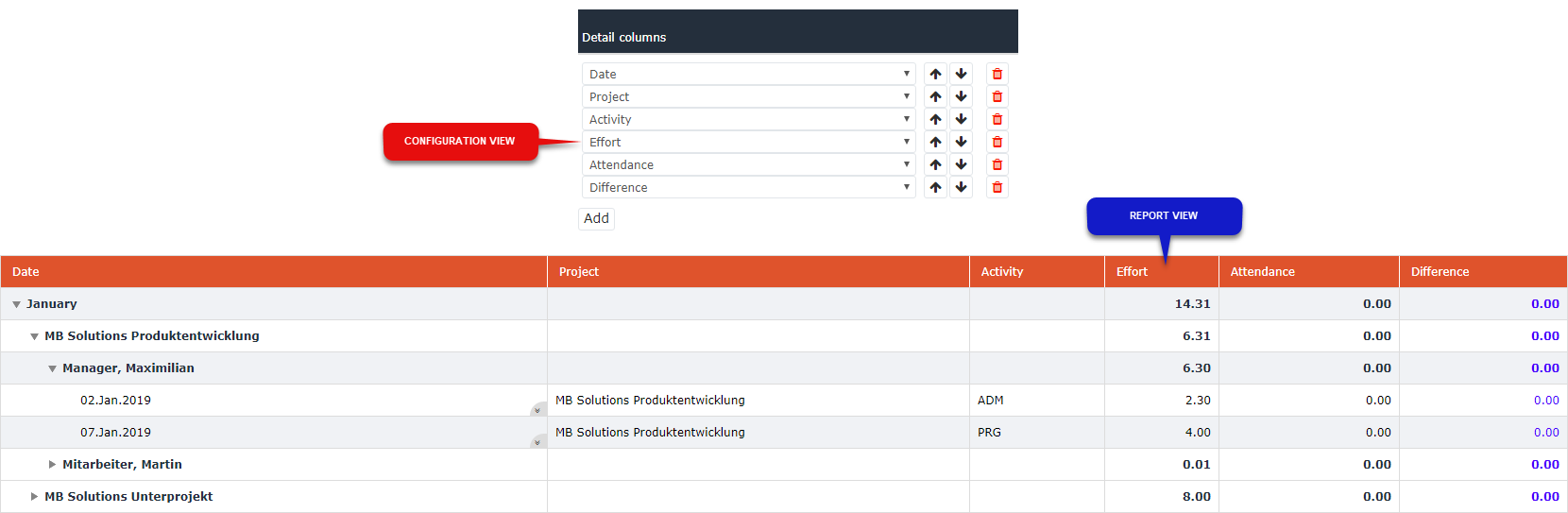
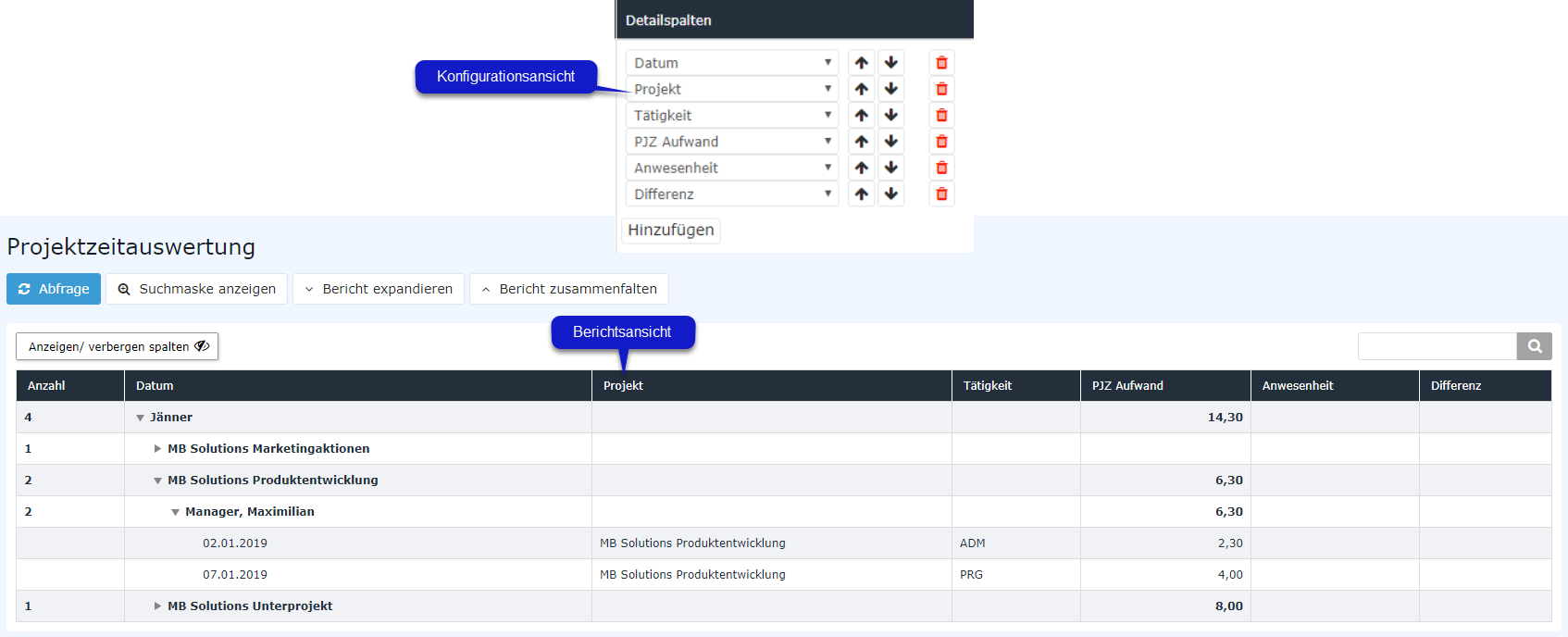
Clicking the "Add" button , lets you select the information for the so-called detail columns can be selected here. When the report is fully expanded, the information selected here is displayed in detail for the individual project bookings is displayed in detail in the horizontal table columns. The order of the detail columns can also be moved with the arrow keys. Detail columns ; they are displayed in the fully expanded report from left to right.
Further More information about on the meaning and function of the specific individual options choosable as for detail columns
|
Detail columns - Comparison between comparison of configuration view and /report view
|
 |
 |
3) Move Moving and deleteDeleting
In der Spalte "Hinauf/Hinunter" können die definierten Berichte mithilfe der Pfeiltasten als Ganzes hinunter oder hinauf verschoben werden. Die hier festgelegte Reihenfolge ist die Vorlage dafür, in welcher Reihenfolge die Berichte beim Aufrufen der Aktion unter "Ansichtsvariante" angezeigt werden. In the the "Up/Down" column, the defined reports can be moved down or up as a whole using the arrow keys. The orderdefined set here is the template for the order in which the reports are displayed under "View Variantvariant" when the action is called.
Klick on Clicking the  - icon in the "Delete" column to delete deletes the respective configured report draft as a whole.
other configuration details
Zusätzlich zur Einstellung diverser Parameter und der Definition von Berichten können für die konfigurierte Aktion noch weitere Optionen, besonders zu Formatierung und Erscheinungsbild, vorgenommen werden:.
Other Configuration Details
In addition to setting various parameters and defining reports, further options can be made set for the configured action, especially regarding particularly for formatting and appearance:
Context Menu menu --> see here
Formatting --> see here
Styling
Design
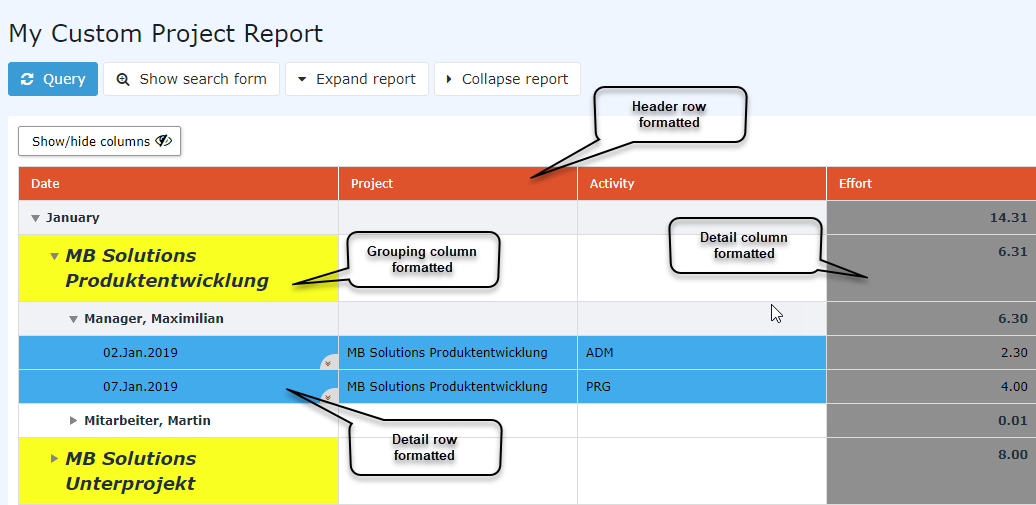
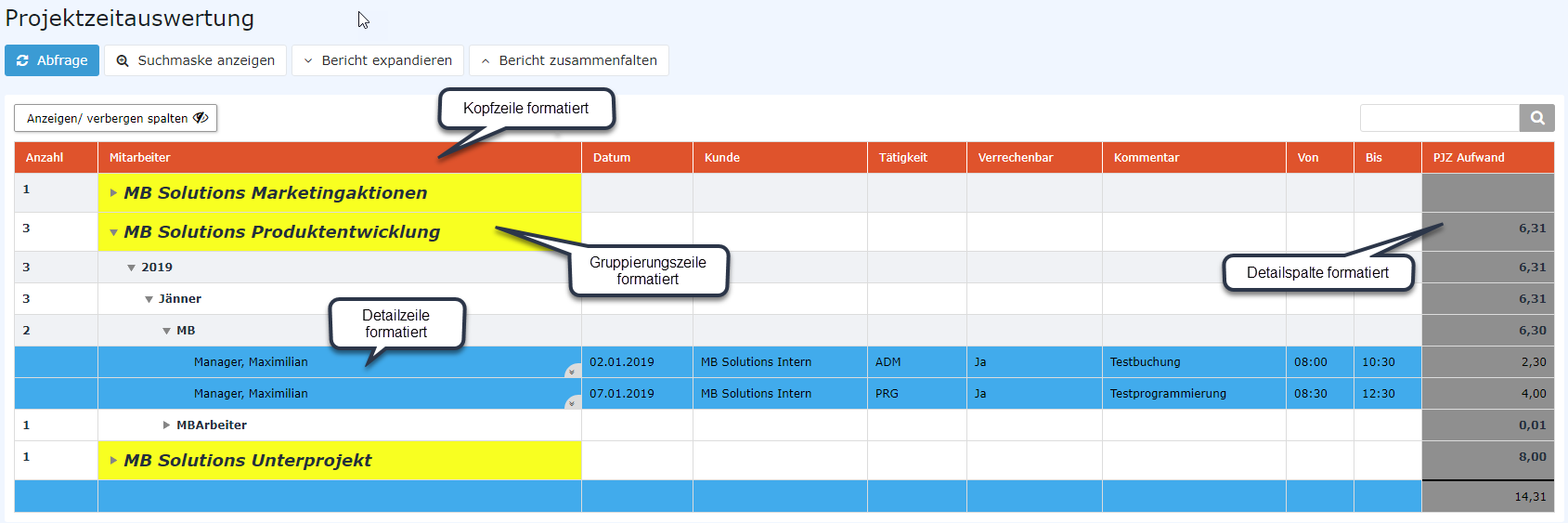
Here you can define specify individual font and background colors as well as font size and style for the various elements of the report. The following elements can be configured designed by the administrator:
-
Header row of the report
-
Detail rows row of the report (single rows per individual project booking row)
-
Grouping Individual grouping rows (expandable and collapsible rows within in the collapse - element)
-
Detail Individual detail columns
For each of these elements, the following settings can be defined specified in the respective table:
|
Grouping row/Detail detail column
|
Only in the Grouping Rows/Detail Columns table availablegrouping rows/detail columns table! Selection of the grouping row or detail column for which should formatting is to be formattedspecified.
|
|
Background color
|
Select Selection of the color with which the corresponding cells are to be filled. The input Input is possible as an HTML/HEX color code, RGB color code, or by color name of the color (e.g., "yellow").
|
|
Color
|
Select Selection of the font color for text in the respective cells. Input is possible as an HTML/HEX color code, RGB color code, or color name possible.
|
|
Font style
|
Selection of the style for text in the respective cells. Available options are Normal, Bold, Italic, or Bold Italic are available.
|
|
Font size
|
Select Selection of the font size for text in the respective cells. The input Input is possible here in standard sizes (small, medium, large) or in %, cm, px, and pt.
|
|
CSS Stylestyle
|
Here you can enter an entire a complete style definition in Inline inline CSS format.
|
|
Whole
|
Entire
|
Only for grouping rows/detail columns available! If this tickbox checkbox is activated, the formatting selected for the grouping row is extended to the entire row length. If this is selected for the item "Detail column" item, the formatting is applied to the entire length of the column, not only just to the detail column of the currently opened detail row.
|
|
Example for of report styling
|
|
|
|
formatting
|
|
|
 erste
erste


 Vergleiche Versionen 9 und 10