Veränderungen des Inhalts
Klicken Sie für eine detaillierte Beschreibung auf die geänderten Stellen:
Benutzen sie die linke oder die rechte Maustaste, um zur jeweils vorherigen bzw. nachfolgenden Änderung zu gelangen.
General
This article describes the steps necessary required to install a Webdesk 4.x.
Steps in Detail
For the Installation used File: File used for the installation: setup-webdesk-xxxx-xx-bit.exe
The Installation starts with a Double Double-click .
Choose your
to start the installation.
-
Select language: German or English Welcome
-
The welcome screen appears , Next
 --> Next

- Select installation variant:
- Standalone -Installation With installation
with application context path of the application: webdesk
Standalone is selected if no other web server is to run on this device
- Installation in existing Web-Server this Installation is usefull if there is allready an existing Server with tomcat installed
Choose Standalone, next 
Select destination directory,
-
an existing web server
This installation is selected if a server with a Tomcat already exists
-
Select Standalone, then continue

-
Select target directory - C:\WebdeskEWP , - install


- Webdesk gets installed

-
Choose your License
License-File (Textfield with a Chooser) you get your license from Workflow
-
Demo-License
choose the right License, next 
-
Select Webdesk Database Type
Database Server This option is to be selected if a permanent operation is desired (seperated
-
is installed

-
Select license
-
License file (text field with chooser)
The license must be requested from Workflow
-
Demo license
-
Select the license, then Next

-
Select Webdesk database type
-
Database server
Select this option if permanent operation is desired (separate SQL Server, etc.)
- Temporary Database is includet database
These are included in the Webdesk -Setup, losts its entries if the Webdesk gets shut down
Choose your Database Server, next 
Important information appears about the databases, next  Webdesk Database-Connection
-
setup, but lose their entries as soon as Webdesk is shut down
-
Select Database server, then Next

-
Important information about the databases appears --> Next

-
Webdesk database connection

- User: wdadm
- Password: wdadm
- Hostname: localhost
- Database: SQL Server
- Schema: webdesk
- Port: 1433
- JDBC - URL: jdbc:sqlserver://localhost:1433;databaseName=webdesk
-
next
Connection
-
The connection was successful! , next
 Shark Database-Connection
 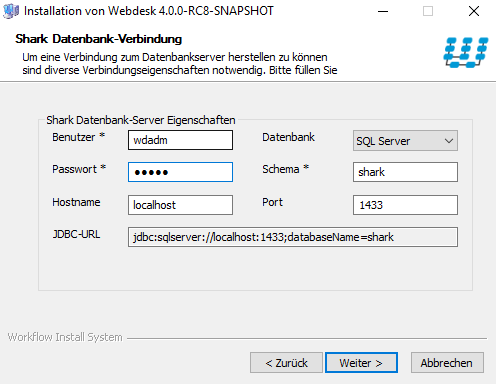 --> Next

-
Shark database connection

- User: wdadm
- Password: wdadm
- Hostname: localhost
- Database: SQL Server
- Schema: webdesk
- Port: 1433
- JDBC - URL: jdbc:sqlserver://localhost:1433;databaseName=shark
-
next
-
Next
- Installation completed successfully!

-
„Start Webdesk Server“ ist checked
-
„Start Web-Browser for Webdesk“ ist checked
-
Close
-
The web browser opens a window with the Webdesk in it
-
Check in the Windows services whether Webdesk Server is running: yes
-
Open the Properties of Webdesk server and change the start type to automatically, apply, ok
-

-
"Start Webdesk Server" is checked
-
"Start web browser for Webdesk" is checked
-
Finish
-
A window with Webdesk opens in the web browser
-
In the services, check whether the Webdesk server is running
-
Open the properties of the Webdesk server and change the startup type to Automatic - Apply - OK
- Log in as administrator in the browser window
 erste
erste


 Vergleiche Versionen 9 und 10