Veränderungen des Inhalts
Klicken Sie für eine detaillierte Beschreibung auf die geänderten Stellen:
Benutzen sie die linke oder die rechte Maustaste, um zur jeweils vorherigen bzw. nachfolgenden Änderung zu gelangen.
Time corrections are used to catch up on forgotten or missing time bookings (e.
The user enters the date and time for the correction.
g. because of a terminal failure) or to correct the existing bookings of a day.
A time correction always applies to a single day. For corrections over several days there is (if set up) the Bulk time correction; full-day absences such as vacation or sick leave are requested with an absence request.
How the form behaves in detail is defined by the administrator in the configuration of the request. In this chapter every behaviour that depends on the configuration is marked accordingly ("depending on the configuration").
Filling in the request
The form contains the following fields:
-
For (depending on the configuration): if requests for other persons are allowed, select the person the correction is requested for.
-
Date: the day to be corrected (mandatory).
-
Time intervals: one or more rows with From time, To time and Absence Reason. Add creates another row, the delete icon removes a row. The administrator defines how many rows are possible (up to 20); when the maximum is reached, "Add" is hidden.
-
daily Right(s) (depending on the configuration): shows which daily rights are assigned in addition when the request is approved.
-
Comment: mandatory, optional or hidden, depending on the configuration.
-
Attachments (depending on the configuration): documents, e.g. a confirmation, can be attached to the request; depending on the configuration an attachment is mandatory.
For belated time bookings, you have to choose the absence reason "attendant". Attendant". Other potential absence reasons could be: business errand / off-site work, doctor's appointment, etc. The administrator defines which absence reasons are available. If the absence reason "Absent" is offered and chosen, the bookings within the given time range are deleted.
Enter a comment in the respective comment filedfield, which might be helpful for the person next in process. Your comment will appear together with the application - details in the Work-flow list (My requests, My To Dos). other potential absence reasons could be: business errand / off-site work, absent, etc.workflow lists (uncompleted Requests, Open ToDos).
For support you can blend in your monthly journal, by clicking on the Show Journal button. Depending on the configuration, a help text for the request is also shown next to the form.
As soon as a date is selected, the form points out special features of the day, e.g. if a full-day, half-day or percent absence is already entered for this day ("Note: there is a full day absence ... entered for this day"). If this absence will be removed by the correction, the note says so explicitly ("With this correction this absence will be removed!").
You can start the form request either directly, by a click on the "Start process" (or "Start process and back") button, or – depending on the configuration – save it as a draft for further editing, by clicking on the Save as draft Draft button.
For detailed description of handling, please see chapter > Requests. A time correction can be placed up to 5 minutes before the actual time (if now it is 14:00, you can place a time correction for max. 13:55). For corrections on the actual date it is necessary, that a time booking is already placed, otherwise you won`t be able to make a correction.
Auto load bookings ("what you see is what gets entered")
If the option "Auto load bookings" is enabled for the request (depending on the configuration), the form works according to the principle "what you see is what gets entered": you edit the whole day directly, exactly as it should look in the time system afterwards.
-
After selecting the date, the existing booking intervals of that day are loaded into the form with from time, to time and absence reason. They can be changed, extended or deleted there.
-
Absence reasons that are otherwise not offered in the request are shown as well if they occur in an existing booking.
-
Every row can be deleted, including the first one. A deleted row means: this booking will be removed when the request is approved.
-
After approval, the bookings of the day are replaced by exactly the intervals of the request; bookings that are no longer in the request are deleted. The original bookings remain traceable as correction log in the journal.
-
If you change the date after having modified bookings, a confirmation dialog appears, because the changes are discarded when switching to another day.
-
If the day has more bookings than the request allows rows, the limit is marked in the form ("Intervals after this line exceed the limit for sending a request"); the request can only be sent after the surplus intervals have been removed.
-
Intervals without duration (from time equals to time) are marked with a note and deleted when the correction is entered.
-
For today, the to time of the last interval may remain empty (open check-in booking, e.g. if you are currently present). If the request is only approved on a later day, this open interval is no longer entered; the other intervals are entered.
-
In the workflow list, the approver sees the times that were changed compared to the original bookings highlighted in colour.
With this option the principle is always "Replace existing bookings with the time intervals of the request" (see below); time corrections into the future are then not possible.
Inverse workflow (immediate entry)
Depending on the configuration, the time correction request can be set up as "Inverse workflow". In this case the order of approval and entry is reversed:
| Normal workflow | Inverse workflow |
| After "Start process" | The correction waits for approval; the bookings remain unchanged. | The correction is entered into the time system immediately and is visible in the journal right away. Then the request goes to approval. |
| Approval | Only now the correction is entered. | The correction already entered remains. |
| Decline | Nothing is entered. | The correction is reverted: the bookings of the day are reset to the state before the request. |
Important for the inverse workflow:
-
When the day is reset, bookings you made after sending the request (e.g. on the same day at the terminal) are not deleted but kept.
-
The author cannot delete the request, because the correction is already entered and can only be reverted by a decision in the workflow.
-
If there are several approval steps, a decline in any step leads to the reset.
-
The inverse workflow cannot be combined with time corrections into the future. It is usually used together with "Auto load bookings".
Rules and checks
-
Date: the date must lie within the period in which you are managed in the time system (start of time recording until termination) and must not be before the lock date of the time system. Depending on the configuration, it is additionally limited how far the date may lie in the past or in the future (e.g. "The date cannot be more than ... days into the past").
-
No corrections into the future: the to time must be before the current time ("Time corrections into the future are not allowed
, unless the administrator has enabled this for the form. In that case
-
").
-
Corrections into the future (depending on the configuration, option "Allowed Into Future"): then only one time interval is possible. The request is shown in the calendar, and after approval the correction is entered into the time management system only after the date has passed.
The appearance of the form, like the amount of possible time-intervals , or available absence reasons is defined by the system administrator. If the option "Auto load bookings" is enabled, the existing booking intervals of the selected day are loaded into the form, where they can be changed, extended or deleted.
-
From and to time: the from time must be smaller than the to time. An interval must be complete (from and to time filled in), except for the open check-in booking for today described above. 24:00 is only allowed as to time.
-
Across midnight (depending on the configuration, option "Allow intervals spanning midnight"): a to time smaller than the from time is interpreted as a time on the next day (e.g. 22:00 – 06:00). If the option is not enabled, such an interval is rejected.
-
Daily program across midnight (depending on the configuration): the form shows in which period intervals can be entered ("You can select time intervals from ... to ... of the next day") and automatically adjusts entered times outside this period to it.
-
Overlaps: intervals of the same request must not overlap ("Overlapping intervals").
-
Valid time frames (depending on the configuration): the correction can be restricted to the frame time or the normal working hours (inside or outside); parts outside the valid frame are not entered.
-
Open booking: without "Auto load bookings" the following applies: if you are currently checked in when the correction is entered (open check-in booking), this state is kept.
After sending
The started request appears for the author under uncompleted Requests and for the approver (e.g. the supervisor) under Open ToDos. Who approves and how many steps there are is defined in the configuration. Finished requests can be found under finished Requests or completed to-dos. Requests saved as draft can be edited and started later.
-
Approval: the correction is entered into the time management system (with the inverse workflow it is already entered). The comment is stored as correction comment in the time system.
-
Decline: nothing is entered (with the inverse workflow the correction already entered is reverted).
-
Notification: depending on the configuration, the approver is informed about the new task by mail. Depending on the configuration ("At process end author needs to acknowledge"), the author gets a final task to acknowledge the result – never, always, only on approval or only on decline.
-
Escalation (depending on the configuration): if the correction concerns a month or quarter that is already closed, an additional approval, e.g. by the HR department, may be required after the approval.
-
Journal submission: if the monthly journal is submitted for approval, this is not possible as long as there is still an open time correction request for that month.
The principle of time corrections
Time corrections can be conducted after following principles. The administrator defines which principle applies to the request:
Overwriting
New booking-intervals are stronger than existing intervals. In case of overlapping, the existing intervals will be erased or overwritten.
The following graph demonstrates the principle. It shows existing booking-intervals of a day, retrospectively corrected via a time correction.

Replacing
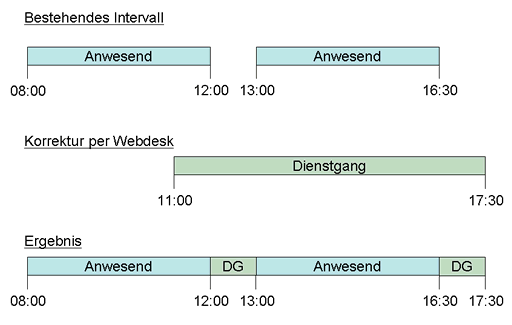
The existing bookings of the day are replaced by the time intervals of the request ("Replace existing bookings with the time intervals of the request"). This principle always applies when "Auto load bookings" is enabled.
New booking-intervals are weaker than existing intervals. In case of overlapping the existing intervals will not be affected, new intervals will fill the gaps between the existing bookings. The following graph demonstrates this principle.
It shows existing booking-intervals of a day, retrospectively corrected via a time correction.
Links
Konfiguration für den Administrator
Delete
The existing bookings are removed within the time range of the given intervals; the absence reason does not matter.
Links
Configuration for the administrator
 erste
erste


 Vergleiche Versionen 4 und 5
