In order to use Project Time Recording To use project time tracking in Webdesk EWP efficiently, the appropriate project structures and their bookable projects must first be created first.
The following list shows, step by step, the required actions required for a first the new configuration of project time acquisition step-by-stepmanagement. Click on the a link to go directly to the corresponding chapter with extensive descriptions and instructions for the respective organizational element and its functions.
1) Element Types
In As a first step, so-called element types must be created in the system. The element type is a kind of definition and describes the what type of project. You must also create it is. In addition, a symbol must be created for each element type. When a new project is added, the you must select which element type of the project must be selectedis. Examples of element types can be are "work package", "main project", "project phase", or "subproject".
As an administrator, you can access the element types via the menu tree under:
MODULES
--> Project time acquisition Time Tracking
--> Element types New element Types
By clicking "Create element type", new element types can be defined by clicking on "New element type". The following fields must be filled in:
|
Name
|
Name of the new element type. At bestIdeally, this it should help to distinguish divide projects in into different classes.
|
|
Up to level
|
Here you can set up to which (sub)level within the project hierarchy a certain element type can be defined
|
|
Image-Set
|
choose the Image-Set availabe for setting the icon of the element type
|
|
Image
|
insert .
If, for example, "2" is selected here, a project belonging to this element type can be placed at most 2 hierarchy levels below the top level, e.g., main project (0) --> subproject (1) --> example project (2), but not main project (0) --> subproject (1) --> phase project (2) --> example project (3)
|
|
Image set
|
Selection of the collection of icons that should be available
|
|
Image
|
Enter the file path of the image supposed that is to serve as the symbol for the newly created element type
|
If you are not sure how to select an image, click on the small icon in the lower left corner of the interaction area. A selection of all icons symbols of the selected image collection set follows:
- Move the mouse pointer over the desired icon symbol - with a right-click and then a click on "Copy image address" to copy , the image address to lands in your clipboard.
- Close the image collection set and copy the image address into the "Image" field. Delete the entire text up to the last two slashes (e.g.: "/actions/penguin.png").
- Click on Clicking "Save" to save saves the new element type including the symbol.
2) Activities
In this step, the activities should be defined. Activities These are various , freely selectable activity descriptions that are assigned to specific projects and can be booked to specify the activity within a project (e.g., administration, installation, planning, documentation) which can be booked within a project in order to specify the activity more precisely. In addition, an activity in the project (e.g., programming) can also be restricted to employees of one or more specific Webdesk groups.
As an an administrator, you can access the activities via the the menu tree under:
MODULES
--> Project time acquisition Time Tracking
--> Activities
The data table provides contains an overview of all activities that have already been defined. To add a new activity, click on the "New Create activity" button, the . The following fields can be filled :
Shortname
| Shortname
in:
|
Short name
|
Short name of the new activity, e.g., "MAR" für for "Marketing Actionsactions"
|
|
Name
|
Name of the newly bookable activity
|
Description
|
short activity that can be booked within a project in the future
|
|
Description
|
Short description of the new activity, closer definition
|
|
Valid from
|
Date from which the new activity in the project is to be available for booking in the project (usually the current day)
|
|
Valid tilluntil
|
Date up to until which the new activity in the project is to be available for posting booking in the project (expiration date)
|
Click on Clicking "Save" or "Save and close" to save saves the newly created activity in the system.
Availability Behavior of Activities for booking
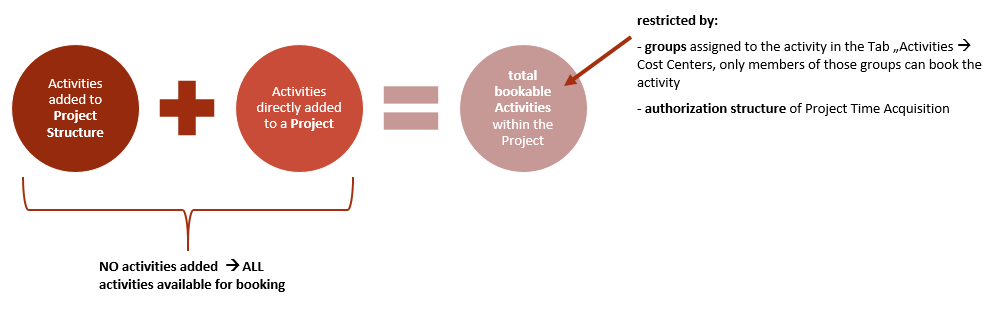
Activities can be added as bookable to project structures (tab "Structures") or to individual projects (tab "Projects") as bookable. In addition, an activity can also be restricted to individual Webdesk groups via the "Cost Centers" tab.
The final availability of activities in the booking mask of a project follows the following this logic:
- If not a single activity is assigned to either the project and or its associated project structure, ALL activities defined under "Activities" are available for booking for in the project.
- If individual activities are added to a project structure, not all activities, but all only the activities added to the structure, can be booked for projects within the structure.
- If activities that have not already been added to the project structure are assigned directly to an individual project, they can additionally be booked additionally in this project, but not in other projects of the structure.
The following tabs are available for assigning and restricting activities:
Tab "Structures"
Here , the newly created activity can be assigned directly assigned to a project structure. This activity is then available for booking to all projects contained in the structure.
Tab "Projects"
Here , the newly created activity can also be assigned directly assigned to a singlean individual, already existing project in which it can then be booked as an activity.
Tab "Cost Centers"
If a specific group is selected and added in the list here and added, the corresponding activity can only be booked within a project by members of this group(s) within a project. If nothing is selected, there are no group-specific restrictions.
3) Project Structures
Every bookable project must be part of a project structure, these . These structures are usually mostly organized according to by the higher overarching purpose of the contained projects they contain (e.g., internal projects, customer projects, product development). Within this structure, projects can be organized hierarchically (define main- and sub-projects, etc...). As an as main projects or subprojects.
As an administrator, you can access the Project Structures project structures via the the menu tree under:
MODULES
--> Project time acquisition Time Tracking
--> Structures
The data table contains an overview of all project structures that have already been set up. A new project structure can be created by clicking on Clicking the "New structure" button . Therefore, the lets you create a new project structure. The following fields must be filled in:
|
Client
|
Selection of the client to which the new project structure belongsis to be assigned
|
|
Name
|
Name of the new project structure, e.g., "internalInternal", "customer Customer projects", "non-productiveUnproductive"
|
|
Description
|
short Short description, e.g., context or purpose of the new project structure
|
|
Use all element - types
|
If this tickbox checkbox is activated, all already defined element types are enabled to be picked released for projects within the structure.
|
|
Unproductive
|
If this tickbox checkbox is activated, all projects within the structure are marked as "unproductive". This feature could These properties can be used in future as a filter option options in reports . The function is also part of as well as in the project time tracking function at the Webdesk kiosk for project time recording, which is currently under development.
|
Tab "Elements"
Here at At least one already defined element type must be added to the project structure here. If a new project is now added to the structure, exactly one element type from this list must be selected as the type for the new project. Under the tab "up Up to level" heading you can set up to which (sub)level within the project hierarchy a certain element type can be defined:
Example:
The element type "Main project" is added with the setting "up to level 2" --> this means that a project of the type "Main project" in the project hierarchy can only be on at level 0, 1, or 2 in the project hierarchy, i.e., at most a sub-sub-projectsubproject, but not deeper.
Tab "Activities"
Already defined activities can be added to the project structure here. The activities added to a project structure are available for posting booking to all projects within the structure. Therefore, it It is therefore usually more sensible and time-saving to add activities to entire project structures and not to each project individually.
Tab "Projects"
The data table contains an overview of all projects that are part of the selected structure. If the structure has just been created, this list is therefore logically empty.
4) Projects
As the most important object and central bookable medium in project time recordingtracking, the creation of projectsis should of course essentialalso be created. If Once project structures and secondary elements such as activities and element types have been defined, project time recording tracking can be started begin immediately as soon as a project is created.
As an an administrator, you can access the Projects projects via the the menu tree under:
MODULES
--> Project time acquisition Time Tracking
--> Projects
The data table contains an overview of all projects that have already been created. By clicking on the Edit  button, these they can be selected and edited afterwards. With a click on Clicking the button "New project" button creates a new project is created - there, the . The following fields can be filled in:
|
Shortname
| desired
Name
|
Full name of the desired new project
|
|
Short name
|
Desired short name of the project, appears in various overviews
|
|
Name
|
full name of the newly created project
|
|
Code
| project code, for example in analogy
Code
|
Project code, e.g., analogous to the work breakdown structure code in project management.
|
|
Logo
| option to upload and select a logo
Type
|
Selection of the element type for the new project; all element types added to the project structure are available for selection
|
|
Structure
|
Selection of the project structure to which the project is to be assigned
|
|
Parent project
|
here the direct selection of Here a parent project is possible can be selected directly - the new project can therefore thus be defined as a subproject of an existing project
|
|
Type
|
selection of the element type for the new project - all element types added to the project structure are available for selection.
|
|
Tickboxes bookable/billable
|
"bookable" (can you book time efforts to this project yes/no?), "billable" (are these time efforts chargeable to the customer yes/no?)
|
|
Default chargeability of efforts
| if
Bookable ...
|
Here you select whether time can be booked to this project in principle.
|
|
... to all customers
|
Here you select whether this project can be booked to all available customers, or only to those predefined in the project
|
|
Billable
|
Here you select whether the project involves services that are billable to the customer
|
|
... default
|
If this checkbox is activated, the time effort booked to this project is automatically marked as "billable" by default (billable. However, this can be deactivated again directly in the booking window, depending on the system settings)
|
Planned efforts & sums
|
here, you can define the planned time effort, both for the concerning project or for the mask.
|
|
Logo
|
Option to upload and select a logo for the new project
|
|
Planned hours for
|
Here the planned time expenditure can be defined, either for this project only or for this project including its subprojects.
|
|
Description
|
detailed Detailed description of the project, its contents, goals, etc...
|
Tab "Subprojects"
Here you will find an overview and comparison of the planned and actual time efforts expenditure for this project including all its subprojects.
Tab "Permissions"
Information and settings on booking and editing authorizations permissions for the project (more on this under Authorization for more, see Permission Management)
Tab "ActivitiesActivity"Here, already
Already defined activities can be added directly to the new project here. In the project, all activities which were can be booked that have been added either directly to the project or to the corresponding associated project structure can be booked.
Tab "Customers"Here you can assign previously
Previously defined customers (e.g., as clients) can be assigned to the project here. This makes particular sense especially for billing or for regular customers and enables additional information to be provided for reports and in evaluations.
Tab "Cost Objects"
Here , you can define specify that time efforts expenditure booked in the project are is assigned to a previously defined cost object, e.g. a certain for example a specific product. The cost object itself can also in turn be part of a cost center in Webdesk.
-
Static (with % value): fixed (percentalpercentage) allocation distribution of booked project time efforts expenditure to selected cost units.objects
-
Dynamic: Automatic determination of the cost object via the assigned home cost center (group) of the booking person.
Tab "Attributes"
Here you will find an individually configurable selection of text fields, which can contain further information about the project and its characteristicsproperties. Name The name and quantity number of the text fields to be filled in can be defined in the system parameters (see here). For example, a field "Meeting" can be defined in the system parametersthere. This field is now then visible in every project under the tab "Attributes" tab and can be filled with free text, e.g., "Daily Project meeting daily at 142:45 PM".
Tab "Kiosk"
This tab is intended for adding one of the Webdesk kiosk devices (terminal solution for project time recordingtracking) which that are currently under development.
5) Cost Centers
The cost centers shown here are adopted taken directly from the cost centers added as groups in the "Portal & Organization" section and are identical to thesethem. Under MODULE MODULES --> Project time acquisition Time Tracking --> Cost centersCenters you will only find an overview of all cost centers registered in the system can be found.
6) Cost Objects
Optionally, cost objects (e.g., products) linked to cost centers can also be created and assigned to a specific project. As an administrator, you can access reach the overview of all defined cost objects via the menu tree under:
MODULES
--> Project time acquisition Time Tracking
--> Cost objectsObjects
Use the "New Create cost object" button to add a new cost object. The following fields can be filled in:
|
Name
|
name Name of the new cost object (e.g., "Product B", to track for development costs)
|
|
Foreign key
|
Possibility Option to enter a reference key in order to transfer time efforts dedicated to cost units via interface expenditure for cost objects to an ERP system
|
Description
|
Possibility to briefly describe or define via an interface
|
|
Description
|
Option for a short description or definition of the new cost object
|
|
Cost center
|
Assign Assignment of the new cost object to an already existing cost center
|
Click on Clicking "Save (and close)" to save saves the newly created cost object in the system. If you now want to assign a project to this cost object, this works via the menu item "Projects". After selecting a project from the overview, it can be completely assigned entirely or partially assigned to a cost object in the tab "Cost ObjectObjects" tab.
6
7) Customers
Another option is to create customers and assign them to specific projects. This makes particular sense especially for large customers who are involved in several projects. The evaluation and reporting tools of project time recording tracking can thus also provide information for customer care and support.
As an administrator, you access reach the overview of all existing customers already added via the menu tree under:
MODULES
--> Project time acquisition Time Tracking
--> Customers
By clicking on the button "New Create customer" button, a new customer can be added - . The following fields can be filled in:
|
Client
|
Select the client to whose project the customer belongs to.
|
|
Shortname
|
Short name
|
Abbreviation of the customer name for display in space-limited views.
|
|
Name
|
Name of the newly customer to be created customer
|
|
Type
|
Selection of the customer type: external (foreign outside companies, "classic" customers) or internal (e.g., services for company-internal departments)
|
|
Description
|
short Short description of the new customer, important notes, etc...
|
Tab "General"
Important contact and address information of the customer can be entered and stored saved here.
Tab "Projects"
Here , you will find an overview of all projects which that are currently being carried out for / assigned to this customer. Via the button "Add customer to project" button, a new project can be assigned directly assigned to the selected customer. Alternatively, a previously created customer can also be added to a the respectively selected project in the menu item "Projects" at under the tab "Customers" tab.
 erste
erste


 Vergleiche Versionen 9 und 10