Contents:
Who can I contact with questions and problems?
Manual
The first recommendation is, of course, to search the manual.
The manual offers a search function (top right) that can be used to search for various keywords.
There are two ways to search for terms:
- Advanced search (using wildcards: ? and * (not at the beginning of a word), a fuzzy search: append ~ to a word, and Boolean operators: AND, OR, NOT (in capital letters), + or - before a word to require or exclude it)
Note: If a topic is missing from the manual and you would like to let us know about this need, please also use support to pass this topic suggestion on to us.
Covering the needs of our customers is very important to us, so we are happy to receive such suggestions!
The manual is available to persons with the roles
in the menu tree under Administration/Support/Manual.
If you cannot find any answers in the manual, you can contact Support directly.
Support
How can support be contacted?
You have three options:
- Chat
- Support request via the service desk
- In exceptional cases: by telephone or e-mail
Chat
The chat is offered as quick help in each of the functions.
You can contact Personalwolke support by clicking the chat window (bottom right of the page).
You will be answered as quickly as possible on working days.
Contacting support via the service desk
Who can submit support requests to the service desk?
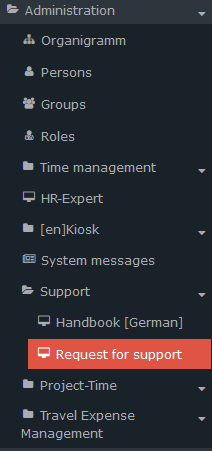
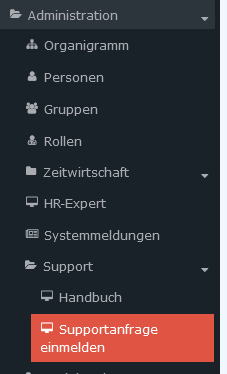
Generally only administrators, as the action required for this is only granted in conjunction with admin permissions. For this reason, the option to submit a support request can only be found in the menu tree for admins (Administration ⇒ Support ⇒ Support request).
First access
To use the service desk, you need to register an e-mail address, a user name and a password.
There are two ways to do this:
- Click Register support request in the menu. The service desk page for creating a new account opens. All you need to enter is the e-mail address you want to use to log in in the future. You will then receive an e-mail with the registration confirmation at this e-mail address and can log in immediately afterward.
- Or send an e-mail without text to support@personalwolke.at. (This e-mail can also be sent from an account other than the one saved in your master data in Personalwolke.)
You will then receive an activation e-mail: please click the activation button!
Note: The e-mail address used during registration or stated in the registration e-mail will be your user name in the service desk in the future.
⇒ You are now at the service desk portal.
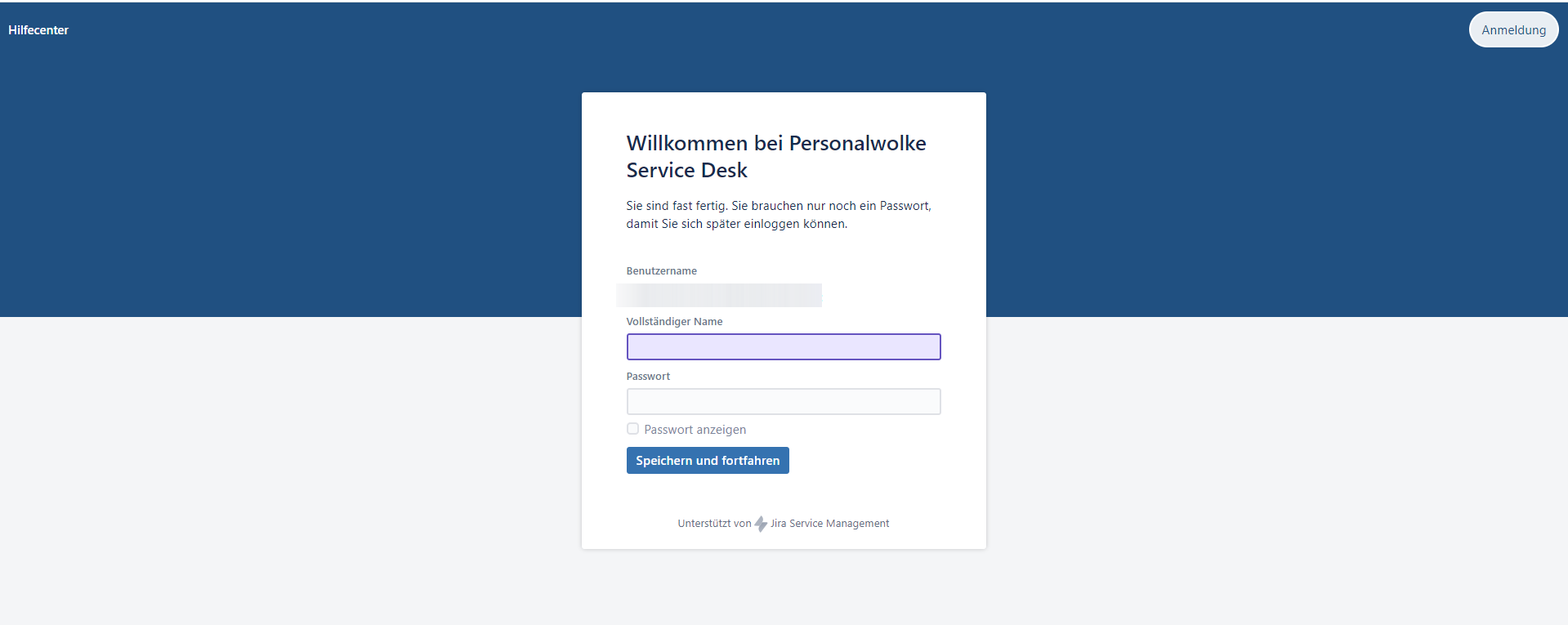
⇒ Now please enter your login data:
- User name: the e-mail address from which you sent the initial e-mail to support is entered here automatically.
- Full name: please enter your name here
- Password: please enter the password of your choice.
Note: for future logins, you will need the user name (= the e-mail address used) and your password.
⇒ Click "Save and continue".
I have forgotten my password for the service desk!
To reset your password, simply click "I have forgotten my password" on the login page of the service desk portal.
You will then receive a reset link by e-mail that takes you to the portal. Please click it and enter the password of your choice.
The service desk
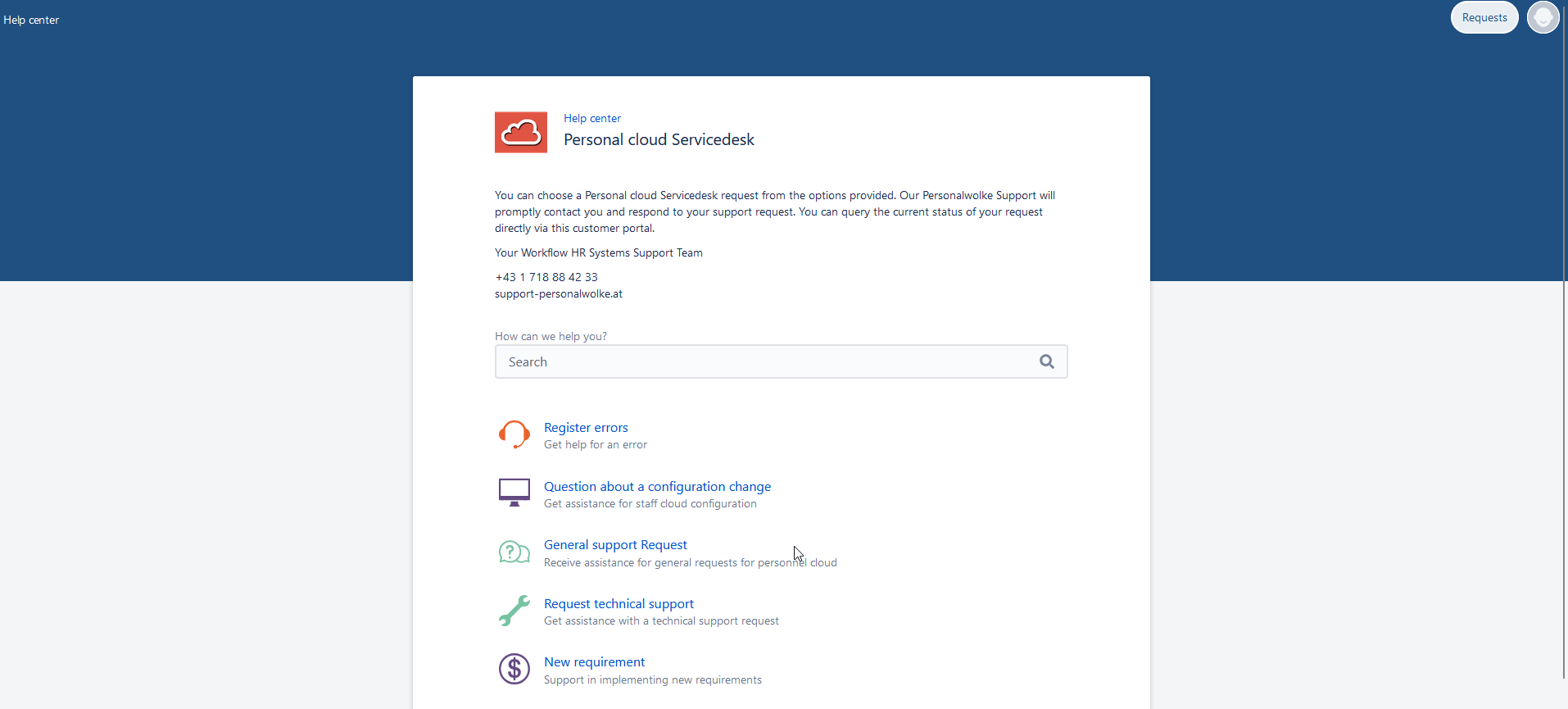
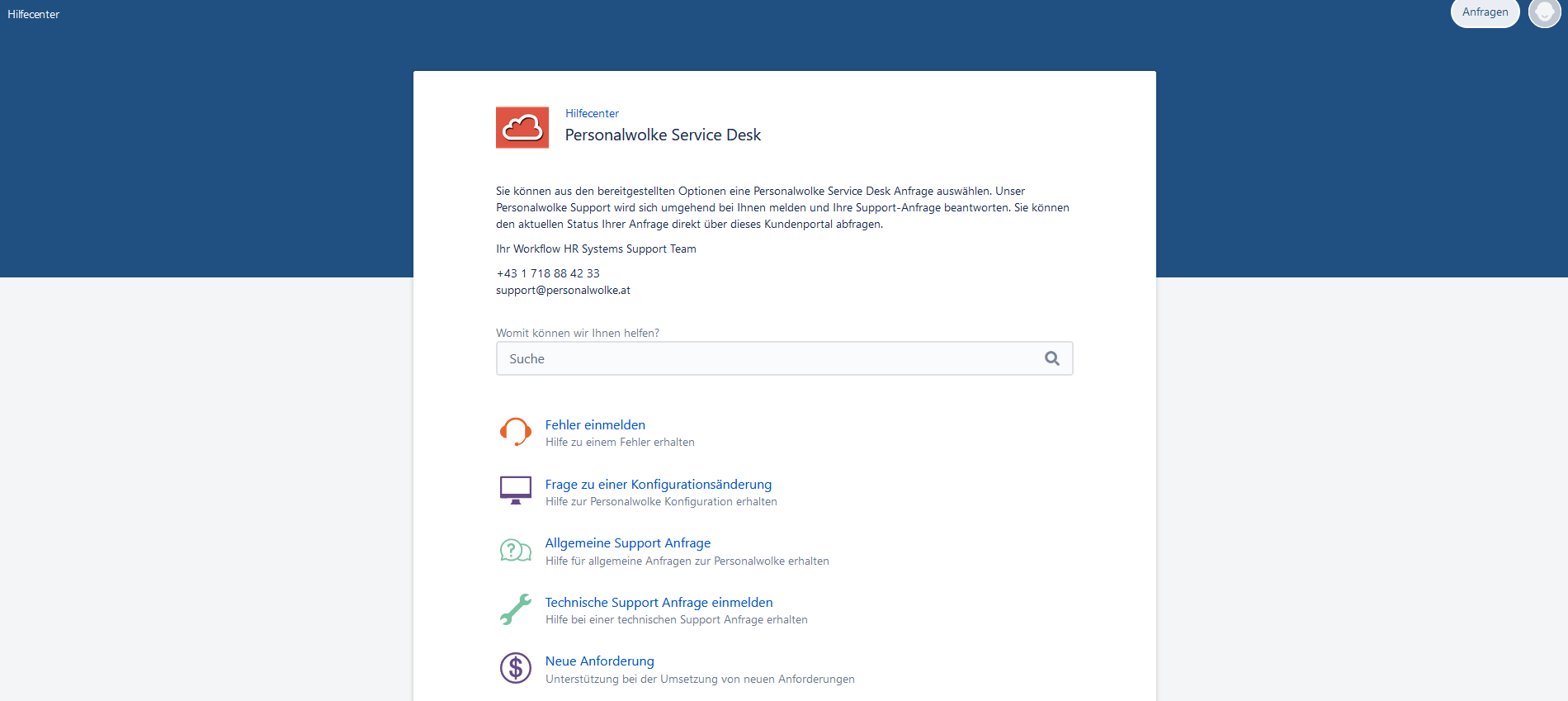
The next view shows the Personalwolke service desk, as shown above.
You can submit requests in the following categories:
-
Report an error: for specific error messages
-
Question about configuration changes: for changed or to-be-changed configuration of functions
-
General support request: basic questions about information on carrying out specific business cases
-
Technical support request: request regarding entries in specific actions and processes
-
New requirement: for extending existing functions or adding new functions
Your request creates a ticket which, depending on the category you have selected, is forwarded to the responsible person in the support team.
Because every ticket is actively received, the category of the ticket is also corrected if necessary.
It is therefore not possible for a ticket you have created to go unprocessed because you selected an unsuitable category!
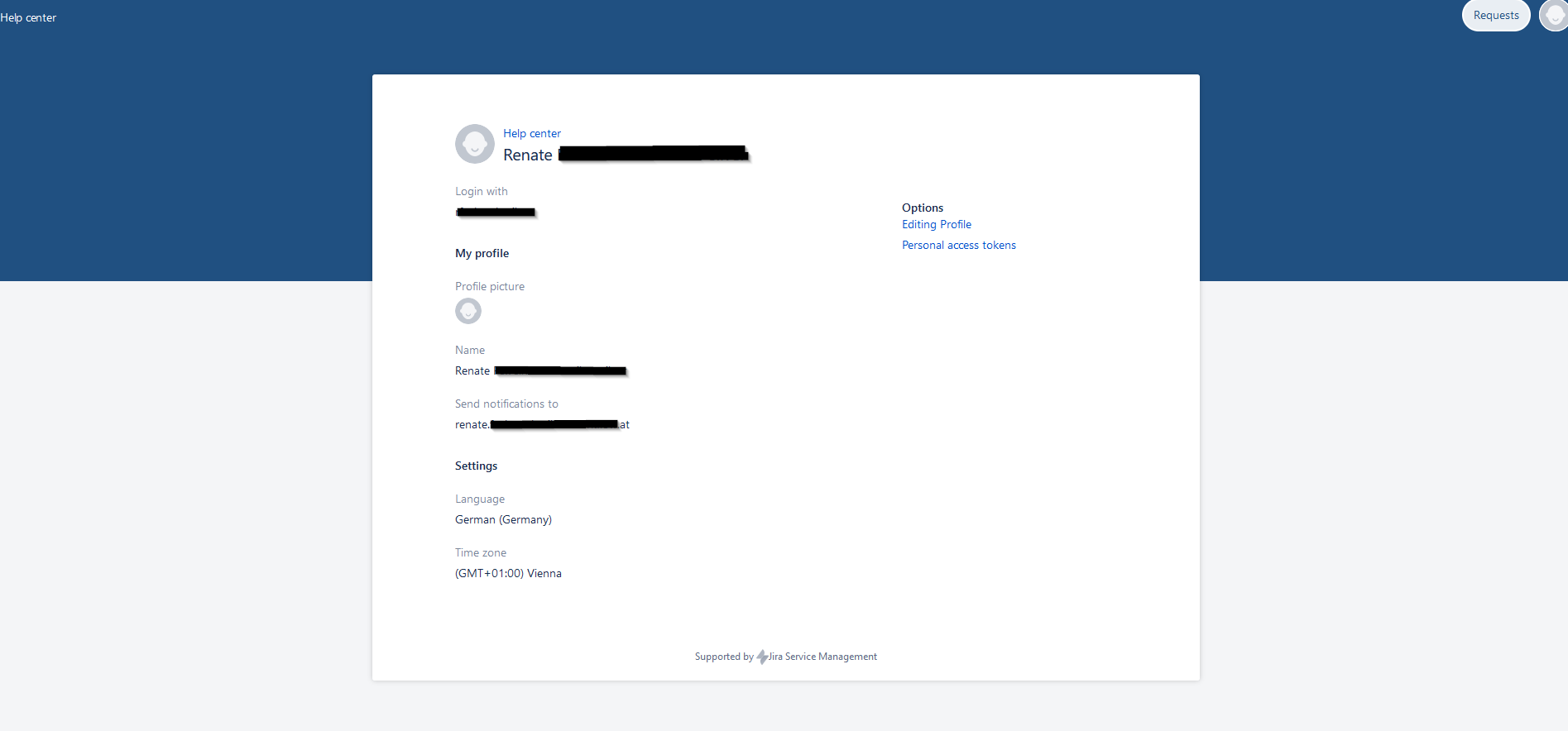
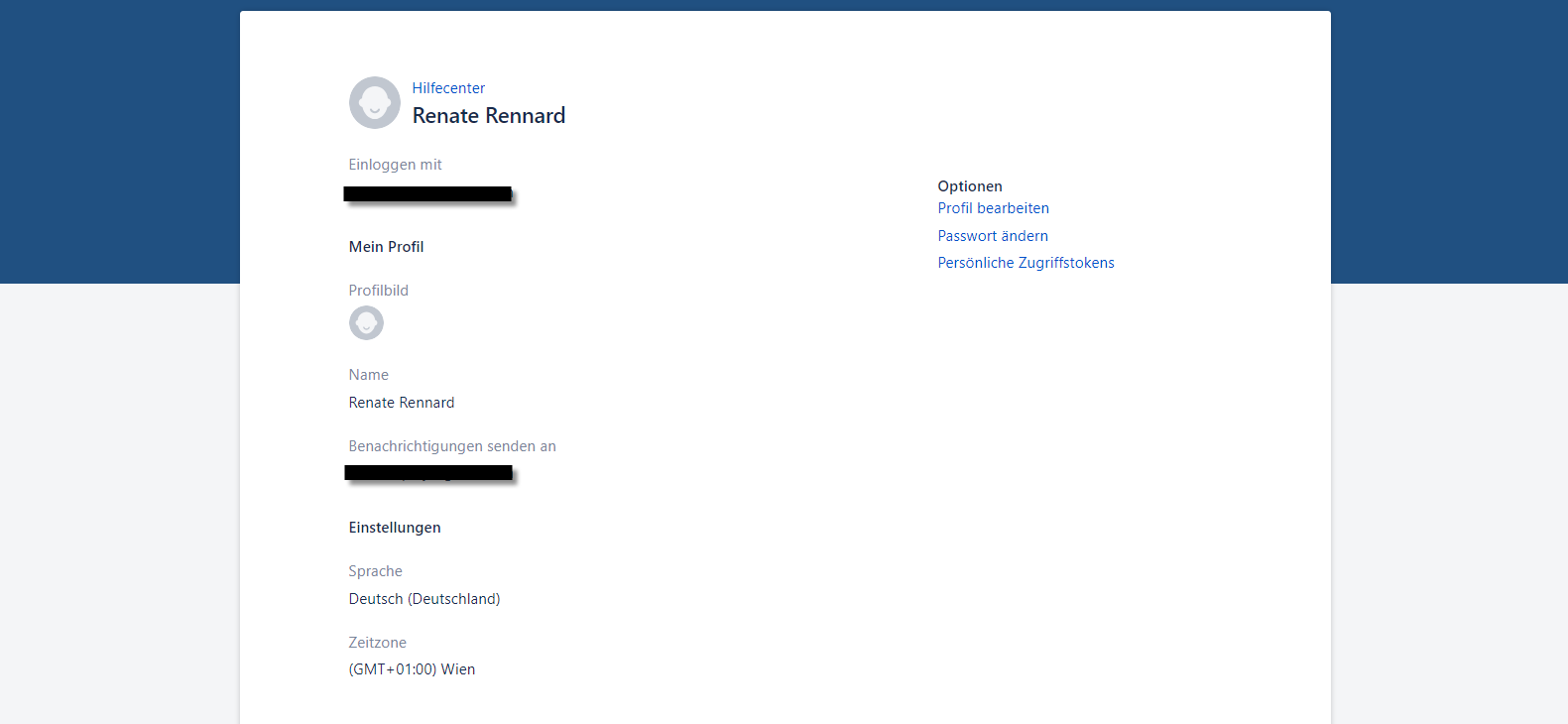
At the top right, you can change your profile data to a certain extent, for example by adding additional authentication at login (access token).
Clicking "Help Center" (top left) takes you back to the Personalwolke service desk.
What should I specify in a request?
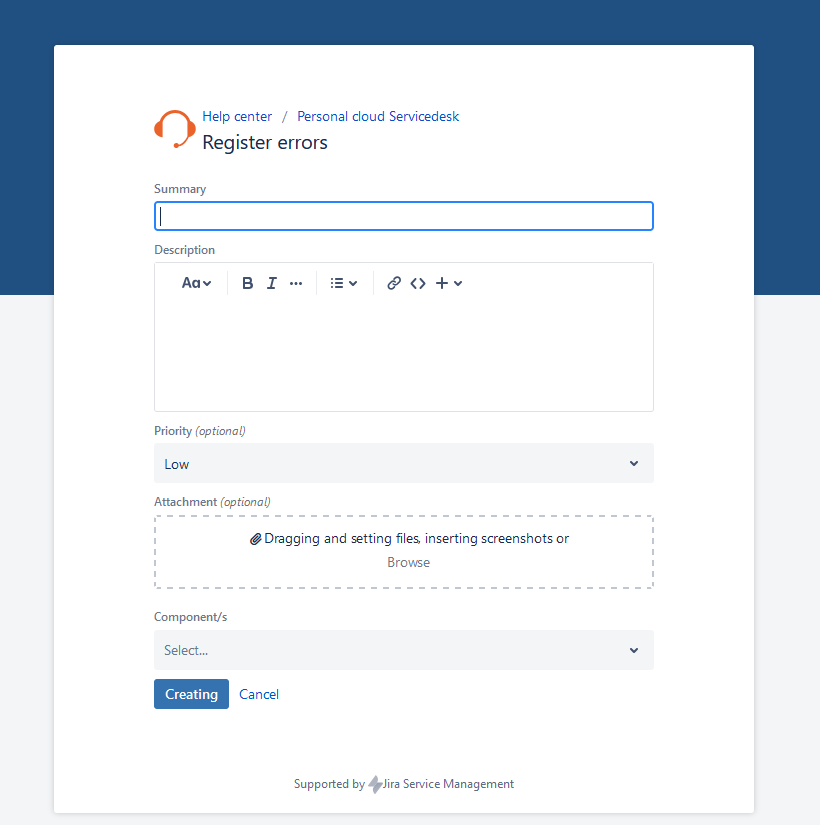
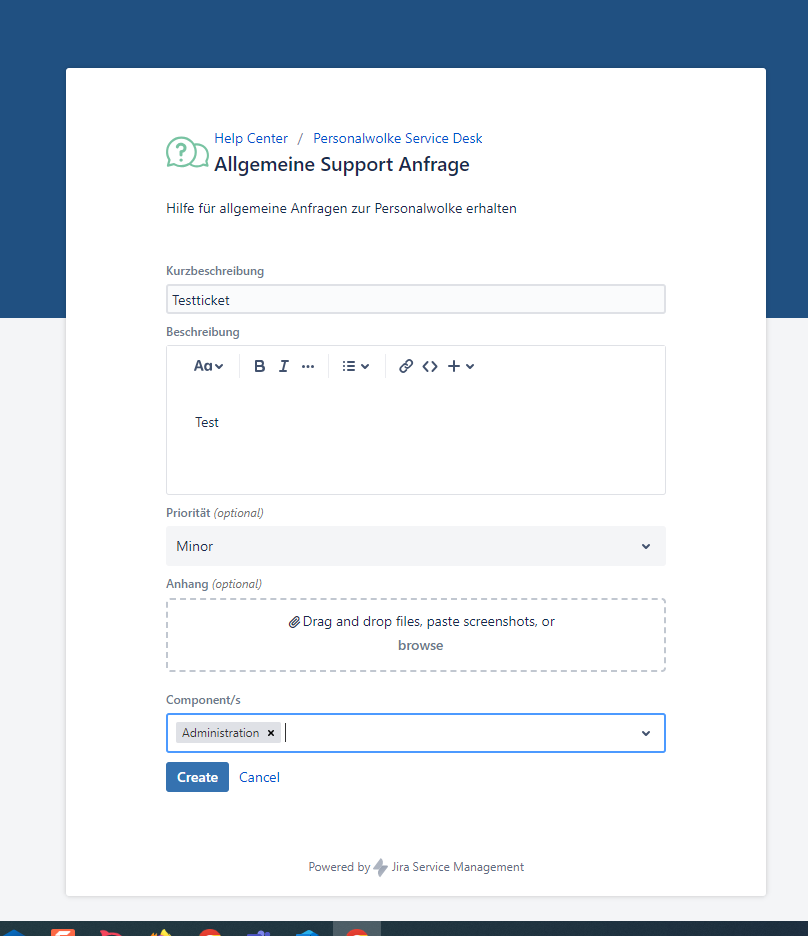
As a general rule: the more information you provide, the fewer follow-up questions are necessary and the faster the issue can be resolved.
- Please describe the situation in which the error occurs
- Who was the user for whom the error occurred?
- On which device did the error occur? (PC, MacBook, tablet, mobile phone, kiosk...)
- Did the error occur on only one device/user or on several?
- If PC/notebook: which browser was used
- Description of the process during which the error occurred
- Copy of the error message (e.g. as a screenshot or as a text file in the attachment)
Example of a ticket:
- Summary ("headline"): Uploading an employee photo in the master record results in an error message
- User: Martina Müller, HR department
- Device: PC, Chrome
- The error occurred when Ms. Müller tried to upload a profile picture in jpg format for our colleague, Istvan Aslan, via Mr. Aslan's profile in the master data section.
- Loading took longer and the error message then appeared.
- Attached are a screenshot and the error message.
- Priority: minor
- Component: [Personalwolke] Time
After filling in the form, click "Create".
Next, a summary of the ticket is displayed. The label "Waiting for Triage" means that the ticket is still waiting to be assigned to a support team member.
You also have the option of adding another comment to this ticket here.
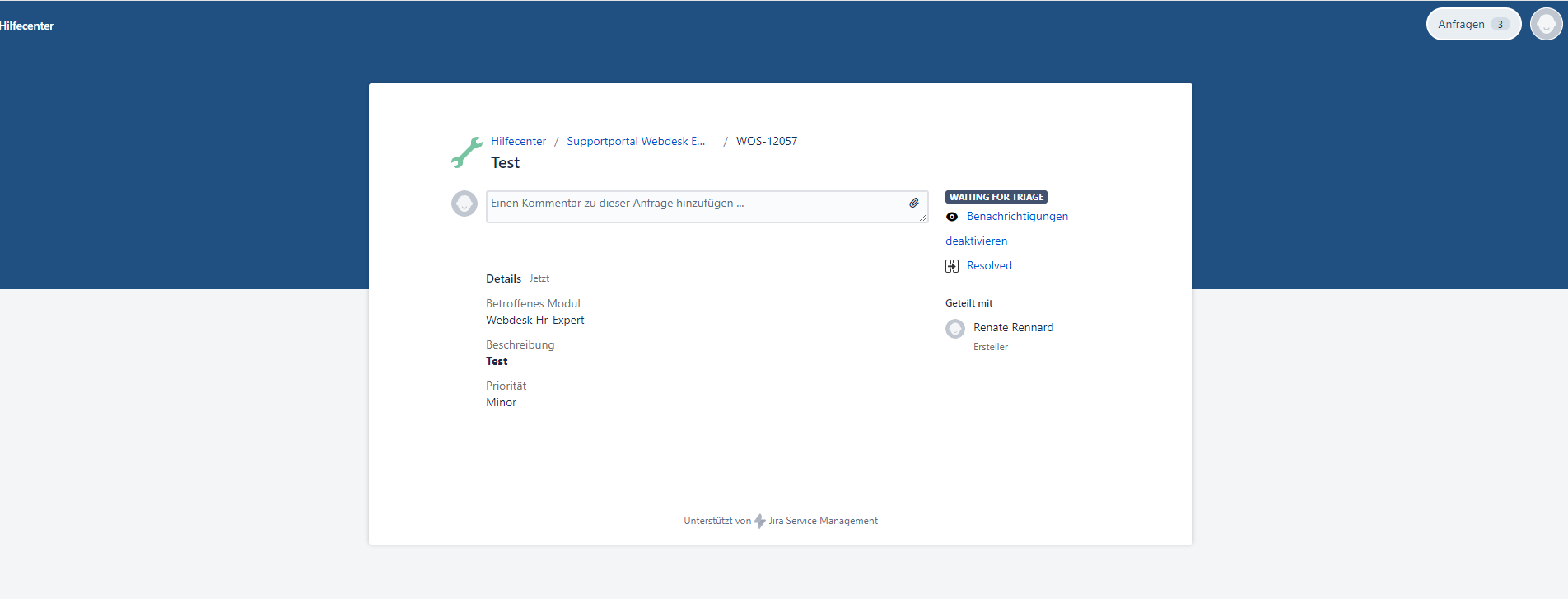
Where can I see the tickets I have created?
In the service desk, you can find your tickets by clicking "Requests" at the top right, next to your profile.
If you have already submitted several active tickets, the number of tickets is displayed next to it.
You can now choose between "My requests" and "All requests".
What is meant by "All requests" is explained below.
The overview list now displayed contains your tickets, and you can also sort or filter them and search for specific tickets.
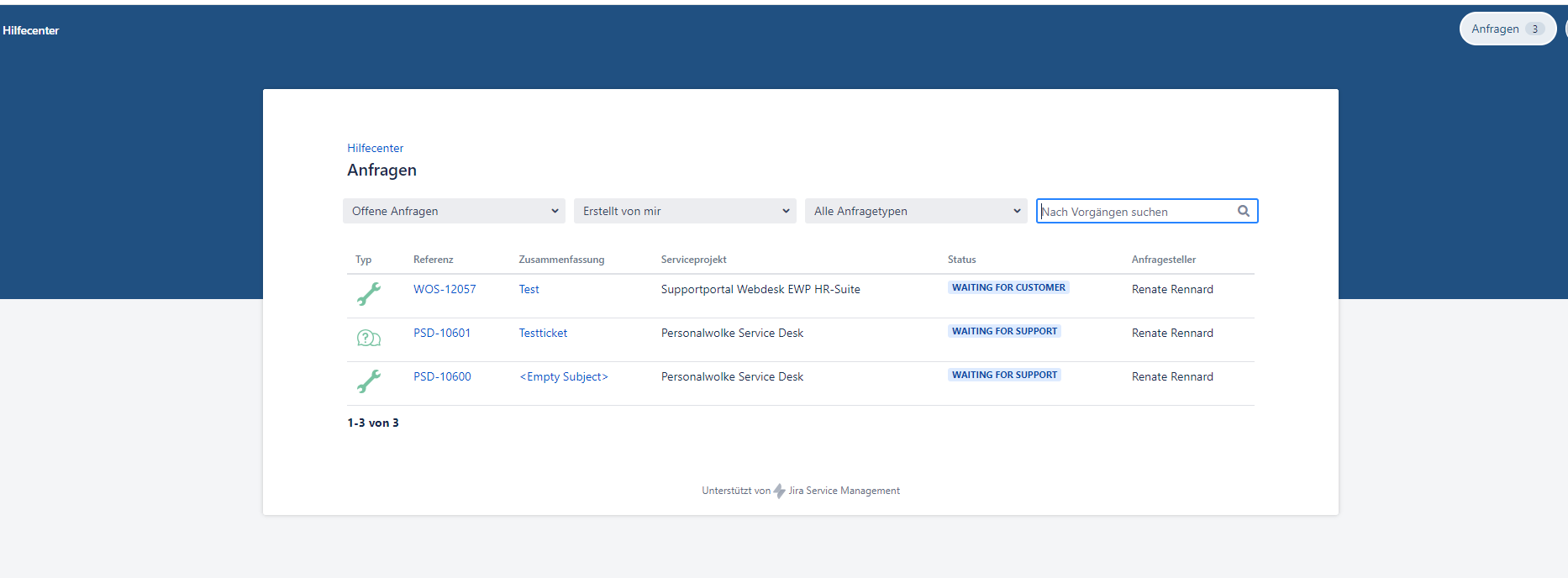
The status of a ticket indicates the position the ticket is at in the process.
For newly created tickets, the status is "Waiting for Triage" for a short time, i.e. the assignment to a member of the support team is still pending.
"Waiting for Support" indicates assigned tickets that the support team member has not yet processed further.
If the support team member still has questions, needs further information or offers a solution that should be discussed with you, the status is changed to "Waiting for Customer" ("waiting for customer response").
Please be sure to open such a ticket!
Click the ticket and reply to the support message. The faster you respond, the faster your ticket can be resolved!
Do I therefore have to check my service desk profile regularly?
No, that is not necessary.
You will receive messages at the e-mail address you use for the service desk, both as confirmation of ticket creation and when support responds.
And if I do not want these notifications?
Then you can switch them off for each ticket by clicking "Deactivate notification" in the ticket view.
You can reactivate the notifications in the same way.
How can I ensure that a second person, for example my deputy, can also see the tickets when I am on vacation?
If you need a deputy arrangement, please write an informal e-mail to support@personalwolke.at and state the e-mail address and name of the person who should be able to access the tickets.
This person can then log in with their own access data, i.e. initially with their own e-mail address, and will see your organization's tickets.
Where can I find tickets that were created by another person?
Under Requests/All requests.
All tickets that members of your company have created in the service desk are listed here.
Tickets created by someone other than yourself can be queried in the column "Any creator" under "I am a participant".
How can I withdraw or delete a ticket?
It can happen that a ticket was created by mistake, or you find that a local problem on the PC or other circumstances not caused by Personalwolke led to a faulty function.
In this case, please set your ticket to the status "resolved".
To do this, open the ticket in the overview
⇒ Click "resolved"
⇒ Please enter a short explanation in the comment window.
The ticket is then closed and will no longer be processed by support.
Closing and reopening a ticket:
If your company uses Webdesk, you can also actively close tickets or reopen them if the solution provided by support cannot be implemented adequately.
You can do this by opening the ticket and clicking either "Close" or "Reopen".
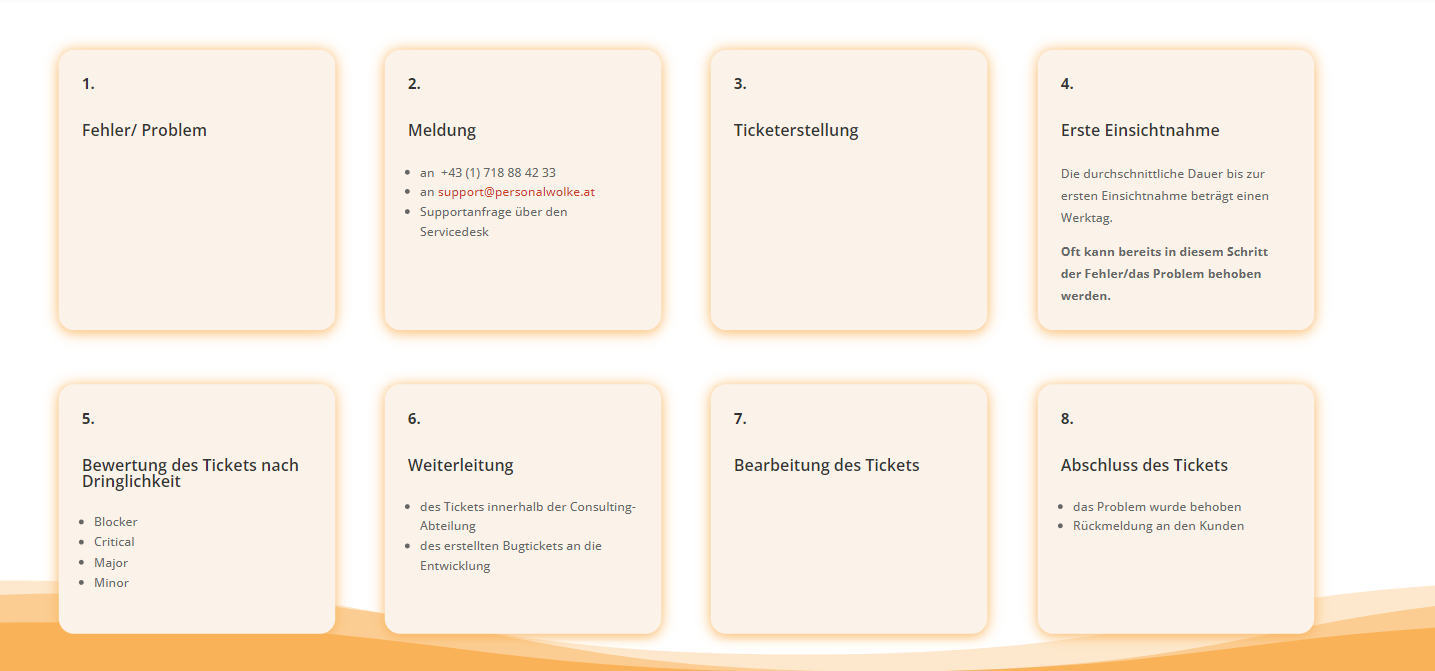
What will happen to my ticket?
At https://personalwolke.at/support/ you will find further information, as well as an illustration of the process steps involved in handling a ticket:
(This page is currently only available in German, but can be translated via your browser.)
How do I access the service desk portal?
Either via the Personalwolke menu ⇒ Administration ⇒ Support ⇒ Support request
or via https://personalwolke.at/support/ ⇒ Service desk
How do I get to the Webdesk portal?
Click Help Center in the service desk! There you can choose between the Personalwolke service desk and the service desk for Webdesk.
The ticket creation area is identical for both variants.
Telephone and e-mail availability
I cannot use the service desk at the moment for technical reasons. What can I do?
If necessary, it is also possible to reach the support team by telephone or directly by e-mail.
You can find the contact details here: https://personalwolke.at/support/
Keywords: Support, Help, Service Desk, Helpdesk, Administration

 erste
erste


 Vergleiche Versionen 17 und 18